
1. Introduction
The Phanteks 5.5” Hi-Res Universal LCD Display is designed to enhance your PC setup by providing a versatile secondary screen. This display offers a high-resolution visual experience and multiple mounting options for seamless integration into or outside your PC chassis. This manual will guide you through the installation, operation, and maintenance of your new display.
2. Package Contents
Please verify that all items listed below are present in your product packaging:
- Phanteks 5.5” Hi-Res Display
- 4x Fan Screws
- 4x M4 Screws
- 1x SATA to Micro USB Type B Cable
- 1x HDMI Cable
- 2x Feet (for external placement)
3. Product Overview
The Phanteks 5.5” Hi-Res Universal LCD Display is engineered for both functionality and aesthetic appeal. Key features include:
- High-resolution 2160 x 1440 IPS display
- Wide range of mounting options – Hidden magnets for mounting on a steel surface. Mount to chassis fan location or fans directly.
- Smooth 60hz refresh rate with 450 nit brightness, IPS Panel with LED backlighting and 99% sRGB support.
- Plug-and-play with HDMI and SATA Power cable included.
- Secondary display with endless possibilities and edge-to-edge tempered glass panel.
4. Setup
4.1. Connecting the Display
- Connect the provided HDMI Cable from your graphics card or motherboard to the HDMI input port on the Phanteks display.
- Connect the provided SATA to Micro USB Type B Cable from an available SATA power connector in your PC to the Micro USB Type B port on the Phanteks display for power.
- Ensure both connections are secure. The display should power on automatically once your PC is running.
4.2. Mounting Options
The Phanteks display offers flexible mounting solutions:
- Magnetic Mounting: The display features hidden magnets allowing it to be securely attached to any steel surface within your PC chassis.
- Fan Mounting: Use the provided 4x Fan Screws or 4x M4 Screws to mount the display to a 120mm fan bracket or directly to a fan location in your chassis.
- External Placement: Attach the 2x Feet to the display for stable placement outside your PC, such as on your desk.

Figure 1: Front view of the Phanteks 5.5” Hi-Res Universal LCD Display.

Figure 2: Back view of the display, highlighting magnetic mounting points and screw holes for fan mounting.
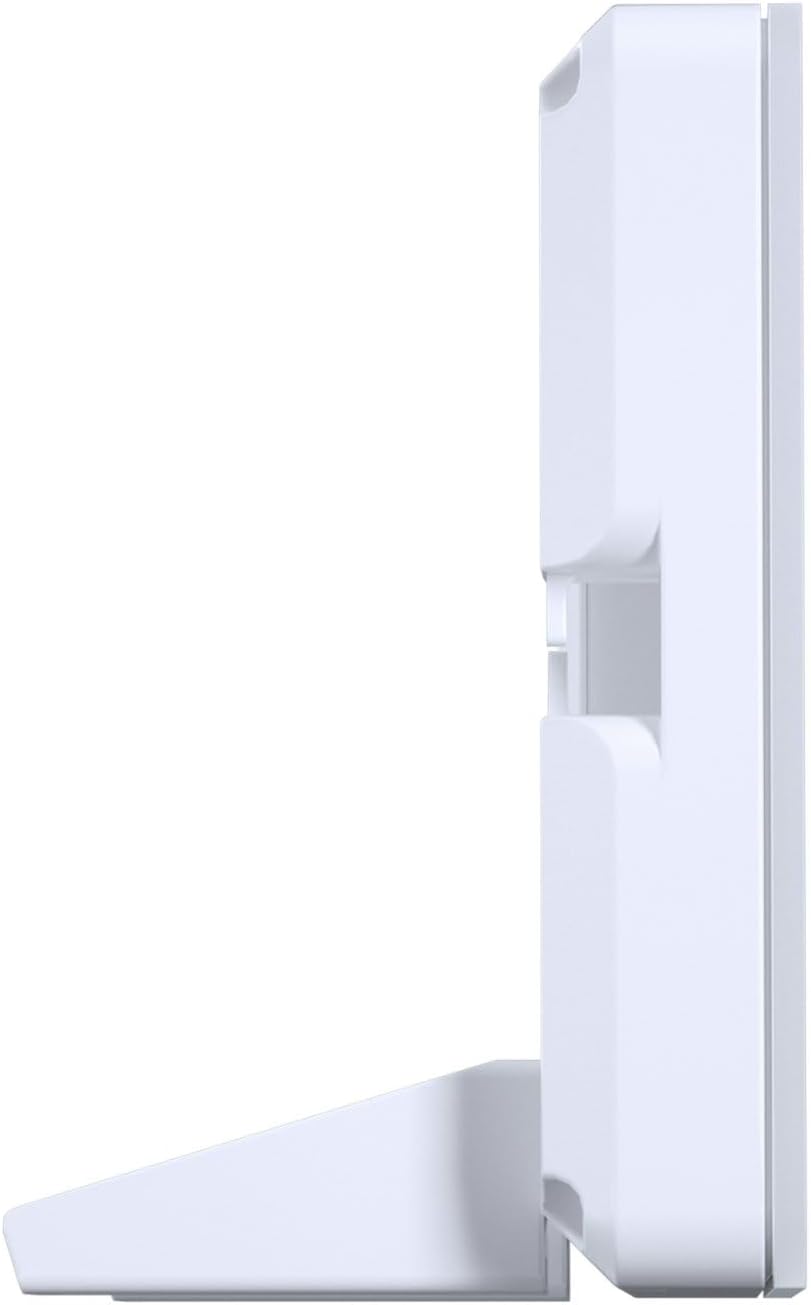
Figure 3: Side view of the display with the included feet attached for desktop use.
4.3. Software Setup
The Phanteks display is designed for plug-and-play functionality, recognized by your PC as a standard secondary monitor. For advanced customization, such as displaying system statistics (CPU/GPU temperature, usage, etc.) or custom animations, third-party software like AIDA64, Rainmeter, or Wallpaper Engine may be utilized. Refer to the documentation of your chosen software for specific setup instructions.
5. Operating
Once connected and powered on, the Phanteks display will function as an extension of your main monitor. You can drag windows, applications, or custom monitoring dashboards onto it.
- Displaying Information: Use compatible software to output real-time system data, custom images, or videos to the display.
- Customization: Many third-party applications allow for extensive customization of the displayed content, including themes, layouts, and background images/animations.
6. Maintenance
To ensure the longevity and optimal performance of your Phanteks display, follow these maintenance guidelines:
- Cleaning: Gently wipe the screen with a soft, lint-free cloth. For stubborn smudges, use a screen-safe cleaning solution applied to the cloth, not directly to the screen.
- Handling: Avoid applying excessive pressure to the screen or dropping the device.
- Environment: Operate the display in a well-ventilated area and avoid extreme temperatures or humidity.
7. Troubleshooting
If you encounter issues with your Phanteks display, refer to the following common troubleshooting steps:
- Display Not Turning On:
- Ensure both the HDMI and SATA power cables are securely connected.
- Verify that your PC is powered on and the graphics card is functioning correctly.
- Try connecting the display to a different HDMI port on your graphics card/motherboard or a different USB power source.
- Distorted Colors or Flickering:
- Check the HDMI cable for any damage or loose connections. Try a different HDMI cable if available.
- Ensure your graphics drivers are up to date.
- Verify the display resolution and refresh rate settings in your operating system.
- Display Not Detected by PC:
- Restart your PC.
- Ensure the HDMI cable is connected to an active output port on your graphics card.
- Check your display settings in your operating system to see if the secondary monitor is detected but disabled.
8. Specifications
Detailed technical specifications for the Phanteks 5.5” Hi-Res Universal LCD Display:
| Feature | Detail |
|---|---|
| Product Dimensions | 5.94 x 3.15 x 0.65 inches |
| Item Weight | 7.2 ounces |
| Manufacturer | Phanteks |
| Item Model Number | PH-HRLCD_WT01 |
| Standing Screen Display Size | 5.5 inches |
| Resolution | 2160x1440 |
| Image Brightness | 450 nits |
| Color Spectrum | sRGB99% |
| Refresh Rate | 60hz |
| Screen Surface Description | Glossy |

Figure 4: Display dimensions: 5.94" (L) x 3.15" (B) x 0.65" (H).
9. Warranty and Support
For warranty information, technical support, or service inquiries, please refer to the official Phanteks website or contact their customer service department. Keep your proof of purchase for warranty claims.
