
Introduction
The Logitech Signature M550 L Wireless Mouse is designed for enhanced comfort and productivity, especially for users with larger hands. It features an adaptive SmartWheel for precise or hyper-fast scrolling, SilentTouch technology for quiet clicks, and versatile connectivity options. This manual provides detailed instructions for setup, operation, and maintenance of your device.
Package Contents
- Logitech Signature M550 L Wireless Mouse
- 1 AA Battery (pre-installed or included)
- Logi Bolt USB Receiver (may be stored inside the mouse battery compartment)
- User Documentation (this manual)
Product Overview
Familiarize yourself with the key components of your Logitech Signature M550 L mouse.

Image: Top and side view of the Logitech Signature M550 L mouse, highlighting its features including the SmartWheel, silent clicking buttons, Bluetooth connectivity, ergonomic shape, and 24-month battery life.
- Left/Right Click Buttons: Feature SilentTouch technology for reduced clicking noise.
- SmartWheel: Adaptive scroll wheel for line-by-line precision or super-fast free-spin scrolling.
- LED Indicator: Shows battery status and connection mode.
- On/Off Switch: Located on the bottom of the mouse.
- Battery Compartment: Houses the AA battery and Logi Bolt USB receiver.
- Ergonomic Design: Contoured shape with soft thumb area and rubber side grips for comfort.
Setup
1. Install Battery
- Open the battery compartment cover on the underside of the mouse.
- Insert the included AA battery, ensuring correct polarity (+/-).
- Close the battery compartment cover. The LED indicator on the mouse may flash briefly.
2. Connect to Your Device
The Signature M550 L offers two connection methods: Logi Bolt USB Receiver or Bluetooth Low Energy.
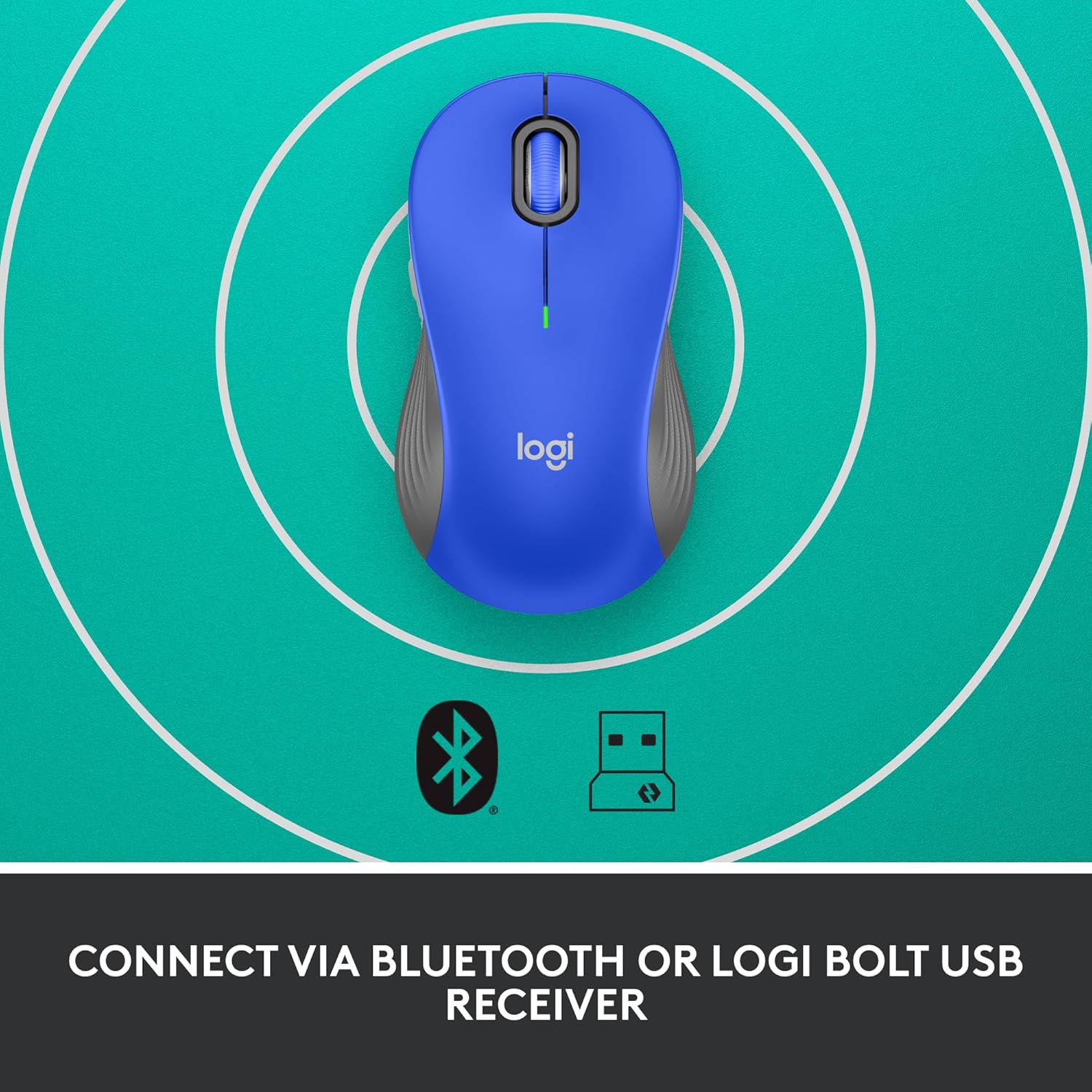
Image: The Logitech Signature M550 L mouse shown with icons representing Bluetooth and Logi Bolt USB receiver connectivity options.
Option A: Logi Bolt USB Receiver
- Locate the Logi Bolt USB receiver, typically stored inside the mouse's battery compartment.
- Plug the Logi Bolt USB receiver into an available USB port on your computer.
- Turn on the mouse using the On/Off switch on the bottom. Your computer should automatically detect the mouse.
Option B: Bluetooth Low Energy
- Turn on the mouse using the On/Off switch on the bottom.
- Press and hold the Easy-Switch button (usually on the bottom or side, refer to product diagram if available) for 3 seconds until the LED indicator starts blinking rapidly. This indicates pairing mode.
- On your computer or device, open Bluetooth settings.
- Select "Logitech M550 L" from the list of available devices and follow any on-screen prompts to complete pairing.
The mouse is compatible with Windows, macOS, Linux, Chrome OS, iPadOS, and Android operating systems.
Operating Instructions
SmartWheel Scrolling
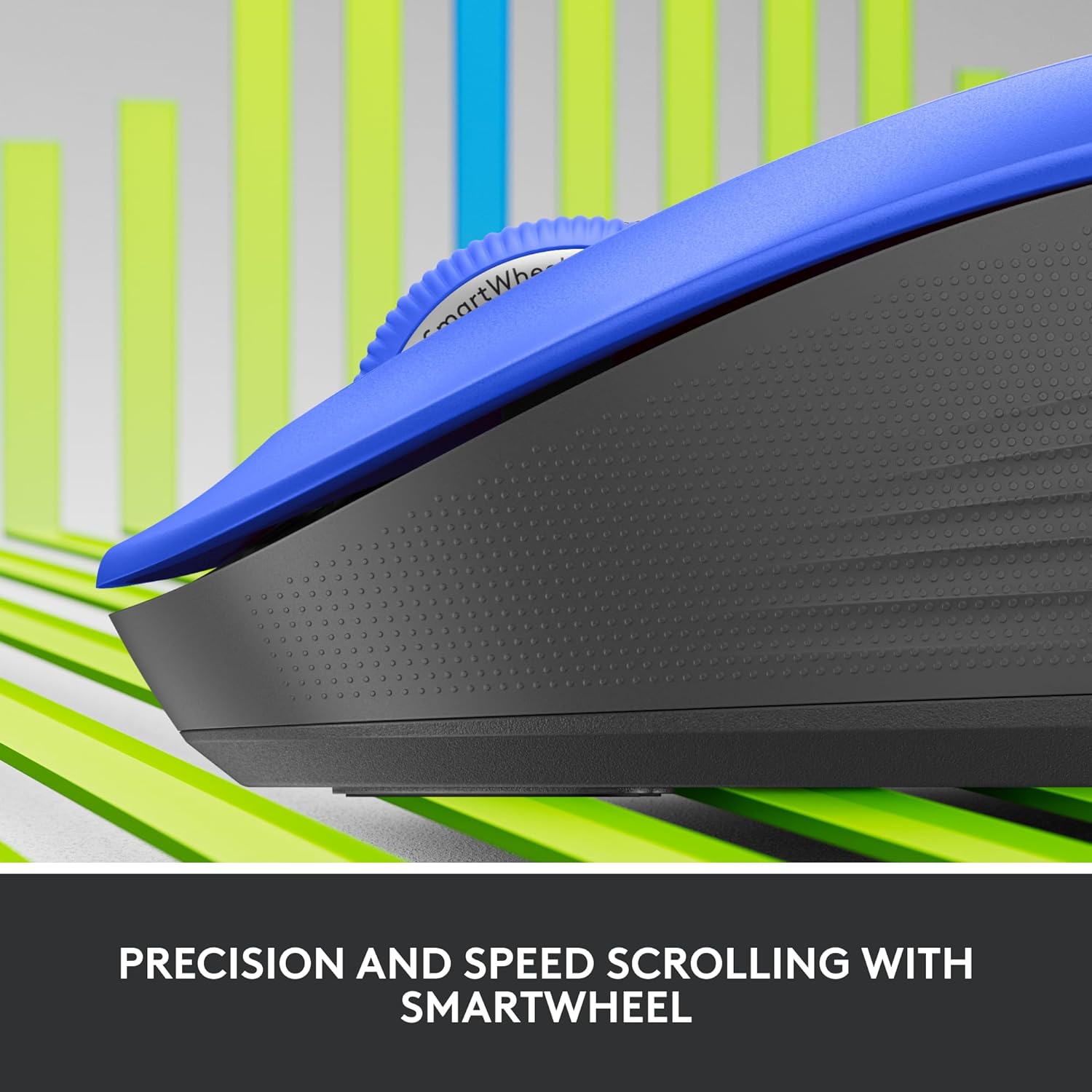
Image: A close-up view of the Logitech SmartWheel, demonstrating its precision and speed scrolling capabilities.
The SmartWheel automatically switches between two modes:
- Line-by-Line Precision: Ideal for detailed work and navigating documents. Scroll slowly for precise control.
- Super-Fast Free-Spin: For quickly navigating long web pages or documents. Flick the wheel to activate.
Silent Clicks

Image: A person using the Logitech Signature M550 L mouse at a desk, illustrating the benefit of 90% less clicking noise for a focused work environment.
The mouse features Logitech's SilentTouch technology, reducing click noise by over 90% compared to traditional mice. This allows for a quieter work environment without compromising click feel.
Multi-Device Compatibility
The Signature M550 L can be paired with multiple devices and switched between them using the Easy-Switch button. This feature is ideal for users who work across several computers or tablets.
Maintenance
Battery Replacement
The mouse operates on a single AA battery, offering up to 24 months of battery life depending on usage. When the battery is low, the LED indicator will turn red. To replace:
- Turn off the mouse.
- Open the battery compartment cover on the underside.
- Remove the old AA battery and insert a new one, observing correct polarity.
- Close the cover and turn the mouse back on.
Cleaning
To clean your mouse, use a soft, lint-free cloth lightly dampened with water or a mild cleaning solution. Avoid harsh chemicals or abrasive materials. Ensure no liquid enters the mouse's openings.
Troubleshooting
- Mouse not responding:
- Ensure the mouse is turned on.
- Check the battery level and replace if necessary.
- If using the Logi Bolt receiver, try plugging it into a different USB port or a different computer to rule out port issues.
- If using Bluetooth, ensure Bluetooth is enabled on your device and the mouse is properly paired. Try re-pairing the mouse.
- Move the mouse closer to the receiver or Bluetooth-enabled device to ensure it's within range.
- Erratic cursor movement:
- Clean the optical sensor on the bottom of the mouse.
- Ensure you are using the mouse on a suitable surface. Avoid highly reflective or transparent surfaces.
- Connectivity issues after system update:
- Restart your computer.
- Check for updated drivers for your mouse or Bluetooth adapter.
Specifications
| Brand | Logitech |
| Model Number | 910-006794 |
| Connectivity Technology | Bluetooth Low Energy, Logi Bolt USB Receiver |
| Movement Detection | Optical |
| Special Features | Lightweight, Portable, Silent Clicks (SilentTouch), SmartWheel, Wireless |
| Battery Type | 1 AA Battery |
| Battery Life | Up to 24 months (may vary based on usage) |
| Operating System Compatibility | Windows, macOS, Linux, Chrome OS, iPadOS, Android |
| Item Weight | 3.92 ounces |
| Color | Blue (for this variant) |
Warranty Information
Logitech products are manufactured to high quality standards and are covered by a limited hardware warranty. For specific warranty terms and conditions applicable to your region and product, please refer to the official Logitech website or the warranty card included with your purchase.
Support
For further assistance, technical support, or to download the latest software and drivers for your Logitech Signature M550 L Wireless Mouse, please visit the official Logitech support website:
You can also find FAQs and community forums on the support site.


