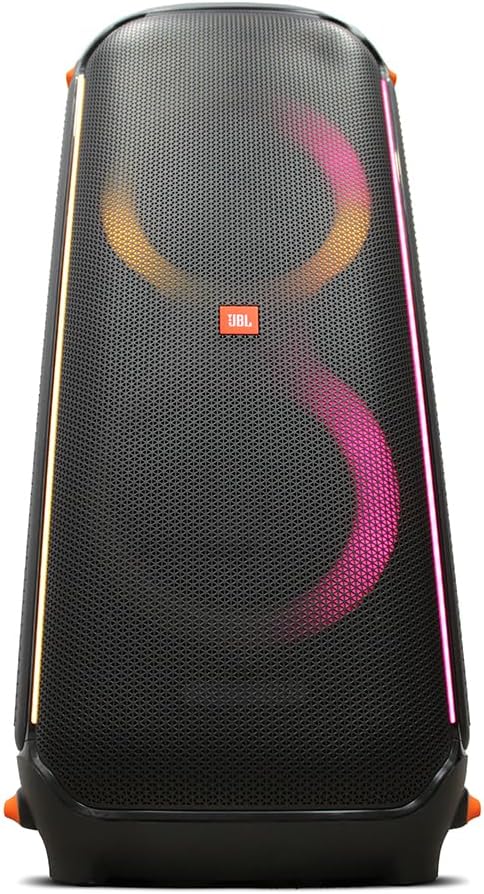
The JBL PartyBox 710 is a high-powered wireless speaker designed to deliver exceptional audio performance for large gatherings and parties. With 800W of RMS output power, dual 8-inch woofers, and dual 2.75-inch tweeters, it provides loud and detailed sound. This speaker features built-in customizable LED lights to enhance the party atmosphere, versatile connectivity options including Bluetooth, guitar, and microphone inputs, and a splashproof design for outdoor use. Its integrated handle and wheels ensure easy portability.
Figure 1: JBL PartyBox 710 speaker and accessories, including two wireless microphones, an auxiliary cable, and a power adapter.
Setup Guide
1. Unpacking and Included Items
Carefully remove all components from the packaging. Ensure all items listed below are present:
JBL PartyBox 710 800W Wireless Speaker
Right Angle AC Power Cord
JBL Wireless Two Microphone System with Dual-Channel Receiver
Auxiliary Cable
MicroFiber Cloth
2. Powering On and Charging
Connect the supplied AC power cord to the speaker's power input port located on the rear panel and then to a wall outlet. The speaker is battery-powered and will begin charging automatically. A full charge ensures maximum portability and playback time.
Figure 2: Rear panel of the JBL PartyBox 710, highlighting the power input, USB port, and audio input jacks.
3. Initial Bluetooth Connection
To connect your mobile device via Bluetooth:
Power on the JBL PartyBox 710 by pressing the power button on the top panel.
Press the Bluetooth button on the top panel to enter pairing mode. The Bluetooth indicator light will flash.
On your mobile device, enable Bluetooth and search for "JBL PartyBox 710" in the list of available devices.
Select the speaker to establish the connection. Once connected, the Bluetooth indicator will glow solid.
4. Connecting Microphones and Guitar
The PartyBox 710 features dedicated inputs for microphones and a guitar:
Microphones: Connect the wireless microphone receiver to one of the microphone input jacks on the rear panel. Ensure the microphones are powered on and paired with their receiver.
Guitar: Plug your guitar cable into the dedicated guitar input jack on the rear panel.
Adjust the individual volume knobs for the microphone and guitar inputs on the top panel to achieve the desired sound level.
Operating Instructions
1. Basic Controls
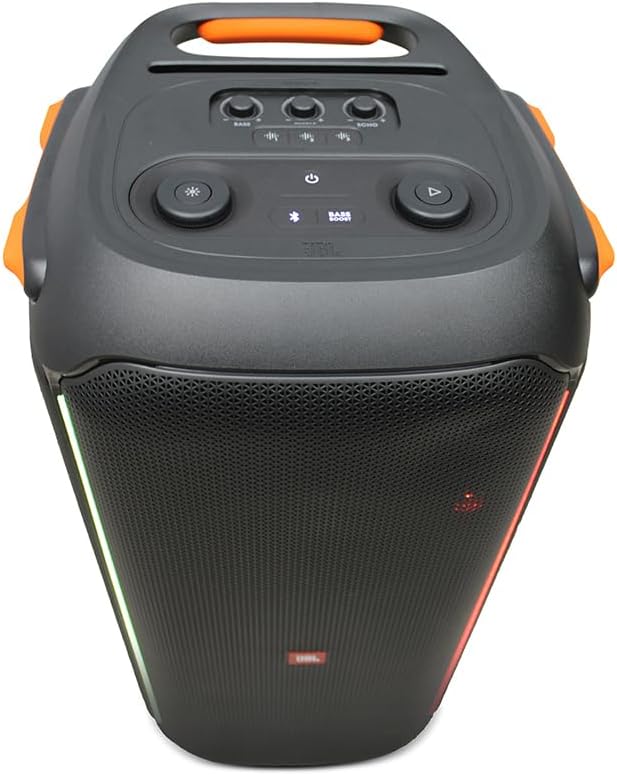
The main controls are located on the top panel of the speaker:
Figure 3: Top panel controls of the JBL PartyBox 710, including power, Bluetooth, volume, and light effect buttons.
Power Button: Turns the speaker on or off.
Bluetooth Button: Initiates Bluetooth pairing mode.
Volume Knob: Adjusts the overall master volume.
Play/Pause Button: Controls audio playback from connected Bluetooth devices.
Bass Boost Button: Enhances bass output.
Light Mode Button: Cycles through various light show patterns.
Microphone/Guitar Volume Knobs: Adjusts the input level for connected microphones and guitars.
2. Light Effects Control
The JBL PartyBox 710 features dynamic light shows. Press the Light Mode button on the top panel to cycle through different pre-set light patterns. Some patterns react to the music beat, while others provide ambient lighting. Refer to the specific light mode indicators on the speaker for more details on each pattern.
3. True Wireless Stereo (TWS) Pairing
For an even more immersive audio experience, you can wirelessly connect two JBL PartyBox 710 speakers together using TWS:
Ensure both PartyBox 710 speakers are powered on.
On one speaker (this will be your primary speaker), press and hold the TWS button (often integrated with the Bluetooth button or a dedicated button, refer to the speaker's top panel for exact labeling) for a few seconds until you hear a tone.
Repeat the same step on the second speaker.
The speakers will automatically connect to each other. Once connected, the TWS indicator will glow solid on both speakers.
Connect your audio source (e.g., smartphone) to the primary speaker via Bluetooth. Audio will now play through both speakers in stereo.
4. USB Playback and Charging
The USB port on the rear panel serves two functions:
Audio Playback: Insert a USB drive containing audio files (e.g., MP3, WAV) into the USB port. The speaker will automatically detect and begin playing the audio. Use the playback controls on the top panel to navigate tracks.
Device Charging: You can use the USB port to charge external devices like smartphones or tablets. Connect your device's charging cable to the USB port on the speaker.
Figure 4: Side view of the JBL PartyBox 710, illustrating its integrated wheels and handle for easy transport.
Maintenance and Care
Proper maintenance ensures the longevity and optimal performance of your JBL PartyBox 710.
Cleaning: Use a soft, dry, lint-free cloth to clean the speaker's surfaces. For stubborn dirt, slightly dampen the cloth with water. Do not use abrasive cleaners, alcohol, benzene, or thinners, as these can damage the finish.
Splashproof Design (IPX4): The PartyBox 710 is IPX4 splashproof, meaning it is resistant to splashing water from any direction. However, it is not waterproof. Do not submerge the speaker in water or expose it to heavy rain. Ensure all port covers are securely closed when near water.
Battery Care: To maximize battery life, fully charge the speaker before first use. If storing the speaker for an extended period, charge it to at least 50% every three months. Avoid exposing the battery to extreme temperatures.
Storage: Store the speaker in a cool, dry place away from direct sunlight and extreme temperatures. Protect it from dust and excessive moisture.
Troubleshooting
If you encounter issues with your JBL PartyBox 710, refer to the following common problems and solutions:
Problem
Possible Cause
Solution
No power/Speaker not turning on
Battery drained; Power cord not connected properly
Connect the AC power cord and allow the battery to charge. Ensure the power outlet is functional.
No sound from speaker
Volume too low; Incorrect input selected; Bluetooth not connected; Audio source issue
Increase speaker volume and source device volume. Ensure Bluetooth is connected or AUX cable is properly inserted. Check if the audio source is playing.
Bluetooth connection issues
Speaker not in pairing mode; Device too far; Interference; Previous connection conflict
Press the Bluetooth button to enter pairing mode. Move device closer to speaker. Turn off other Bluetooth devices. Forget "JBL PartyBox 710" on your device and re-pair.
Microphone/Guitar not working
Volume knob too low; Cable not connected; Microphone/receiver not powered/paired
Increase the specific input volume knob. Ensure cables are fully inserted. Check microphone battery and pairing with receiver.
Light show not working/stuck
Software glitch; Specific mode selected
Press the Light Mode button to cycle through patterns. Try turning the speaker off and on again.
If the problem persists after trying these solutions, please contact JBL customer support for further assistance.
Specifications
Feature
Detail
Model Number
JBLPARTYBOX710AM
Brand
JBL
Output Power
800W RMS
Woofers
2 x 8 inches
Tweeters
2 x 2.75 inches
Connectivity
Bluetooth, AUX, USB
Audio Inputs
Guitar, Microphone
Power Source
Battery Powered, AC Power
Splashproof Rating
IPX4
Product Dimensions (L x W x H)
15 x 36 x 3 inches
Item Weight
65 pounds
UPC
094148629964
Warranty and Support
For warranty information, technical support, or service inquiries, please contact JBL customer support directly. You can find contact details on the official JBL website or through your product's registration information.
Online Support: Visit the official JBL support website for FAQs, software updates, and additional resources. www.jbl.com/support
Ask a question about this manual
Ask about setup, troubleshooting, compatibility, parts, safety, or missing instructions. Manuals+ will review the question and use this page’s manual context to help answer it.