
1. Introduction
The Ricoh fi-8170 Document Scanner is engineered for efficient and high-quality document processing in various organizational settings. It features Clear Image Capture technology, combining Contact Imaging Sensor hardware with an advanced image processor to produce precise, crisp images and enhance OCR accuracy. This scanner is designed to handle demanding workflows by effectively removing unwanted watermarks and artifacts from scanned documents.

Figure 1: Front view of the Ricoh fi-8170 Document Scanner.
2. Package Contents
Verify that all the following items are included in your package:
- 1 x RICOH fi-8170 Professional High Speed Color Duplex Document Scanner
- 1 x USB Printer Cable
- 1 x Cat5e Ethernet Cable
- 1 x Diginerds LCD Cleaning Kit
- Setup DVD (for software installation)
- AC Power Supply
- ADF Paper Chute
3. Setup
3.1 Unpacking and Placement
- Carefully remove the scanner and all accessories from the packaging.
- Place the scanner on a stable, flat surface with adequate space for document feeding and output.
- Attach the ADF Paper Chute to the designated slot on the scanner.
3.2 Connecting the Scanner
- Connect the AC Power Supply to the scanner and a power outlet.
- Connect the USB Printer Cable from the scanner to your computer. Alternatively, use the Cat5e Ethernet Cable for network connectivity.
3.3 Software Installation
- Insert the Setup DVD into your computer's optical drive.
- Follow the on-screen instructions to install the necessary drivers and scanning software.
- Ensure the software is correctly installed and the scanner is recognized by your computer.

Figure 2: Scanner with the Automatic Document Feeder (ADF) open, ready for document loading.
4. Operating Instructions
4.1 General Document Scanning
- Power on the scanner using the 'Power' button on the control panel.
- Adjust the document guides in the Automatic Document Feeder (ADF) to match the width of your documents.
- Load up to 100 pages into the ADF. Ensure documents are free from staples or paper clips.
- Select your desired scanning profile or settings on the scanner's display or through the installed software on your computer.
- Press the 'Scan/Enter' button to begin scanning. The scanner will automatically feed and process documents at a rate of up to 140 images per minute (duplex).
4.2 Scanning Thick Documents or Cards (Manual Feed)
The fi-8170 supports scanning of thicker items like card savers or top-loaders using the manual feed feature.
- Press the 'Manual Feed' button on the control panel. This opens the motor inside the scanner to accommodate thicker documents.
- Carefully insert one thick document or card at a time into the manual feed slot.
- The scanner will automatically detect and scan the item. Continue feeding items as needed.
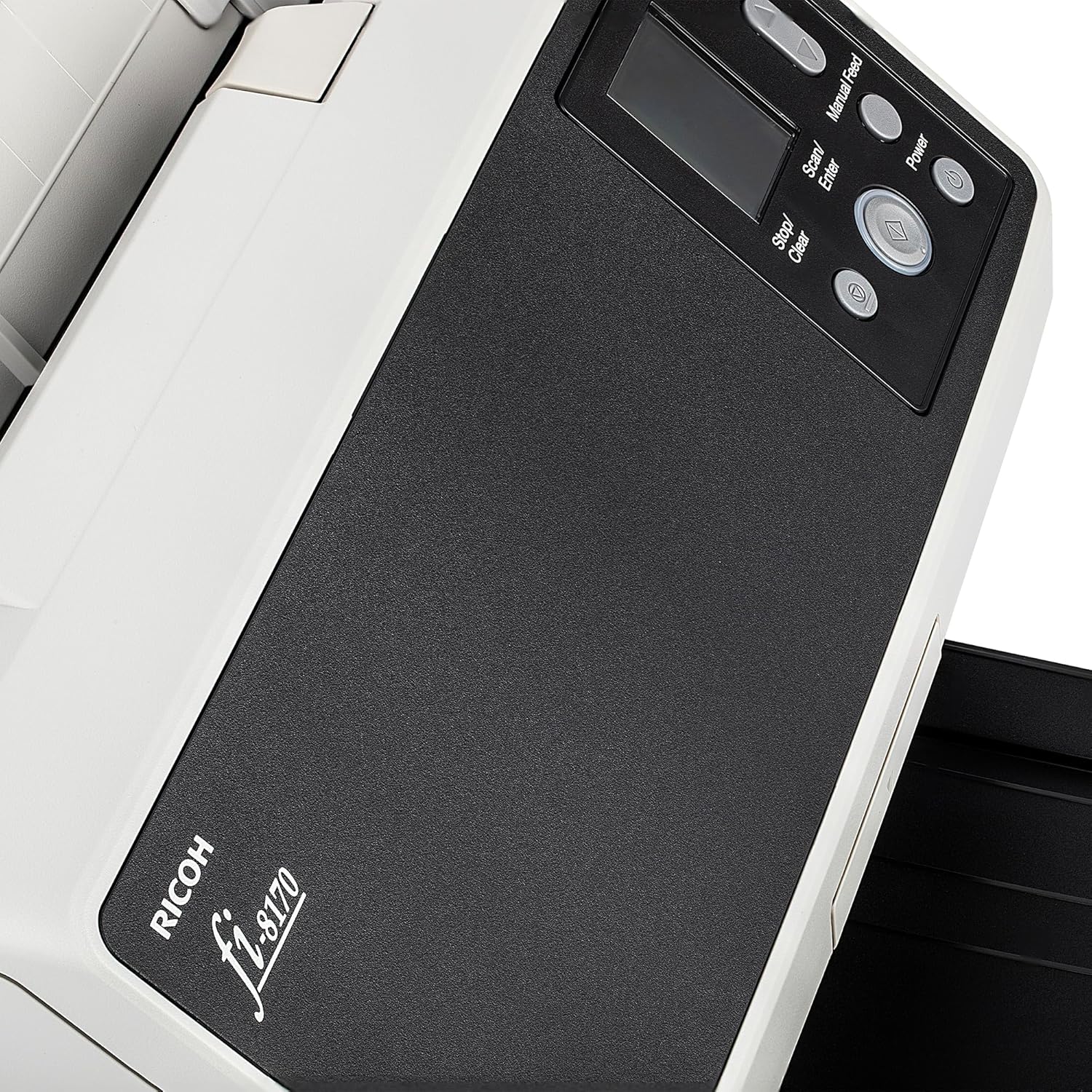
Figure 3: Close-up of the scanner's control panel with buttons for Menu, Manual Feed, Scan/Enter, Stop/Clear, and Power.
4.3 Software Interface and Saving
After scanning, documents will appear in the associated software on your computer. From there, you can:
- Review and organize scanned images.
- Save documents in various formats (e.g., PDF, JPEG).
- Utilize OCR features for searchable and editable text.
Video 1: Demonstration of the Ricoh fi-8170 scanner's ability to go paperless with ease, showcasing its scanning speed and efficiency.
5. Maintenance
5.1 Cleaning
- Regularly clean the scanner's exterior with a soft, dry cloth.
- Use the provided Diginerds LCD Cleaning Kit to clean the display screen.
- Refer to the detailed cleaning instructions in the full user manual for internal components and rollers.
5.2 Roller Replacement
The scanner is built with durable urethane rollers. Over time, these may require replacement to maintain optimal feeding performance. Consult the full user manual for instructions on checking roller wear and replacement procedures.
6. Troubleshooting
6.1 Document Jams
- If a document jam occurs, the scanner's display will indicate an error.
- Open the scanner cover and carefully remove any jammed documents.
- Ensure documents are properly aligned and not creased before re-feeding.
6.2 Software Connectivity Issues
- Verify that the USB or Ethernet cable is securely connected to both the scanner and the computer/network.
- Restart the scanner and your computer.
- Check for updated drivers or software on the Ricoh support website.
7. Specifications
| Product Dimensions | 12 x 6 x 6.4 inches |
| Item Weight | 12 pounds |
| Model Number | PA03810-B055_EDI6_1 |
| Manufacturer | RICOH |
| Daily Volume | 10,000 sheets (expected) |
| Simplex Scanning Speed | 70 ppm (pages per minute) |
| Duplex Scanning Speed | 140 ipm (images per minute) |
| ADF Capacity | 100 pages |
8. Warranty and Support
For detailed warranty information, product registration, and technical support, please visit the official Ricoh website or contact their customer service. Ensure you have your model number (fi-8170) and serial number available when seeking support.


