
Turtle Beach TBS-0724-05
Turtle Beach VelocityOne Flightdeck Universal HOTAS Simulation System Instruction Manual
Brand: Turtle Beach | Model: TBS-0724-05
Introduction
The Turtle Beach VelocityOne Flightdeck is a premium HOTAS simulation system for Windows 10 & 11 PCs, engineered to deliver enhanced immersion for sim enthusiasts who demand the best. Inspired by state-of-the-art jet fighters and advanced spacecraft, it provides a ground-breaking HOTAS experience designed for all major flight simulation titles. It features comprehensive controls including 15 axes and 139 programmable functions, a Flight Touch Display, and an OLED Head Up Display for performance optimization and customization. The Flight Hangar app for desktop offers further in-depth customization, including RGB lighting zones.
Package Contents
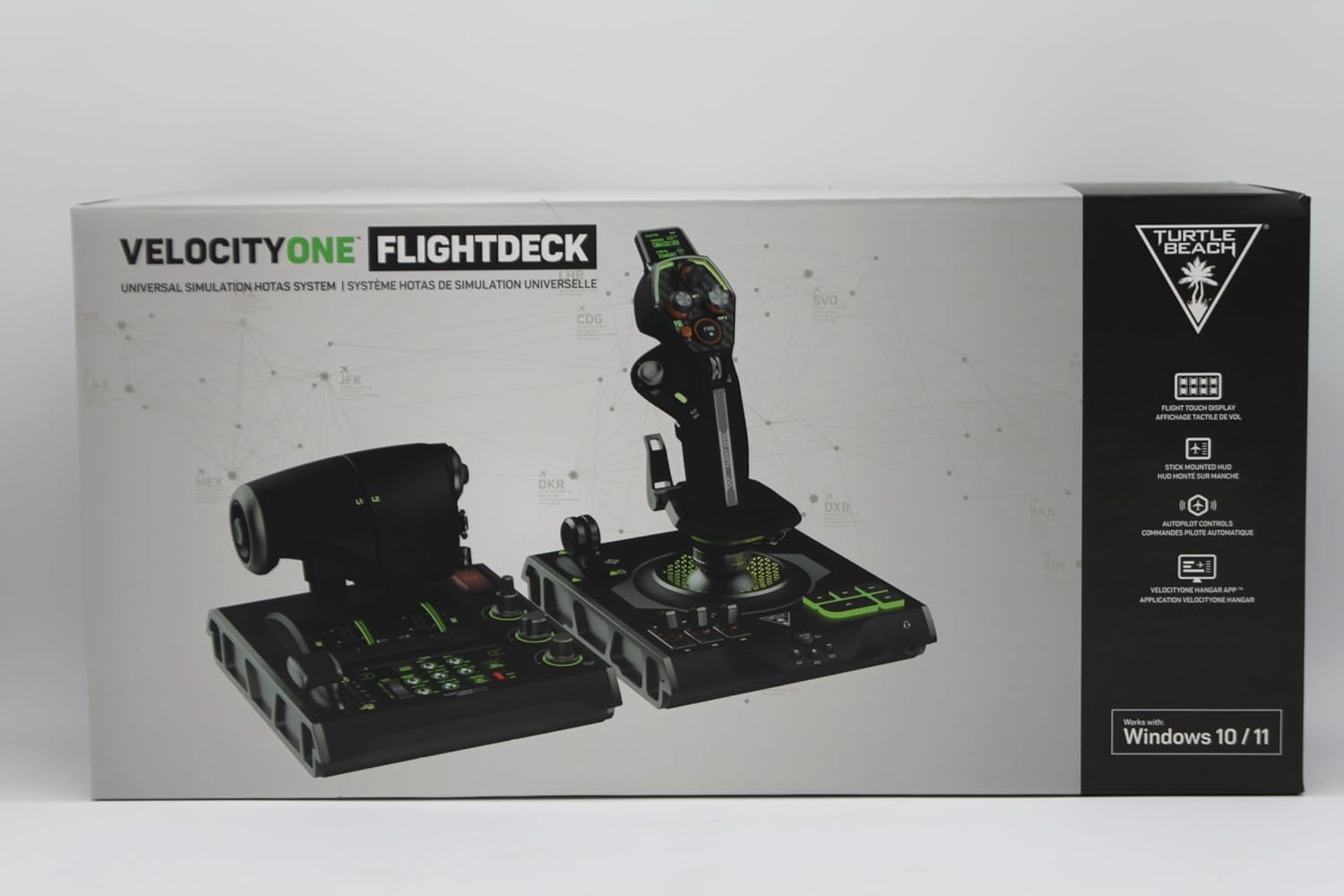
Figure 1: Included components in the VelocityOne Flightdeck package.
- VelocityOne Flightdeck (Throttle and Stick Modules)
- 2m USB-C to USB-A Cable (x2)
- M5 Hard-Mounting Screws (x3)
Setup
Connecting the Flightdeck to your PC
- Place the VelocityOne Flightdeck throttle and stick modules on a stable surface.
- Connect each module to your Windows 10 or 11 PC using the provided USB-C to USB-A cables. Each module requires a separate USB-A port.
- Ensure both modules are recognized by your operating system.
- Download and install the Flight Hangar app from the official Turtle Beach website for full customization and firmware updates.
Adjusting Stick Height
The stick module features adjustable height to accommodate various hand sizes for optimal comfort during use. To adjust:
- Locate the adjustment button on the stick.
- Press and hold the button while sliding the grip up or down to your desired length.
- Release the button to lock the grip in place.
Key Features
Flight Touch Display

Figure 2: The Flight Touch Display offers dynamic, real-time sim alerts and settings adjustments.
The world's first fully programmable integrated simulation display provides customizable, touch screen buttons for dynamic, real-time sim alerts and settings adjustments. Customizing the Flight Touch Display with the Flight Hangar desktop app adds up to 39 extra buttons, which are configurable in color, label, and style for a fully immersive, customized experience. You can also adjust settings and product performance to suit your preferences.
OLED Head Up Display (HUD)

Figure 3: The Head Up Display provides critical in-flight information and on-the-fly adjustments.
Located at the top of the stick, the HUD screen provides critical in-flight information and allows you to adjust performance on-the-fly. This full-color screen offers extensive adjustments to Chrono, touchpad, Pro-Aim, Rudder lock, trim wheel, haptic feedback, lighting, and more.
Comprehensive Throttle Controls

Figure 4: Dual throttle levers with haptic detents and various remappable buttons.
The dual throttle levers with integrated locking latch allow for maximum flexibility whether you need single engine or multi-engine control. Ultra-smooth throttle control is enhanced with haptic detents, fully adjustable via the Flight Touch Display dashboard. The reverse of the throttle controls is equipped with rocker switches, a scroll wheel, selector button, and a 4-way remappable navigation pad. The thumb area includes an 8-way HAT switch, a thumb wheel for zoom, an analog POV button for radar cursor movement, and a slider switch for air brake. Three remappable buttons are fully customizable. A FIRE button is located on the upper right side, and three dials for autopilot adjustments are also remappable. The flaps lever in the bottom left-hand corner has two detents for fully extended or retracted flaps.
Combat-Ready Modular Stick
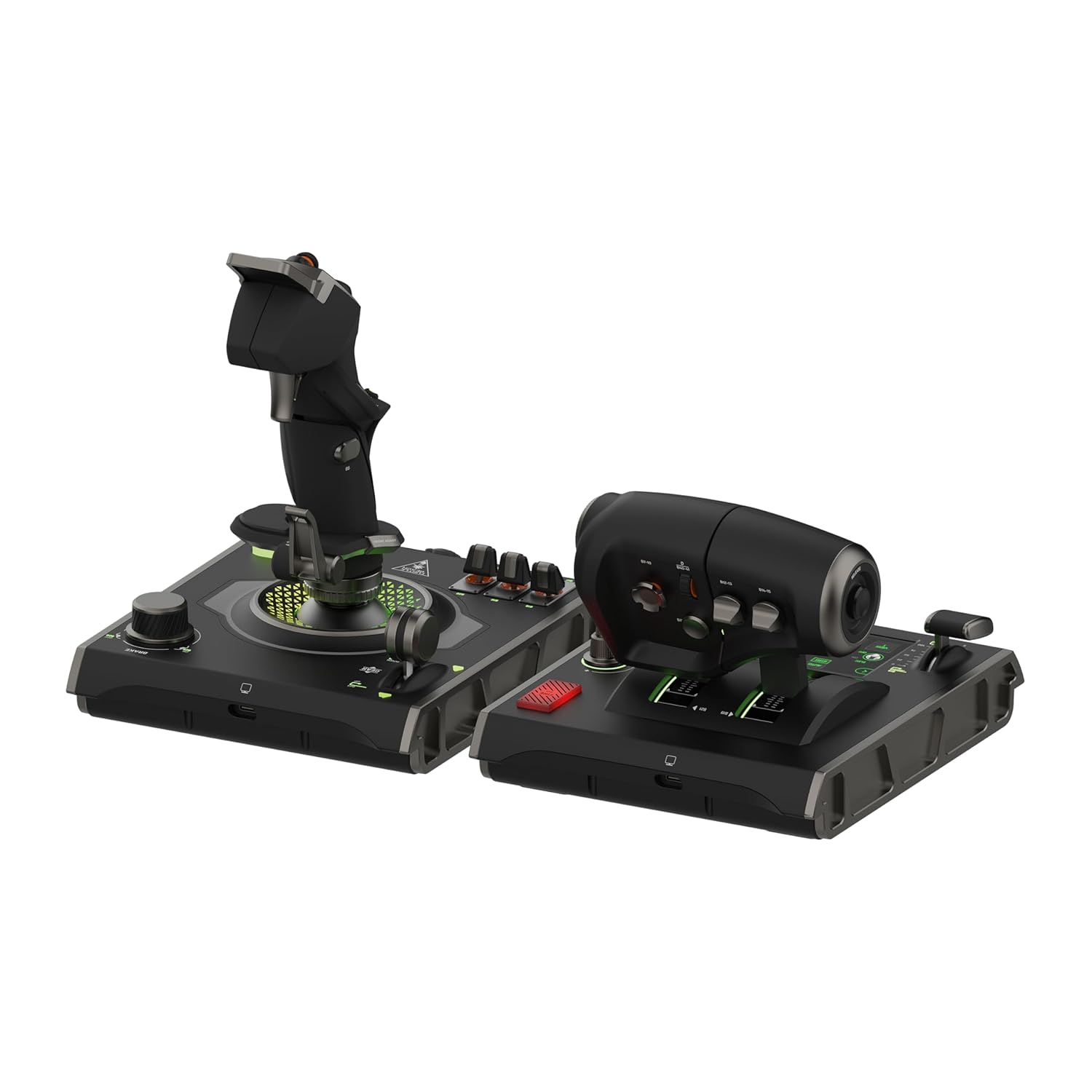
Figure 5: The stick module base features a landing gear lever, parking brake selector, and programmable buttons.
Loaded with controls and three non-contact axes featuring hall-effect sensors, the modular stick is built for high-fidelity pitch, roll & yaw maneuvers. It includes an analog POV thumbstick, an 8-way HAT switch for quick-look, and an additional 8-way HAT switch for sensor controls. The FIRE button is easily accessible, with functionality switchable between a standard physical button or touchpad/mouse click. A trim wheel can be analog or digital. On the reverse, a two-stage trigger for arming weapons and an analog lever for brakes or autopilot disconnect. The stick is height adjustable for maximum comfort. The base includes an ultra-realistic landing gear lever, gear indicator lights, a three-position rotary Parking Brake selector, five programmable push buttons, and three remappable toggle switches with two functions per switch.
Operating Instructions
PC Software and Compatibility
The VelocityOne Flightdeck is compatible with Windows 10 & 11 PCs. Full control compatibility is supported with titles such as Microsoft Flight Simulator 2020 & 2024, X-Plane 11 & 12, DCS World, Prepar3D, Star Citizen, and War Thunder. Control mapping may be required out of the box.
The Flight Hangar app provides ultimate access to product performance & customization features. Available for Windows PCs, you can create comprehensive configuration profiles for specific sim titles or aircrafts and send these to the Flightdeck using its onboard memory. Firmware can also be easily updated using the app to ensure peak performance.
Audio Enhancements
The Flightdeck features a 3.5mm audio port, allowing you to connect any 3.5mm wired headset and take advantage of proven Turtle Beach audio enhancements for ultimate immersion in battle. Functions include Superhuman Hearing, EQ modes, mic monitoring, and game and chat balance.
RGB Lighting Customization
Adjustable, multi-zone RGB lighting allows you to customize the aesthetic of your Flightdeck. Whether playing in low light conditions or trying to match the color of your favorite aircraft, you’ll have access to multiple RGB lighting zone adjustments. Additional effects are available using the Flight Hangar companion app.
Build Quality

Figure 6: The stick base features durable construction and customizable lighting.
The Flightdeck is designed to deliver high-precision accuracy with durability that will stand up to rigorous use. All main movement controls on the stick and throttle are built using hall-effect non-contact sensors, ensuring longevity and consistent performance. The overall construction utilizes high-quality matte plastic finishes and robust rotary knobs, contributing to a premium feel and appearance.
Maintenance
To ensure the longevity and optimal performance of your Turtle Beach VelocityOne Flightdeck, follow these general maintenance guidelines:
- Keep the device clean by wiping it with a soft, dry cloth. Avoid abrasive cleaners or solvents.
- Store the Flightdeck in a cool, dry place away from direct sunlight and extreme temperatures.
- Regularly check for and install firmware updates via the Flight Hangar app to ensure the latest performance enhancements and bug fixes.
- Avoid excessive force on the controls to prevent damage to internal components.
Troubleshooting
If you encounter issues with your VelocityOne Flightdeck, consider the following common troubleshooting steps:
- Device Not Recognized: Ensure both USB cables are securely connected to your PC. Try different USB ports. Restart your PC.
- Firmware Update Issues: Follow the specific instructions provided by the Flight Hangar app for firmware updates. Do not disconnect the device or reset your PC during an update. If issues persist, refer to the official Turtle Beach support website.
- Control Calibration: Use the Flight Hangar app to check and recalibrate axes and buttons if you experience inaccurate inputs.
- Laggy Touch Display: Ensure your PC meets the minimum system requirements. Close any unnecessary background applications. Check for and install the latest firmware updates.
- Loose Switches/Buttons: While some minor play may be normal, if a switch or button feels excessively loose or unresponsive, contact Turtle Beach support.
Specifications
| Feature | Detail |
|---|---|
| ASIN | B0CPQ7RF6Z |
| Release Date | February 13, 2024 |
| Product Dimensions | 6.93 x 20.63 x 10.04 inches |
| Item Weight | 9.41 Pounds |
| Item Model Number | TBS-0724-05 |
| Manufacturer | Turtle Beach |
| Language | English |
Warranty and Support
For detailed warranty information and technical support, please refer to the official User Manual (PDF) or visit the Turtle Beach Brand Store.
- User Manual (PDF): Download Here
- Turtle Beach Brand Store: Visit Store
Related documentsTBS-0724-05


Ask a question about this manual
Ask about setup, troubleshooting, compatibility, parts, safety, or missing instructions. Manuals+ will review the question and use this page’s manual context to help answer it.