Introduction
Welcome to the iRobot Roomba i1 (1152) Robot Vacuum user manual. This guide provides essential information for setting up, operating, maintaining, and troubleshooting your robot vacuum. The Roomba i1 is designed to efficiently clean hard floors and carpets, utilizing Wi-Fi connected mapping technology to navigate your home.
Important Safety Information
Before using your Roomba i1 robot vacuum, please read all safety instructions carefully. Failure to follow these instructions may result in electric shock, fire, or serious injury.
- This appliance can be used by children aged 8 years and above and persons with reduced physical, sensory or mental capabilities or lack of experience and knowledge if they have been given supervision or instruction concerning use of the appliance in a safe way and understand the hazards involved.
- Children should not play with the appliance. Cleaning and user maintenance shall not be made by children without supervision.
- Use only as described in this manual.
- Do not use outdoors or on wet surfaces.
- Do not allow to be used as a toy. Close attention is necessary when used by or near children.
- Do not use with a damaged cord or plug. If appliance is not working as it should, has been dropped, damaged, left outdoors, or dropped into water, return it to a service center.
- Do not pull or carry by cord, use cord as a handle, close a door on cord, or pull cord around sharp edges or corners. Do not run appliance over cord. Keep cord away from heated surfaces.
- Do not unplug by pulling on cord. To unplug, grasp the plug, not the cord.
- Do not handle plug or appliance with wet hands.
- Do not put any object into openings. Do not use with any opening blocked; keep free of dust, lint, hair, and anything that may reduce air flow.
- Keep hair, loose clothing, fingers, and all parts of body away from openings and moving parts.
- Do not pick up anything that is burning or smoking, such as cigarettes, matches, or hot ashes.
- Do not use to pick up flammable or combustible liquids, such as gasoline, or use in areas where they may be present.
- Do not use without dust bag and/or filters in place.
- Prevent unintentional starting. Ensure the switch is in the off-position before connecting to battery pack, picking up or carrying the appliance.
- Recharge only with the charger specified by the manufacturer. A charger that is suitable for one type of battery pack may create a risk of fire when used with another battery pack.
- Use appliances only with specifically designated battery packs. Use of any other battery packs may create a risk of injury and fire.
- When battery pack is not in use, keep it away from other metal objects, like paper clips, coins, keys, nails, screws or other small metal objects, that can make a connection from one terminal to another. Shorting the battery terminals together may cause burns or a fire.
- Under abusive conditions, liquid may be ejected from the battery; avoid contact. If contact accidentally occurs, flush with water. If liquid contacts eyes, additionally seek medical help. Liquid ejected from the battery may cause irritation or burns.
- Do not use a battery pack or appliance that is damaged or modified. Damaged or modified batteries may exhibit unpredictable behavior resulting in fire, explosion or risk of injury.
- Do not expose a battery pack or appliance to fire or excessive temperature. Exposure to fire or temperature above 130°C (265°F) may cause explosion.
- Follow all charging instructions and do not charge the battery pack or appliance outside of the temperature range specified in the instructions. Charging improperly or at temperatures outside of the specified range may damage the battery and increase the risk of fire.
- Have servicing performed by a qualified repair person using only identical replacement parts. This will ensure that the safety of the product is maintained.
- Do not modify or attempt to repair the appliance or the battery pack (as applicable) except as indicated in the instructions for use and care.
Package Contents
Verify that all original components are included in your package:
- iRobot Roomba i1 Robot Vacuum
- Home Base Charging Station
- Line Cord
- 1 Lithium Ion Battery (pre-installed)
- Side Brush
- Filter (Cloth Type)
- Dual Multi-Surface Rubber Brushes
Setup
Follow these steps to set up your Roomba i1 robot vacuum for first use:
- Choose a Location for the Home Base: Place the Home Base charging station against a wall in an open, uncluttered area. Ensure there is at least 1.5 feet (0.5 meters) of clear space on each side of the Home Base and 4 feet (1.2 meters) in front of it.
- Connect the Power Cord: Plug the line cord into the Home Base and then into a wall outlet. Ensure the Home Base is powered on.
- Charge the Robot: Place your Roomba i1 onto the Home Base. The robot will emit a tone to confirm it is properly docked and charging. Allow the robot to charge for at least 3 hours before its first cleaning mission. The light ring around the CLEAN button will pulse white while charging and turn solid white when fully charged.
- Download the iRobot Home App: For full functionality, download the iRobot Home App on your smartphone or tablet. The app will guide you through connecting your robot to your Wi-Fi network and setting up cleaning schedules.
- Connect to Wi-Fi: Follow the in-app instructions to connect your Roomba i1 to your home Wi-Fi network. This enables smart features like mapping, scheduling, and integration with voice assistants.

Operating Your Roomba i1
Your Roomba i1 is designed for intelligent and efficient cleaning. Here's how to operate it:
Starting a Cleaning Job
- Using the CLEAN Button: Press the large CLEAN button on top of the robot once to wake it up, then press it again to start a cleaning cycle.
- Using the iRobot Home App: Open the app and tap the "CLEAN" button to start a cleaning job from anywhere. You can also schedule cleaning times and customize cleaning preferences through the app.
- Voice Control: The Roomba i1 is compatible with Google Home. Once connected via the iRobot Home App, you can use voice commands like "Hey Google, ask Roomba to start cleaning."
Cleaning Features
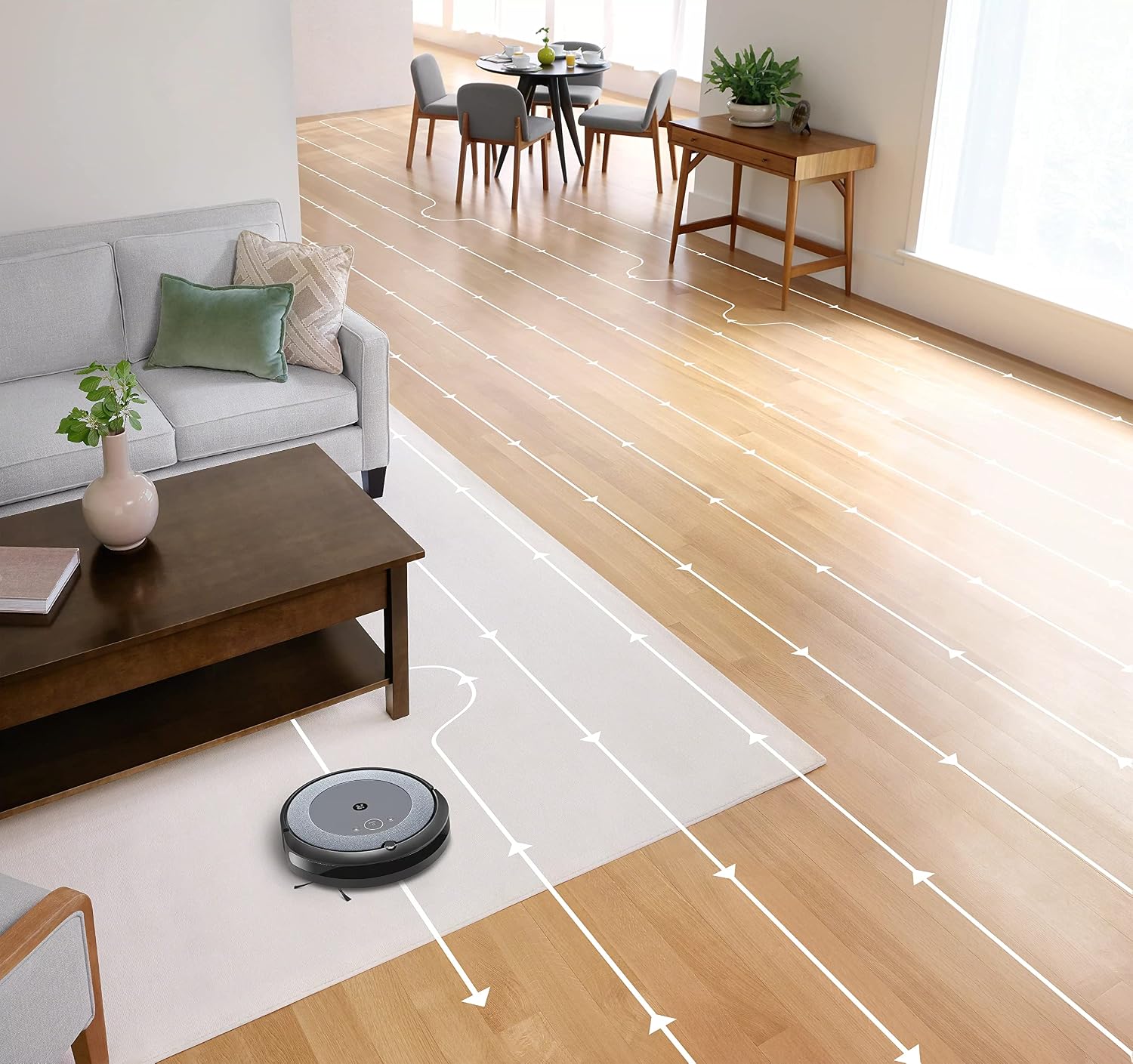
- Intelligent Navigation: The robot cleans in neat, efficient rows, adapting to different floor types including carpets and hard floors.
- Dual Multi-Surface Rubber Brushes: These brushes are designed to prevent tangles with pet hair and effectively pick up dirt and debris from various surfaces.
- Dirt Detect™ Technology: The robot uses acoustic and optical sensors to find dirtier areas and spends more time cleaning them.
- Automatic Dirt Disposal (with compatible Clean Base): If you have a compatible Clean Base (sold separately), the robot will automatically empty its dustbin into an enclosed bag, allowing for weeks of hands-free cleaning.


Maintenance
Regular maintenance ensures your Roomba i1 operates at peak performance. Always turn off the robot and disconnect it from the Home Base before performing any maintenance.
Emptying the Dust Bin
- Press the bin release button and pull out the bin.
- Open the bin door and empty debris into a trash can.
- Tap the bin against the trash can to dislodge any trapped debris.
Cleaning the Filter (Cloth Type)
- Remove the filter from the dust bin.
- Tap the filter against a trash can to remove debris. Do not wash the filter.
- Replace the filter every 2 months, or more frequently if you have pets.
Cleaning the Brushes
- Pinch the yellow brush release tabs to lift the brush frame.
- Remove the brushes and remove any hair or debris wrapped around them or trapped beneath the yellow caps.
- Reinstall the brushes, ensuring they click into place.
Cleaning the Side Brush
- Use a coin or small screwdriver to remove the screw holding the side brush.
- Remove the side brush and clean any hair or debris from the brush and its post.
- Reinstall the side brush and tighten the screw.
Cleaning the Sensors and Charging Contacts
- Wipe the charging contacts on the robot and Home Base with a clean, dry cloth.
- Wipe the cliff sensors (located on the bottom of the robot) and the front bumper sensor window with a clean, dry cloth.
Troubleshooting
If your Roomba i1 encounters an issue, the robot will play an audible alert and the light ring around the CLEAN button will flash. Consult the iRobot Home App for specific error messages and solutions.
Common Issues and Solutions:
- Robot not charging: Ensure the Home Base is plugged in and the robot is properly docked. Clean the charging contacts on both the robot and Home Base.
- Robot stuck or trapped: Clear obstacles from the robot's path. If it frequently gets stuck in the same area, consider using Virtual Wall Barriers (sold separately) or adjusting furniture.
- Poor cleaning performance: Empty the dust bin, clean or replace the filter, and clean the main brushes and side brush. Ensure the robot's sensors are clean.
- Robot not connecting to Wi-Fi: Ensure your Wi-Fi router is on and within range. Restart your router and the robot. Follow the Wi-Fi setup instructions in the iRobot Home App again.
- Robot making unusual noises: Check the brushes and wheels for any trapped debris or hair. Clean them thoroughly.
For more detailed troubleshooting, refer to the iRobot Home App or the iRobot support website.
Specifications
| Brand | iRobot |
| Model Name | Roomba i1 (1152) |
| Special Feature | Smart, Wi-Fi Connected Mapping |
| Color | Black/Gray |
| Included Components | Robot Vacuum, Home Base, Line Cord, Battery, Side Brush, Filter, Dual Multi-Surface Rubber Brushes |
| Filter Type | Cloth |
| Power Source | Battery Powered |
| Batteries | 1 Lithium Ion battery (included) |
| Control Method | App |
| Compatible Devices | Google Home |
| Form Factor | Robotic |
| Product Dimensions | 13.5 x 3.6 x 13.4 inches |
| Item Weight | 13.2 pounds |
| Surface Recommendation | Carpets, Hard Floors |
| UPC | 657768820809 |
| ASIN | B0CPQ3RVDK |
Warranty and Support
This product is sold as a renewed item. Please refer to the specific warranty terms provided by the seller or Amazon Renewed at the time of purchase. For technical support, troubleshooting assistance, or to purchase replacement parts, please visit the official iRobot support website or contact iRobot customer service. You can also find helpful resources within the iRobot Home App.
Online Support: www.irobot.com/support


