
Introduction
This manual provides detailed instructions for the setup, operation, and maintenance of your Tacens NOVAX 2NOVAX Ultra-Compact Micro-ATX PC Case. Designed for efficiency and durability, this all-metal mini-tower case offers a compact footprint with ample internal capacity for your computing needs.
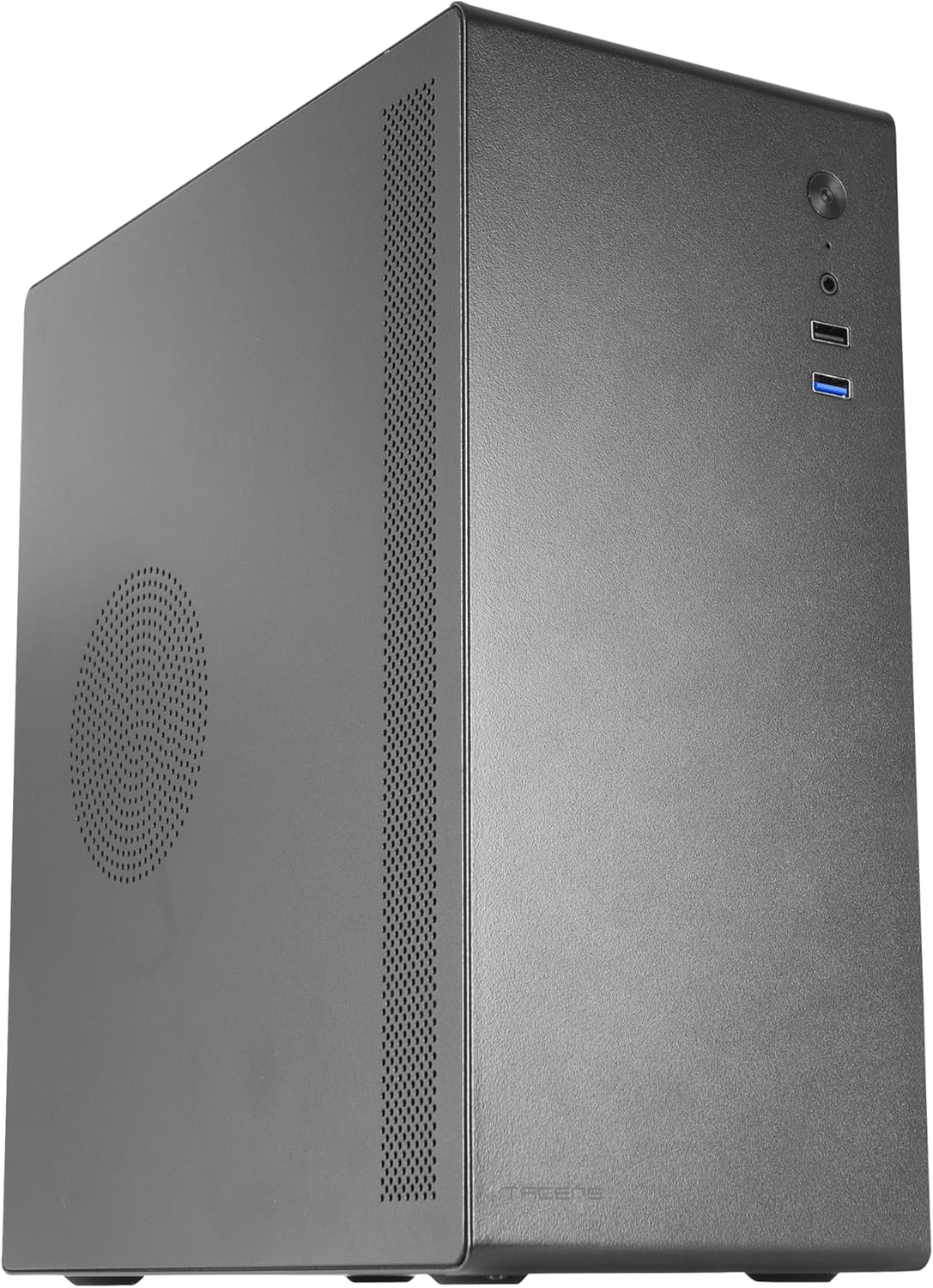
Figure 1: Front-left view of the Tacens NOVAX 2NOVAX PC Case.
Key Features
- Full Metallic Structure: The NOVAX compact case features a solid metal construction, ensuring continuous protection and robust security for your system.
- Optimized Cooling Capacity: An integrated 80mm fan at the rear ensures additional air circulation to keep components cool.
- Wide Internal Capacity: Supports MicroATX and Mini-ITX motherboards, accommodates up to two 3.5" HDDs and two 2.5" SSDs, and graphics cards up to 250mm wide. Features 4 expansion slots.
- Maximum Connectivity: Includes one USB 3.0 port, one USB 2.0 port, and HD audio input combined with microphone on the front panel.
- Compact Design: Sleek and minimalist mini-tower design, available in black.
Setup and Installation
Follow these steps to install your PC components into the NOVAX 2NOVAX case.
1. Preparing the Case
Before installing components, ensure the case is placed on a stable, flat surface. Remove the side panels by unscrewing the thumb screws at the rear of the case and sliding the panels off.
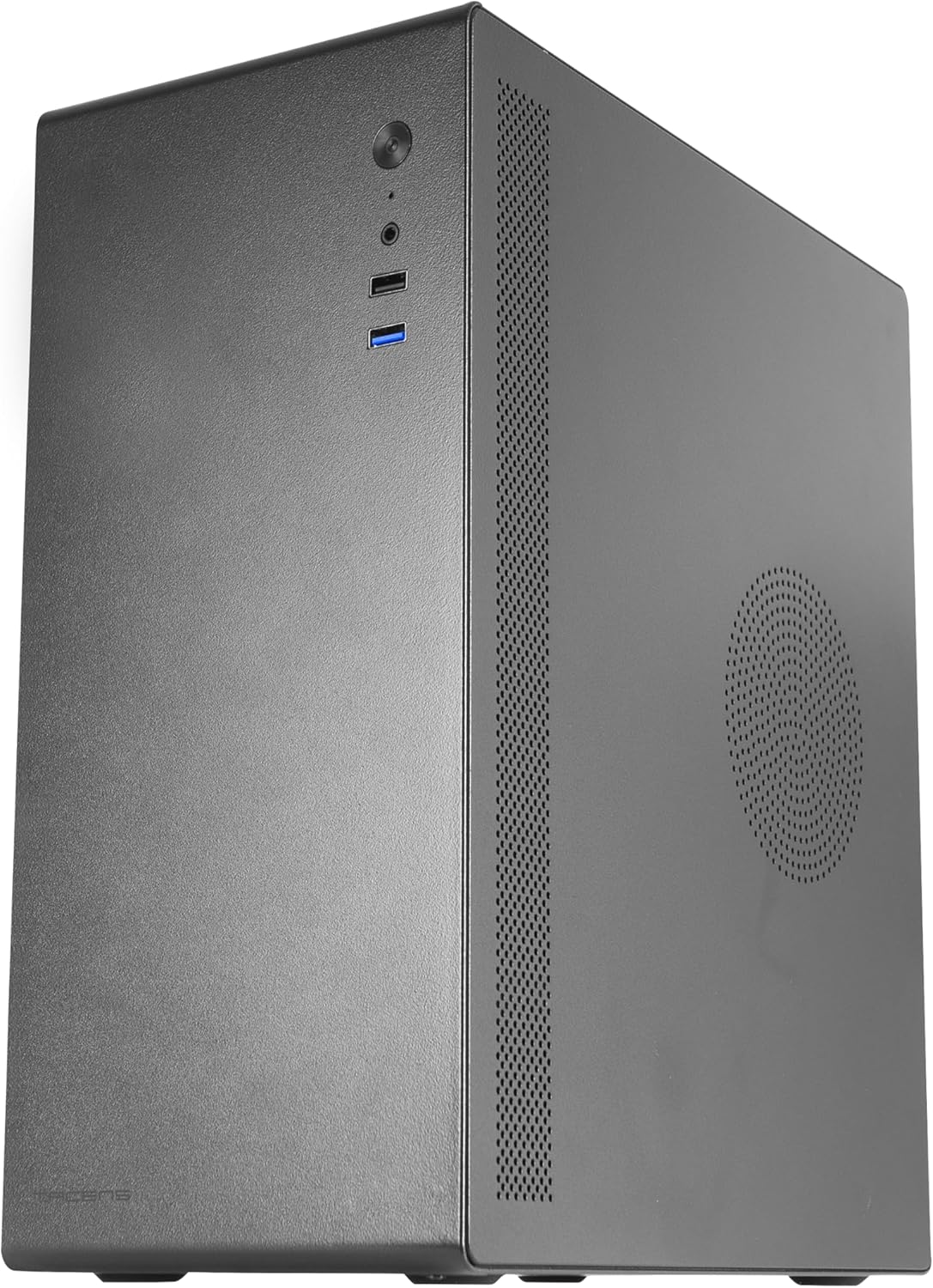
Figure 2: Rear view of the case with the side panel removed, showing internal layout.
2. Motherboard Installation
The NOVAX case supports MicroATX and Mini-ITX motherboards. Align your motherboard with the pre-mounted standoffs inside the case. Secure the motherboard using the provided screws.
Video 1: This video demonstrates the installation process of a Micro-ATX motherboard and other components into a similar compact PC case. Note that specific component models may vary.
3. Graphics Card (GPU) Installation
Install your graphics card into the appropriate PCIe slot on your motherboard. The case can accommodate graphics cards up to 250mm in length. Secure the GPU with the provided screws.
4. Drive Installation
The case provides mounting points for two 3.5" HDDs and two 2.5" SSDs. Secure your storage drives using the designated bays and screws.

Figure 3: Internal view highlighting the 80mm rear fan mount and potential drive installation areas.
5. Power Supply Unit (PSU) Installation
The case supports standard ATX power supplies, which are mounted at the bottom. Ensure proper cable management to maintain optimal airflow.
Video 2: This video illustrates the assembly of a mini PC case, including the installation of a power supply and other components. It provides a visual guide for component placement.
6. Fan Configuration
The case includes one 80mm rear fan for exhaust. Additional fan mounts are available for enhanced cooling. Ensure fans are oriented correctly for optimal airflow (intake/exhaust).

Figure 4: Top-down internal view of the case, showing the layout for components and potential fan placements.
7. Front Panel Connectivity
Connect the front panel cables (USB 3.0, USB 2.0, HD Audio, Power, Reset) to the corresponding headers on your motherboard. The front panel features:
- 1x USB 3.0 Port
- 1x USB 2.0 Port
- HD Audio (Headphone/Microphone combo jack)
- Power Button
- Reset Button

Figure 5: Close-up of the front I/O panel, showing USB ports, audio jacks, and power/reset buttons.
Operating Instructions
Once all components are securely installed and connected, replace the side panels and connect your peripherals (monitor, keyboard, mouse) and power cable.
- Connect the power cable to the PSU and a wall outlet.
- Press the power button on the front panel to turn on your PC.
- Use the front USB ports for convenient connection of external devices.
- The HD audio ports allow for easy connection of headphones and microphones.
Maintenance
Regular maintenance helps ensure optimal performance and longevity of your PC components.
- Dust Cleaning: Periodically clean dust from the case's ventilation areas and internal components using compressed air or a soft brush.
- Cable Management: Ensure internal cables are neatly routed to prevent obstruction of airflow.
- Fan Check: Inspect the 80mm rear fan and any additional fans for dust buildup or unusual noises.
Troubleshooting
If you encounter issues, consider the following common troubleshooting steps:
- No Power: Check all power connections, including the PSU cable, motherboard power, and CPU power. Ensure the PSU switch is in the 'ON' position.
- No Display: Verify that your monitor is correctly connected to the graphics card (or integrated graphics) and that the monitor is powered on. Reseat the graphics card if necessary.
- Overheating: Ensure all fans are spinning correctly and that there is no excessive dust buildup blocking airflow. Check CPU cooler installation.
- USB Ports Not Working: Confirm that the front panel USB cables are securely connected to the motherboard headers.
Specifications
| Feature | Detail |
|---|---|
| Brand | Tacens |
| Model Name | 2NOVAX |
| Case Type | Mini-Tower |
| Motherboard Compatibility | Micro ATX, Mini ITX |
| Material | Metal |
| Color | Black |
| Item Weight | 4.62 pounds |
| Product Dimensions (LxWxH) | 14.02 x 6.54 x 10.83 inches |
| Number of USB 3.0 Ports | 1 |
| Number of USB 2.0 Ports | 1 |
| Rear Fan Included | 1x 80mm |
| Power Supply Mounting Type | Bottom Mount |
| Cooling Method | Air |
| Max GPU Length | 250mm |
| Drive Bays | 2x 3.5" HDD, 2x 2.5" SSD |
| Expansion Slots | 4 |
Warranty and Support
For warranty information and technical support, please refer to the official Tacens website or contact their customer service. Keep your proof of purchase for warranty claims.


