
Yanmai 49411
Yanmai SF-900 USB Microphone User Manual
Model: SF-900 (49411)
1. Introduction
Thank you for choosing the Yanmai SF-900 USB Microphone. This manual provides detailed instructions for setting up, operating, and maintaining your microphone to ensure optimal performance. Please read this manual thoroughly before using the product.
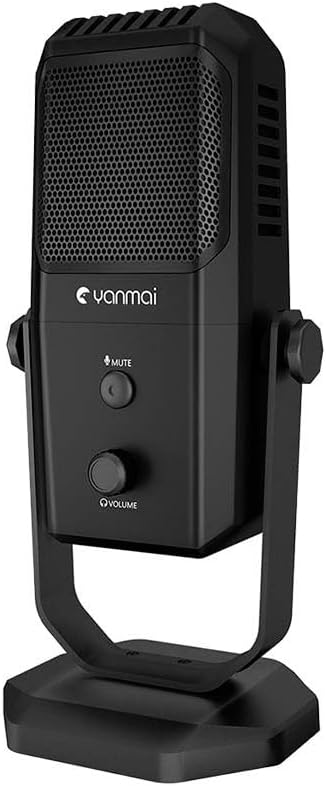
Image: The Yanmai SF-900 USB Microphone, showcasing its sleek black design and integrated stand.
2. Package Contents
Please verify that all items listed below are included in your package:
- Yanmai SF-900 USB Microphone
- USB Connection Cable
- User Guide (this manual)

Image: Contents of the Yanmai SF-900 package, including the microphone, USB cable, and user guide.
3. Setup
Follow these steps to set up your Yanmai SF-900 USB Microphone:
- Unpack the Microphone: Carefully remove the microphone and all accessories from the packaging.
- Position the Microphone: Place the microphone on a stable, flat surface using its integrated stand. Ensure it is positioned optimally for your recording or communication needs.
- Connect to Computer: Insert the USB cable into the USB port on the microphone. Then, connect the other end of the USB cable to an available USB port on your computer (PC or Mac).
- Automatic Driver Installation: Your computer should automatically detect and install the necessary drivers. This may take a few moments. No manual driver installation is typically required.
- Select as Default Device: Once installed, navigate to your computer's sound settings (e.g., Sound Control Panel on Windows, System Preferences > Sound on macOS) and select the Yanmai SF-900 as your default input device.
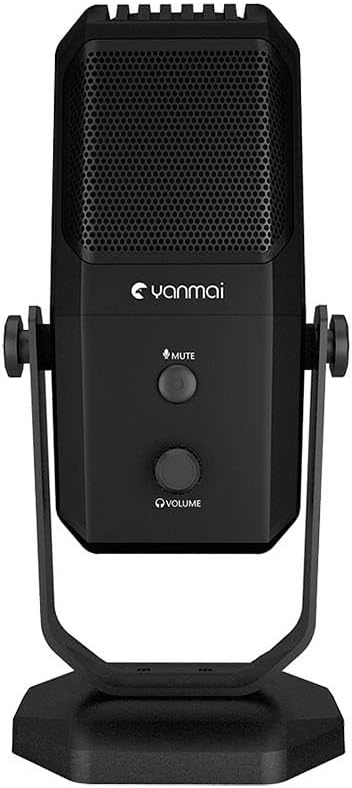
Image: Front view of the Yanmai SF-900 microphone, highlighting the mute button and volume control knob.
4. Operating Instructions
The Yanmai SF-900 is designed for ease of use. Here are the primary operating functions:
- Mute Button: Located on the front of the microphone, press this button to instantly mute or unmute your audio input. An indicator light (if present) will change color to show the mute status.
- Volume Control Knob: Below the mute button, rotate this knob to adjust the microphone's input volume (gain). Turn clockwise to increase volume and counter-clockwise to decrease it. Adjust this to an appropriate level to avoid distortion.
- Software Volume Control: For finer adjustments, you can also control the microphone's volume through your computer's sound settings or within your recording/communication software.
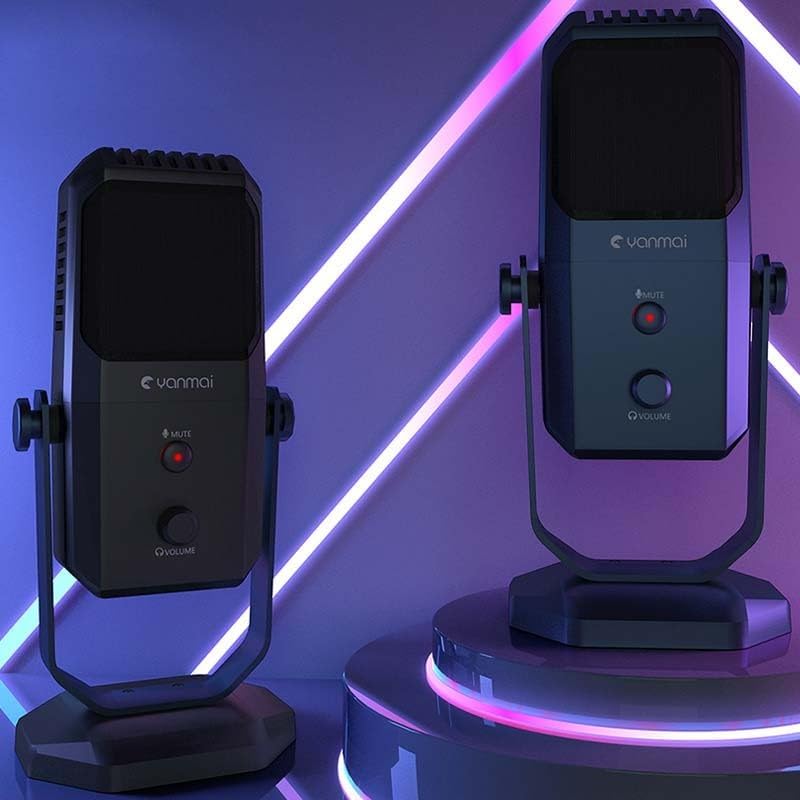
Image: Two Yanmai SF-900 microphones, demonstrating their illuminated controls in an operational setting.
5. Maintenance
Proper care will extend the life and performance of your microphone:
- Cleaning: Use a soft, dry cloth to wipe the exterior of the microphone. Do not use liquid cleaners, aerosols, or solvents, as these can damage the device.
- Storage: When not in use, store the microphone in a cool, dry place, away from direct sunlight and extreme temperatures.
- Handling: Avoid dropping the microphone or subjecting it to strong impacts, which can damage internal components.
- Cable Care: Do not bend or crimp the USB cable excessively. Always grasp the plug, not the cable, when disconnecting.
6. Troubleshooting
If you encounter issues with your Yanmai SF-900 microphone, refer to the following common problems and solutions:
| Problem | Possible Cause | Solution |
|---|---|---|
| No sound input | Microphone not connected properly Incorrect input device selected Microphone muted Volume too low | Ensure USB cable is securely connected. Check computer's sound settings; select SF-900 as default input. Press the mute button on the microphone. Adjust the volume knob on the microphone and in software. |
| Sound is distorted or too loud | Volume (gain) set too high | Decrease the volume using the knob on the microphone or in your computer's sound settings. |
| Microphone not recognized by computer | Faulty USB port Driver issue | Try connecting to a different USB port. Restart your computer. If issues persist, check device manager for driver status. |
7. Specifications
| Feature | Detail |
|---|---|
| Model Number | 49411 |
| ASIN | B0CPPPPZB4 |
| Brand | Yanmai |
| Color | Colourful (as per product listing, though product is black) |
| Item Weight | 1.76 pounds |
| Package Dimensions | 13.78 x 9.45 x 6.3 inches |
| Connectivity | USB |
| Compatibility | PC, Mac (USB compatible systems) |
8. Warranty and Support
The Yanmai SF-900 USB Microphone comes with a standard manufacturer's warranty. For specific warranty terms and conditions, please refer to the warranty card included with your product or visit the official Yanmai website. For technical support, troubleshooting assistance beyond this manual, or warranty claims, please contact Yanmai customer service through their official support channels.
Ask a question about this manual
Ask about setup, troubleshooting, compatibility, parts, safety, or missing instructions. Manuals+ will review the question and use this page’s manual context to help answer it.