
1. Introduction
The Polarduck BT1818 Bluetooth Camera Remote Control allows you to capture photos and videos wirelessly from a distance. This device is designed for convenience, enabling hands-free operation of your smartphone or tablet camera.
This manual provides detailed instructions for setting up, operating, and maintaining your remote control, along with troubleshooting tips.
2. Package Contents
Verify that all items are present in your package:
- Bluetooth Remote Control (Battery Included) x 1
- Adjustable Wrist Strap x 1
- User Manual x 1

Image: Two black Polarduck Bluetooth remote controls are shown alongside two black adjustable wrist straps. Each remote has a single camera button and a blue LED indicator.
3. Product Overview
Familiarize yourself with the components of your Polarduck Bluetooth Remote Control:

Image: A diagram illustrating the Polarduck Bluetooth remote control. Key parts are labeled: LED indicator, ON/OFF switch, main button (with camera icon), battery compartment, and battery cover.
- LED Indicator: Displays pairing status and operation.
- ON/OFF Switch: Activates or deactivates the remote control.
- Button: Triggers the camera shutter or video recording.
- Battery Compartment: Houses the CR2032 battery.
- Battery Cover: Protects the battery.

Image: A hand holds the compact Polarduck Bluetooth remote control, highlighting its small size and portability.
4. Setup: Pairing with Your Device
Follow these steps to pair your Polarduck Bluetooth Remote Control with your smartphone or tablet:
- Turn On the Remote: Locate the ON/OFF switch on the side of the remote control and slide it to the "ON" position. The LED indicator will begin to flash, indicating it is in pairing mode.
- Activate Bluetooth on Your Device: On your smartphone or tablet, go to your device's settings and enable Bluetooth.
- Search for Devices: Your device will scan for available Bluetooth devices. Look for "AB Shutter3" or the model number "BT1818" in the list of devices.
- Connect: Select "AB Shutter3" or "BT1818" to connect. Once successfully paired, the LED indicator on the remote will stop flashing or turn solid blue (depending on the remote version), and your device will show it as "Connected".
- Open Camera App: Open your device's native camera application.
Note: The remote only needs to be paired once. It will automatically connect to your device on subsequent uses if Bluetooth is enabled on your device and the remote is turned on.
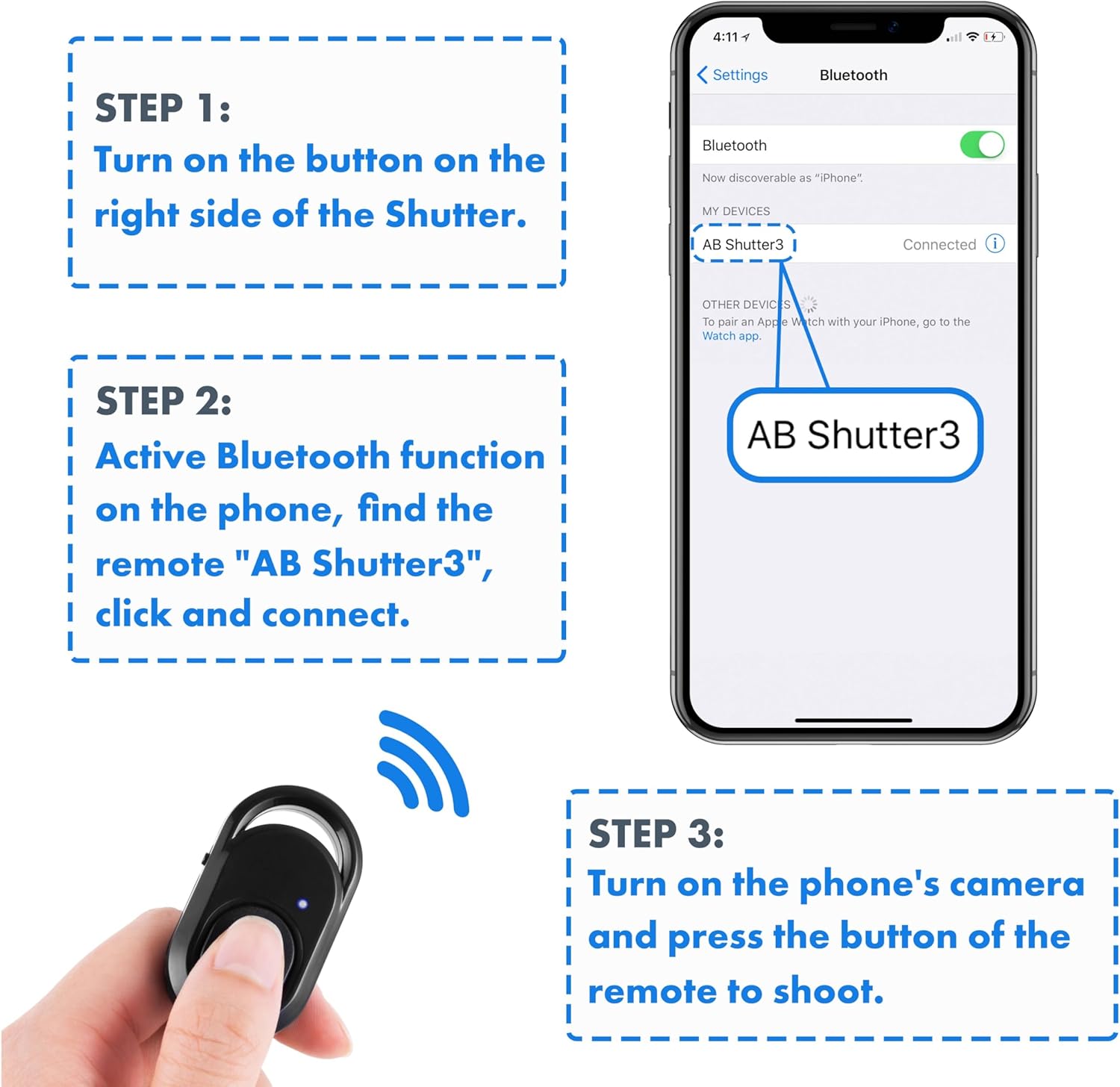
Image: A visual guide showing three steps for pairing: 1. Turn on the remote. 2. Activate Bluetooth and connect to "AB Shutter3". 3. Open the camera app and press the remote button to shoot.
5. Operating Instructions
Once paired, using your Polarduck Bluetooth Remote Control is straightforward:
- Taking Photos: With your camera app open, simply press the main button on the remote control to capture a photo.
- Recording Videos:
- For iPhone and Most Android Phones: Switch your native camera app to video mode. Press the remote button once to start recording, and press it again to stop recording.
- For Samsung Android Phones or Other Android Phones with Volume Key Functionality: If the remote does not initiate video recording directly, go to your camera settings and set the "Volume keys function" to "Record video". This will allow the remote to control video recording.
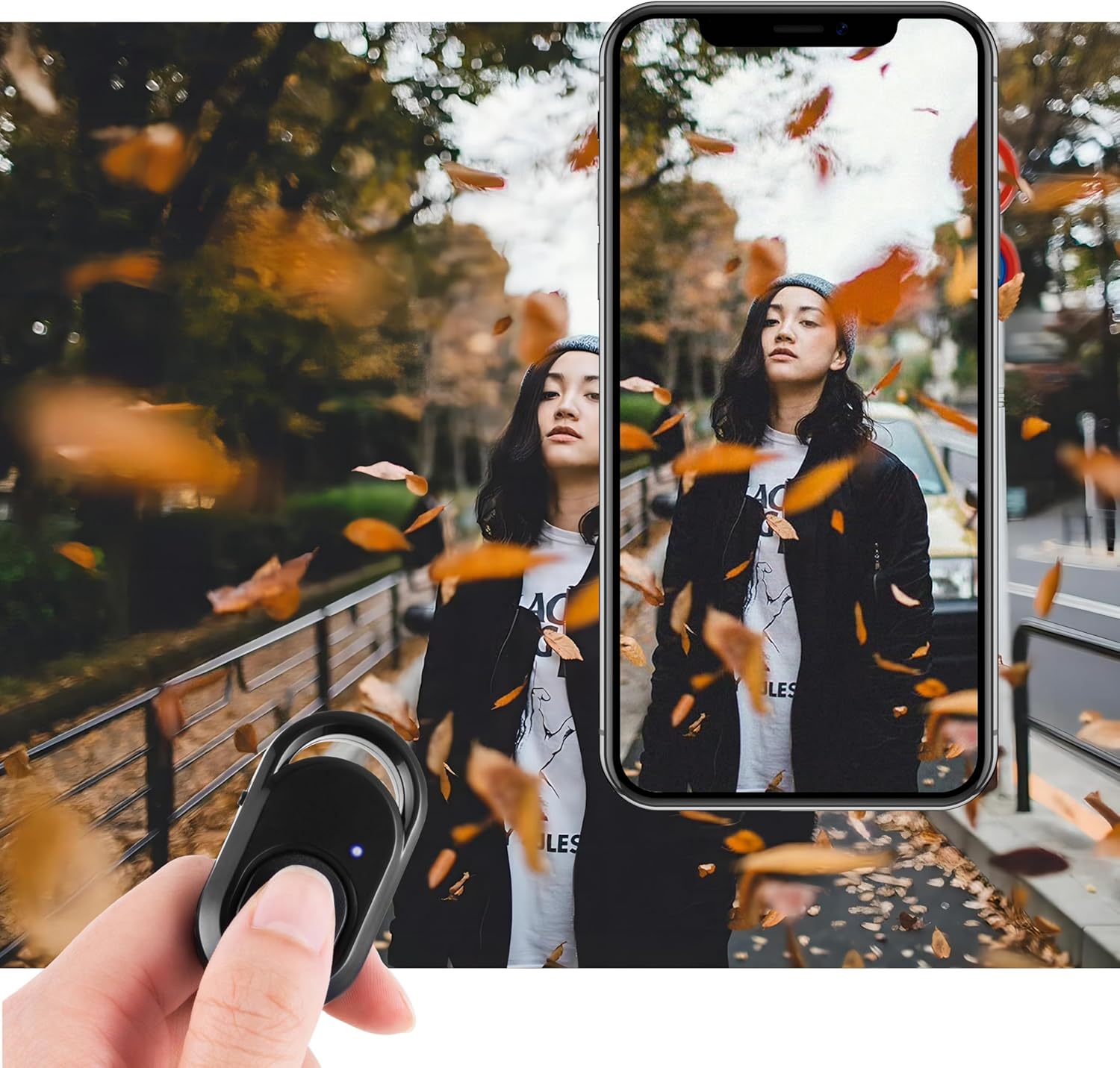
Image: A hand holds the remote control, with a finger pressing the button, while a smartphone screen displays a photo being taken, demonstrating the remote's function.
6. Compatibility
The Polarduck BT1818 Bluetooth Remote Control is compatible with a wide range of devices:
- Operating Systems:
- Apple iOS 8.0 and up
- Android 7.0 OS and up
- Compatible Devices Include:
- iPhone models (e.g., 15 Pro Max, 15 Pro, 15, 14, 13, 12, 11, X, 9, 8)
- iPad models (e.g., Pro, Air, Mini)
- Samsung Galaxy models (e.g., S23 Ultra, S23+, S23, S23 FE, S22, S21, S20)
- HUAWEI models (e.g., Mate 60 RS, Mate 60 Pro+, Mate 60, P60 Pro, P60, nova 11)
- Other Android devices from brands like Xiaomi, OnePlus, BLU, etc.

Image: Four different types of selfie equipment (tripods and selfie sticks) are shown with smartphones attached, indicating the remote's broad compatibility with such accessories.
7. Specifications
| Feature | Detail |
|---|---|
| Communication | Bluetooth |
| Dimensions | 48mm x 30mm x 10mm (2 x 1.2 x 0.4 inches) |
| Weight | 8g (0.634 ounces) |
| Maximum Range | 30 feet (10m) |
| Frequency | 2.4 GHz–2.4835 GHz |
| Battery Type | CR2032 (included) |
| Approx. Battery Life | 6 months (based on 10 uses/day) |
| Model Number | BT1818 |

Image: A technical drawing showing the precise dimensions of the Polarduck Bluetooth remote control in both centimeters and inches.
8. Troubleshooting
If you encounter issues with your remote control, refer to the following common solutions:
- Remote Not Pairing:
- Ensure the remote's ON/OFF switch is in the "ON" position.
- Verify Bluetooth is enabled on your smartphone or tablet.
- Check if the remote appears as "AB Shutter3" or "BT1818" in your device's Bluetooth settings. If you previously paired it with another device, you might need to "forget" it on the old device first.
- Restart both the remote (turn off and on) and your device's Bluetooth.
- Remote Not Taking Photos/Videos:
- Confirm the remote is successfully paired and connected to your device.
- Ensure your native camera app is open and active.
- For video recording on certain Android phones (e.g., Samsung), adjust the camera settings to assign "Record video" to the volume keys function.
- Check the remote's battery level.
- Limited Range:
- Ensure there are no significant obstructions between the remote and your device.
- Avoid environments with strong electromagnetic interference.
- The maximum effective range is approximately 30 feet (10m).
9. Maintenance
To ensure optimal performance and longevity of your remote control:
- Battery Replacement: The remote uses a CR2032 coin cell battery. When the remote's performance degrades or the LED indicator does not light up, it may be time to replace the battery. Carefully open the battery cover (refer to the Product Overview diagram) and insert a new CR2032 battery with the correct polarity.
- Cleaning: Wipe the remote with a soft, dry cloth. Avoid using harsh chemicals or abrasive materials.
- Storage: Store the remote in a cool, dry place away from direct sunlight and extreme temperatures.
10. Warranty and Support
For warranty information or technical support, please refer to the contact details provided with your purchase or visit the official Polarduck website. Keep your purchase receipt as proof of purchase.