
TMEZON MZ-IP-V718TW*2+MZ-VDP-NF404
TMEZON WLAN IP Video Door Intercom System User Manual
Model: MZ-IP-V718TW*2+MZ-VDP-NF404
Brand: TMEZON
1. Product Overview
The TMEZON WLAN IP Video Door Intercom System is designed for 2-family homes, offering advanced security and communication features. This system includes a 7-inch IP touchscreen monitor and a 1080P doorbell, enabling seamless interaction with visitors.
Key Features:
- App Integration: Receive notifications, view, hear, and speak to visitors, and remotely unlock doors via the "TuyaSmart" app from anywhere.
- High-Definition Display: 7-inch LCD touchscreen monitor provides clear 1080P resolution.
- Wide-Angle Doorbell: 1080P camera with a 110° wide-angle lens and built-in infrared for clear night vision. IP65 weatherproof rating ensures durability.
- Multiple Unlocking Methods: Unlock via IC card, the mobile app, or directly from the monitor screen.
- Automatic Recording: Automatically captures snapshots or video recordings when the doorbell is pressed or motion is detected, storing them on a micro SD card (up to 128GB, not included).
- Expandable System: Supports connection of up to 6 IP monitors, 2 doorbells, 2 1080P CCTV cameras, and 3 electric locks.
- Two-Way Communication: Enables communication between monitors and the camera, and between multiple indoor monitors.

Image 1.1: Overview of the TMEZON WLAN IP Video Door Intercom System, showing two indoor monitors, an outdoor doorbell unit, multiple access control cards, and a smartphone displaying the app interface.
2. Setup and Installation
2.1 Package Contents
Before beginning installation, ensure all components are present:
- 7-inch IP Touchscreen Monitor(s)
- 1080P Doorbell Unit
- Power Adapter(s)
- Mounting Brackets and Screws
- IC Cards (8 included)
- Wiring Cables
- User Manual
2.2 Installation Guidelines
This system uses a 2-wire connection. Professional installation is recommended for optimal performance and safety. Ensure power is disconnected before any wiring work.
- Mount the Doorbell Unit: Choose a suitable outdoor location, typically near the main entrance, at a height that allows for clear viewing of visitors. Secure the doorbell unit using the provided mounting bracket and screws. Ensure the location is within Wi-Fi range for optimal app connectivity.
- Mount the Indoor Monitor(s): Install the monitor(s) at a convenient indoor location, such as a hallway or living area. Secure the monitor bracket to the wall and then attach the monitor.
- Wiring: Connect the doorbell unit to the indoor monitor(s) using the 2-wire system. Follow the wiring diagram provided in the separate installation guide for specific connections to power, electric locks (if applicable), and additional monitors/cameras.
- Power Connection: Connect the power adapter to the indoor monitor and plug it into a power outlet.
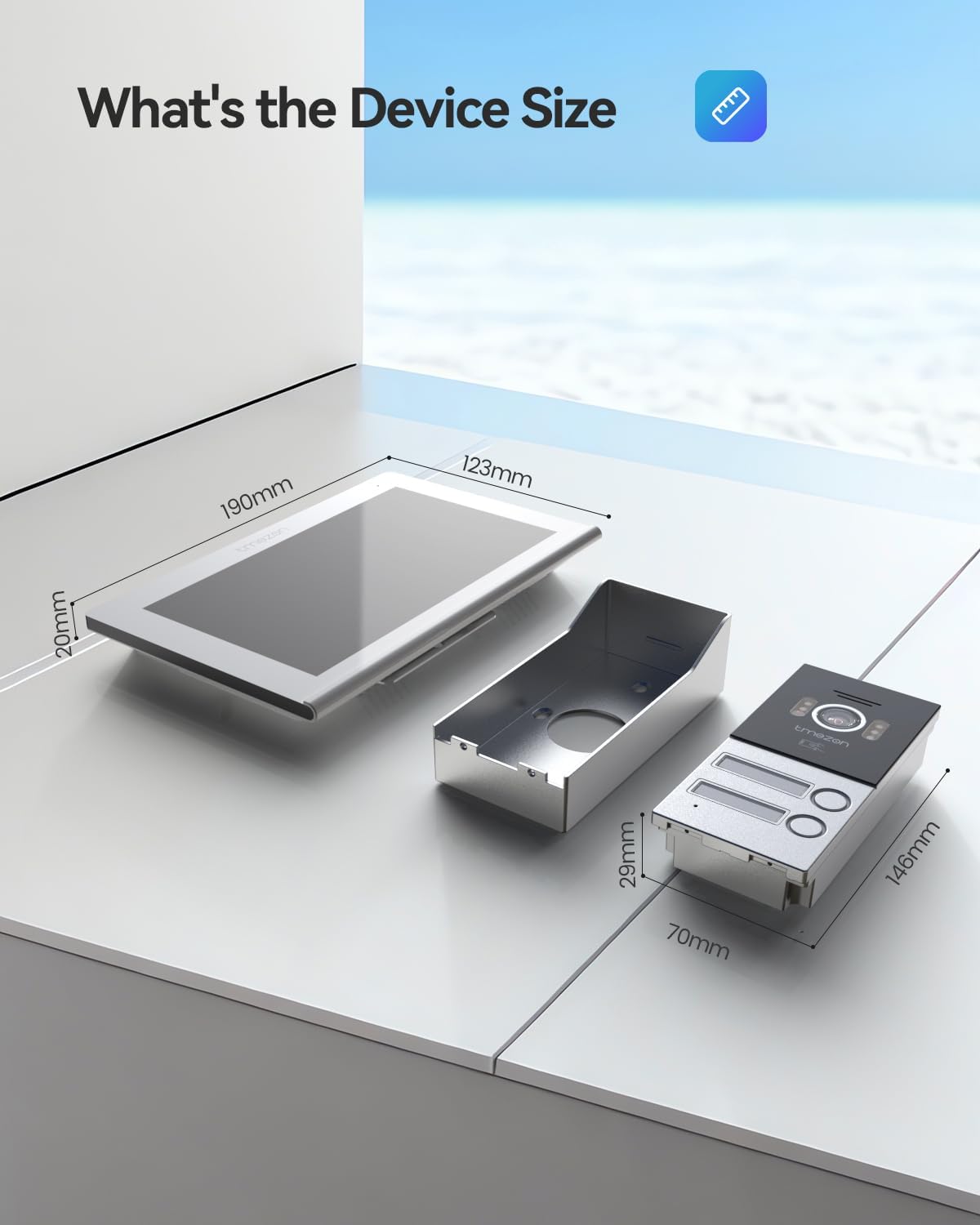
Image 2.1: Diagram illustrating the dimensions of the TMEZON indoor monitor (190mm x 123mm x 20mm) and the outdoor doorbell unit (146mm x 70mm x 29mm), useful for planning installation space.
2.3 Network Configuration (Wi-Fi)
- Power On: Once wired, power on the system. The monitor will boot up.
- Access Settings: On the monitor's touchscreen, navigate to the settings menu.
- Connect to Wi-Fi: Select the Wi-Fi option, choose your home network, and enter the password. Ensure a stable internet connection for app functionality.
2.4 App Download and Pairing
- Download App: Download the "TuyaSmart" app from your smartphone's app store (iOS App Store or Google Play Store).
- Register/Login: Create a new account or log in to your existing TuyaSmart account.
- Add Device: Follow the in-app instructions to add your TMEZON intercom system. This typically involves scanning a QR code displayed on the monitor or selecting the device type manually.

Image 2.2: A hand holding a smartphone, showing the TMEZON intercom system's app interface with options for screenshot, unlock, playback, record, and advanced settings, demonstrating remote access.
3. Operating Instructions
3.1 Answering Calls and Two-Way Audio
When a visitor presses the doorbell:
- The indoor monitor(s) will ring and display the visitor's video feed.
- Your paired smartphone will receive a notification via the TuyaSmart app.
- On the Monitor: Tap the "Answer" icon on the touchscreen to initiate two-way audio communication.
- On the App: Tap the notification to open the app and answer the call, enabling real-time conversation with the visitor.

Image 3.1: A person interacting with the TMEZON indoor monitor, which displays a live video feed of a visitor, demonstrating the two-way communication feature before opening the door.
3.2 Unlocking Doors
The system offers three methods for unlocking connected electric locks:
- Via IC Card: Present a registered IC card to the doorbell unit's card reader. The door will unlock.
- Via Monitor: During a call or while monitoring the doorbell, tap the "Unlock" icon on the indoor monitor's touchscreen.
- Via App: From the TuyaSmart app, tap the "Unlock" icon on the live view screen.

Image 3.2: A hand using an IC card to unlock a gate via the TMEZON doorbell unit, illustrating one of the three available unlocking methods.
3.3 Snapshot and Recording
The system can automatically capture images or videos:
- Automatic Capture: When a visitor presses the doorbell or motion detection is triggered, the system will automatically take a snapshot or begin video recording. These files are saved to the micro SD card (not included) inserted into the indoor monitor.
- Manual Capture: During a live view from the monitor or app, you can manually take a snapshot or start recording by tapping the respective icons.
3.4 Motion Detection
The doorbell camera features built-in motion detection:
- When motion is detected within the camera's field of view, the system can automatically trigger recording and send a notification to your smartphone.
- Motion detection sensitivity can be adjusted in the monitor's settings.

Image 3.3: A visual representation of the TMEZON doorbell's motion detection feature, showing a person triggering an alert and a smartphone receiving a notification from the TuyaSmart app.
3.5 Playback Videos
You can review recorded footage:
- On the Monitor: Navigate to the "Media" or "Playback" section on the indoor monitor to view recorded snapshots and videos stored on the SD card.
- On the App: Access the "Playback" option within the TuyaSmart app to review recordings from your smartphone.

Image 3.4: The TMEZON indoor monitor and a smartphone simultaneously displaying video playback, demonstrating the ability to review recorded footage on both devices.
3.6 Monitor Settings and Interface
The indoor monitor features an intuitive touchscreen interface for managing system settings:
- Main Menu: Access options like Settings, Monitoring, Media, Lock, Standby, and Event logs.
- Customization: Adjust ring settings, motion detection sensitivity, unlock delay, and other preferences.
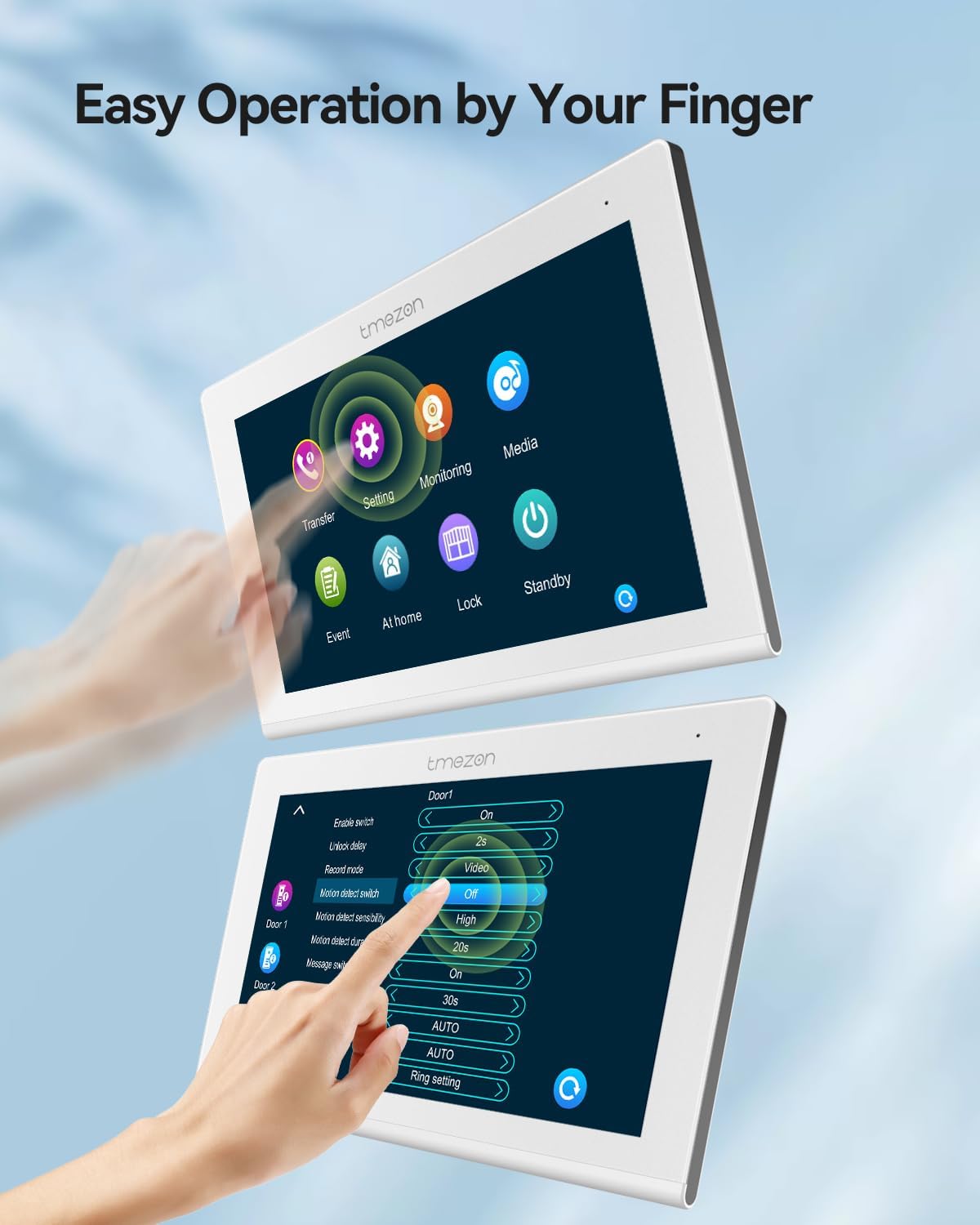
Image 3.5: Hands interacting with the TMEZON touchscreen monitor, demonstrating the ease of navigating through settings and options with a finger.
4. Maintenance
4.1 Cleaning
- Monitors: Use a soft, dry, lint-free cloth to clean the touchscreen and casing. For stubborn marks, slightly dampen the cloth with water or a mild, non-abrasive cleaner. Avoid excessive moisture.
- Doorbell Unit: Wipe the camera lens and surrounding area with a soft, damp cloth to remove dust and dirt. Do not use harsh chemicals or abrasive materials.
- Ensure all units are powered off before cleaning.
4.2 Software Updates
Periodically check for software updates for both the indoor monitor and the TuyaSmart app. Updates often include performance improvements, new features, and security enhancements.
- Monitor: Check the monitor's settings menu for a "Firmware Update" or "System Update" option. Follow on-screen instructions.
- App: Ensure your TuyaSmart app is set to update automatically, or manually check for updates in your smartphone's app store.
5. Troubleshooting
If you encounter issues with your TMEZON intercom system, refer to the following common problems and solutions:
| Problem | Possible Cause | Solution |
|---|---|---|
| No video/audio from doorbell | Loose wiring, power issue, camera malfunction. | Check all wiring connections. Ensure the doorbell unit is receiving power. Restart the monitor. If the issue persists, contact support. |
| App not receiving notifications/offline | No internet connection, incorrect Wi-Fi settings, app permissions. | Verify the monitor's Wi-Fi connection. Check your router and internet service. Ensure TuyaSmart app has notification permissions enabled on your phone. Restart the app and monitor. |
| Door unlock not working | Incorrect wiring to electric lock, lock malfunction, IC card not registered. | Verify wiring to the electric lock. Test the lock independently. Ensure the IC card is correctly registered with the system. |
| Poor image quality (day/night) | Dirty camera lens, insufficient lighting, camera malfunction. | Clean the camera lens. Ensure adequate lighting for night vision (IR LEDs should activate). |
| Monitor not responding to touch | Software glitch, hardware issue. | Perform a hard reset (power cycle) by disconnecting and reconnecting power. If the issue persists, contact support. |

Image 5.1: A visual comparison demonstrating the 1080P sharp image quality of the TMEZON doorbell camera during both day and night conditions, highlighting its infrared capabilities.
6. Specifications
| Feature | Detail |
|---|---|
| Brand | TMEZON |
| Model Number | MZ-IP-V718TW*2+MZ-VDP-NF404 |
| Monitor Size | 7-inch LCD Touchscreen |
| Doorbell Camera Resolution | 1080P |
| Doorbell Camera Angle | 110° Wide Angle |
| Connectivity | 2-Wire System, Wi-Fi (for app) |
| App Compatibility | TuyaSmart |
| Storage | Micro SD card (up to 128GB, not included) |
| Unlocking Methods | IC Card, App, Monitor Screen |
| Weatherproof Rating (Doorbell) | IP65 |
| System Expansion | Up to 6 IP monitors, 2 doorbells, 2 CCTV cameras, 3 electric locks |
| Package Dimensions | 24.2 x 22.3 x 8.2 cm |
| Item Weight | 1.79 kg |
7. Warranty and Support
TMEZON products are designed for reliability and performance. For specific warranty details, please refer to the warranty card included with your product or visit the official TMEZON website.
If you require technical assistance, troubleshooting beyond this manual, or have questions regarding your product, please contact TMEZON customer support through their official channels. Provide your model number (MZ-IP-V718TW*2+MZ-VDP-NF404) and a detailed description of the issue for faster service.
Related documentsMZ-IP-V718TW*2+MZ-VDP-NF404


Ask a question about this manual
Ask about setup, troubleshooting, compatibility, parts, safety, or missing instructions. Manuals+ will review the question and use this page’s manual context to help answer it.