
Introduction
This manual provides instructions for the BUBUCAM Bluetooth Audio Adapter. This device allows you to wirelessly stream audio from your Bluetooth-enabled smartphone or other devices to your car's audio system via its AUX input. It is designed for ease of use with a simple plug-and-play setup.
Product Overview
The BUBUCAM Bluetooth Audio Adapter is a compact device featuring a main adapter unit, a USB power plug, and a 3.5mm audio jack. It is designed to integrate seamlessly with vehicles equipped with an AUX IN port and a USB power source.
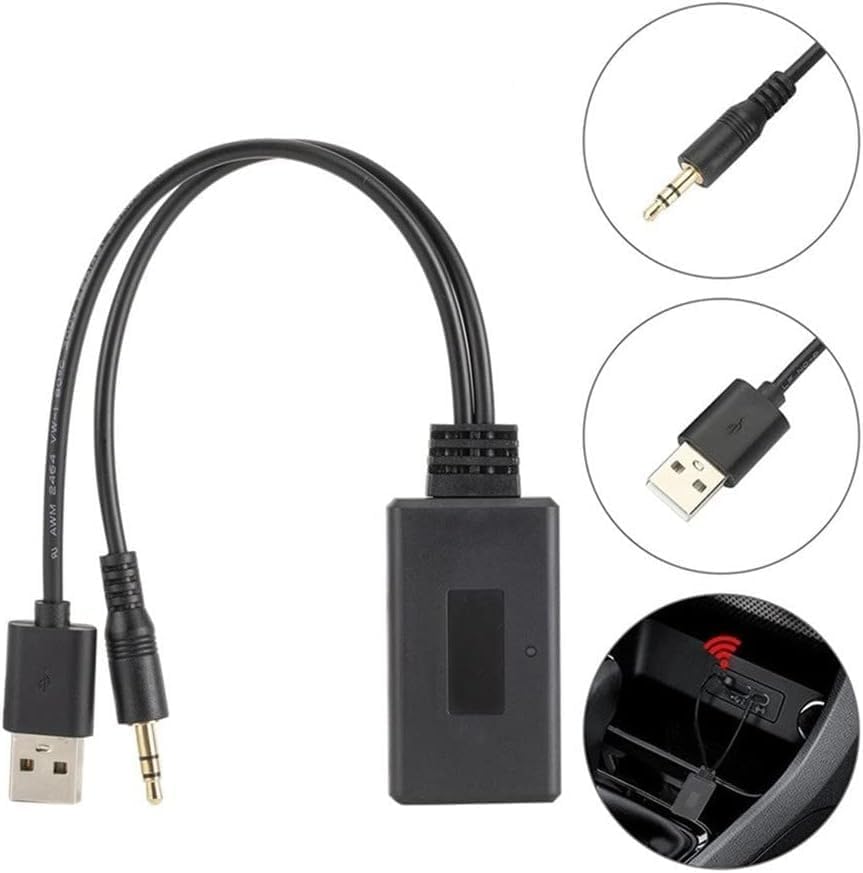
Image: The BUBUCAM Bluetooth Audio Adapter showing its main unit, USB power plug, and 3.5mm audio jack.
Key Components:
- Main Adapter Unit: Houses the Bluetooth receiver circuitry.
- USB Plug: Provides power to the adapter (Input: 12V DC, Output: 5V).
- 3.5mm Jack Plug: Connects to your vehicle's AUX IN port for audio output.
The cable length is approximately 20 cm, providing flexibility for installation.
Setup Instructions
Follow these steps to set up your BUBUCAM Bluetooth Audio Adapter:
- Connect Power: Insert the USB plug of the adapter into a functional 12V DC USB power source in your vehicle. This can be a dedicated USB port or a cigarette lighter adapter with a USB output.
- Connect Audio: Plug the 3.5mm jack into your car's AUX IN port. Ensure it is fully inserted for a secure connection.
- Select AUX Input: On your car's audio system, select the AUX input source. The adapter will power on and typically enter pairing mode automatically, indicated by an LED light (if present).

Image: The Bluetooth adapter connected to a car's USB and AUX ports, ready for use.
Operating Instructions
Pairing with a Bluetooth Device:
- Ensure the BUBUCAM adapter is powered on and in pairing mode (refer to the Setup section).
- On your smartphone or other Bluetooth-enabled device, navigate to the Bluetooth settings menu.
- Search for available Bluetooth devices. You should see an entry like "BUBUCAM Adapter" or a similar generic Bluetooth name.
- Select the adapter from the list to initiate pairing. Once successfully paired, the adapter may provide an audio confirmation or its LED indicator may change state.
Streaming Audio:
- Once paired, open your preferred music or audio application on your device.
- Begin playing audio. The sound will now be transmitted wirelessly to your car's audio system through the AUX input.
- Control playback functions (play, pause, skip tracks, volume) directly from your paired device.
Maintenance
To ensure the longevity and optimal performance of your BUBUCAM Bluetooth Audio Adapter, follow these maintenance guidelines:
- Cleaning: Use a soft, dry cloth to clean the adapter. Avoid using liquid cleaners or solvents.
- Storage: Store the adapter in a cool, dry place when not in use. Avoid exposure to extreme temperatures, direct sunlight, or high humidity.
- Handling: Handle the cables and connectors gently. Do not pull on the cables to disconnect the adapter.
- Disassembly: Do not attempt to open or disassemble the adapter. This may void any warranty and could cause damage to the device.
Troubleshooting
If you encounter issues with your BUBUCAM Bluetooth Audio Adapter, refer to the following troubleshooting tips:
No Power:
- Ensure the USB plug is securely connected to a working 12V DC USB power source.
- Verify that the car's USB port or cigarette lighter adapter is providing power. Test with another device if possible.
Cannot Pair:
- Confirm the adapter is powered on and in pairing mode (e.g., flashing LED).
- Turn off and then turn on Bluetooth on your smartphone or device.
- Move your device closer to the adapter to ensure a strong signal.
- If previously paired, try "forgetting" or "unpairing" the adapter from your device's Bluetooth settings and then attempt to pair again.
No Audio Output:
- Check that the 3.5mm jack is fully inserted into your car's AUX IN port.
- Ensure your car's audio system is set to the correct AUX input source.
- Verify that the volume levels on both your paired device and the car stereo are turned up.
- Confirm that your device is successfully paired with the adapter and is actively playing audio.
Poor Audio Quality:
- Reduce the distance between your Bluetooth device and the adapter.
- Avoid placing the adapter near other electronic devices that might cause interference.
- Ensure the audio source on your device is of good quality.
Specifications
| Brand | BUBUCAM |
| Model Number | 768622834761 |
| UPC | 768622834761 |
| Connections | USB plug, 3.5mm jack plug |
| Cable Length | Approximately 20 cm |
| Input Voltage | 12 Volts (DC) |
| Output Voltage | 5 Volts |
| Compatible Devices | Bluetooth enabled devices |
| Item Weight | 35 Grams |
| Number of Ports | 2 |
Warranty and Support
Specific warranty information for this product is not available in the provided documentation. For warranty details, technical support, or customer service inquiries, please refer to the contact information provided by your retailer or the manufacturer, BUBUCAM.