
1. Introduction and Overview
The ATEZR L2 36W Laser Engraver is a high-efficiency and high-power laser engraving and cutting machine designed for precision work on a wide range of materials including wood, metal, acrylic, and leather. It features advanced capabilities such as power-off continuous engraving, automatic Z-axis sinking, and a smart air assist system to enhance your creative projects.
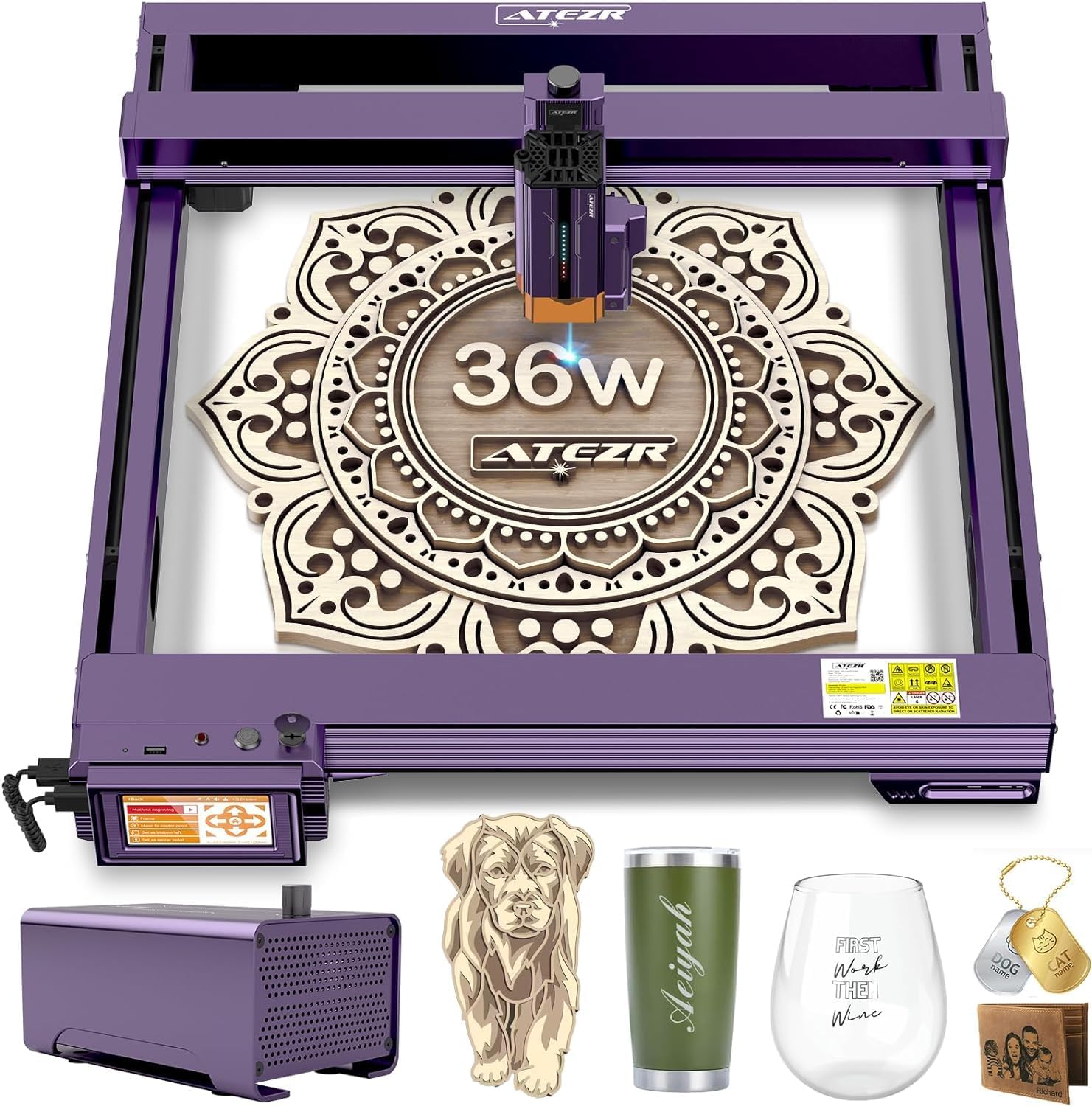
Figure 1: The ATEZR L2 36W Laser Engraver with its air assist module and sample engraved items.
This manual provides essential information for setting up, operating, and maintaining your ATEZR L2 Laser Engraver to ensure optimal performance and safety.
2. Setup
The ATEZR L2 Laser Engraver is designed for quick and straightforward assembly. Most components come pre-assembled, requiring minimal steps to get started.
2.1 Initial Assembly
- Carefully unpack all components from the packaging.
- Place the main frame on a stable, level surface.
- Attach the laser head module to the gantry. Ensure it is securely fastened.
- Connect all necessary cables, including power, USB, and air assist connections.
- Insert the safety key into the designated slot.

Figure 2: The robust design of the ATEZR L2, highlighting the upgraded optical axis and linear rails for enhanced accuracy.
2.2 Software Installation
The ATEZR L2 is compatible with popular laser engraving software such as LightBurn and LaserGRBL. It also supports the Atezr App for mobile control.
- Download and install the recommended software (LightBurn or LaserGRBL) from the official ATEZR website or the software provider's website.
- Follow the on-screen instructions to complete the software installation and driver setup.
- For mobile control, download the Atezr App from Google Play or the Apple App Store.

Figure 3: The ATEZR L2 offers extensive connection choices, including LightBurn, Laser GRBL, and the Atezr App, compatible with Mac OS and Windows.
3. Operating Instructions
Operating the ATEZR L2 involves preparing your material, setting up the design, and initiating the engraving or cutting process. Always ensure proper ventilation and safety precautions are followed.
3.1 Material Preparation and Placement
- Place your material flat on the working surface. The ATEZR L2 offers a large 410mm x 410mm (16.14in x 16.14in) engraving area.
- Ensure the material is stable and will not shift during operation.

Figure 4: The 36W super power of the ATEZR L2 allows for effortless cutting of different thicknesses, including 18mm and 30mm Paulownia boards with automatic Z-axis sinking.
3.2 Autofocus and Cross-Positioning
The ATEZR L2 features smart autofocus and cross-positioning to ensure precise engraving and cutting.
- Utilize the autofocus function to automatically set the optimal focal length (e.g., 8mm).
- Use the cross-positioning feature to accurately align your design with the material.
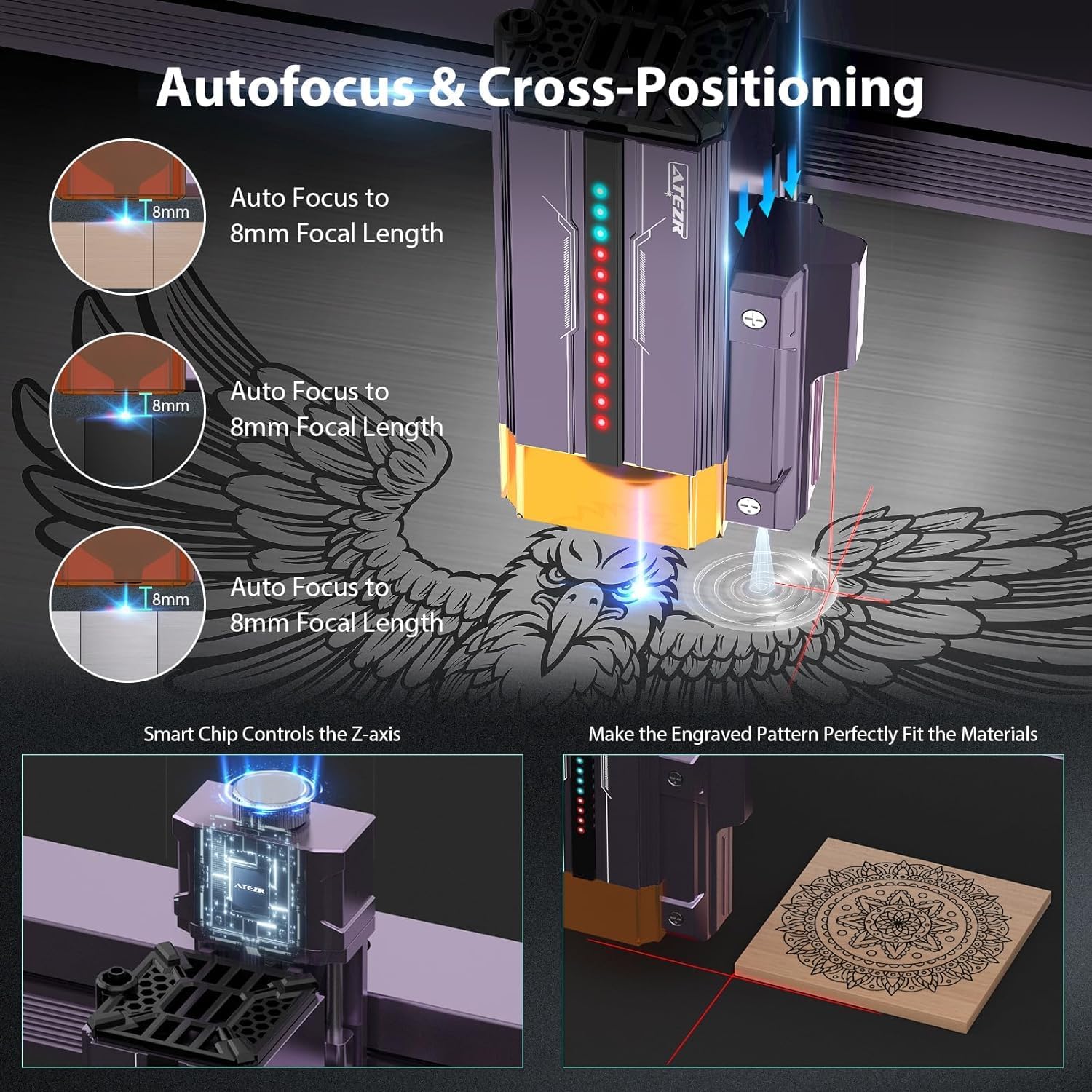
Figure 5: The ATEZR L2's autofocus and cross-positioning capabilities, controlled by a smart chip, ensure the engraved pattern perfectly fits the materials.
3.3 Engraving and Cutting Modes
The machine offers various working modes to suit different project needs, with engraving speeds up to 54000mm/min.
- Fast Mode: Up to 54000mm/min for high-speed engraving.
- Standard Mode: 30000mm/min, balancing speed and accuracy.
- Fine Mode: 6000mm/min for the highest level of precision and detail, achieving an ultra-fine laser spot of 0.08*0.1mm.

Figure 6: The ATEZR L2 offers three working modes (Fast, Standard, Fine) with one-key switching, allowing users to optimize for speed or precision.
3.4 Air Assist System
The integrated smart air assist system improves cutting performance and reduces burn marks.
- Adjust air output via LightBurn for optimal cutting (strong airflow) or engraving (weak airflow).
- The double-layer air filtration cover prevents clogging and enhances dust removal.

Figure 7: The ATEZR L2's smart air assist system, with adjustable airflow and a double-layer air filtration cover, ensures cleaner cuts and engravings.
3.5 Power-Off Continuous Engraving
This innovative function allows you to resume engraving from where it left off after a power failure, saving material and time.
- If power is interrupted, the machine will prompt you to continue engraving upon restart.
- Ensure the machine and material position are not offset for accurate resumption.

Figure 8: The ATEZR L2's controllable engraving progress feature allows for continuous engraving after a power failure, saving materials and time with high re-engraving accuracy.
3.6 Offline Engraving and Cutting
Boost your productivity with the 4.3-inch terminal display, enabling offline operation.
- Load designs directly onto the machine via a thumb drive.
- Control engraving parameters and monitor progress directly from the touchscreen without a computer connection.

Figure 9: The ATEZR L2 supports offline engraving and cutting, boosting productivity with its intuitive 4.3-inch terminal display.
3.7 Supported Materials
The ATEZR L2 is versatile and can engrave and cut a wide array of materials, including:
- Wood (up to 30mm thickness)
- Metal (with color engraving capabilities)
- Acrylic (up to 12mm thickness)
- Leather
- Fabric
- Stone
- Glass

Figure 10: The ATEZR L2's powerful laser allows for engraving with over 340 colors on metallic surfaces, bringing vivid designs to life.
3.8 Safety Features
Your safety is paramount. The ATEZR L2 incorporates multiple safety mechanisms:
- 6 Limit Switches: Prevent damage if the laser module hits the machine's limits.
- Flame Detector: Alerts and stops operation if a flame is detected.
- Child Safety Lock: Prevents unauthorized use.
- Gyroscope Sloping: Detects abnormal tilting and stops operation.

Figure 11: The ATEZR L2 is equipped with multi-level safety functions, including 6 limit switches, a flame detector, child safety lock, and gyroscope sloping, ensuring safe operation.
3.9 Official Product Video
Video 1: Official ATEZR L2 Laser Engraver video showcasing its features, including resume engraving, high speed, and various applications. (Duration: 3:04)
4. Maintenance
Regular maintenance ensures the longevity and optimal performance of your ATEZR L2 Laser Engraver.
- Cleaning: Regularly clean the laser lens and the working area to prevent debris buildup, which can affect engraving quality. Use a soft, lint-free cloth.
- Lubrication: Periodically lubricate the linear rails and moving parts as recommended in the detailed product guide (refer to manufacturer's specific instructions).
- Connections: Check all electrical and air assist connections regularly to ensure they are secure and free from damage.
- Ventilation: Ensure the machine is operated in a well-ventilated area to dissipate fumes and heat effectively.
5. Troubleshooting
This section addresses common issues you might encounter with your ATEZR L2 Laser Engraver.
| Problem | Possible Cause | Solution |
|---|---|---|
| Autofocus failure | Sensor obstruction, incorrect material placement, software glitch. | Clear any obstructions around the laser head. Ensure material is flat and within the focus range. Restart the machine and software. |
| Engraving stops mid-process | Power interruption, software crash, loose connection. | Utilize the power-off continuous engraving function to resume. Check power and USB connections. Restart software if it crashed. |
| Poor engraving/cutting quality | Incorrect power/speed settings, dirty lens, material not flat. | Adjust power and speed settings according to material type. Clean the laser lens. Ensure material is completely flat on the workbed. |
| Machine not responding | Loose cables, software communication error, safety lock engaged. | Check all cable connections. Restart the machine and computer/app. Ensure the safety key is fully inserted and turned to the 'On' position. |
If you encounter issues not listed here or if the suggested solutions do not resolve the problem, please contact ATEZR customer support for further assistance.
6. Specifications
- Product Dimensions: 25.59 x 29.53 x 8.74 inches
- Item Model Number: ATEZR L2 Laser Engraver
- ASIN: B0CPPCB9BG
- Item Weight: 34.6 pounds
- Date First Available: June 19, 2024
- Laser Power: 36W
- Engraving Speed: Up to 54000mm/min
- Engraving Area: 410mm x 410mm (16.14in x 16.14in)
- Connectivity: USB, Type-C, HDMI, Atezr App
- Operating System Compatibility: Mac OS, Windows
7. Warranty and Support
For warranty information, technical support, or service inquiries, please refer to the official ATEZR website or contact ATEZR customer service directly. Keep your purchase receipt and product serial number handy when contacting support.
ATEZR Official Website: www.atezr.com (Note: This is a placeholder URL, please refer to your product packaging or official documentation for the correct website.)

