
1. Introduction and Overview
Welcome to the world of aerial photography and exploration with your new Holy Stone HS360S GPS Drone. This special edition drone, celebrating Holy Stone's 10th Anniversary, features a vibrant dark green paint scheme and is designed for both beginners and experienced pilots. Weighing under 249g, it is FAA compliant, meaning no registration is needed, allowing you to focus on the joy of flight.
The HS360S is equipped with a 4K UHD camera, offering high-resolution photos (3840x2160P) and videos, an 85° FOV lens, and a 90° adjustable camera for capturing breathtaking aerial footage. Its superior 5G transmission technology provides a reliable connection up to 10,000 feet. Advanced GPS functions ensure stable flight and safe return, while intelligent flight modes like Follow Me, Tap Fly, Point of Interest, and Hand Gesture Shots enhance your flying experience.
Video: Holy Stone 10th Anniversary Special Edition Drone. This video showcases the drone's design and some of its key features in action.
Video: Holy Stone HS360S Special Edition. A detailed look at the special edition HS360S drone and its capabilities.
2. Setup and Assembly
2.1 What's in the Box
- Holy Stone HS360S Drone
- Remote Controller
- Intelligent Flight Batteries (2 included in this version)
- USB Charging Cables (for drone and controller)
- Spare Propellers
- Screwdriver
- Carry Case
- User Manual (this document)

Image: All components included with the Holy Stone HS360S drone, neatly arranged in its carry case.
2.2 Initial Setup
- Charge Batteries: Fully charge both the drone's flight batteries and the remote controller's internal battery using the provided USB cables.
- Unfold Drone: Gently unfold the drone's arms until they click into place.
- Insert Battery: Insert a fully charged intelligent flight battery into the drone's battery compartment until it is securely latched.
- Prepare Remote Controller: Extend the phone holder on the remote controller. Attach your smartphone to the holder and connect it using the appropriate data cable (USB-C, Lightning, or Micro USB).
- Download App: Download and install the 'HS Fly' app from your smartphone's app store.
3. Operating Instructions
3.1 Remote Controller Overview
The remote controller is your primary interface for controlling the HS360S drone. Familiarize yourself with its layout and functions:
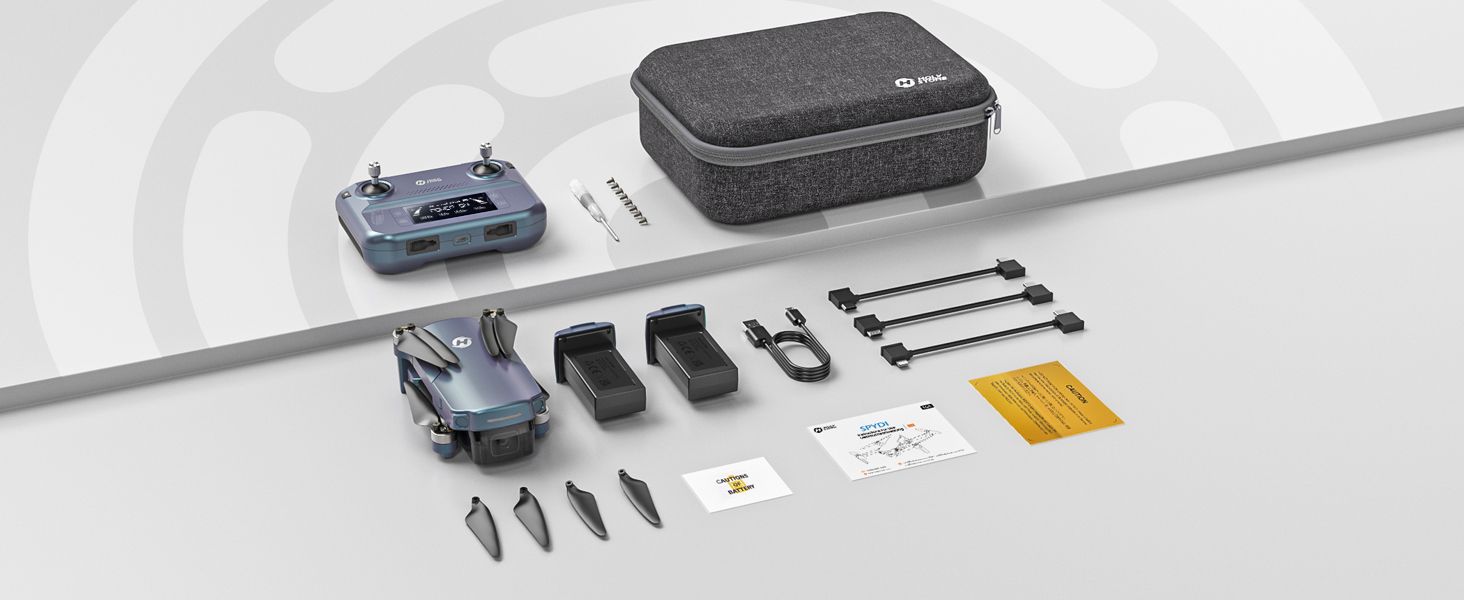
Image: Detailed diagram of the Holy Stone HS360S remote controller, highlighting all buttons and ports.
- Left Joystick: Controls altitude (up/down) and rotation (yaw left/right).
- Right Joystick: Controls forward/backward and left/right movement.
- Takeoff/Landing Button: Short press for automatic takeoff/landing.
- Emergency Stop: Long press to immediately stop motors (use only in emergencies).
- Speed Switch: Short press to cycle through speed modes (Beginner, Normal, Sport).
- GPS Switch: Long press to toggle GPS mode.
- Return to Home (RTH): Initiates automatic return to the takeoff point.
- Take Photo Button: Captures a still image.
- Record Video Button: Starts/stops video recording.
- Zoom Dial: Adjusts camera zoom.
- Camera Adjustment Dial: Tilts the camera up or down.
- LCD Screen: Displays flight information and battery status.
- Connection Port: For connecting your smartphone.
3.2 Basic Flight Operations
- Power On: Turn on the drone first, then the remote controller. Wait for them to connect (indicated by solid lights and a beep).
- GPS Signal: Ensure the drone has acquired sufficient GPS satellites before takeoff for stable flight and RTH functionality.
- Takeoff: Place the drone on a flat, open surface. Short press the Takeoff/Landing button. The drone will automatically ascend and hover.
- Controlling Flight: Use the joysticks to control the drone's movement. Start with slow, gentle movements, especially in Beginner Mode.
- Landing: Short press the Takeoff/Landing button. The drone will automatically descend and land. Alternatively, you can manually land using the left joystick.
3.3 Intelligent Flight Modes
The HS360S offers several intelligent flight modes to enhance your aerial photography and videography:
- Follow Me Mode: The drone will automatically follow the remote controller (and your connected smartphone) at a set distance and altitude.
- Tap Fly: Tap a point on the map in the HS Fly app, and the drone will fly to that location.
- Point of Interest: Select a central point, and the drone will circle around it, capturing footage.
- Hand Gesture Shots: Use specific hand gestures to trigger photo or video capture.
- Auto Return (RTH): The drone will return to its takeoff point if the battery is low, connection is lost, or the RTH button is pressed.

Image: Visual representation of the drone performing various intelligent flight functions like Follow Me, Point of Interest, Trajectory Flight, and Waypoint Flight.

Image: Diagram illustrating the Smart Return Home feature, showing the drone returning to its home point due to low voltage, smart RTH activation, or failsafe RTH.
3.4 Camera Operation
The integrated 4K UHD camera allows you to capture stunning visuals:
- Photo/Video Capture: Use the dedicated buttons on the remote controller or the HS Fly app to take photos or start/stop video recording.
- Camera Angle Adjustment: Use the camera adjustment dial on the remote to tilt the camera for different perspectives.
- Resolution: Photos are captured at 3840x2160P, and videos are recorded in 4K.

Image: Close-up view of the Holy Stone HS360S drone's 4K UHD camera, highlighting its 90° remotely adjustable feature and 85° FOV.
Video: Holy Stone HS360S Green GPS 4K Drone with Camera for Adults. This video demonstrates the drone's camera capabilities and flight stability.
4. Maintenance
- Propeller Inspection: Regularly check propellers for any damage (cracks, bends). Replace damaged propellers immediately using the provided spare parts and screwdriver.
- Cleaning: Keep the drone and camera lens clean from dust and debris. Use a soft, dry cloth.
- Battery Care: Store batteries in a cool, dry place. Do not overcharge or over-discharge.
- Storage: When not in use, fold the drone and store it in its carry case to protect it from damage.
5. Troubleshooting
If you encounter any issues, please refer to the following common troubleshooting tips:
- Drone Not Responding: Ensure both the drone and controller are fully charged and properly paired. Re-calibrate the drone if necessary.
- Unstable Flight: Ensure GPS signal is strong. Calibrate the gyroscope and compass as per the app instructions. Avoid flying in strong winds.
- No Camera Feed: Check the smartphone connection cable and ensure the HS Fly app is running correctly.
- Short Flight Time: Ensure batteries are fully charged. Flight time can be affected by aggressive flying or strong winds.
For more detailed troubleshooting or persistent issues, please contact Holy Stone Customer Support.
6. Specifications
| Feature | Specification |
|---|---|
| Model Name | HS Gradient Color Edition |
| Item Weight | 8.7 Ounces (249g) |
| Video Capture Resolution | 4K UHD (3840x2160P) |
| Maximum Range | 10,000 Feet (Transmission) |
| Connectivity Technology | 5G WiFi Repeater |
| Special Features | 4K UHD Camera, Time-lapse Photography, FPV, GPS Follow Me, Auto Return, Lightweight, No Need FAA/Remote ID |
| Battery Cell Composition | Lithium Polymer |
| Control Type | Remote Control |
| Material | Plastic |
| Item Dimensions (L x W x H) | 11.6"L x 8.4"W x 2.2"H |
7. Warranty and Support
Holy Stone is committed to providing excellent customer service. If you have any questions, concerns, or require assistance with your HS360S drone, please do not hesitate to contact our support team.
Our HS Fly App also ensures continuous improvements and updates to the drone's functions, offering an ever-improving flight experience. For further guidance, you can refer to in-app tutorials and official YouTube guidance videos.
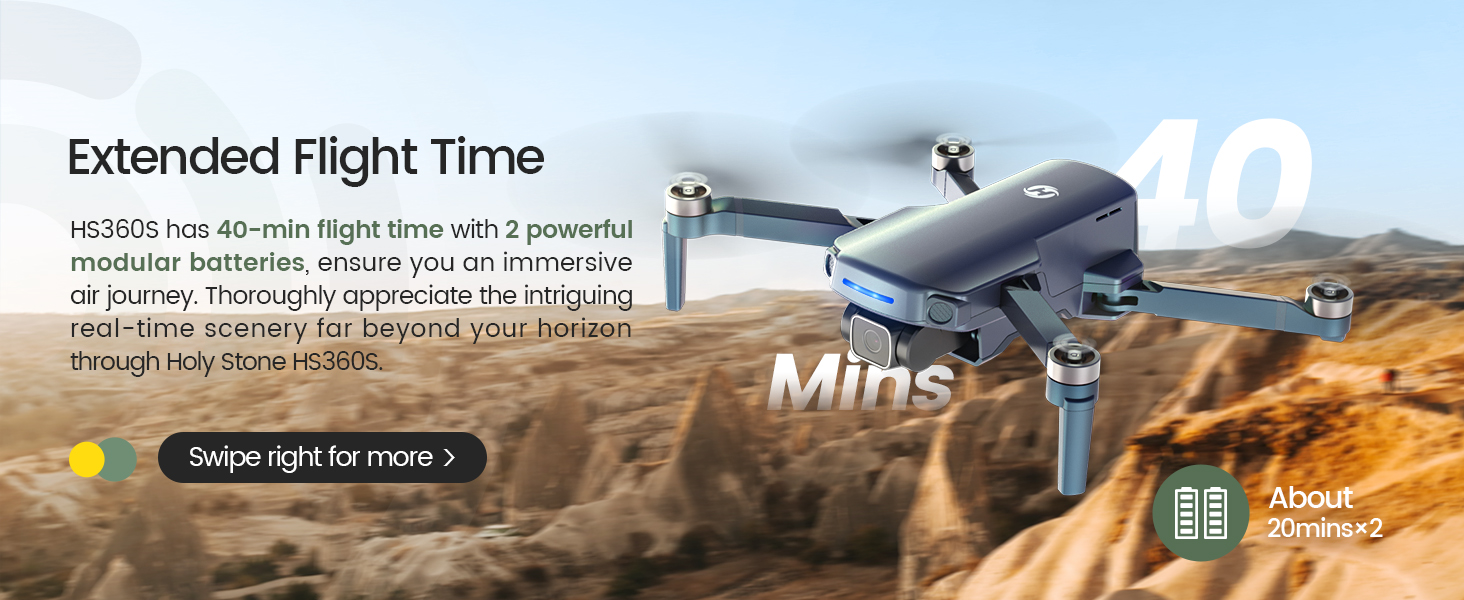
Image: A customer support representative ready to assist, symbolizing Holy Stone's commitment to flight guidance and after-sales support.
Contact Information: Please refer to your product packaging or the official Holy Stone website for the most up-to-date customer support contact details.


