
1. Introduction
This manual provides detailed instructions for the installation, operation, and maintenance of your DeLOCK 42022 M.2 NVMe SSD Enclosure. This aluminum enclosure is designed to house two M.2 PCIe NVMe SSDs of various lengths (2280, 2260, 2242, 2230) and connect them to a PC or laptop via USB. Its robust metal housing features a cooling fin design to ensure optimal temperature management for your SSDs. The enclosure also supports various RAID modes when two SSDs are installed.
2. Package Contents
Please verify that all items listed below are present in your package:
- DeLOCK 42022 M.2 NVMe SSD Enclosure (Black, Aluminum)
- External Power Adapter
- USB Type-C to USB Type-A Cable
- USB Type-C to USB Type-C Cable
- User Manual (this document)
- Thermal pads and mounting accessories (screws, rubber nipples)

Image: Contents of the DeLOCK 42022 package, including the enclosure, power adapter, USB cables, and small accessories.
3. Product Overview
The DeLOCK 42022 is a high-performance external enclosure designed for M.2 NVMe SSDs. Its robust aluminum construction not only provides durability but also aids in heat dissipation through its finned design. The enclosure features LED indicators for status and an on/off switch for convenient power management.
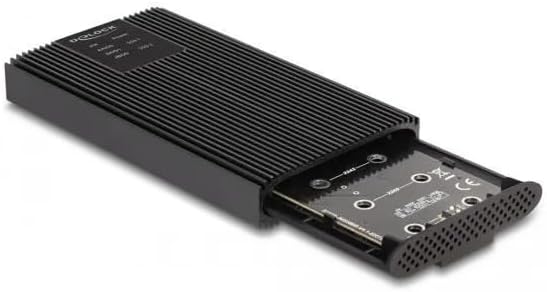
Image: Front view of the DeLOCK 42022 M.2 NVMe SSD Enclosure, showcasing its black aluminum body and finned cooling design.

Image: The DeLOCK 42022 enclosure with the internal tray partially extended, revealing the M.2 SSD slots and tool-free mounting mechanism.

Image: Rear view of the DeLOCK 42022 enclosure, showing the USB Type-C ports, power input, and on/off switch.
4. Setup and SSD Installation
The DeLOCK 42022 enclosure features a tool-free installation mechanism for M.2 SSDs.
- Open the Enclosure: Gently push the end cap of the enclosure to slide out the internal tray.
- Insert SSD(s): Align your M.2 PCIe NVMe SSD(s) with the M.2 slot(s) on the PCB. Insert the SSD(s) firmly into the slot(s) at an angle.
- Secure SSD(s): Once inserted, gently push the SSD down. Use the provided rubber nipples to secure the SSD(s) to the PCB. No screws are required for this step.
- Apply Thermal Pads: For optimal heat dissipation, apply the included thermal pads to the top surface of your SSD(s) where they will make contact with the enclosure's cooling fins.
- Close the Enclosure: Carefully slide the internal tray back into the aluminum housing until it clicks securely into place.
Note: Ensure your M.2 SSD is NVMe (PCIe) compatible. SATA M.2 SSDs are not supported by this enclosure.
5. Operating Instructions
5.1. Connecting to a Computer
- Connect Power: Connect the external power adapter to the enclosure's power input and then to a wall outlet.
- Connect Data Cable: Use one of the provided USB cables (USB Type-C to Type-C or USB Type-C to Type-A) to connect the enclosure to an available USB port on your computer.
- Power On: Flip the on/off switch on the enclosure to the "On" position. The LED indicator(s) should illuminate.
- System Recognition: Your operating system (Windows, macOS, Linux) should automatically detect the new storage device. You may need to initialize and format the SSD(s) through your operating system's disk management utility if they are new.

Image: The DeLOCK 42022 M.2 NVMe SSD Enclosure connected to a laptop via a USB Type-C cable, demonstrating typical usage.
5.2. RAID Configuration (for two SSDs)
If you have installed two M.2 NVMe SSDs, the DeLOCK 42022 enclosure supports various RAID modes. Refer to the specific instructions provided with the enclosure's controller for detailed steps on how to configure RAID 0, RAID 1, JBOD, or other supported modes. Typically, this involves setting jumpers or using a software utility before connecting to the computer for the first time.
Important: Configuring RAID modes will erase all data on the installed SSDs. Back up any important data before proceeding with RAID configuration.
6. Maintenance
The DeLOCK 42022 enclosure is designed for durability and efficient cooling. To ensure optimal performance and longevity:
- Cleaning: Keep the enclosure clean and free from dust. Use a soft, dry cloth for cleaning. Avoid liquid cleaners.
- Ventilation: Ensure the cooling fins are not obstructed to allow for proper heat dissipation.
- Handling: Handle the enclosure with care to prevent physical damage.
- Temperature: Operate the enclosure within recommended environmental temperature ranges.
7. Troubleshooting
If you encounter issues with your DeLOCK 42022 enclosure, please refer to the following common troubleshooting steps:
- Enclosure not detected:
- Ensure the power adapter is securely connected and the enclosure is powered on.
- Try a different USB port on your computer.
- Try a different USB cable.
- Verify that the M.2 SSD(s) are correctly seated in their slots.
- Check your computer's Disk Management (Windows) or Disk Utility (macOS) to see if the drive is detected but uninitialized/unformatted.
- Slow transfer speeds:
- Ensure you are connected to a USB 3.0 Gen 2 (or higher) port on your computer. Older USB ports will result in lower speeds.
- Verify that your SSD is performing optimally.
- Check that the USB cable is rated for high-speed data transfer.
- Enclosure is hot:
- The aluminum housing is designed to dissipate heat, so it may feel warm during operation, especially under heavy load. This is normal.
- Ensure the cooling fins are not blocked and there is adequate airflow around the enclosure.
- Verify that thermal pads are correctly installed on the SSD(s).
- RAID configuration issues:
- Refer to the specific RAID controller instructions for proper setup.
- Ensure both SSDs are of similar capacity and type for optimal RAID performance.
8. Specifications
| Feature | Detail |
|---|---|
| Product Type | M.2 NVMe SSD Enclosure |
| Model Number | 42022 |
| Brand | DeLOCK |
| Material | Aluminum |
| Color | Black |
| Supported Storage Drives | 2 x M.2 PCIe NVMe SSDs |
| Supported SSD Lengths | 30, 42, 60, 80 mm |
| Interface | USB 3.0 Gen 2 (3.1 Gen 2) |
| USB Connector Type | USB Type-C (2 ports) |
| Data Transfer Rate | Up to 20 Gbps |
| RAID Support | Yes (RAID 0, RAID 1, JBOD, etc. - specific modes depend on controller) |
| External Power Adapter | Input: 100-240V, 0.6A, 50-60Hz; Output: 5V, 3A |
| LED Indicators | Yes |
| On/Off Switch | Yes |
| Dimensions (L x W x H) | 120 mm x 68 mm x 17 mm |
| Supported Operating Systems | Windows, macOS, Linux |
9. Warranty and Support
For warranty information and technical support, please refer to the documentation provided with your purchase or contact your retailer. DeLOCK products typically come with a manufacturer's warranty against defects in materials and workmanship. Keep your proof of purchase for warranty claims.
For further assistance, visit the official DeLOCK website or contact their customer support.