
Introduction
This manual provides comprehensive instructions for the setup, operation, maintenance, and troubleshooting of your Dough Spectrum One 27-inch 4K HDR 144Hz Gaming Monitor (Model ES07D03). Please read this manual thoroughly before using the product to ensure optimal performance and safety.

Image: The Dough Spectrum One 27-inch gaming monitor displaying a dynamic, colorful abstract image, highlighting its visual capabilities.
Package Contents
Verify that all items are present in the package:
- Dough Spectrum One 27-inch Monitor
- Power Adapter and Cable
- DisplayPort Cable
- USB-C Cable
- Documentation (Quick Start Guide, Warranty Card)
- Note: This variant (Monitor Only) does not include a stand. A VESA-compatible monitor arm or stand is required for use.
Setup
1. Mounting the Monitor
Since this is a "Monitor Only" variant, a VESA-compatible mounting solution (e.g., monitor arm or stand) is required. The monitor supports VESA mount standard. Attach your chosen mounting solution securely to the back of the monitor and then to your desk or wall according to the mounting solution's instructions.

Image: The Dough Spectrum One monitor displayed on a desk, connected to a laptop and a gaming console, illustrating a typical setup environment.
2. Connecting Cables
Connect the necessary cables to the monitor's rear ports. Refer to the image below for port locations.

Image: A detailed rear view of the Dough Spectrum One monitor, highlighting the array of connectivity ports including HDMI, DisplayPort, USB-C, USB-B, USB-A, and a 3.5mm audio jack.
- Power: Connect the power adapter to the monitor and then to a power outlet.
- Video Input:
- DisplayPort: Connect a DisplayPort cable from your computer's graphics card to the monitor's DisplayPort 1.4 input.
- HDMI: Connect an HDMI 2.1 cable from your device (PC, console) to one of the monitor's two HDMI 2.1 ports.
- USB-C (DisplayPort Alternate Mode): For compatible laptops, connect a USB-C cable to the monitor's USB-C 3.2 Gen 2 port. This single cable can transfer video, data, and up to 100W of power to your laptop.
- USB Hub: Connect the upstream USB-B cable from your computer to the monitor's USB-B port to enable the integrated USB 3.2 Gen 2 hub (two side-facing USB-A and one USB-C port).
- Audio: For private listening, connect headphones to the 3.5mm audio jack.
Operating Instructions
Power On/Off
Press the power button, usually located on the bottom or rear of the monitor, to turn it on or off. The monitor will automatically enter a low-power sleep mode when no signal is detected.
Input Selection
Use the On-Screen Display (OSD) menu to select your desired video input source (DisplayPort, HDMI 1, HDMI 2, USB-C). The OSD menu is typically navigated using buttons or a joystick on the monitor's rear or bottom.
Display Settings
Access the OSD menu to adjust various display settings:
- Brightness/Contrast: Adjust image luminance and contrast levels.
- Color Settings: Fine-tune color temperature, gamma, and saturation. The monitor is factory calibrated for Delta E 0.6 average accuracy, covering 98% DCI-P3 and 100% sRGB.
- HDR: Enable or disable HDR10 support for enhanced dynamic range.
- Refresh Rate: The monitor supports up to 144Hz refresh rate. Ensure your graphics card settings are configured to utilize this.
- Resolution: The native resolution is 3840 x 2160 (4K UHD). The monitor is designed to scale 1080p content effectively.

Image: The Dough Spectrum One monitor showcasing its vibrant display with a colorful abstract image, accompanied by text highlighting its core features: 27-inch size, 4K resolution, 144Hz refresh rate, IPS panel, USB Type-C with 100W charging, DisplayHDR 600, G-SYNC Compatible, and FreeSync Premium Pro.
Adaptive Sync Technology
The monitor supports AMD FreeSync Premium Pro, NVIDIA G-Sync, and VESA Adaptive-Sync compatibility. This technology synchronizes the monitor's refresh rate with your graphics card's frame rate, reducing screen tearing and stuttering. Ensure Adaptive Sync is enabled in both the monitor's OSD and your graphics card's control panel.
Gaming Features
The Spectrum One includes features designed to enhance your gaming experience:
- Pixel-Perfect Upscaling: Uses integer-ratio pixel duplication for low-resolution input signals, maintaining the crisp look of pixel art and retro games.
- Crosshair Overlay: An on-screen crosshair can be enabled via the OSD to assist aim in certain games.
- Frame Rate Counter: Displays your current frame rate on screen, allowing you to monitor system performance.
- Blur Busters Presets: Pre-tuned settings for optimal motion clarity.
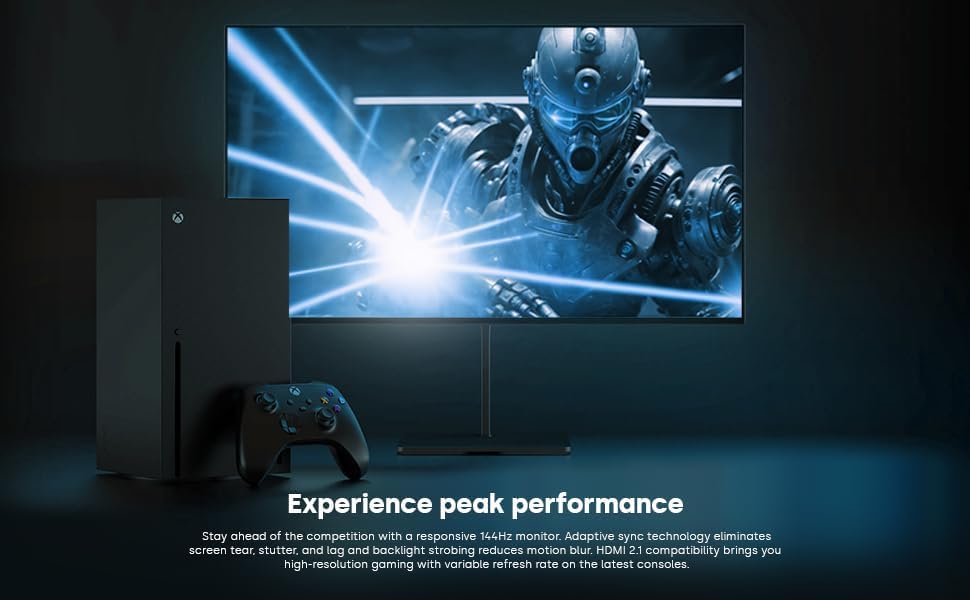
Image: The Dough Spectrum One monitor showcasing a high-fidelity game scene, positioned alongside an Xbox console and controller, demonstrating its gaming capabilities.
Split Screen Mode
The monitor can display video from two separate sources simultaneously in split screen mode. Consult the OSD menu for options to configure Picture-by-Picture (PbP) or Picture-in-Picture (PiP) modes and select input sources for each window.
Glossy Panel Characteristics
This monitor features a glossy screen surface. This finish enhances color vibrancy, contrast, and image sharpness. However, it may also be more prone to reflections in brightly lit environments. Position the monitor carefully to minimize glare from light sources.

Image: A visual comparison between a standard matte display and the glossy Dough Spectrum One monitor, both rendering an identical underwater coral scene. The glossy screen exhibits noticeably deeper blacks and more vibrant, sharp colors, illustrating the visual benefits of its unique panel finish.
Maintenance
Cleaning the Monitor
To clean the screen, gently wipe it with a soft, lint-free cloth. For stubborn marks, lightly dampen the cloth with water or a non-abrasive, monitor-safe cleaning solution. Avoid using harsh chemicals or abrasive materials that could damage the screen surface. Ensure the monitor is powered off and unplugged before cleaning.
Firmware Updates
Periodically check the official Dough website for available firmware updates. Firmware updates can improve performance, add features, or resolve known issues. Note: Firmware updates for this monitor typically require a Windows operating system for installation. Follow the instructions provided on the manufacturer's website carefully when performing updates.
Troubleshooting
If you encounter issues with your monitor, refer to the following common problems and solutions:
- No Image/No Signal:
- Ensure all video cables (DisplayPort, HDMI, USB-C) are securely connected to both the monitor and your source device.
- Verify the correct input source is selected in the monitor's OSD menu.
- Check if your source device (PC, console) is powered on and outputting a signal.
- Try a different video cable or port.
- Monitor Does Not Power On:
- Confirm the power cable is firmly connected to the monitor and a working power outlet.
- Ensure the power adapter is correctly connected.
- Verify the power outlet is functional by plugging in another device.
- Image is Dim or Incorrect Colors:
- Adjust brightness, contrast, and color settings in the OSD menu.
- Ensure HDR is enabled or disabled as appropriate for your content and system settings.
- Check your graphics card settings for any color profile or brightness adjustments.
- Screen Tearing or Stuttering:
- Ensure Adaptive Sync (FreeSync Premium Pro/G-Sync Compatible) is enabled in both the monitor's OSD and your graphics card's control panel.
- Verify your graphics drivers are up to date.
- Monitor Takes Long to Wake from Sleep / Black Screen on Resolution Change:
- This can sometimes occur due to firmware or driver interactions. Ensure your monitor firmware and graphics drivers are updated to the latest versions.
- Try restarting your connected device.
- Power Supply Compatibility:
- Ensure the provided power supply is compatible with your region's electrical standards. If an incompatible power supply was received, contact customer support.
For further assistance, please visit the Dough official support page or contact customer service.
Specifications
| Feature | Detail |
|---|---|
| Brand | DOUGH |
| Model Number | ES07D03 |
| Screen Size | 27 Inches |
| Resolution | 3840 x 2160 (4K UHD 2160p) |
| Refresh Rate | 144Hz |
| Response Time | 1ms |
| Panel Type | IPS |
| HDR Support | HDR10, DisplayHDR 600 |
| Adaptive Sync | AMD FreeSync Premium Pro, NVIDIA G-Sync Compatible, VESA Adaptive-Sync |
| Color Gamut | 98% DCI-P3, 100% sRGB |
| Brightness | 450 nits (sustained), 750 nits (peak) |
| Aspect Ratio | 16:9 |
| Screen Surface | Glossy |
| Video Inputs | 2x HDMI 2.1, 1x DisplayPort 1.4, 1x USB-C (DisplayPort Alt Mode, 100W PD) |
| USB Ports | 1x USB-B (upstream), 2x USB-A (downstream), 1x USB-C (downstream) - Total 5 USB ports |
| Audio Output | 1x 3.5mm Audio Jack |
| Product Dimensions | 6 x 27.5 x 17.5 inches (without stand) |
| Item Weight | 17.81 pounds (without stand) |
Warranty and Support
Warranty Information
For detailed warranty information, please refer to the warranty card included in your product packaging or visit the official Dough website. Warranty terms typically cover manufacturing defects for a specified period from the date of purchase.
Customer Support
If you require technical assistance, have questions about your product, or need to initiate a warranty claim, please contact Dough customer support through their official website. You can also find additional resources and FAQs on the Dough Brand Store on Amazon.


