
1. Introduction
This manual provides comprehensive instructions for the setup, operation, maintenance, and troubleshooting of your Winnes Mini 4G GPS Tracker TK901. This compact, magnetic, and waterproof device is designed for real-time location tracking of vehicles, people, luggage, and other valuable assets using 4G LTE networks and GPS satellites.

Image 1: The Winnes Mini 4G GPS Tracker TK901.
Key Features

Image 2: Overview of Winnes Mini 4G GPS Tracker TK901 features.
The TK901 offers a range of features including real-time tracking, historical route playback, geo-fencing, and various alerts. Its compact size and strong magnetic attachment make it versatile for different tracking needs.
Versatile Applications

Image 3: Examples of how the Winnes Mini 4G GPS Tracker TK901 can be used.
This tracker is suitable for a wide array of uses, from monitoring vehicles and valuable equipment to ensuring the safety of children, the elderly, and pets.
For visual guidance, please refer to the official user guide video below:
Video 1: Winnes Mini 4G GPS Tracker TK901 User Guide. This video demonstrates unboxing, SIM card installation, SMS tracking, app usage, and APN settings.
2. Package Contents
Verify that all items are present in the package:
- 1 x Winnes Mini 4G GPS Tracker TK901
- 1 x USB Charging Cable
- 1 x Magnet (for attachment)
- 1 x User Manual
- 1 x Screwdriver (for SIM card compartment)

Image 4: Contents of the Winnes Mini 4G GPS Tracker TK901 package.
3. Setup
3.1 SIM Card Requirements
The Winnes Mini 4G GPS Tracker TK901 requires a Nano SIM card (not included). Ensure the SIM card meets the following criteria:
- 4G LTE Network Compatibility: The SIM card must support 4G LTE for optimal performance.
- Internet Data: The SIM card must have an active data plan (minimum 50MB/month recommended).
- Call and SMS Functions: These functions are necessary for communication and configuration.
- PIN Code Disabled: The SIM card's PIN code must be disabled before insertion. You can typically do this by inserting the SIM into a mobile phone and disabling the PIN through the phone's settings.
- Voicemail Disabled: Ensure voicemail is turned off.
For instructions on disabling the SIM card PIN, refer to Video 1 from 0:24 to 0:52.
3.2 Inserting the SIM Card
- Locate the SIM card slot on the device.
- Carefully open the SIM card compartment using the provided screwdriver.
- Insert the Nano SIM card into the slot with the gold contacts facing down, ensuring correct orientation.
- Close the compartment securely.
Refer to Video 1 from 0:52 to 1:05 for a visual guide on inserting the SIM card.
3.3 Power On/Off
The device will automatically power on once the SIM card is correctly inserted and the battery is charged. To power off, you may need to remove the SIM card or use specific SMS commands if available (refer to the full user manual for advanced commands).
3.4 Indicator Light Status
The device features indicator lights to show its status. Understanding these lights is crucial for proper operation:
| Indicator Light Status | Meaning |
|---|---|
| Yellow light - Solid | GPRS connection |
| Yellow light - Flash | No GPRS signal |
| Blue light - Solid | GPS connection |
| Blue light - Flash | No GPS signal |
| Red light - Solid | GPS working |
| Red light - Off | GPS sleep/power off |
This table is also shown in Video 1 at 1:03.
4. Operating the Device
4.1 Real-time Tracking
The Winnes Mini 4G GPS Tracker TK901 offers real-time tracking through SMS commands or a dedicated mobile application/web platform.
4.1.1 SMS Tracking
To get the device's location via SMS, send the command "G123456#" to the tracker's phone number. The tracker will reply with an SMS containing a Google Maps link to its current location. This method also provides battery status and device ID.

Image 5: Real-time tracking interface on a mobile device.
See Video 1 from 1:05 to 1:36 for a demonstration of SMS tracking.
4.1.2 App Download and Login
For a more interactive tracking experience, download the "WINNES GPS" app from your smartphone's app store (Google Play Store for Android, Apple App Store for iOS). Once installed, log in using the device ID (found in SMS replies) and the default password "123456".

Image 6: Winnes GPS tracking app and web platform login.
The app can be downloaded from http://www.mytkstar.net/download.htm.
A visual guide for app download and login is available in Video 1 from 1:36 to 2:04.
4.1.3 Continuous Tracking
Within the app's real-time tracking interface, you can activate continuous tracking to receive updated location data at regular intervals. You can also switch between map views (e.g., satellite, street map) and view the distance to your device.
Refer to Video 1 from 2:04 to 2:49 for details on real-time tracking features.
4.2 Historical Route Playback
The app allows you to view the device's historical routes for up to the last 6 months. Select the desired start and end times to review the movement history.
See Video 1 from 2:49 to 3:09 for a demonstration of historical route playback.
4.3 Geo-fencing
Set up virtual boundaries (geo-fences) in the app. You will receive an alarm message when the device enters or exits these predefined areas. This feature is useful for monitoring specific zones like home or work.
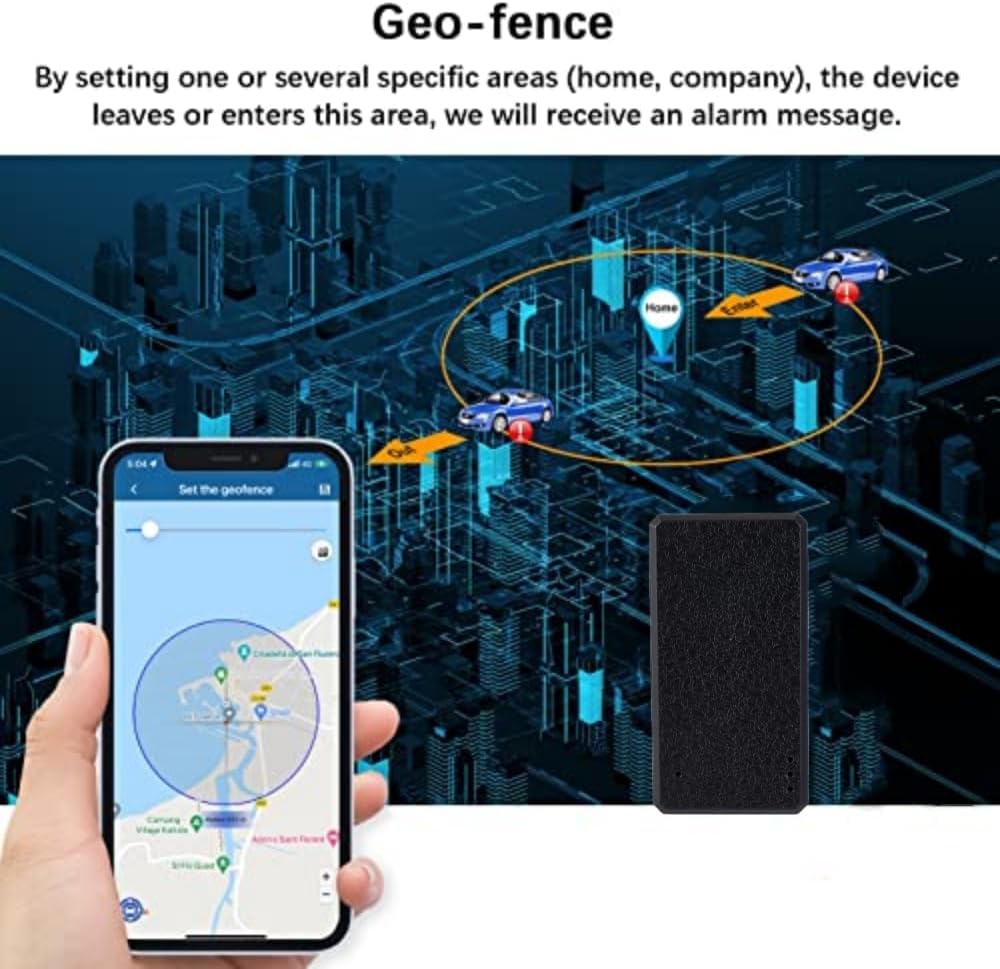
Image 7: Setting up a geo-fence in the tracking application.
4.4 Alerts and Notifications
The device can send various alerts to your phone via the app. It is recommended to keep the default notification settings and enable all notifications for comprehensive monitoring.
- Vibration Alarm: Enable this to receive alerts when the device detects movement or vibration. After parking for 5 minutes, if the device senses vibration (e.g., car restart), an alarm is sent. Note: If the device is already in motion, it will detect vibration but no alarm will be sent.
- Low Battery Alarm: Notifies you when the battery level is low.
- Overspeed Alarm: Alerts you if the device exceeds a set speed limit.
- SOS Alarm: Triggered by pressing the SOS button (if available on the model).
- Moving Alarm: Alerts when the device starts moving after being stationary.
For enabling the Vibration Alarm, refer to Video 1 from 3:28 to 3:41. For general notification settings, see 4:15 to 4:24.
4.5 GPS Work Mode Settings
You can configure the GPS working mode to balance tracking frequency and battery consumption. Higher frequency provides more accurate historical routes but consumes battery faster.
- Real-time Mode: Updates location frequently (e.g., every 30 seconds).
- Power Saving Mode: Updates less frequently (e.g., every hour).
- Standby Mode: Updates even less frequently (e.g., every 24 hours).
- Custom Upload Interval: Allows you to set a specific interval (e.g., 10-3600 seconds).
To set the GPS working mode, refer to Video 1 from 3:09 to 3:28.
5. Maintenance
5.1 Charging the Battery
Use the provided USB cable to charge the device. Connect the cable to the tracker and a standard 5V-1A USB power adapter. A full charge typically provides 24-48 hours of active use or up to 200 hours in standby mode.
5.2 General Care
- Waterproof: The device is designed to be waterproof, but avoid prolonged submersion or exposure to high-pressure water jets.
- Magnetic Attachment: The strong magnet allows for convenient installation on metal surfaces. Ensure the device is securely attached to prevent accidental detachment.

Image 8: The strong magnetic feature of the tracker for easy attachment.
- Temperature: Operate and store the device within recommended temperature ranges to ensure optimal battery life and performance.
- Cleaning: Clean the device with a soft, dry cloth. Avoid using harsh chemicals or abrasive materials.
6. Troubleshooting
6.1 Device Not Online / No Location Data
- Check SIM Card: Ensure the Nano SIM card is correctly inserted, has an active data plan, and its PIN code is disabled.
- APN Configuration: The Access Point Name (APN) must be correctly configured for your SIM card's network provider.
- Search online for your SIM card provider's APN settings.
- Insert the SIM card into a mobile phone and find the APN settings in the phone's network settings.
- Network Coverage: Ensure the device is in an area with good 4G network coverage.
- Battery Level: A low battery can affect connectivity. Charge the device fully.
To find your SIM card's APN:
To set the APN via SMS, send the command: apn123456 [APN Name] (e.g., apn123456 mobile.vodafone.it for Vodafone Italy). Replace "123456" with your device's password if changed from default. After receiving an "apn ok" reply, remove and reinsert the SIM card to restart the device.
Refer to Video 1 from 4:24 to 4:53 for a visual guide on APN setting via SMS.
6.2 Inaccurate Location
- GPS Signal: Ensure the device has a clear view of the sky for optimal GPS signal reception. Indoor or underground locations may result in LBS (Location Based Service) tracking, which is less precise.
- Working Mode: Check the GPS work mode settings in the app. Real-time mode provides the most frequent and accurate updates.
6.3 Short Battery Life
- Tracking Frequency: High tracking frequency (e.g., 30-second updates) consumes more battery. Adjust the GPS work mode to a longer interval (e.g., power saving or standby mode) to extend battery life.
- Network Signal: Poor network signal can cause the device to consume more power searching for a connection.
- Charging: Ensure the device is fully charged before use.
7. Specifications
| Feature | Detail |
|---|---|
| Model | 4G TK901 |
| Dimensions | 47mm * 24mm * 18mm |
| Weight | 25 g |
| Color | Black |
| Network | GSM / GPRS (4G LTE compatible) |
| GPS Sensitivity | -159 dBm |
| GPS Accuracy | 15m |
| Input Voltage | 5V-1A |
| Battery | 3.7 V 600 mAh Rechargeable Lithium Battery |
| Standby Time | Up to 200 hours |
| Working Time | 24-48 hours (depending on usage) |
| Connectivity Technology | 4G |
| Supported Application | GPS tracking App, Web tracking platform |
| Special Features | Real-time tracking, Magnetic, Geo-fencing, Smart power saving, Location history, Anti-theft |
| Compatible Devices | PC, Smartphone |
| Material | Plastic |
8. Warranty and Support
The product comes with a standard warranty. Please refer to the purchase documentation for specific warranty terms and conditions.
For any questions or technical assistance during use, please contact Winnes customer support:
- WhatsApp: +8615200963282
- Online Platform: The tracking platform and app are free to use for life with your own SIM card.

