
IPEVO CDCU-06IP
IPEVO VC-Z4K UHD 4K PTZ Camera User Manual
Model: CDCU-06IP
Brand: IPEVO
1. Introduction
This user manual provides comprehensive instructions for the setup, operation, and maintenance of your IPEVO VC-Z4K UHD 4K PTZ Camera. The VC-Z4K is designed to enhance educational and worship spaces with its 4K UHD resolution and 8.29-MP Sony CMOS sensor. It features advanced pan-tilt-zoom capabilities, AI auto-tracking, and a powerful 12X Optical + 15X Digital Zoom, making it ideal for capturing detailed and engaging remote sessions. Its AI functionality helps minimize the need for additional personnel, and its easy setup allows seamless integration with popular platforms like YouTube, OBS, and Zoom.
2. Safety Information
Please read and understand all safety instructions before using the IPEVO VC-Z4K camera to prevent injury or damage to the device. Keep this manual for future reference.
- Power Source: Use only the provided power adapter. Ensure the power outlet meets the camera's voltage requirements.
- Ventilation: Do not block ventilation openings. Ensure adequate airflow around the camera to prevent overheating.
- Environment: Avoid exposing the camera to water, moisture, extreme temperatures, or direct sunlight. Operate in a clean, dry environment.
- Handling: Handle the camera with care. Do not drop or subject it to strong vibrations.
- Cleaning: Disconnect power before cleaning. Use a soft, dry cloth. Do not use liquid or aerosol cleaners.
- Servicing: Do not attempt to disassemble or repair the camera yourself. Refer all servicing to qualified personnel.
3. Package Contents
Verify that all items listed below are included in your package:
- IPEVO VC-Z4K Camera
- Power adapter (8.2 ft / 2.5 m)
- USB 3.0 cable (4.9 ft / 1.5 m)
- RS232 cable (6.5 ft / 2 m)
- Remote control (battery not included)
- User manual (this document)
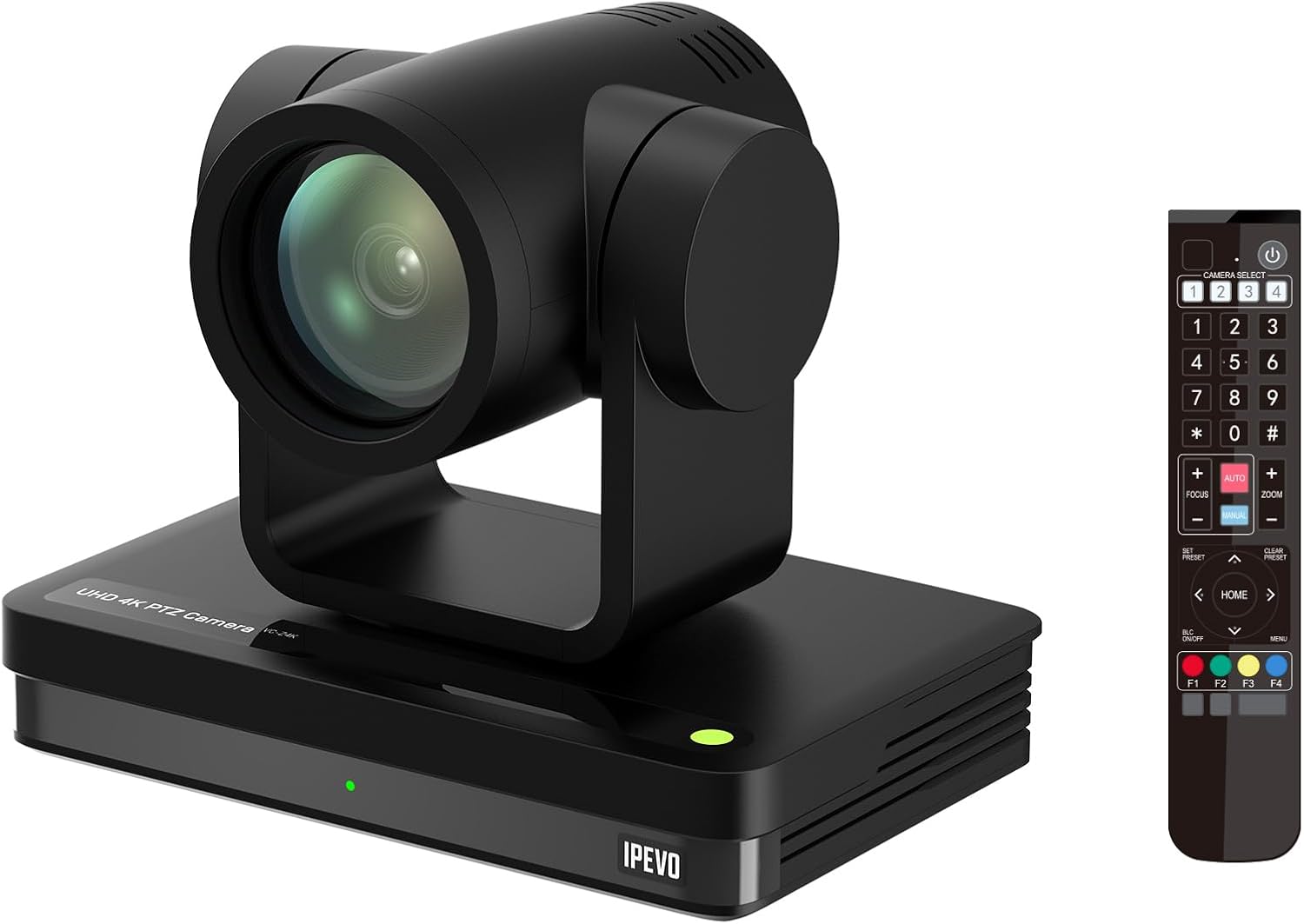
Image: The IPEVO VC-Z4K camera unit shown alongside its remote control, illustrating the main components included in the package.
4. Product Overview
4.1 Key Features
- 4K Ultra HD Resolution: Equipped with a 1/2.8" HD CMOS sensor for stunning 4K video output.
- 12X Optical Zoom: Provides clear, detailed close-ups without loss of quality.
- AI Auto Tracking: Automatically follows speakers or presenters, ensuring they remain in frame.
- Flexible Connectivity: Features HDMI, USB-C, LAN (PoE), and SDI outputs for versatile integration.
- Wide Pan and Tilt Range: Offers 340° pan and 120° tilt for comprehensive room coverage.
- Advanced Noise Reduction: 2D/3D noise reduction ensures clear video in various lighting conditions.
4.2 Camera Components and Ports

Image: Rear view of the IPEVO VC-Z4K camera showing its various connectivity ports including USB 3.0, HDMI, SDI, LAN (PoE), and power input.
The VC-Z4K camera features a range of ports for diverse connectivity options:
- HDMI Output: For high-definition video output to displays or capture devices.
- USB-C Port: For direct connection to computers for video and control.
- LAN (PoE) Port: For network connectivity and Power over Ethernet, simplifying installation.
- SDI Output: For professional video workflows requiring longer cable runs.
- RS232 Port: For serial control via external control systems.
- Power Input: For connecting the included power adapter.
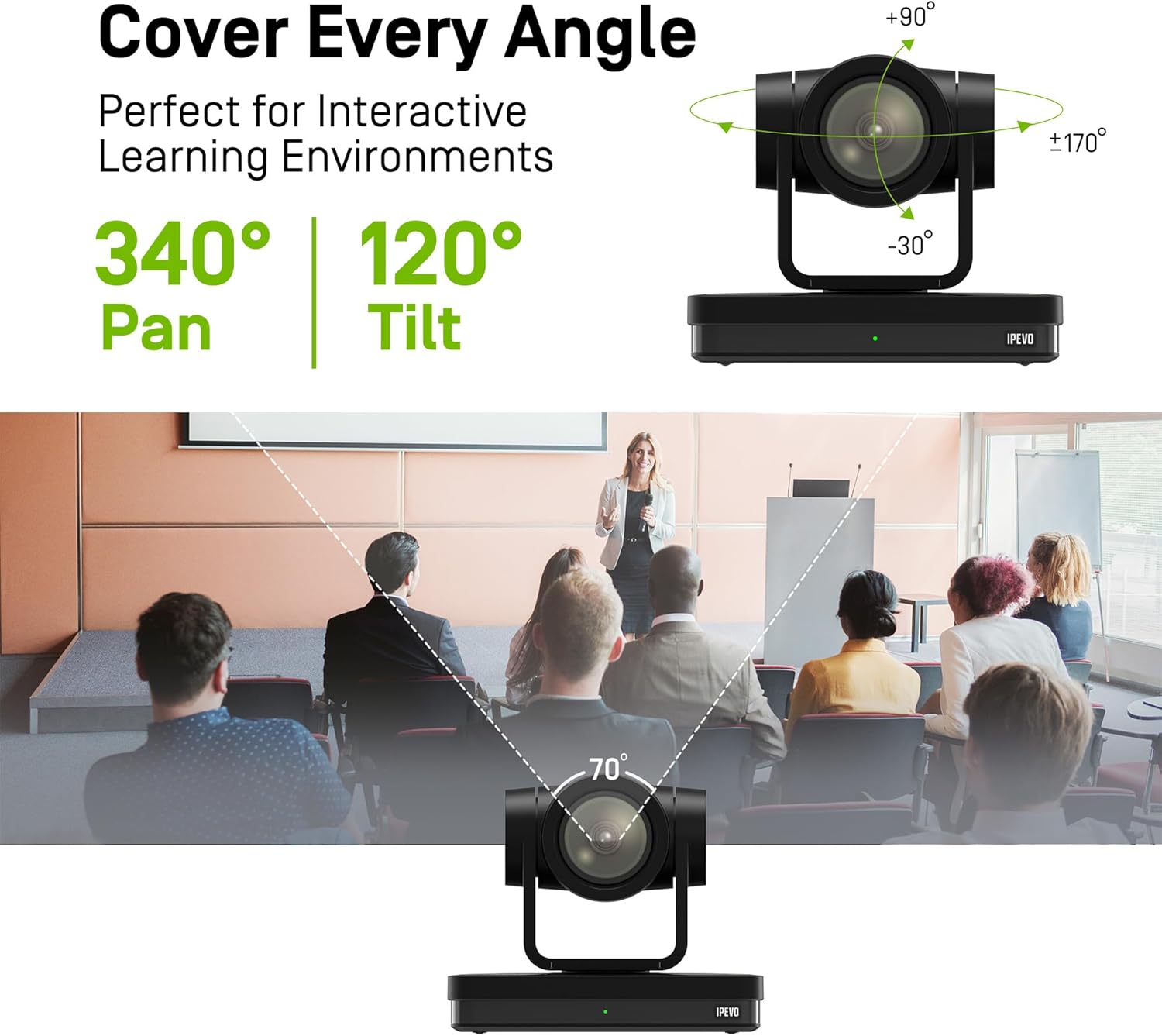
Image: Diagram illustrating the IPEVO VC-Z4K camera's pan (340°) and tilt (120°) ranges, highlighting its ability to cover a wide area.
The camera's motorized head allows for precise pan and tilt movements, enabling comprehensive coverage of your space. The pan range is 340 degrees, and the tilt range is 120 degrees (-30° to +90°).
5. Setup
Follow these steps for the initial setup of your IPEVO VC-Z4K camera:
- Placement: Choose a stable surface or mount the camera securely in your desired location. Ensure it has a clear line of sight to the area you wish to capture.
- Power Connection:
- Using Power Adapter: Connect the provided power adapter to the camera's power input port and then plug it into a wall outlet.
- Using PoE (Power over Ethernet): If your network switch supports PoE, connect an Ethernet cable from the PoE-enabled switch to the camera's LAN (PoE) port. This will provide both power and network connectivity.
- Video Output Connection (Choose one or more):
- HDMI: Connect an HDMI cable from the camera's HDMI output to a display, projector, or video capture card.
- USB-C: Connect the USB 3.0 cable from the camera's USB-C port to a USB 3.0 port on your computer. This enables the camera as a webcam for video conferencing applications.
- LAN: Connect an Ethernet cable from the camera's LAN port to your network router or switch for IP streaming and control.
- SDI: Connect an SDI cable from the camera's SDI output to a professional video switcher or recorder.
- Remote Control Setup: Insert two AAA batteries (not included) into the remote control. The remote control is essential for initial configuration and operation.
- Power On: Once all connections are secure, power on the camera. The indicator light will illuminate.
6. Operating Instructions
6.1 Basic Camera Control (via Remote Control)
- Pan/Tilt: Use the directional arrows on the remote control to move the camera horizontally (pan) and vertically (tilt).
- Zoom: Use the 'ZOOM +' and 'ZOOM -' buttons to adjust the optical zoom.
- Focus: Press 'AUTO FOCUS' for automatic focus. Use 'FOCUS +' and 'FOCUS -' for manual adjustment if needed.
- Presets: The camera supports up to 255 presets. You can save and recall up to 10 presets directly from the remote control using the number buttons (0-9). To save a preset, position the camera, then press 'PRESET' followed by a number (e.g., '1'). To recall, press the number button.

Image: The IPEVO VC-Z4K camera demonstrating its 12X optical zoom capability, highlighting its 8.29-MP Sony CMOS sensor for high-quality video.
6.2 AI Auto Tracking
The VC-Z4K features advanced AI auto-tracking to keep a presenter or subject automatically in frame.
- Enabling Tracking: Refer to the remote control or camera's web interface for specific buttons or settings to activate AI tracking.
- Zone Tracking: Configure specific zones within the camera's view where tracking should occur.
- Presenter Tracking: The camera can identify and follow a designated presenter as they move within the defined area.

Image: A visual representation of the IPEVO VC-Z4K's AI auto-tracking and auto-focus features, showing how it maintains focus on a moving subject in a classroom setting.
6.3 Integration with Platforms
The VC-Z4K seamlessly integrates with various video conferencing and streaming platforms:
- USB Connection: When connected via USB-C, the camera will be recognized as a standard webcam by applications like Zoom, OBS Studio, Microsoft Teams, Google Meet, GoTo Meeting, and Skype. Select "IPEVO VC-Z4K" as your video input device within the application settings.
- LAN/IP Streaming: For advanced streaming setups, use the LAN connection to stream video via RTSP/RTMP protocols to platforms like YouTube Live or OBS Studio. Refer to the camera's web interface for IP configuration and streaming settings.
7. Maintenance
Proper maintenance ensures the longevity and optimal performance of your IPEVO VC-Z4K camera.
- Cleaning the Lens: Use a soft, lint-free cloth specifically designed for optical lenses. Gently wipe the lens to remove dust or smudges. Avoid using abrasive materials or harsh chemicals.
- Cleaning the Body: Wipe the camera body with a soft, dry cloth. For stubborn dirt, slightly dampen the cloth with water, then wipe dry immediately. Do not allow liquids to enter the camera.
- Storage: When not in use for extended periods, store the camera in a cool, dry place, away from direct sunlight and extreme temperatures.
- Firmware Updates: Periodically check the IPEVO official website for firmware updates. Keeping your camera's firmware up-to-date can improve performance and add new features.
8. Troubleshooting
If you encounter issues with your IPEVO VC-Z4K camera, refer to the following common problems and solutions:
| Problem | Possible Cause | Solution |
|---|---|---|
| No power/Camera not turning on | Power adapter not connected or faulty; no PoE connection. | Ensure power adapter is securely connected and plugged into a working outlet. If using PoE, verify the network switch is PoE-enabled and the Ethernet cable is functional. |
| No video output | Incorrect cable connection; wrong input selected on display; software issue. | Check HDMI, USB-C, LAN, or SDI cable connections. Ensure the display is set to the correct input source. Restart the computer/application if connected via USB. |
| Remote control not working | Batteries are dead or inserted incorrectly; IR sensor blocked. | Replace batteries (AAA). Ensure batteries are inserted with correct polarity. Point the remote directly at the camera's IR receiver. |
| AI tracking not functioning | Tracking feature not enabled; subject out of tracking range; poor lighting. | Activate AI tracking via remote or web interface. Ensure the subject is within the optimal tracking area. Improve lighting conditions if too dark. |
| Poor video quality (blurry, noisy) | Lens is dirty; focus issue; low light conditions; network bandwidth. | Clean the lens. Adjust focus manually or use auto-focus. Ensure adequate lighting. For IP streaming, check network bandwidth and camera's streaming settings. |
9. Specifications
Detailed technical specifications for the IPEVO VC-Z4K UHD 4K PTZ Camera:
| Product Dimensions | 7.1 x 5.9 x 4.5 inches |
| Item Weight | 2.64 pounds |
| Item Model Number | CDCU-06IP |
| Photo Sensor Technology | CMOS (1/2.8" HD CMOS Sensor) |
| Video Capture Resolution | 4K UHD |
| Optical Zoom | 12X |
| Digital Zoom | 15X |
| Maximum Aperture | 2.8 Millimeters |
| Connectivity Technology | USB, HDMI, LAN (PoE), SDI, RS232 |
| Special Features | AI Tracking and Auto Focus, Low Noise and High SNR, Multiple Presets (up to 255) |
| Color | Black |
| Manufacturer | IPEVO |
10. Warranty and Support
IPEVO products are designed for reliability and performance. For warranty information, technical support, or service inquiries, please visit the official IPEVO website or contact their customer support directly. Keep your purchase receipt as proof of purchase for warranty claims.
For further assistance, please visit: www.ipevo.com
Related documentsCDCU-06IP

Ask a question about this manual
Ask about setup, troubleshooting, compatibility, parts, safety, or missing instructions. Manuals+ will review the question and use this page’s manual context to help answer it.