Introduction
This manual provides detailed instructions for the setup, operation, and maintenance of your LIONWEI LIUC3914 USB C Docking Station. Please read this manual thoroughly before using the product to ensure proper functionality and to prevent damage.

Image: The LIONWEI LIUC3914 USB C Docking Station, showcasing its compact design and multiple ports with various cables connected, including HDMI, USB, and Ethernet.
Key Features
The LIONWEI LIUC3914 is a 12-in-1 USB C docking station designed to expand your laptop's connectivity. Key features include:
- Triple HDMI Output: Supports up to 4K@60Hz for multi-monitor setups.
- High-Speed Data Transfer: USB A 3.1 and USB C 3.1 ports with up to 10Gbps.
- Power Delivery: 100W USB-C Power Delivery for laptop charging.
- Gigabit Ethernet: RJ45 port for stable 10/100/1000 Mbps network connection.
- Additional Ports: Two USB 2.0 ports, 3.5mm audio/mic jack, SD/Micro SD card slots.
- Plug and Play: No drivers required for most operating systems.

Image: An exploded view diagram highlighting the 12-in-1 ports of the docking station, including SD/Micro SD, USB A 2.0, USB A 3.1, 3.5mm Audio/Mic, PD 3.0 100W, USB C 3.1, 3*HDMI 4K@60Hz, and RJ45 1000Mbps.
Setup Instructions
Follow these steps to set up your LIONWEI LIUC3914 USB C Docking Station:
- Connect to Laptop: Plug the integrated USB-C cable from the docking station into a compatible USB-C or Thunderbolt 3/4 port on your laptop. Ensure your laptop's USB-C port supports video output (DisplayPort Alt Mode) for display functionality.
- Power Connection (Optional but Recommended): For stable operation and laptop charging, connect your laptop's USB-C power adapter (up to 100W) to the PD (Power Delivery) port on the docking station.
- Connect External Monitors:
- Connect up to three HDMI monitors to the HDMI 1, HDMI 2, and HDMI 3 ports on the docking station using HDMI cables.
- For optimal performance, ensure your monitors and HDMI cables support the desired resolution (e.g., 4K@60Hz).
- Connect Peripherals:
- Plug USB devices (e.g., keyboard, mouse, external hard drives) into the available USB A 3.1, USB C 3.1, and USB 2.0 ports.
- Insert SD or Micro SD cards into the respective slots for data transfer.
- Connect headphones or speakers to the 3.5mm audio/mic jack.
- Network Connection: Connect an Ethernet cable from your router or modem to the RJ45 Gigabit Ethernet port on the docking station for a wired network connection.
The docking station is plug-and-play; no additional drivers are typically required for Windows, macOS, Chrome OS, or Linux.
Operating Instructions
Multi-Monitor Display Configuration
The docking station supports various display modes depending on your operating system.
For Windows Systems (DP1.4 Compatible Laptops):
- Mirror Mode: Displays the same content on all connected monitors and the laptop screen.
- Extend Mode: Extends your desktop across multiple monitors, allowing for increased workspace.
- MST (Multi-Stream Transport) Extend Mode: For triple screen setups, allowing different content on each external monitor (B, C, D) in addition to the laptop screen (A).

Image: A visual guide demonstrating Mirror Mode, Extend Mode, and MST Extend Mode for Windows laptops connected to the docking station, showing how content is displayed across the laptop screen and up to three external monitors.
For macOS Systems (DP1.4 Compatible Laptops):
- Mirror Mode: Displays the same content on all connected monitors and the laptop screen.
- Extend Mode: Extends your desktop across multiple monitors. Note that macOS typically mirrors the extended display across all external monitors when multiple are connected via a single MST hub.
- Important Note: macOS systems do not support MST Extend mode for displaying different content on each external monitor. All external monitors will display mirrored content in extend mode.
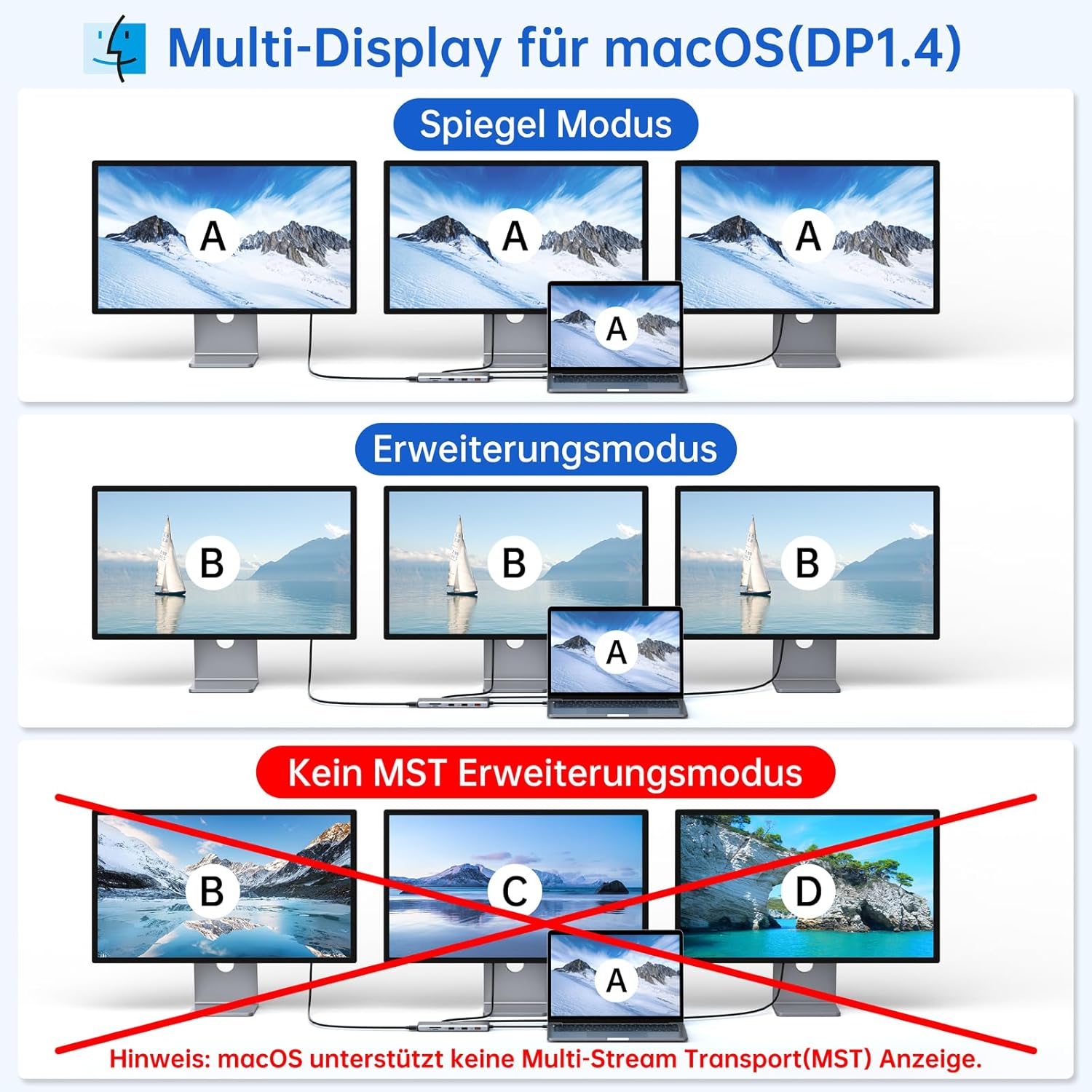
Image: A visual guide demonstrating Mirror Mode and Extend Mode for macOS laptops connected to the docking station. It explicitly shows that MST Extend Mode is not supported on macOS, with a crossed-out diagram.
Data Transfer and Charging
- USB 3.1 Ports: Use the USB A 3.1 and USB C 3.1 ports for high-speed data transfer (up to 10Gbps) with compatible devices like external SSDs or flash drives.
- USB 2.0 Ports: Ideal for connecting peripherals such as keyboards, mice, or printers.
- SD/Micro SD Slots: Insert memory cards for quick data access and transfer (up to 104 MB/s).
- Power Delivery: When a compatible USB-C power adapter is connected to the PD port, the docking station will pass through up to 100W to charge your connected laptop.

Image: A diagram illustrating the 100W Power Delivery feature, showing a laptop being charged via the docking station, with 100W input and 85W output to the laptop. A note advises using a power adapter greater than 65W.

Image: A scene depicting the docking station connected to a laptop, with an external hard drive and SD card inserted, illustrating ultra-fast data transfer speeds of 10Gbps for USB 3.1 and 104MB/s for SD/Micro SD.
Ethernet and Audio
- Gigabit Ethernet: Provides a stable and fast wired internet connection, ideal for environments where Wi-Fi is unreliable or slower.
- 3.5mm Audio/Mic Jack: Connect standard headphones, speakers, or microphones for audio input/output.
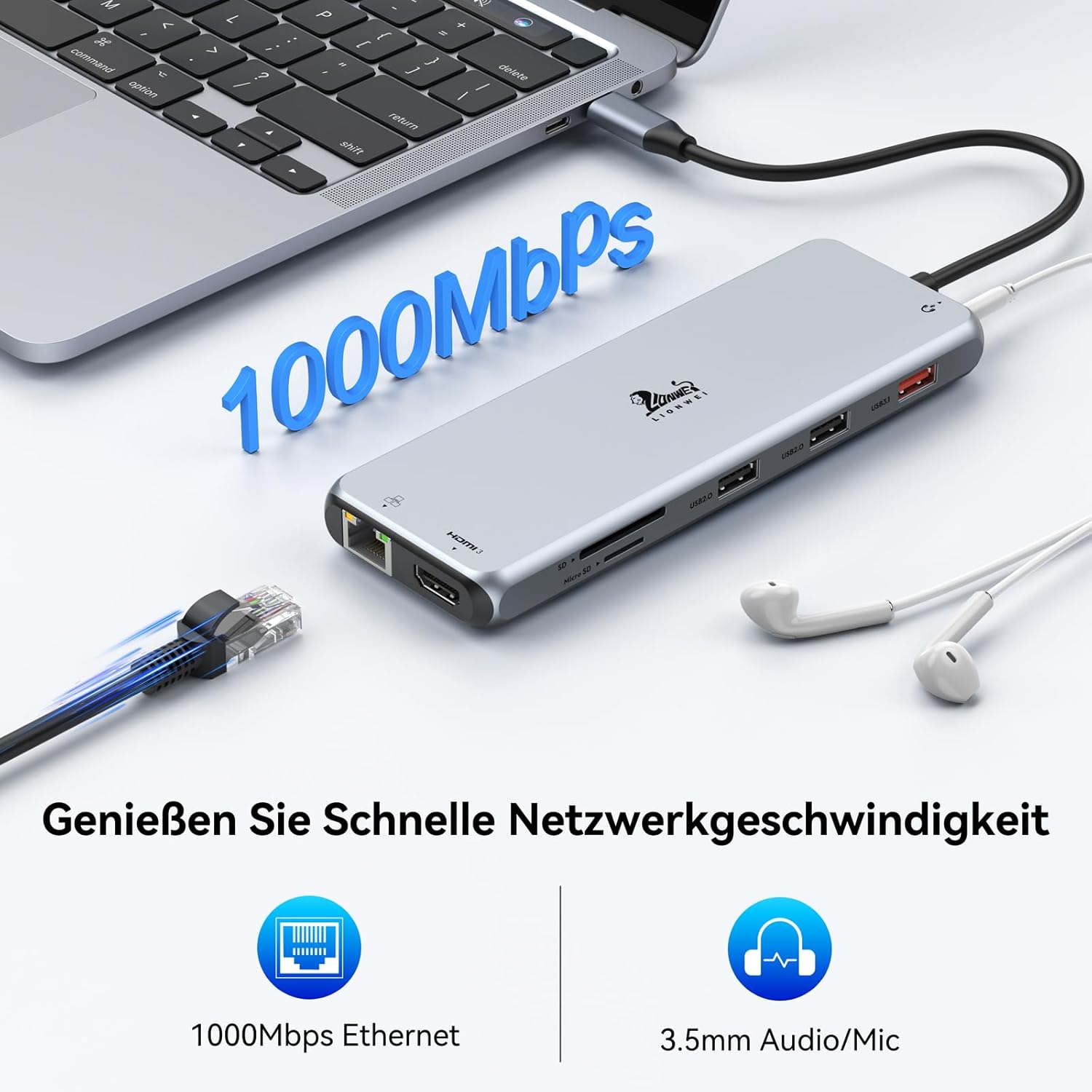
Image: The docking station with an Ethernet cable connected and earbuds plugged into the 3.5mm audio jack, highlighting the 1000Mbps Ethernet and 3.5mm Audio/Mic features.
Maintenance
- Cleaning: Use a soft, dry cloth to clean the exterior of the docking station. Avoid liquid cleaners or abrasive materials.
- Storage: Store the docking station in a cool, dry place away from direct sunlight and extreme temperatures when not in use.
- Cable Care: Avoid bending or twisting the integrated USB-C cable excessively to prevent internal damage.
- Ventilation: Ensure the docking station has adequate ventilation to prevent overheating, especially during prolonged use with multiple connected devices.
Troubleshooting
- No display on external monitors:
- Ensure your laptop's USB-C port supports DisplayPort Alt Mode. Not all USB-C ports support video output.
- Check all HDMI cable connections between the docking station and monitors.
- Verify that the monitors are set to the correct input source (HDMI 1, HDMI 2, etc.).
- Try connecting one monitor at a time to isolate the issue.
- Restart your laptop.
- For macOS, remember that MST Extend mode (different content on each external monitor) is not supported.
- Laptop not charging:
- Ensure your laptop's original USB-C power adapter is connected to the PD port on the docking station.
- Verify the power adapter is functioning correctly and provides sufficient wattage (e.g., 65W or higher).
- Check the USB-C connection between the docking station and your laptop.
- USB devices not recognized or slow data transfer:
- Ensure the devices are properly plugged into the correct USB ports.
- For high-speed devices, use the USB 3.1 ports.
- Try connecting the device directly to your laptop to confirm it functions independently.
- Some high-power USB devices may require external power if the docking station's power delivery is insufficient or not connected.
- No internet connection via Ethernet:
- Check the Ethernet cable connection to both the docking station and your router/modem.
- Verify that your router/modem is working and providing an internet connection.
- Ensure your laptop's network settings are configured to use the wired Ethernet connection.
Specifications
| Feature | Detail |
|---|---|
| Model | LIUC3914 |
| Brand | LIONWEI |
| Ports | 3x HDMI (4K@60Hz), 1x USB A 3.1 (10Gbps), 1x USB C 3.1 (10Gbps), 2x USB 2.0 (480Mbps), 1x RJ45 Gigabit Ethernet (10/100/1000Mbps), 1x USB-C PD (100W), 1x 3.5mm Audio/Mic, 1x SD Card Slot, 1x Micro SD Card Slot |
| Power Delivery | Up to 100W (input), requires external USB-C power adapter |
| Data Transfer Rate | USB 3.1: 10 Gbps; USB 2.0: 480 Mbps; SD/Micro SD: 104 MB/s |
| Video Output | Up to 4K@60Hz (DP1.4 compatible host) |
| Compatible OS | Windows OS 7/8/10/11 (X86/X64), Mac OS 10.2 or higher, Chrome OS, Linux |
| Dimensions | 5.5 x 1.5 x 16 cm |
| Weight | 160 g |
Warranty Information
LIONWEI products are typically covered by a manufacturer's warranty. Please refer to the product packaging or the official LIONWEI website for specific warranty terms and conditions, including duration and coverage details. Keep your purchase receipt as proof of purchase for warranty claims.
Customer Support
For technical assistance, troubleshooting beyond this manual, or warranty inquiries, please contact LIONWEI customer support through their official website or the contact information provided with your product packaging.
Online Resources: Visit the LIONWEI official website for FAQs, driver updates (if applicable), and additional support resources.


