
KAMRUI AM08PRO
KAMRUI AM08PRO Gaming Mini PC User Manual
Model: AM08PRO | Brand: KAMRUI
1. Introduction
This manual provides detailed instructions for the setup, operation, and maintenance of your KAMRUI AM08PRO Gaming Mini PC. Designed for powerful performance, this mini PC features an AMD Ryzen 7 7735HS processor, 32GB DDR5 RAM, and a 512GB M.2 NVMe SSD, making it suitable for gaming, productivity, and multimedia tasks. Please read this manual thoroughly before using your device to ensure optimal performance and longevity.

Figure 1.1: Front view of the KAMRUI AM08PRO Mini PC, showcasing its compact design and front ports.
2. What's in the Box
Verify that all items are present and in good condition upon unboxing:
- 1 x Ryzen Mini PC (KAMRUI AM08PRO)
- 1 x Power Adapter
- 1 x User Manual
- 1 x HDMI cable
3. Key Features
3.1 Powerful Performance
The KAMRUI AM08PRO is equipped with an AMD Ryzen 7 7735HS processor, featuring 8 cores and 16 threads, with a turbo frequency up to 4.75GHz. This powerful CPU, combined with the integrated AMD Radeon 680M graphics (12 cores/2200MHz), delivers exceptional performance for demanding applications, 3D visualization, and gaming.
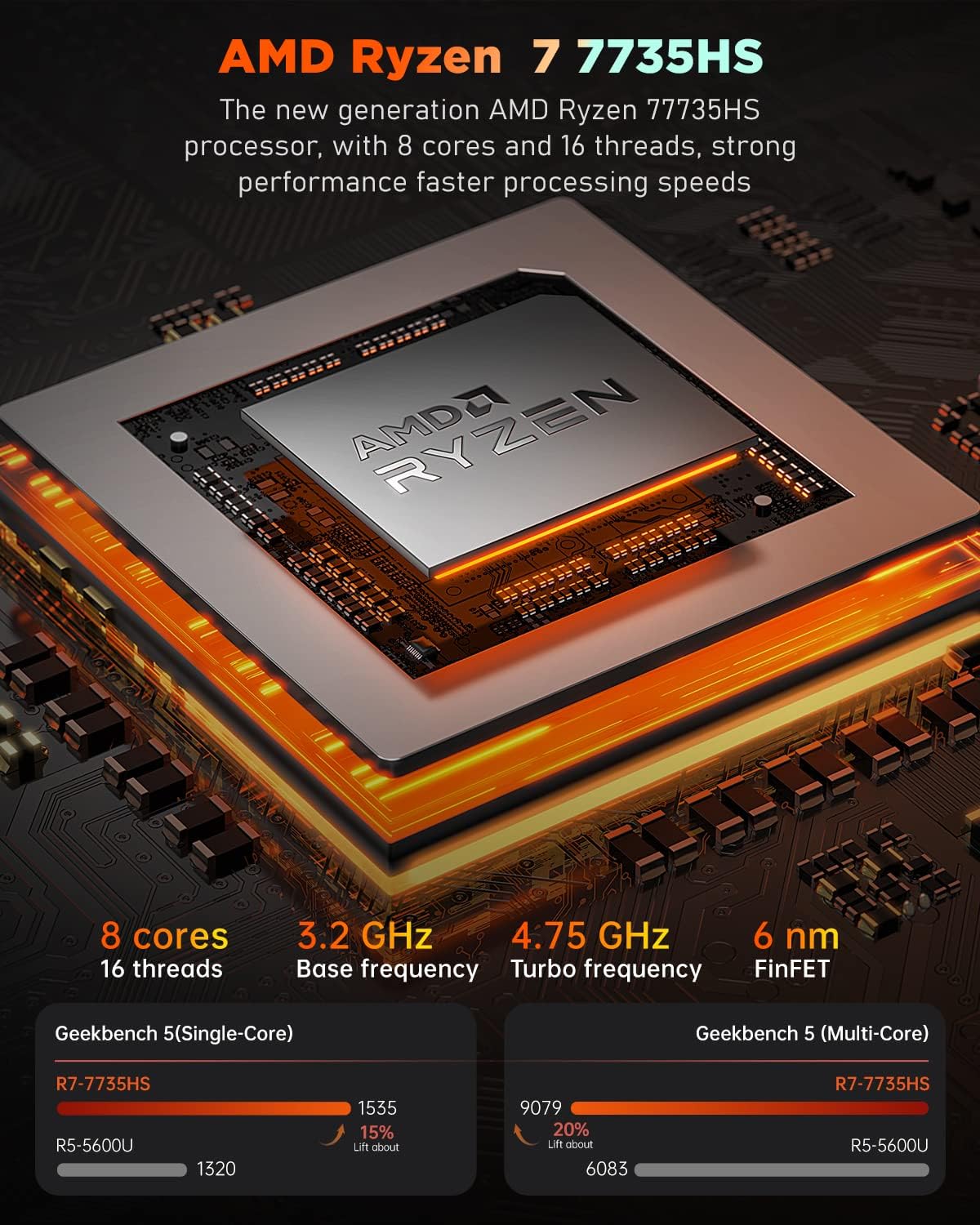
Figure 3.1: Detailed specifications of the AMD Ryzen 7 7735HS processor, highlighting its core count, threads, and clock speeds.
3.2 Memory and Storage
The mini PC comes with 32GB of dual-channel DDR5 RAM, operating at 4800MHz, providing high bandwidth for efficient multitasking and smooth gameplay. Storage includes a 512GB M.2 2280 PCIe 4.0 SSD, with expandability up to 2TB by adding an NVMe or SATA SSD (not included). The magnetic design allows for easy disassembly and upgrade of RAM and SSD.

Figure 3.2: Comparison highlighting the benefits of DDR5 memory over DDR4, including increased bandwidth and frequency.
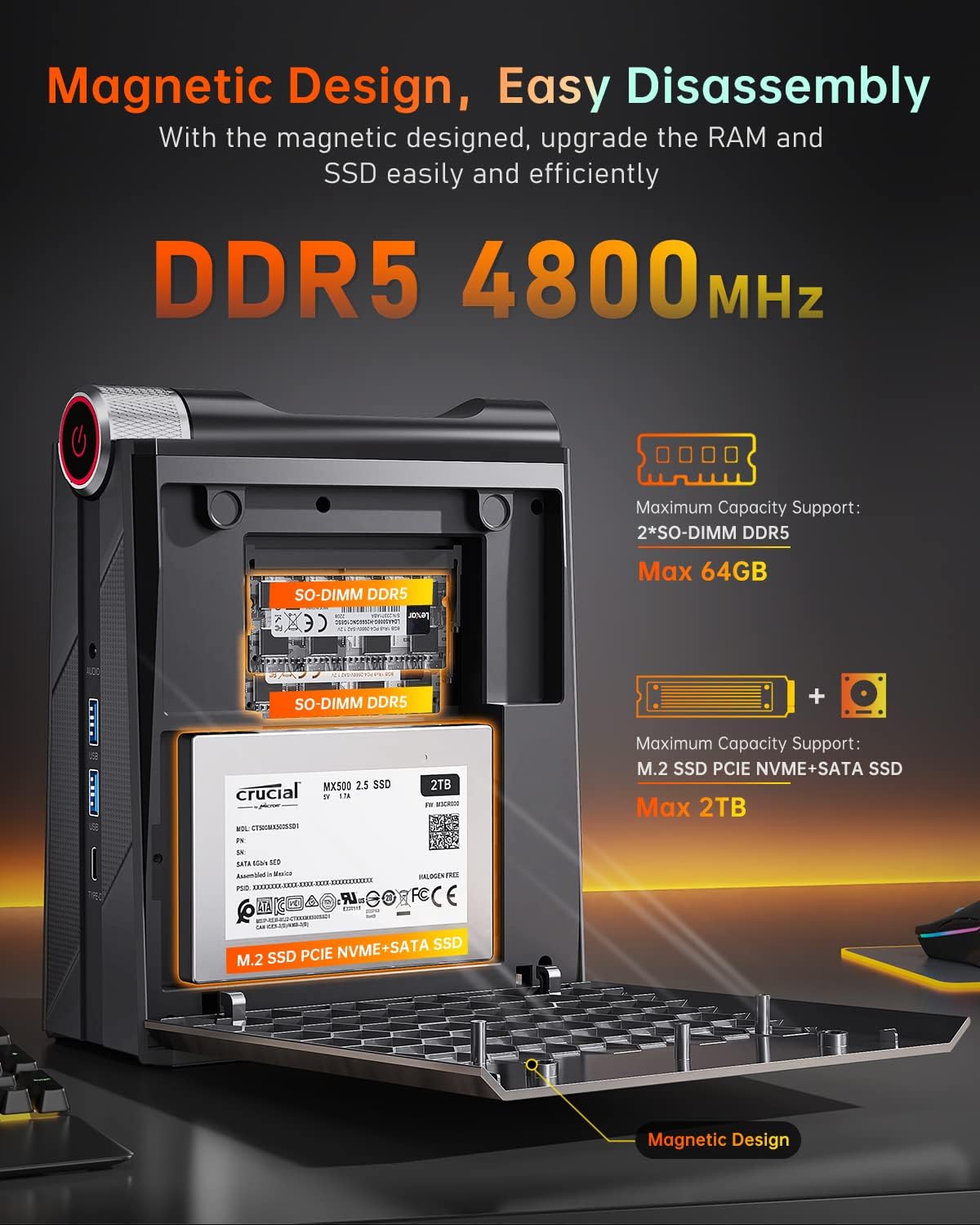
Figure 3.3: Illustration of the magnetic design for easy access to RAM and SSD slots for upgrades.
3.3 Connectivity and Display
The AM08PRO supports stable and fast connections with WiFi 6 (802.11ax, 2.4/5GHz dual-band) and Bluetooth 5.2. It features a 2.5G Gigabit Ethernet port for high-speed wired networking. For display output, it includes two HDMI 2.0 ports and one Type-C (4K@60Hz) port, enabling triple display setup for enhanced productivity and multitasking.

Figure 3.4: Overview of the various ports available on the KAMRUI AM08PRO, including USB, HDMI, Type-C, and Ethernet.

Figure 3.5: Example of a triple display setup, demonstrating the mini PC's capability for efficient multitasking.
3.4 Cooling System and RGB Lighting
The AM08PRO features an efficient cooling system with two cooling fans and three heat pipes to maintain optimal CPU and GPU temperatures, ensuring stable performance during intensive tasks. It also includes adjustable RGB breathing light effects, which can be customized or disabled via software.

Figure 3.6: Diagram illustrating the internal cooling components, including dual fans and heat pipes, designed for efficient heat dissipation.
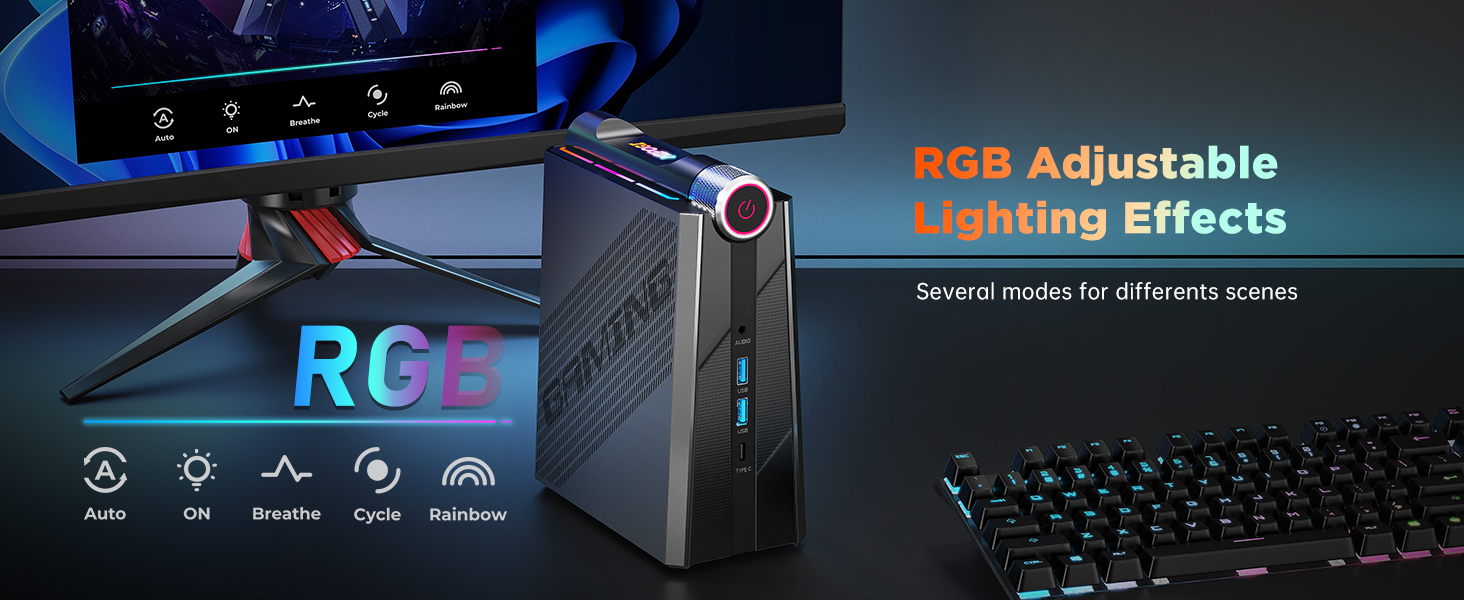
Figure 3.7: The mini PC displaying its customizable RGB lighting effects, which can be adjusted to various modes.
4. Setup Guide
- Connect Power: Plug the power adapter into the DC Power port on the back of the mini PC, then connect it to a power outlet.
- Connect Display: Use the provided HDMI cable to connect your monitor to one of the HDMI 2.0 ports on the mini PC. For triple display setup, use both HDMI ports and the Type-C port with compatible adapters/cables.
- Connect Peripherals: Connect your keyboard, mouse, and other USB devices to the available USB 3.0 ports.
- Network Connection: For wired internet, connect an Ethernet cable to the Gigabit Ethernet port. For wireless, ensure your WiFi network is available after initial setup.
- Power On: Press the power button located on the front of the mini PC. The system will boot up.
- Initial Windows Setup: Follow the on-screen instructions to complete the Windows 11 setup, including language, region, network, and user account creation.
5. Operating Modes
The KAMRUI AM08PRO features a unique mode switch on the top, allowing you to easily select between three performance modes to suit your needs:
5.1 Silent Mode (20-30W)
Ideal for quiet environments such as watching movies or light office work. In this mode, the fan noise is kept below 35dB, providing an immersive experience without distraction.

Figure 5.1: Visual representation of Silent Mode, suitable for media consumption with minimal noise.
5.2 Auto Mode (30-40W)
A balanced mode for general office software and multitasking. This mode optimizes performance and fan noise for everyday computing tasks.

Figure 5.2: Visual representation of Auto Mode, suitable for office work and general productivity.
5.3 Performance Mode (40-54W)
Activates maximum performance for demanding applications and gaming. This mode boosts the system's capabilities for an excellent gaming experience.

Figure 5.3: Visual representation of Performance Mode, optimized for gaming and high-demand applications.
To switch modes, simply rotate the dial on the top of the mini PC to the desired setting.
6. Maintenance
- Keep Clean: Regularly clean the exterior of the mini PC with a soft, dry cloth. Ensure ventilation openings are free from dust and obstructions to maintain proper airflow.
- Software Updates: Keep your Windows operating system and drivers updated to the latest versions for optimal performance and security. Check for updates regularly through Windows Update and the KAMRUI support website.
- Data Backup: Periodically back up important data to an external drive or cloud storage to prevent data loss.
- Avoid Extreme Conditions: Do not expose the mini PC to extreme temperatures, humidity, or direct sunlight.
7. Troubleshooting
| Problem | Possible Cause | Solution |
|---|---|---|
| No Power | Power adapter not connected; Power outlet issue. | Ensure power adapter is securely connected to the PC and a working power outlet. Try a different outlet. |
| No Display | Monitor not connected; Incorrect input source; Driver issue. | Check HDMI/Type-C cable connections. Ensure monitor is set to the correct input source. Reinstall graphics drivers if possible. |
| Slow Performance | Too many background applications; Insufficient RAM/Storage; Overheating. | Close unnecessary applications. Check disk space. Ensure proper ventilation and clean dust from vents. Consider upgrading RAM/SSD if frequently slow. |
| No Wi-Fi/Bluetooth | Drivers not installed; Wireless adapter disabled. | Check Device Manager for wireless adapter status. Reinstall Wi-Fi/Bluetooth drivers. Ensure wireless is enabled in Windows settings. |
8. Technical Specifications
| Feature | Specification |
|---|---|
| Processor | AMD Ryzen 7 7735HS (8 Cores, 16 Threads, up to 4.75 GHz) |
| Graphics | AMD Radeon 680M (Integrated, 12 Cores, 2200MHz) |
| RAM | 32 GB DDR5 (4800 MHz, 2x SO-DIMM slots, expandable to 64GB) |
| Storage | 512 GB M.2 2280 PCIe 4.0 SSD (Expandable to 2TB NVMe/SATA SSD) |
| Operating System | Windows 11 (Pre-installed) |
| Display Output | 2 x HDMI 2.0, 1 x Type-C (Supports 4K@60Hz, Triple Display) |
| USB Ports | 4 x USB 3.0, 1 x Type-C (USB4) |
| Network | WiFi 6 (802.11ax, 2.4/5GHz Dual-Band), Bluetooth 5.2, 1 x 2.5G Gigabit Ethernet (RJ45) |
| Audio | 1 x Audio In/Out Jack |
| Dimensions (LxWxH) | 6.07 x 3.07 x 3.8 inches |
| Weight | 13.7 ounces |
9. Warranty and Support
KAMRUI is committed to providing excellent customer service. We offer lifetime technical support and a 12-month satisfaction service for your AM08PRO Mini PC. If you encounter any issues or have questions, please do not hesitate to contact us.
Contact Information:
- Email: support@kamrui.com
- Website: Visit the official KAMRUI store on Amazon for more information and support resources: KAMRUI Amazon Store
Please have your model number (AM08PRO) and purchase details ready when contacting support.
Related documentsAM08PRO


Ask a question about this manual
Ask about setup, troubleshooting, compatibility, parts, safety, or missing instructions. Manuals+ will review the question and use this page’s manual context to help answer it.