Introduction
This manual provides essential information for setting up, operating, maintaining, and troubleshooting your Acer Nitro 70 N70-130-UR13 Gaming Desktop. Please read these instructions carefully to ensure proper use and longevity of your device. Keep this manual for future reference.
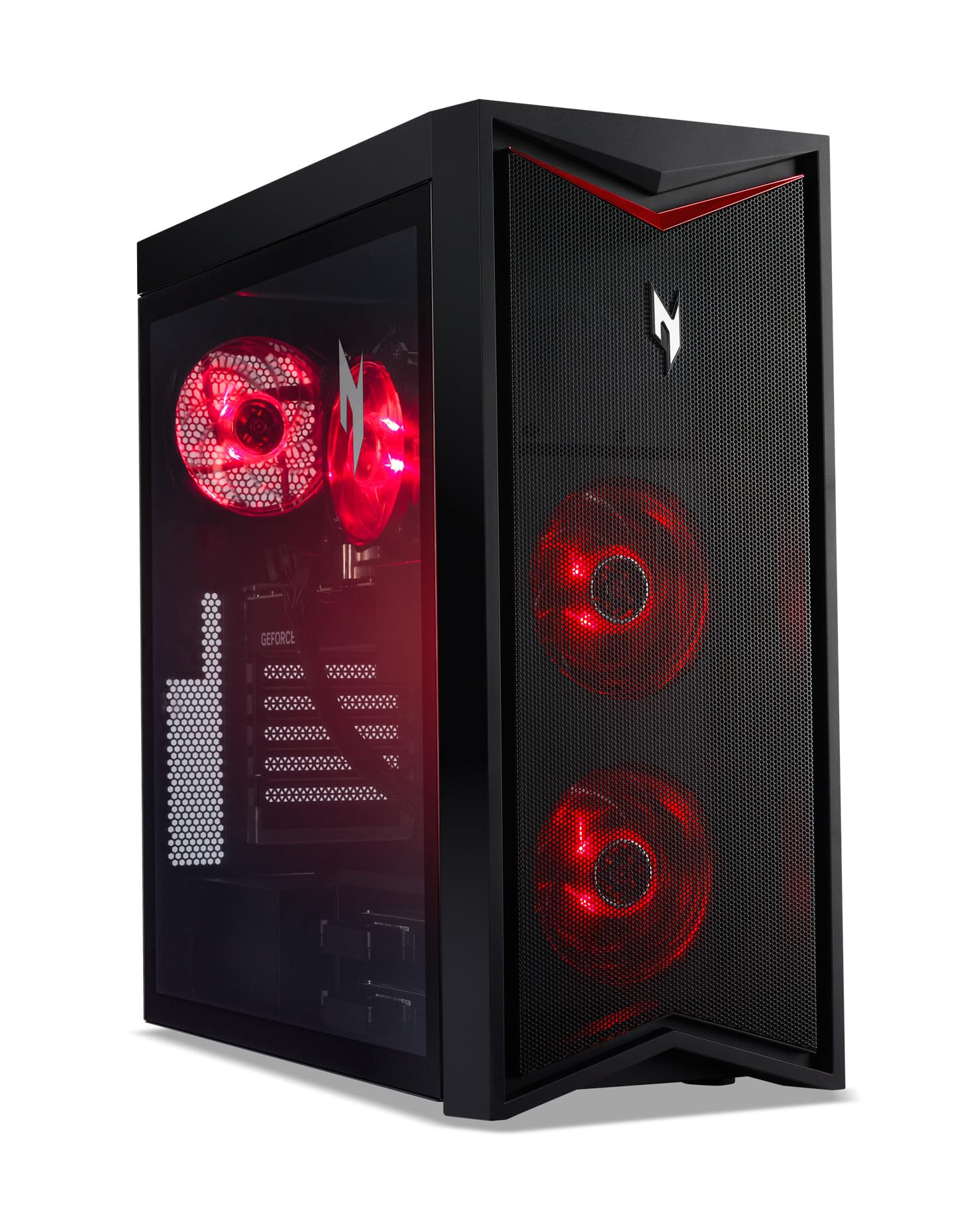
Image: Front view of the Acer Nitro 70 N70-130-UR13 Gaming Desktop, showcasing its sleek black chassis with red accents and illuminated fans.
What's in the Box
Verify that all items are present in the packaging:
- Acer Nitro 70 N70-130-UR13 Gaming Desktop
- Keyboard
- Mouse
- Power Cord
Setup Instructions
- Unpacking: Carefully remove the desktop and all accessories from the packaging. Retain the packaging for future transport or service needs.
- Placement: Place the desktop on a stable, flat surface with adequate ventilation around all sides. Avoid placing it in direct sunlight or near heat sources.
- Connect Peripherals:
- Connect your monitor(s) to the graphics card ports (HDMI, DisplayPort) on the rear of the desktop.
- Connect the included keyboard and mouse to available USB ports.
- Connect any other peripherals such as speakers, headphones, or external drives.
- Power Connection: Connect the power cord to the desktop's power input and then to a grounded electrical outlet.
- First Power On: Press the power button located on the top of the desktop. The system will boot into Windows 11 Home. Follow the on-screen instructions for initial setup.

Image: A user seated at a desk, operating the Acer Nitro 70 desktop connected to a monitor, keyboard, mouse, and headset, illustrating a typical setup.
Operating Instructions
Power On/Off
- To Power On: Press the power button on the top of the desktop.
- To Shut Down: Click the Start button in Windows, then select Power > Shut down.
- To Restart: Click the Start button in Windows, then select Power > Restart.
- To Sleep: Click the Start button in Windows, then select Power > Sleep.
Using NitroSense
The NitroSense utility application allows you to monitor system performance, adjust fan speeds, and customize settings for optimal gaming and computing experience.
- Launch NitroSense: Locate the NitroSense icon in your Windows Start menu or desktop and click to open.
- Monitor Performance: View real-time CPU and GPU temperatures, usage, and fan speeds.
- Adjust Fan Settings: Customize fan profiles (e.g., Auto, Max) to manage cooling performance.

Image: The Acer Nitro 70 desktop positioned next to a monitor displaying the NitroSense software interface, showing system performance metrics.
Key Features
- Processor: AMD Ryzen 9 7900 12-Core Processor (Up to 5.4GHz)
- Graphics: NVIDIA GeForce RTX 4070 with 12GB GDDR6X Video Memory
- Memory: 32GB DDR5 4800MHz RAM
- Storage: 1TB M.2 2280 PCIe Gen 4 SSD
- Operating System: Windows 11 Home
- Connectivity: Wi-Fi 6E, Bluetooth, Multiple USB 2.0 and 3.0 ports
- Chassis: 38L volume with optimized airflow and red LED lighting.

Image: The Acer Nitro 70 desktop with its side panel open, revealing the internal components including the M.2 PCIe Gen4 SSD and cooling fans.

Image: A detailed view of the internal cooling fans and the NVIDIA GeForce RTX 4070 graphics card within the Acer Nitro 70 desktop.
Maintenance
Regular maintenance helps ensure optimal performance and extends the lifespan of your desktop.
- Keep it Clean: Regularly clean the exterior of the desktop with a soft, dry cloth. Use compressed air to clear dust from vents and fans to maintain proper airflow. Ensure the system is powered off and unplugged before cleaning.
- Software Updates: Keep your operating system (Windows 11) and drivers (especially graphics drivers) updated to the latest versions for security and performance improvements.
- Backup Data: Periodically back up important files to an external drive or cloud storage to prevent data loss.
- Avoid Obstructions: Ensure that the desktop's ventilation openings are not blocked by objects or placed in enclosed spaces.
Troubleshooting
This section addresses common issues you might encounter with your desktop.
- No Power / System Not Turning On:
- Check if the power cord is securely connected to both the desktop and the electrical outlet.
- Ensure the power outlet is functional by testing it with another device.
- If using a power strip or surge protector, ensure it is switched on and working.
- No Display on Monitor:
- Verify that the monitor is powered on and its video cable is securely connected to the graphics card ports on the desktop.
- Ensure the correct input source is selected on your monitor.
- Try connecting the monitor to a different video port on the graphics card, if available.
- System Running Slowly:
- Close unnecessary applications running in the background.
- Check for and install any pending Windows updates or driver updates.
- Ensure there is sufficient free space on your primary drive (SSD).
- Run a system scan for malware or viruses.
- Overheating:
- Ensure the desktop's vents are clear of obstructions and dust.
- Use the NitroSense application to monitor temperatures and adjust fan speeds.
- Ensure the desktop is placed in a well-ventilated area.
Specifications
| Feature | Specification |
|---|---|
| Model Number | N70-130-UR13 |
| Processor | AMD Ryzen 9 7900 (12-Core, up to 5.4GHz) |
| Graphics Card | NVIDIA GeForce RTX 4070 with 12GB GDDR6X |
| RAM | 32GB DDR5 4800MHz |
| Storage | 1TB M.2 2280 PCIe Gen 4 SSD |
| Operating System | Windows 11 Home |
| Wireless Connectivity | Wi-Fi 6E, Bluetooth |
| USB 2.0 Ports | 2 |
| USB 3.0 Ports | 8 |
| Video Output | 3 x DisplayPort 1.4a, 1 x HDMI 2.1 |
| Dimensions (LxWxH) | 19.87 x 8.62 x 19.09 inches |
| Item Weight | 13.6 pounds |
Product Overview Video
Video: An official product video showcasing the design, internal components, and features of the Acer Nitro 70 N70-130-UR13 Gaming Desktop.
Warranty and Support
Your Acer Nitro 70 N70-130-UR13 Gaming Desktop comes with a standard manufacturer's warranty. For detailed warranty terms and conditions, please refer to the warranty card included with your product or visit the official Acer support website.
For technical support, driver downloads, or service inquiries, please visit the Acer support website or contact Acer customer service directly. Have your product model number (N70-130-UR13) and serial number ready when contacting support.
Acer Support Website: www.acer.com/support


