
1. Introduction
Welcome to the user manual for your MAXCOM FW67 Titan Pro Smartwatch. This device is designed to enhance your daily life by providing convenient access to notifications, health monitoring, and fitness tracking features directly from your wrist. Please read this manual carefully to ensure proper use and to fully understand the capabilities of your new smartwatch.
2. Safety Information
- Do not attempt to disassemble, repair, or modify the device. This may void the warranty and cause damage.
- Keep the device away from extreme temperatures, direct sunlight, and open flames.
- Avoid exposing the device to strong impacts or vibrations.
- This device is water-resistant (IP69K rating), suitable for splashes and swimming. However, avoid hot water, steam, or prolonged submersion in deep water.
- Consult a medical professional before starting any new exercise regimen or if you have any health concerns. The health data provided by the smartwatch is for reference only and should not be used for medical diagnosis or treatment.
- Use only the provided charging cable and a compatible power adapter.
3. Package Contents
Please check the package for the following items:
- MAXCOM FW67 Titan Pro Smartwatch (Orange)
- Charging Cable
- User Manual
4. Device Overview
Familiarize yourself with the main components of your smartwatch.

Figure 4.1: Front view of the MAXCOM FW67 Titan Pro Smartwatch, displaying the main watch face with time, date, weather, battery level, and activity metrics like calories burned and step count.

Figure 4.2: Side view of the smartwatch, highlighting the 'POWER' button at the top and the 'BACK' button below it, both located on the right side of the watch casing.
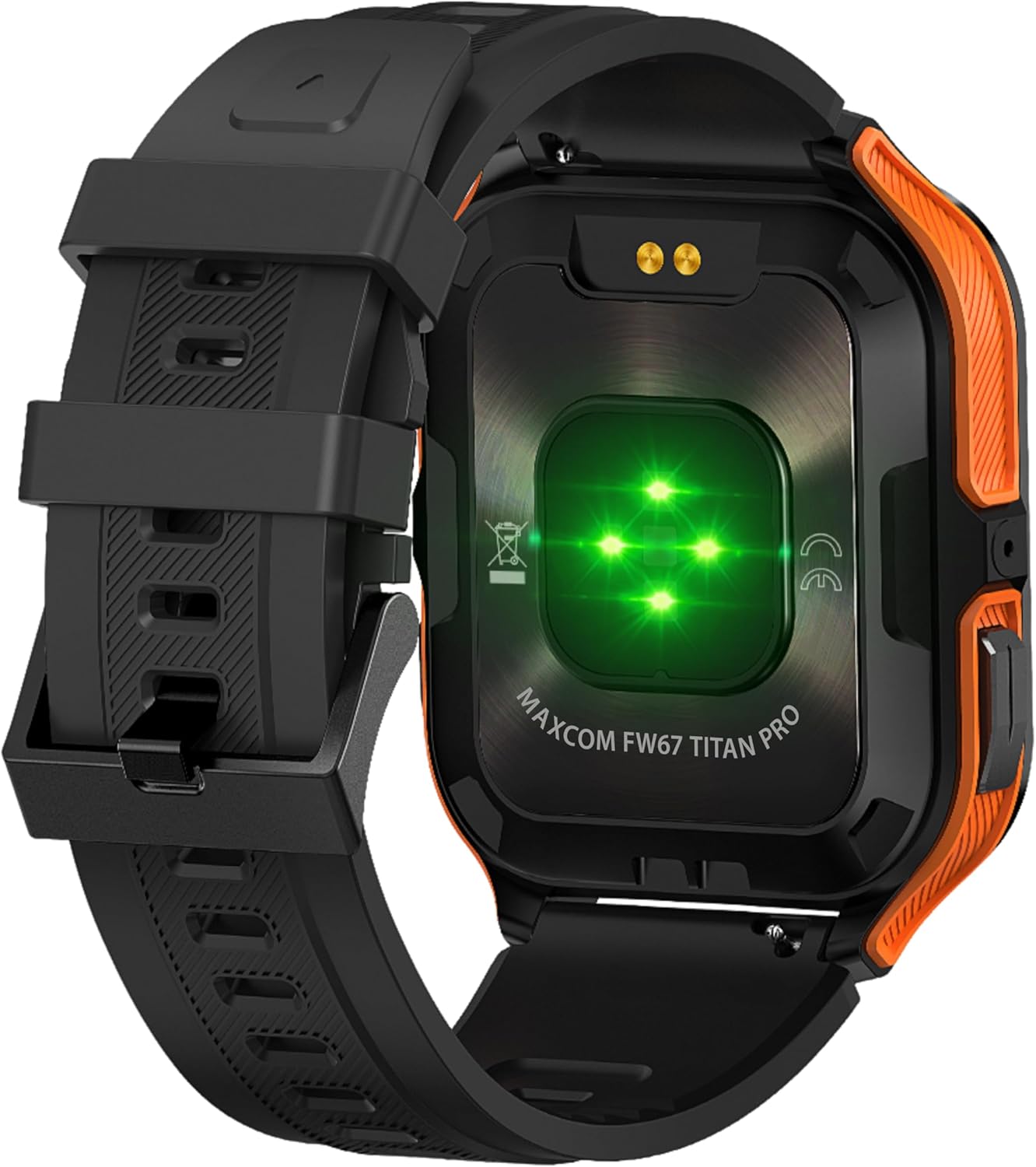
Figure 4.3: Rear view of the smartwatch, showing the optical heart rate sensors (glowing green) and the magnetic charging pins. The model name 'MAXCOM FW67 TITAN PRO' is also visible.
5. Setup
5.1. Initial Charging
Before first use, fully charge your smartwatch.
- Connect the charging cable to the magnetic charging pins on the back of the smartwatch. Ensure the pins align correctly.
- Plug the USB end of the charging cable into a compatible USB power adapter (e.g., 5V/1A) or a computer's USB port.
- The watch display will indicate charging status. A full charge typically takes approximately 2-3 hours.
5.2. App Installation and Pairing
To unlock the full potential of your smartwatch, you need to pair it with your smartphone via the dedicated companion application.
- Download the App: Search for the official MAXCOM smartwatch application (e.g., 'GloryFit' or similar, refer to packaging for exact app name) on the Google Play Store (for Android) or Apple App Store (for iOS). Install the app on your smartphone.
- Enable Bluetooth: Ensure Bluetooth is enabled on your smartphone.
- Open the App: Launch the installed app and follow the on-screen instructions to create an account or log in.
- Add Device: Within the app, navigate to the 'Device' or 'Add Device' section. The app will search for available smartwatches.
- Select Your Smartwatch: Select 'FW67 Titan Pro' from the list of discovered devices.
- Confirm Pairing: A pairing request may appear on both your phone and the smartwatch. Confirm the pairing on both devices.
- Complete Setup: Follow any remaining prompts in the app to set up your profile, permissions, and preferences.
6. Operating Your Smartwatch
6.1. Basic Navigation
- Power Button: Press and hold to power on/off. Short press to wake the screen or return to the main watch face.
- Back Button: Short press to go back to the previous screen or exit a function.
- Touchscreen Gestures:
- Swipe Up: Access quick settings/control center.
- Swipe Down: View notifications.
- Swipe Left/Right: Navigate through widgets (e.g., activity, heart rate, weather).
- Tap: Select an item or enter a menu.
6.2. Key Features

Figure 6.1: The smartwatch display showcasing various health metrics including steps taken, calories burned, heart rate, blood oxygen saturation (SpO2), and blood pressure, along with battery status.
- Heart Rate Monitoring: The watch continuously monitors your heart rate. Access this feature from the main menu or by swiping to the heart rate widget.
- Activity Tracking: Tracks steps, distance, and calories burned throughout the day. Set daily goals in the companion app.
- Sleep Monitoring: Automatically tracks your sleep patterns, including deep sleep, light sleep, and wake times. View detailed analysis in the app.
- Sports Modes: Select from various sports modes (e.g., running, walking, cycling) to track specific workout data. Start a workout from the 'Sport' menu.
- Notifications: Receive call, message, and app notifications directly on your wrist. Ensure notification permissions are granted in the companion app.
- Blood Oxygen (SpO2) & Blood Pressure: The watch can measure SpO2 and blood pressure. These measurements are for reference only and not for medical use.
- Weather: View current weather conditions after syncing with the app and granting location permissions.
- Music Control: Control music playback on your smartphone directly from the watch.
7. Maintenance
- Cleaning: Regularly clean your smartwatch and strap with a soft, dry, lint-free cloth. If necessary, use a slightly damp cloth with mild soap, then rinse and dry thoroughly.
- Avoid Chemicals: Do not use harsh chemicals, cleaning solvents, or strong detergents, as these can damage the watch's finish and seals.
- Charging Port: Keep the charging pins clean and dry to ensure proper charging.
- Storage: When not in use for extended periods, store the smartwatch in a cool, dry place.
- Water Resistance: While the watch is IP69K water-resistant, it is not recommended for diving or high-pressure water activities. Always dry the watch thoroughly after exposure to water.
8. Troubleshooting
If you encounter issues with your smartwatch, refer to the following common problems and solutions:
| Problem | Solution |
|---|---|
| Smartwatch won't turn on | Ensure the watch is fully charged. Connect it to the charger for at least 30 minutes. |
| Cannot pair with smartphone | 1. Ensure Bluetooth is enabled on your phone. 2. Make sure the smartwatch is within range. 3. Restart both the smartwatch and your phone. 4. Clear Bluetooth cache on your phone. 5. Try pairing through the app, not directly via phone's Bluetooth settings. |
| Notifications are not received | 1. Check if the smartwatch is connected to the app. 2. Ensure notification permissions are granted for the app on your phone. 3. Verify that app notifications are enabled within the smartwatch app settings. 4. Disable 'Do Not Disturb' mode on both the watch and phone. |
| Inaccurate health data | 1. Ensure the watch is worn snugly on your wrist, not too loose or too tight. 2. Clean the sensors on the back of the watch. 3. Avoid excessive movement during measurements. 4. Remember that data is for reference and not medical diagnosis. |
| Short battery life | 1. Reduce screen brightness. 2. Limit continuous heart rate monitoring if not needed. 3. Turn off unnecessary notifications. 4. Ensure the watch is fully charged each time. |
9. Specifications
Key technical specifications for the MAXCOM FW67 Titan Pro Smartwatch:
| Feature | Specification |
|---|---|
| Brand | MAXCOM |
| Model | FW67 Titan Pro |
| Color | Orange |
| Operating System | Proprietary OS (compatible with Android/iOS) |
| Screen Size | 1.85 Inches |
| Connectivity | Bluetooth |
| Special Features | Heart Rate Monitor, Notifications, SpO2, Blood Pressure, Activity Tracking |
| Compatible Devices | Smartphone |
| Battery Composition | Lithium-ion |
| Battery Capacity | 380 mAh |
| GPS | GPS via smartphone |
| Shape | Rectangular |
10. Warranty and Support
Your MAXCOM FW67 Titan Pro Smartwatch comes with a standard manufacturer's warranty. Please refer to the warranty card included in your package for specific terms and conditions, including warranty duration and coverage details. For technical support, troubleshooting assistance beyond this manual, or warranty claims, please contact MAXCOM customer service through their official website or the contact information provided with your product documentation.


