MAXCOM SMARTWATCH FW56 Carbon Pro Gold User Manual
Model: FW56 Carbon Pro Gold
Introduction
Thank you for choosing the MAXCOM SMARTWATCH FW56 Carbon Pro Gold. This manual provides essential information for setting up, operating, and maintaining your new smartwatch. Please read it carefully to ensure optimal performance and longevity of your device.
Setup Guide
1. Package Contents
Before you begin, ensure all items are present in the package:
- MAXCOM SMARTWATCH FW56 Carbon Pro Gold
- Charging Cable
- User Manual (this document)
2. Charging the Device
For first-time use, fully charge your smartwatch. Connect the charging cable to the charging port on the back of the watch and plug the USB end into a compatible power adapter (not included) or a computer's USB port.
- A full charge typically takes approximately 2 hours.
- The battery icon on the screen will indicate charging status.
3. Pairing with a Smartphone
To unlock the full potential of your smartwatch, pair it with your smartphone via Bluetooth.
- Download the official MAXCOM smartwatch application from your smartphone's app store (e.g., Google Play Store or Apple App Store). Search for "MAXCOM Smartwatch App".
- Ensure Bluetooth is enabled on your smartphone.
- Open the MAXCOM app and follow the on-screen instructions to add a new device.
- Select "FW56 Carbon Pro Gold" from the list of available devices.
- Confirm the pairing request on both your smartphone and the smartwatch.
Operating Your Smartwatch
Basic Navigation
The FW56 Carbon Pro Gold features a responsive touchscreen and a side button for navigation.
- Swipe Up/Down: Scroll through menus and notifications.
- Swipe Left/Right: Access different widgets and quick functions.
- Tap: Select an item or confirm an action.
- Press Side Button: Return to the home screen or wake/sleep the display.
Display and Interface
The smartwatch features a 5.96-inch display, providing clear visuals for all functions.
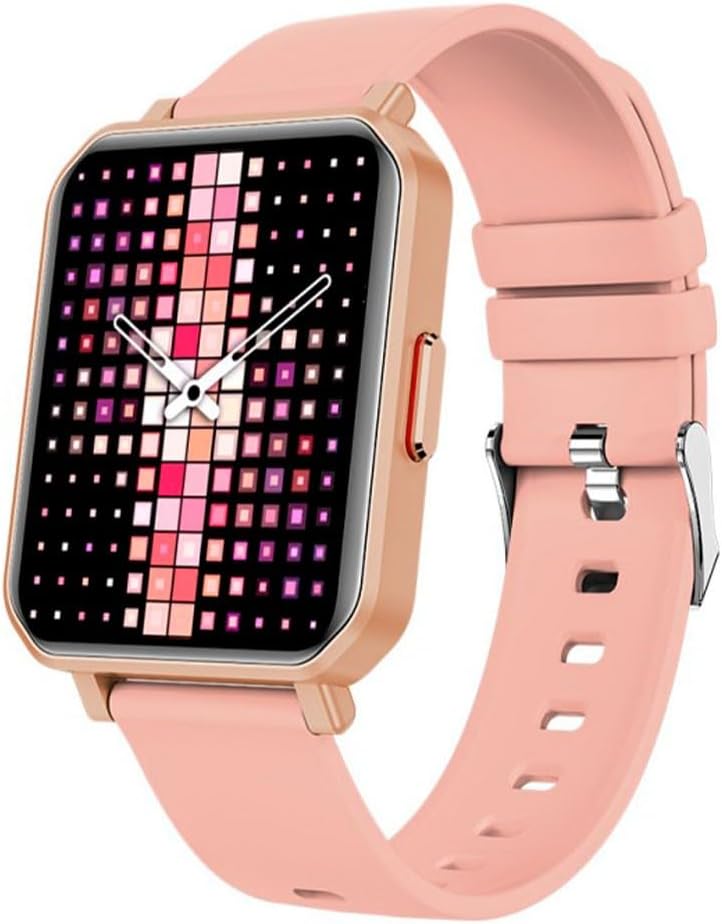
Image: The MAXCOM SMARTWATCH FW56 Carbon Pro Gold, featuring a rectangular gold-colored watch case and a soft pink silicone strap. The display shows a vibrant, pixelated watch face with shades of pink, purple, and white, indicating the time with analog hands.
Core Functions
- Notifications: Receive alerts for calls, messages, and app notifications directly on your wrist.
- Health Tracking: Monitor your steps, distance, calories burned, and heart rate. The integrated GPS allows for accurate tracking of outdoor activities.
- Sleep Monitoring: Track your sleep patterns and quality.
- Music Control: Control music playback on your paired smartphone.
- Weather: Get real-time weather updates.
Maintenance and Care
Cleaning Your Smartwatch
To keep your smartwatch in optimal condition:
- Wipe the screen and body with a soft, lint-free cloth.
- For stubborn marks, slightly dampen the cloth with water. Avoid using harsh chemicals or abrasive materials.
- Ensure the charging contacts are clean and dry before charging.
Battery Care
- Avoid extreme temperatures, which can affect battery life.
- Do not leave the watch fully discharged for extended periods.
- Use only the provided charging cable.
Troubleshooting
| Problem | Possible Solution |
|---|---|
| Watch not turning on | Ensure the watch is fully charged. Press and hold the side button for several seconds. |
| Cannot pair with smartphone | Check if Bluetooth is enabled on both devices. Restart both the watch and the smartphone. Ensure the MAXCOM app is updated. |
| Inaccurate health data | Ensure the watch is worn snugly on your wrist. Clean the sensor on the back of the watch. |
| Short battery life | Reduce screen brightness. Turn off unnecessary notifications. Limit continuous heart rate monitoring. |
Product Specifications
- Brand: Maxcom
- Model Name: Smartwatch Fit FW56 Carbon Pro Złoty
- Model Number: MAXCOMFW56CARBONGOLD
- Color: Multicolored
- Screen Size: 5.96 Inches
- Connectivity Technology: Bluetooth
- Wireless Communication Standard: Bluetooth
- Compatible Devices: Smartphone, Tablet
- GPS: Integrated GPS
- Shape: Round
- Target Audience: Unisex-Adult
- Manufacturer: Maxcom
- Country of Origin: Portugal
Warranty and Support
For warranty information and technical support, please refer to the warranty card included with your product or visit the official Maxcom website. You may also contact Maxcom customer service for assistance with product inquiries, troubleshooting, and service requests.
Keep your purchase receipt as proof of purchase for warranty claims.


