
1. Introduction
This manual provides detailed instructions for the setup, operation, maintenance, and troubleshooting of your Cleer ARC II Open Ear Headphones. Please read this manual thoroughly before using the product to ensure proper function and longevity.
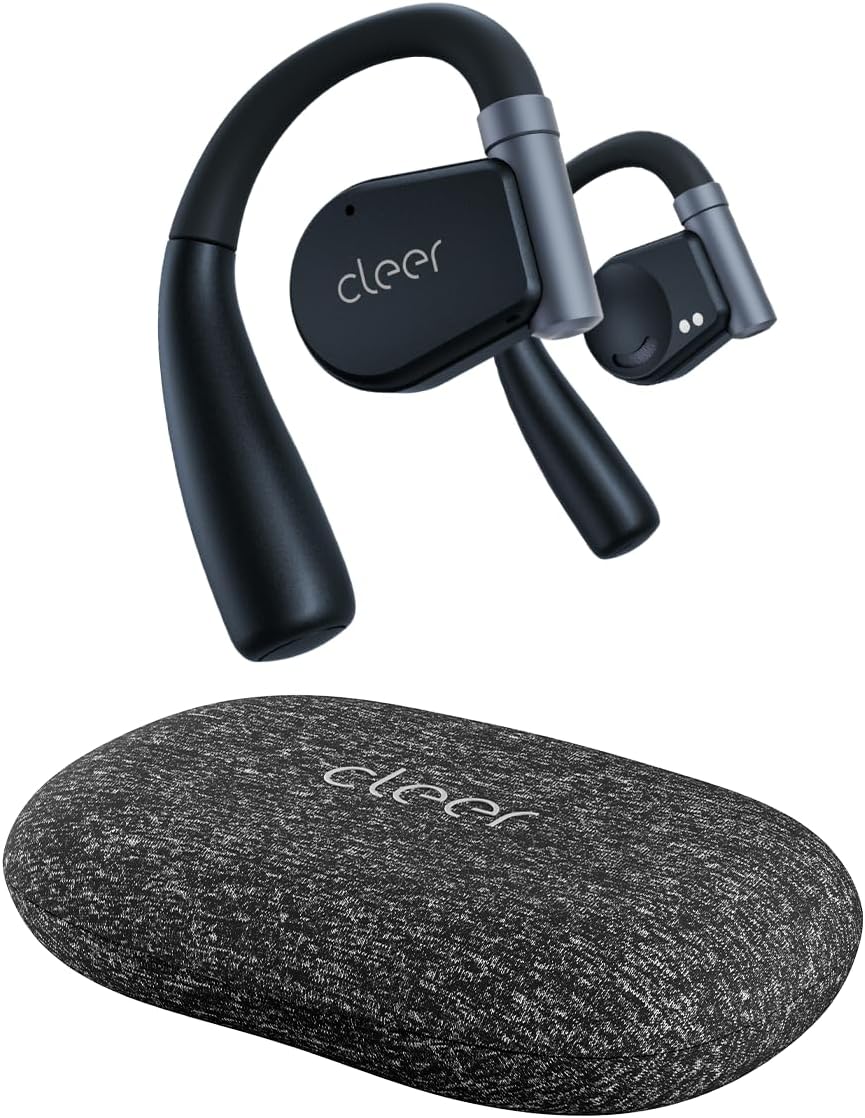
Image: Cleer ARC II Open Ear Headphones and their charging case. The headphones feature an open-ear design with ear hooks, and the case is a compact, textured grey oval.
2. Package Contents
Ensure all items are present in the package:
- Cleer ARC II Open-Ear Headphones
- Charging Case with Built-in Fast Charging
- USB-C to USB-A Charging Cable
- User Manual (this document)
3. Product Overview
The Cleer ARC II headphones are designed for comfort and awareness, featuring an open-ear design that allows you to hear your surroundings while enjoying audio. Key features include:
- Open-Ear Design: Allows ambient sound awareness.
- Ergonomic Fit: Ultra-lightweight with flexible ear hooks for secure and comfortable wear.
- Bluetooth 5.3: For stable and efficient wireless connectivity.
- Multi-Point Connection: Seamlessly switch between two paired devices.
- Extended Playtime: Up to 8 hours per charge, with an additional 27 hours from the charging case (total 35 hours).
- IPX5 Sweat Resistance: Suitable for workouts and outdoor activities.
- Premium Sound: Equipped with 16.2mm dynamic drivers for clear audio.
- Clear Calls: Dual microphones with cVc (Clear Voice Capture) technology for enhanced voice clarity.
- Customizable EQ: Adjust sound profiles via the Cleer+ App.
- Intuitive Controls: Touch controls and optional head motion controls for playback, calls, and volume.

Image: A man wearing the Cleer ARC II headphones, highlighting the open-ear design that allows for environmental awareness.
4. Setup and First Use
4.1. Charging the Headphones and Case
Before first use, fully charge the headphones and the charging case.
- Place both earbuds into the charging case.
- Connect the USB-C charging cable to the charging port on the case and the other end to a USB power source (e.g., computer, wall adapter).
- The LED indicators on the case will show charging status. A full charge takes approximately 2 hours.

Image: The Cleer ARC II headphones and charging case, visually representing the total battery life of 35 hours (8 hours from earbuds + 27 hours from case).
4.2. Fitting the Headphones
Proper fit ensures optimal sound and comfort.
- Step 1: Adjust the ear hook to fit your ear's contour.
- Step 2: Place the earbud above your ear, ensuring the speaker rests near your ear canal.
- Step 3: Rotate the earbud backward along the auricle until it sits comfortably and securely in position.
- Step 4: Verify the correct fitting position for both earbuds.

Image: A four-step diagram illustrating how to correctly adjust and wear the Cleer ARC II open-ear headphones for a secure and comfortable fit.
4.3. Bluetooth Pairing
Pair your Cleer ARC II headphones with your device using one of the following methods:

Image: A diagram detailing three different methods for Bluetooth pairing the Cleer ARC II headphones with a mobile device.
- Option 1 (Initial Pairing):
- Open the charging case for the first time. The LEDs on the earbuds will start flashing red and white, indicating automatic pairing mode.
- On your mobile device, select "Cleer ARC II" from the Bluetooth pairing list.
- Option 2 (Manual Pairing - Earbuds Out of Case):
- If the earbuds are out of the charging case, tap either the left or right earbud 5 times to activate pairing mode.
- On your mobile device, select "Cleer ARC II" from the Bluetooth pairing list.
- Option 3 (Manual Pairing - Earbuds in Case):
- When both earbuds are in the charging case, long-press the Multi-Function Button (MFB) on the case until the LEDs of the earbuds start flashing red and white to signal pairing mode.
- On your mobile device, select "Cleer ARC II" from the Bluetooth pairing list.
4.4. Cleer+ App Installation
For full customization and firmware updates, download the free Cleer+ App from the Apple App Store or Google Play Store.

Image: Screenshots of the Cleer+ App interface, showing options for equalizer adjustments and general control of the Cleer ARC II headphones.
5. Operating Instructions
5.1. Earbud Touch Controls
The earbuds feature touch-sensitive areas for controlling playback, calls, and volume. These controls can be customized via the Cleer+ App.

Image: A diagram illustrating the touch control functions on the Cleer ARC II earbuds for managing music playback, calls, and volume adjustments.
| Action | Function (Music) | Function (Call) | Function (Volume) |
|---|---|---|---|
| Single tap (x1) | Play/Pause | - | - |
| Double tap (x2) | Next track | Pick up/Hang up call | Right earbud: Volume up continuously Left earbud: Volume down continuously (hold on 2nd tap) |
| Triple tap (x3) | Previous track | - | - |
| Tap and hold | Trigger default voice assistant | Reject call | - |
5.2. Head Motion Control
The ARC II supports head motion controls for music and calls. This function is deactivated by default and can be activated in the Cleer+ App.

Image: A diagram illustrating various head movements and their corresponding control functions for music and calls on the Cleer ARC II headphones.
- Nod (x2): Pick up call
- Shake head (x2): Hang up/Reject call
- Turn head left (x1): Previous track
- Turn head right (x1): Next track
5.3. Multi-Point Connection
The Cleer ARC II headphones can connect to two Bluetooth devices simultaneously. This allows you to seamlessly switch between audio sources, for example, from your phone to your laptop.
- Pair the headphones with the first device.
- Put the headphones into pairing mode again (refer to Section 4.3).
- Pair the headphones with the second device.
- The headphones will now be connected to both devices. Audio will automatically switch to the device playing content or receiving a call.
6. Maintenance and Care
To ensure the longevity and optimal performance of your Cleer ARC II headphones, follow these maintenance guidelines:
- Cleaning: Regularly wipe the earbuds and charging case with a soft, dry, lint-free cloth. Avoid using abrasive materials or harsh chemicals.
- Sweat Resistance: While IPX5 rated for sweat and water resistance, avoid submerging the headphones in water. After intense workouts, gently wipe away sweat before placing them back in the charging case.
- Storage: When not in use, store the headphones in their charging case to protect them from dust and damage. Store in a cool, dry place away from direct sunlight and extreme temperatures.
- Battery Care:
- Avoid fully discharging the battery frequently.
- Charge the headphones regularly, even if not used for extended periods, to maintain battery health.
- Do not expose the battery to excessive heat or cold.
7. Troubleshooting
If you encounter issues with your Cleer ARC II headphones, refer to the following common solutions:
| Problem | Possible Cause | Solution |
|---|---|---|
| Headphones not pairing | Not in pairing mode; Bluetooth off on device; previously paired device interfering. |
|
| No sound or low volume | Volume too low; headphones not selected as audio output; earbud fit. |
|
| Intermittent connection/audio dropouts | Distance from device; interference; low battery. |
|
| Charging issues | Cable/charger fault; dirty charging contacts; earbuds not seated correctly. |
|
| Head motion control not working | Feature disabled; app not configured. |
|
7.1. Factory Reset
If problems persist, a factory reset may resolve the issue. Consult the Cleer+ App or the official Cleer support website for specific factory reset instructions for your model.
8. Specifications
| Feature | Detail |
|---|---|
| Model Name | ARC II |
| Connectivity Technology | Wireless (Bluetooth 5.3) |
| Bluetooth Range | 10 Meters |
| Audio Driver Type | Dynamic Driver |
| Audio Driver Size | 16.2 Millimeters |
| Frequency Range | 20 Hz - 20,000 Hz |
| Impedance | 16 Ohm |
| Battery Life (Earbuds) | Up to 8 hours |
| Battery Life (with Charging Case) | Up to 35 hours total |
| Charging Time | Approximately 2 hours |
| Water Resistance Level | IPX5 (Sweat Resistant) |
| Item Weight (Earbuds) | Not specified individually, total item weight 4.8 ounces |
| Carrying Case Weight | 136 Grams |
| Control Method | Touch, Head Motion (customizable via app) |
| Special Features | Integrated Equalizer, Lightweight, Multipoint Pairing, Sweatproof, Volume Control, cVc Microphones |
| Included Components | Cleer ARC II Open-Ear Headphones, Charging Case, USB-C to USB-A Charging Cable, User Manual |
9. Warranty and Support
Cleer products are designed and manufactured to the highest quality standards. For detailed warranty information, please refer to the warranty card included with your product or visit the official Cleer website.
For further assistance, technical support, or to view FAQs, please visit the official Cleer store or support page: