
Introduction
The CIAO TECH WiFi Extender is designed to enhance your wireless network coverage, eliminating dead zones and providing a strong, consistent signal throughout your home or office. With speeds up to 300Mbps and robust security features, it ensures a seamless online experience for multiple devices.

Front view of the CIAO TECH WiFi Extender, showing the WPS button and indicator lights.
Package Contents
- 1 x CIAO TECH WiFi Extender
- 1 x Ethernet Cable
- 1 x User Manual (this document)
Setup Guide
Method 1: Quick Setup via WPS Button
- Plug In: Plug the WiFi Extender into an electrical outlet near your main router. Wait for the Power indicator light to turn solid.
- Activate WPS on Router: Press the WPS button on your main wireless router. Refer to your router's manual for the exact location and procedure.
- Activate WPS on Extender: Within 2 minutes of pressing WPS on your router, press the WPS button on the front of the CIAO TECH WiFi Extender.
- Wait for Connection: The Extender's signal indicator lights will flash and then turn solid when a connection is established. This may take a few moments.
- Relocate (Optional): Once connected, you can unplug the extender and move it to a location halfway between your router and the Wi-Fi dead zone. Ensure the signal indicator lights remain solid, indicating a good connection.
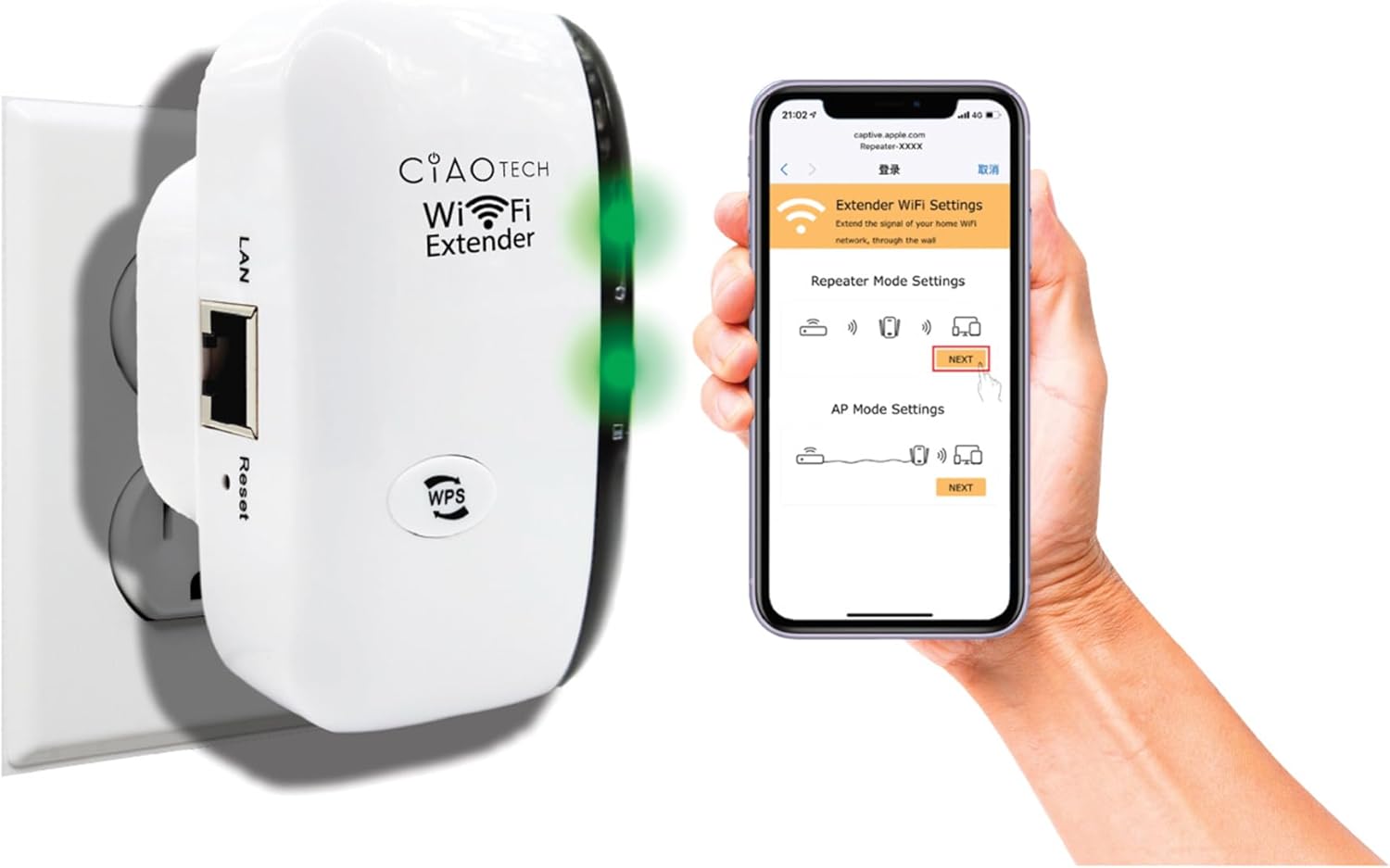
The WiFi Extender plugged into a wall outlet, with a smartphone displaying the extender's setup interface.
Method 2: Setup via Web Browser
- Plug In: Plug the WiFi Extender into an electrical outlet near your main router. Wait for the Power indicator light to turn solid.
- Connect to Extender's Wi-Fi: On your computer or mobile device, connect to the Wi-Fi network named "WiFi Repeater-XXXXXX" (where XXXXXX are the last 6 digits of the extender's MAC address, found on the label). There is no password initially.
- Access Setup Page: Open a web browser (e.g., Chrome, Firefox, Safari) and enter 192.168.11.1 in the address bar.
- Log In: If prompted, the default username and password are "admin" (or refer to the label on the device).
- Select Mode: Choose your desired operating mode (Repeater Mode or AP Mode).
- Configure Settings:
- Repeater Mode: Select your existing Wi-Fi network from the list, enter its password, and optionally change the extender's SSID.
- AP Mode: Connect an Ethernet cable from your router to the extender's LAN port. The extender will create a new Wi-Fi network. Configure the new SSID and password.
- Apply Settings: Save the settings and wait for the extender to restart.
- Connect to Extended Network: On your devices, connect to the newly configured extended Wi-Fi network.

Rear view of the WiFi Extender, displaying the LAN port and the label with default settings and IP address.
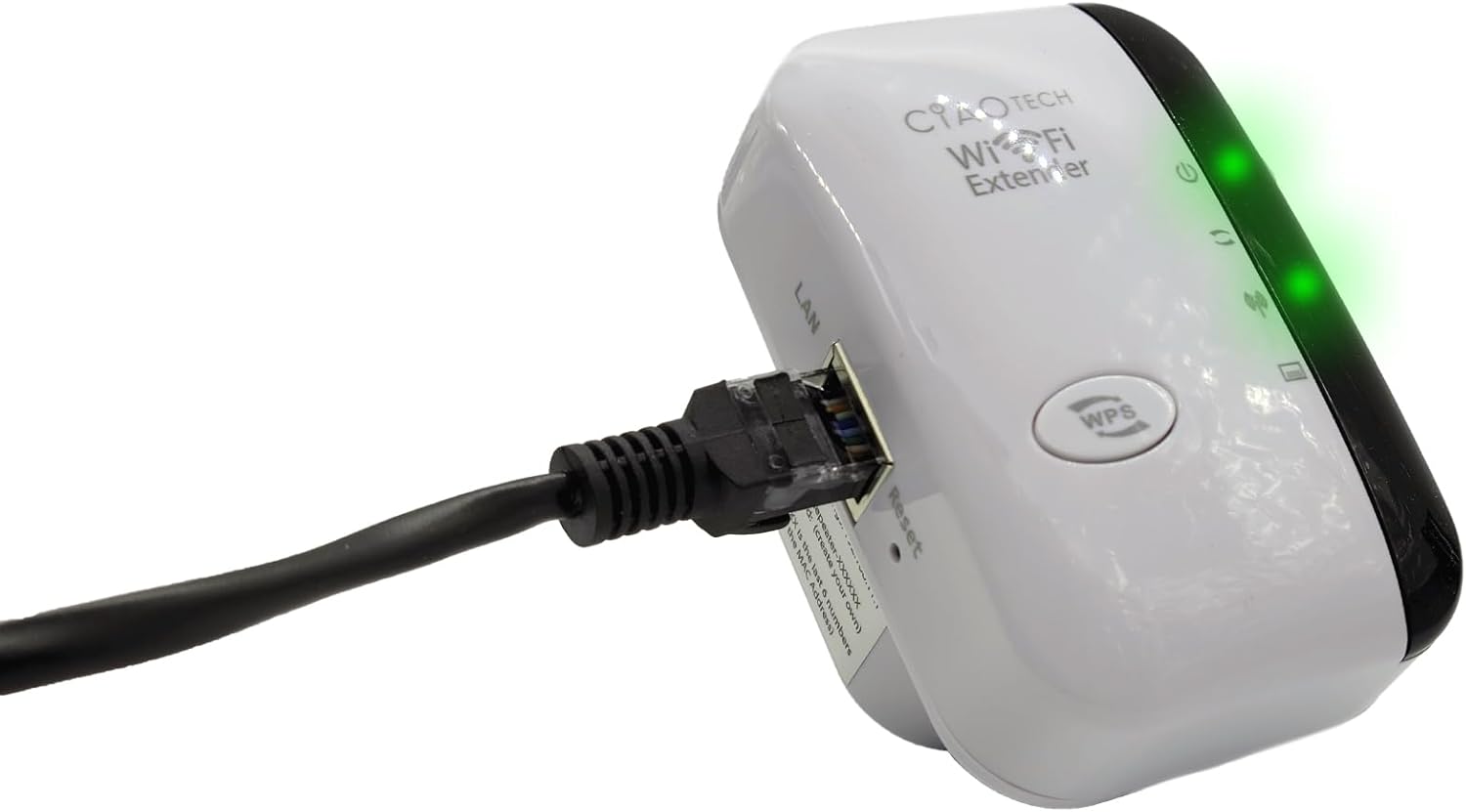
The WiFi Extender with an Ethernet cable connected to its LAN port, indicating a wired connection option.
Operating Modes
Repeater Mode
In Repeater Mode, the extender wirelessly connects to your existing Wi-Fi network and re-broadcasts it, extending the coverage area. This mode is ideal for eliminating Wi-Fi dead zones and improving signal strength in areas with weak coverage.
AP (Access Point) Mode
In AP Mode, the extender connects to your router via an Ethernet cable and creates a new wireless network. This mode is suitable for converting a wired network connection into a wireless one, or for creating a separate Wi-Fi network.
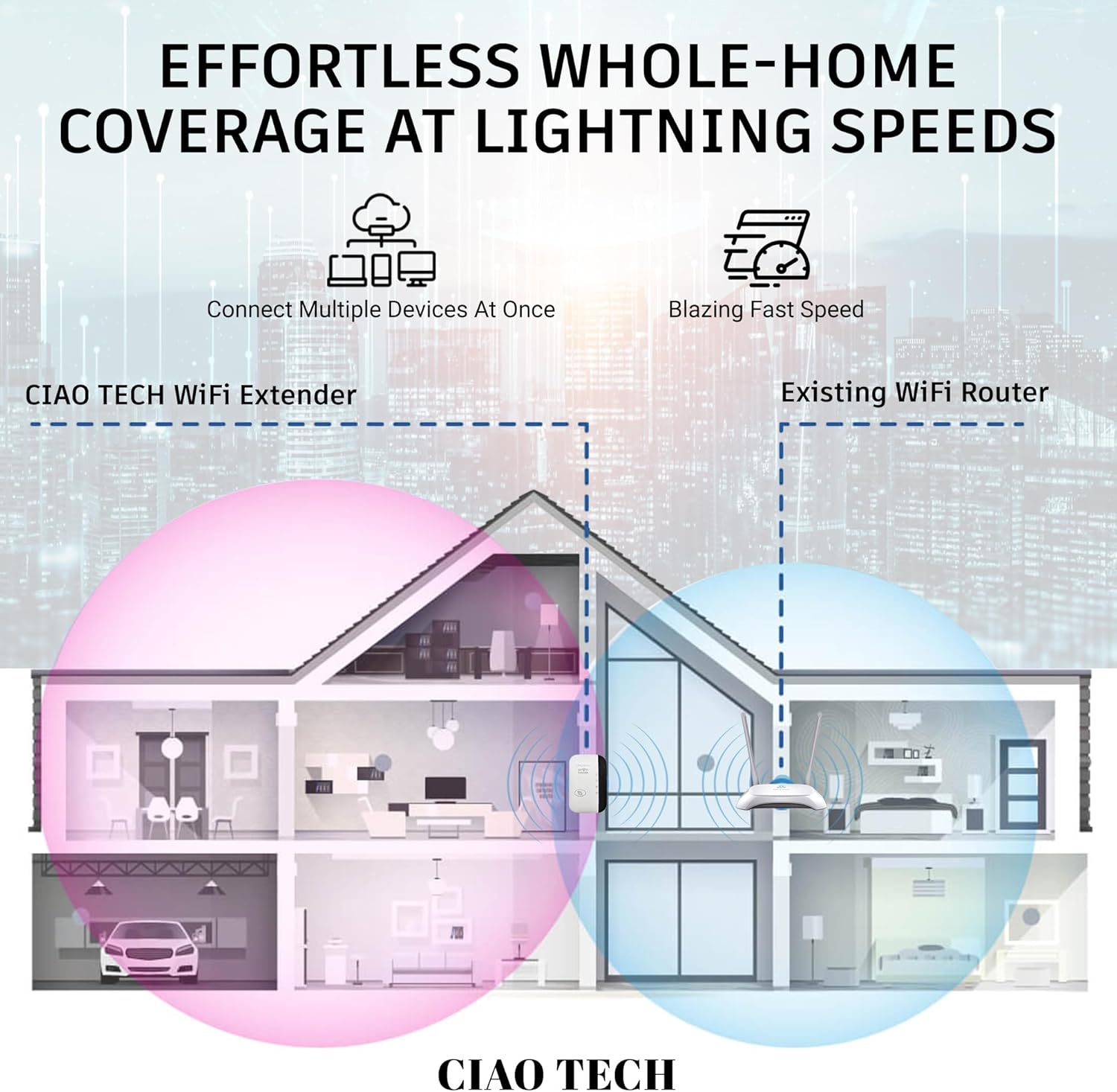
A diagram illustrating how the WiFi Extender provides expanded coverage throughout a home, connecting multiple devices.
Maintenance
- Optimal Placement: Place the extender in a location that is roughly halfway between your main router and the area where you need improved Wi-Fi. Avoid placing it near large metal objects, concrete walls, or other electronic devices that may cause interference.
- Keep Clean: Periodically wipe the device with a soft, dry cloth to remove dust. Do not use liquid cleaners or aerosols.
- Firmware Updates: Check the manufacturer's website periodically for firmware updates. Keeping the firmware updated can improve performance and security.
- Power Cycle: If you experience persistent issues, try power cycling the extender by unplugging it from the outlet for 10 seconds and then plugging it back in.
Troubleshooting
- No Internet Access After Setup:
- Ensure the extender is within range of your main router.
- Verify that the password entered for your main Wi-Fi network during setup was correct.
- Try restarting both your main router and the extender.
- If using Repeater Mode, ensure your main router has internet access.
- Weak Signal from Extender:
- Relocate the extender closer to your main router.
- Avoid physical obstructions like thick walls or large appliances.
- Check for sources of interference (e.g., microwaves, cordless phones).
- Cannot Access Web Management Page (192.168.11.1):
- Ensure your device is connected to the extender's Wi-Fi network (e.g., "WiFi Repeater-XXXXXX").
- Clear your browser's cache and cookies, or try a different browser.
- Temporarily disable any VPN or firewall software on your computer.
- Reset the extender to factory defaults (use a paperclip to press the reset button for 5-10 seconds) and try setup again.
- Slow Speed:
- Ensure the extender is placed in an optimal location, not too far from the router and not too far from the devices.
- Check for network congestion or too many devices connected to the extended network.
- Verify your main internet speed.
Specifications
| Model Number | OWEWM00-001 |
| Wireless Standard | 802.11ac |
| Data Transfer Rate | Up to 300 Mbps |
| Security Features | 64/128/152-bit Encryption |
| Ports | 1 x RJ45 Ethernet Port |
| Dimensions | 4.61 x 4.45 x 2.72 inches |
| Weight | 3.84 ounces |
Warranty and Support
For warranty information and technical support, please refer to the contact details provided with your purchase or visit the official CIAO TECH website. Keep your purchase receipt for warranty claims.