
1. Introduction
Thank you for choosing the Vikye Mini Hidden Camera. This compact and versatile security camera is designed to provide reliable surveillance with its 1080P HD video recording, AI motion detection, night vision capabilities, and two-way audio communication. Its magnetic design allows for flexible placement in various environments. Please read this manual carefully to ensure proper setup and operation of your device.
2. Package Contents
Verify that all items are present in your package:
- 1 x Vikye Mini Hidden Camera
- 1 x User Manual
- 1 x USB Cable
- 1 x Base
- 1 x Adhesive Patch

Image: The Vikye Mini Hidden Camera shown with its included accessories: a USB charging cable, a magnetic mounting base, and an adhesive patch for versatile installation.
3. Product Overview
Familiarize yourself with the camera's components:

Image: A detailed view of the Vikye Mini Hidden Camera highlighting its key components: the ON/OFF button, Reset button, Micro storage card slot, and Power Interface.
- ON/OFF Button: Powers the camera on or off.
- Reset Button: Used to reset the camera to factory settings.
- Power Interface: Connect the USB cable for charging and continuous power.
- Lens: 1080P HD lens for video capture.
- Infrared Lights: Six built-in infrared lights for night vision.
4. Setup
4.1 Charging the Camera
Before first use, fully charge the camera using the provided USB cable and a standard 5V USB power adapter (not included). The charging indicator light will show the charging status.
4.2 Inserting a Micro SD Card
Insert a Micro SD card (Class 10 or higher, up to 128GB, not included) into the Micro storage card slot. Ensure the card is inserted correctly with the contacts facing down.
4.3 App Installation
Download and install the 'iWF cam' application on your smartphone. Search for 'iWF cam' in your device's app store (Google Play Store for Android or Apple App Store for iOS).
4.4 Connecting to WiFi
- Power on the camera.
- Open the 'iWF cam' app on your smartphone.
- Follow the in-app instructions to add a new device. The camera supports its own WiFi hotspot function, allowing local connection even without an internet connection. For remote viewing, connect the camera to your home or office WiFi network via the app.

Image: A smartphone screen showing the 'iWF cam' application, demonstrating real-time viewing and playback of camera footage, indicating connectivity to a WiFi network.
4.5 Mounting the Camera
The camera features a built-in strong magnet for easy attachment to metallic surfaces. Use the included magnetic base and adhesive patch for flexible placement on non-metallic surfaces. It can be placed, inverted, or wall-mounted.

Image: The Vikye Mini Hidden Camera next to a magnet icon, emphasizing its built-in strong magnet for simple and secure installation on various surfaces.
5. Operating Instructions
5.1 Power On/Off
Press and hold the ON/OFF button to power the camera on or off.
5.2 Video Recording
The camera captures 1080P HD videos at 30 frames per second (FPS) with H.265 video compression. Recordings are stored on the inserted Micro SD card or can be viewed in real-time via the 'iWF cam' app.
5.3 Motion Detection
When motion or sound is detected, the camera automatically captures photos and sends alarm notifications to your mobile app. This feature helps you stay informed without constant monitoring.
5.4 Two-Way Talk
Utilize the 'iWF cam' app to engage in real-time two-way voice communication through the camera. This allows for live visual conversations with individuals near the camera.
5.5 Night Vision
Equipped with six infrared night vision lights, the camera automatically switches to night mode in low light or complete darkness, ensuring clear and detailed recordings.
5.6 Remote Viewing and Playback
Connect the camera to a WiFi network to access real-time viewing and playback of recorded footage anytime, anywhere through the 'iWF cam' app.
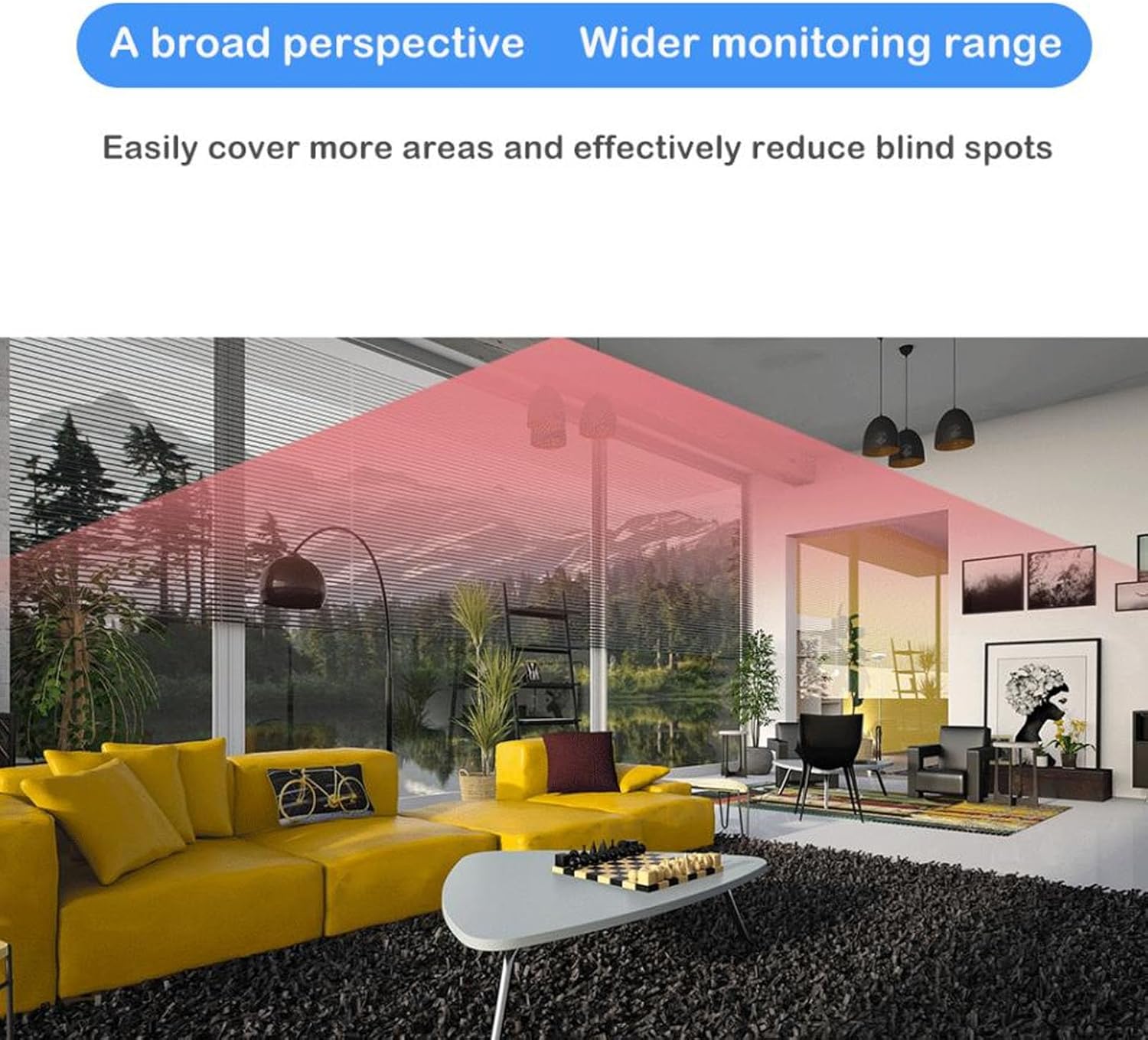
Image: An illustration showing the camera's wide-angle lens covering a large area of a living room, highlighting its broad perspective and ability to reduce blind spots.
5.7 Smart Sleep Standby
The camera features super-low power sleep standby technology. It consumes minimal power when idle and can be remotely woken up via the mobile app when monitoring is required, extending battery life.

Image: A visual representation of the camera's smart sleep standby feature, showing it in a low-power state and then being activated remotely through the smartphone application.

Image: A graphic depicting a full battery, symbolizing the camera's extended battery life achieved through efficient power consumption and sleep standby mode.
6. Maintenance
- Cleaning: Use a soft, dry cloth to clean the camera lens and body. Avoid using liquid cleaners or abrasive materials.
- Battery Care: To prolong battery life, avoid exposing the camera to extreme temperatures. Recharge the battery regularly, even if the camera is not in frequent use.
- Storage: When not in use for extended periods, store the camera in a cool, dry place.
- Micro SD Card: Periodically format the Micro SD card through the app to maintain optimal recording performance and free up space.
7. Troubleshooting
- Camera not powering on: Ensure the camera is fully charged. Connect it to a power source using the USB cable.
- Cannot connect to WiFi:
- Ensure the camera is within range of your WiFi router.
- Verify that the WiFi password entered in the app is correct.
- Try resetting the camera using the reset button.
- Ensure your router is broadcasting a 2.4GHz WiFi signal, as 5GHz may not be supported.
- No recording to Micro SD card:
- Check if the Micro SD card is inserted correctly.
- Ensure the Micro SD card is not full. Format it if necessary.
- Verify the Micro SD card is Class 10 or higher.
- Motion detection alerts not received:
- Ensure motion detection is enabled in the 'iWF cam' app settings.
- Check your smartphone's notification settings for the 'iWF cam' app.
- Ensure the camera has a stable internet connection for sending alerts.
- Poor video quality:
- Clean the camera lens.
- Ensure adequate lighting for optimal video quality during the day.
- Check your internet connection speed if streaming remotely.
8. Specifications
| Model Name | Vikyer82tqmwu1c |
| Resolution | 1080P HD |
| Video Compression | H.265 |
| Battery Capacity | 380mAh Lithium Battery (Built-in) |
| Storage | Supports up to 128GB Micro SD card (not included) |
| App Name | iWF cam |
| Material | Plastic |
| Power Source | Battery Powered |
| International Protection Rating | IP65 |
| Special Feature | Night Vision, AI Motion Detection, Two-Way Talk, WiFi Hotspot, Magnetic Mount |
| Compatible Devices | Smartphone |
9. Warranty and Support
For warranty information or technical support, please refer to the contact details provided with your purchase documentation or visit the official Vikye website. Keep your purchase receipt as proof of purchase.