
TISHLED B0CPBNZ86T
TISHLED Typewriter Style Number Keypad User Manual
Model: B0CPBNZ86T
1. Introduction
This user manual provides detailed instructions for the TISHLED Typewriter Style Number Keypad. This versatile numeric pad offers multiple connectivity options and a retro design, enhancing your productivity across various devices.

Image: The TISHLED Typewriter Style Number Keypad in Matcha Green, showcasing its retro round keycaps and compact design.
2. Key Features
- Tri-Mode Connection: Supports Wireless 2.4GHz, Bluetooth 5.0, and USB-C Wired connections. Easily switch between up to 2 Bluetooth devices, 1 wireless 2.4GHz device, and 1 wired device.
- Retro Aesthetic Typewriter Style: Features cute colorful round keycaps and a design inspired by classic typewriters for a comfortable and enjoyable typing experience.
- Linear Membrane Keys & NKRO: Equipped with linear mechanical feeling switches for medium resistance and fast response. All 18 keys offer N-Key Rollover (NKRO) for anti-ghosting, ensuring all presses are registered accurately.
- Rechargeable & Energy-Saving: Built-in 300mAh lithium battery provides 10-20 days of usage. Features a low-power chip and hibernation mode (after 30 minutes of idle) to conserve battery.
- Ergonomic & Portable Design: Designed to alleviate wrist pressure with an elevated angle. Lightweight and compact (4.9*3.5*1.3 inches, 0.33 lbs) for easy portability.

Image: The keypad shown connected to a laptop, tablet, and smartphone, illustrating its tri-mode connectivity feature.
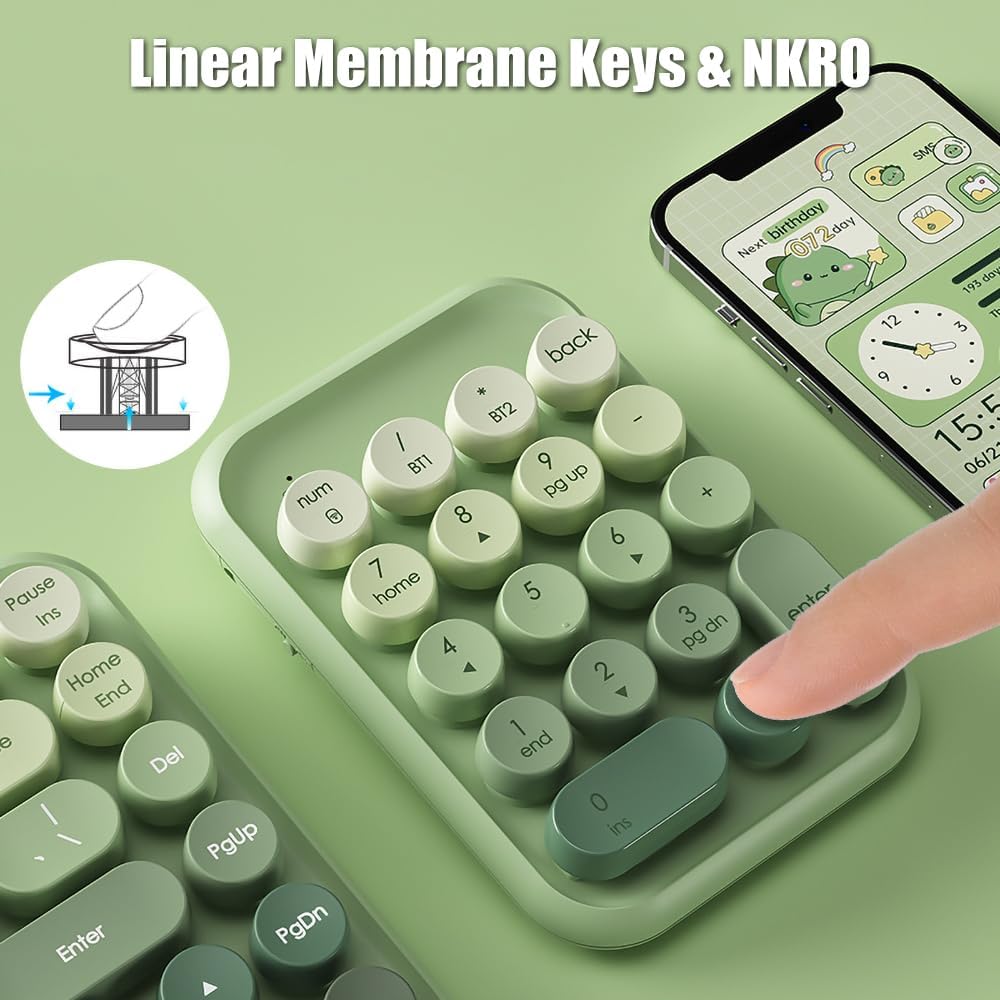
Image: A close-up view of the keypad's keys, highlighting the linear membrane switch mechanism for comfortable typing.
3. Package Contents
Please check the package for the following items:
- 1 x TISHLED Typewriter Style Number Keypad
- 1 x USB-C Charging Cable
4. Setup and Connection
4.1. Charging the Keypad
Before first use, it is recommended to fully charge the keypad. Connect the provided USB-C cable to the keypad's charging port and the other end to a USB power source (e.g., computer USB port, wall adapter). The indicator light will show charging status.
4.2. Connection Modes
The keypad supports three connection modes: 2.4G Wireless, Bluetooth, and USB-C Wired.
- 2.4G Wireless Mode:
- Ensure the keypad is powered on.
- Press and hold the Num key and the Enter key simultaneously for 3-5 seconds to switch to 2.4G mode. The indicator light will flash quickly.
- Plug the 2.4G USB receiver (usually found in the battery compartment or a dedicated slot on the keypad) into your computer's USB port.
- The indicator light will turn off once connected.
- Bluetooth Mode (BT1/BT2):
- Ensure the keypad is powered on.
- Press and hold the Enter key and either BT1 or BT2 key simultaneously for 3-5 seconds. The blue indicator light will flash quickly, indicating pairing mode.
- On your device (PC, laptop, Mac, smartphone, iPad, tablet), go to Bluetooth settings and search for available devices.
- Select "BOW 4.0" or "BOW 5.0" (or similar name) from the list to connect.
- The blue indicator light will turn off once connected. You can pair up to two Bluetooth devices (BT1 and BT2).
- USB-C Wired Mode:
- Turn the power switch on the keypad to the OFF position.
- Connect the USB-C cable directly from the keypad to your computer's USB port.
- The keypad will automatically function in wired mode.

Image: A visual guide detailing the status light indicators and the specific key combinations for 2.4G and Bluetooth pairing.
5. Operating Instructions
The TISHLED numeric keypad is designed for intuitive use. Once connected, it functions as a standard 18-key numeric pad.
- Compatibility: The keypad is compatible with Windows, macOS, iOS, and Android systems. It supports various devices including PCs, laptops, Macs, smartphones, iPads, and tablets.
- Key Functions: All 18 keys are anti-ghosting, ensuring accurate input even when multiple keys are pressed simultaneously. Standard numeric pad functions (0-9, +, -, *, /, Enter, Del, Num Lock, Home, End, PgUp, PgDn, Back) are available.
- Power Saving: The keypad will enter hibernation mode after 30 minutes of inactivity to save battery. Press any key to wake it up.
6. Maintenance
- Cleaning: Use a soft, dry cloth to clean the keypad. For stubborn dirt, a slightly damp cloth can be used, ensuring no liquid enters the keypad. Avoid harsh chemicals or abrasive materials.
- Storage: Store the keypad in a cool, dry place away from direct sunlight and extreme temperatures.
- Battery Care: To prolong battery life, avoid fully discharging the keypad frequently. Charge it regularly, especially if it will be stored for an extended period.
7. Troubleshooting
| Problem | Possible Cause | Solution |
|---|---|---|
| Keypad not connecting via Bluetooth. | Incorrect pairing procedure; keypad not in pairing mode; device Bluetooth off. |
|
| Keypad not responding in 2.4G mode. | USB receiver not properly connected; keypad not in 2.4G mode; low battery. |
|
| Key input lag or missed inputs. | Low battery; interference (wireless modes); distance from receiver/device. |
|
| Keypad not working in wired mode. | Power switch not OFF; faulty USB-C cable; faulty USB port. |
|
8. Specifications
| Feature | Detail |
|---|---|
| Brand | TISHLED |
| Model | B0CPBNZ86T |
| Connectivity Technology | Bluetooth 5.0, 2.4G Wireless, USB-C Wired |
| Number of Keys | 18 |
| Key Type | Linear Membrane Switch |
| Anti-Ghosting | All 18 keys (NKRO) |
| Battery Capacity | 300mAh Lithium Polymer |
| Battery Life | 10-20 days (depending on usage) |
| Product Dimensions | 4.9"L x 3.5"W x 1.3"H (12.4 x 8.9 x 3.3 cm) |
| Item Weight | 4.2 ounces (119 grams) |
| Compatible Devices | Laptop, PC, Tablet, Smartphone |
| Operating Systems | Windows, MacOS, iOS, Android |
| Color | Matcha Green |

Image: A visual representation of the keypad's dimensions alongside a table summarizing its key specifications.
9. Warranty and Support
TISHLED products are manufactured to the highest quality standards. For warranty information, technical support, or customer service inquiries, please refer to the contact information provided with your purchase or visit the official TISHLED website.
Please retain your proof of purchase for warranty claims.
Ask a question about this manual
Ask about setup, troubleshooting, compatibility, parts, safety, or missing instructions. Manuals+ will review the question and use this page’s manual context to help answer it.