
Introduction
Thank you for choosing the Gabba Goods GKidz Kids Camera. This digital camera is designed for young users aged 3-12, offering a fun and durable way to capture photos and videos. It features a protective silicone case, a 2.4-inch screen, and comes with a 64GB Micro SD card to store memories. This manual provides essential information for safe and effective use of your camera.

Image: Front view of the GKidz Kids Camera in the Dog design.
What's in the Box
Please check the package contents to ensure all items are present:
- 1 x GKidz Kids Camera (Dog Design)
- 1 x Neck Lanyard
- 1 x Micro USB Charging Cable
- 1 x 64GB Micro SD Card
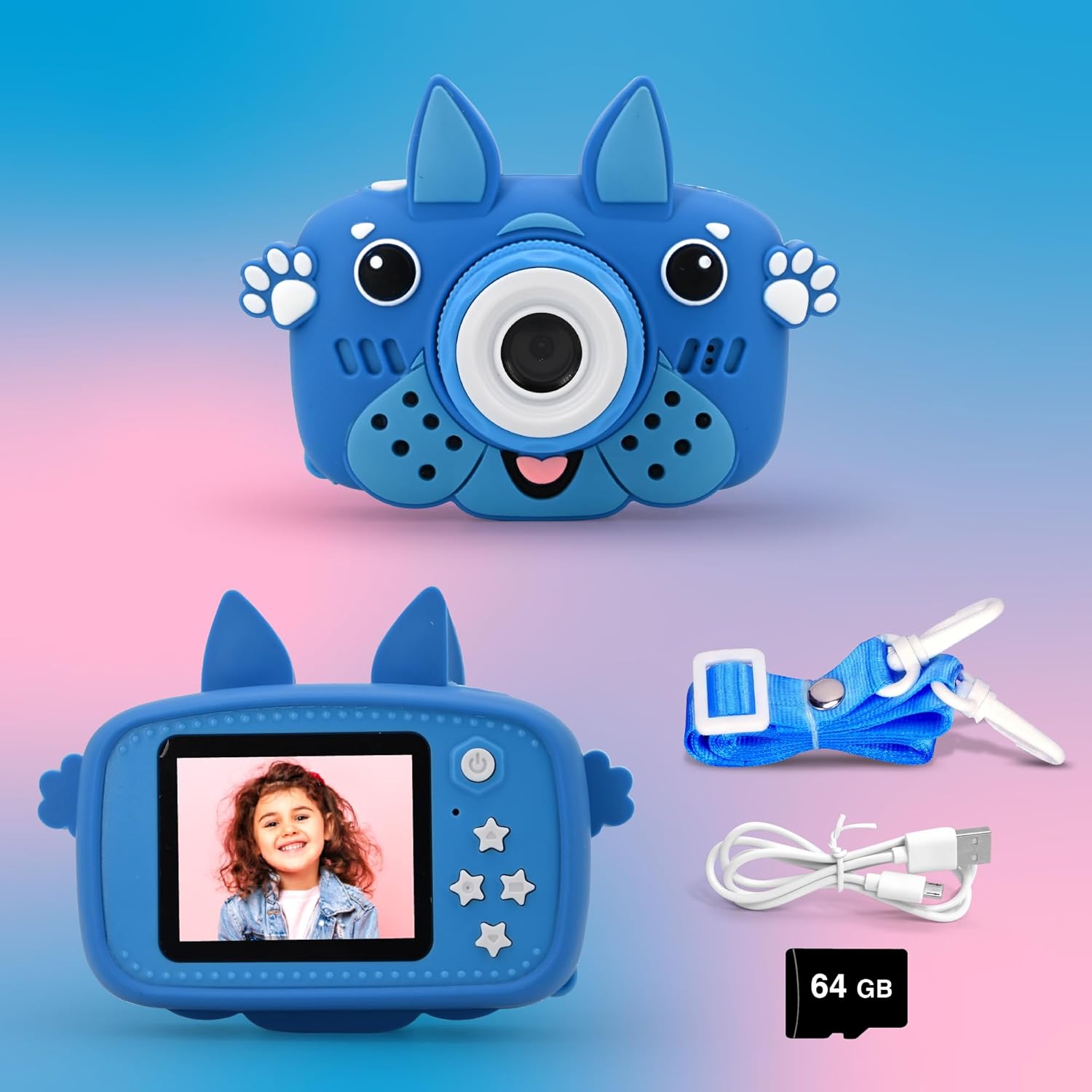
Image: GKidz Kids Camera and its accessories.
Setup
1. Charging the Camera
Before first use, fully charge the camera. Connect the Micro USB charging cable to the camera's charging port and the other end to a USB power adapter (not included) or a computer's USB port. The charging indicator light will show the charging status.
2. Inserting the Micro SD Card
The camera requires a Micro SD card to store photos and videos. The included 64GB Micro SD card is pre-formatted and ready for use. Locate the Micro SD card slot on the side of the camera. Gently insert the Micro SD card with the gold contacts facing down until it clicks into place. To remove, push the card in again until it springs out.
3. Powering On/Off
Press and hold the Power/Return Button (usually marked with a power symbol) for a few seconds to turn the camera on or off.

Image: Camera components and controls diagram.
Operating Instructions
1. Taking Photos
From the main screen, press the Photo/Video Button to take a picture. The camera will automatically save the image to the Micro SD card.

Image: Capturing selfie moments with the camera.
2. Recording Videos
To switch to video mode, navigate through the menu using the Up/Down Buttons. Once in video mode, press the Photo/Video Button to start recording. Press it again to stop recording. Videos are saved in 1080p resolution.

Image: Video recording function in use.
3. Using Frames and Special Effects
The camera includes 28 funny frames and 9 special effects to enhance your photos. While in photo mode, use the Up/Down Buttons to cycle through available frames and effects. Press the Photo/Video Button to select and apply.

Image: Examples of frames and special effects.
4. Digital Zoom
The camera supports up to 4X digital zoom. In photo or video mode, use the Right Button to zoom in and the Left Button to zoom out.

Image: Demonstration of 4X digital zoom.
5. Self-Timer (Time-Lapse Photography)
Activate the self-timer function to delay photo capture. Options typically include 2, 5, or 10 seconds. Access this setting through the menu using the Left (Timer Setting) Button or navigation buttons.

Image: Time-lapse photography feature.
6. Games and Melody Mode
The camera includes 4 pre-installed games for entertainment. Navigate to the 'Games' option in the main menu to select and play. Additionally, by inserting a Micro SD card with MP3 files, you can activate 'Melody Mode' to listen to music.

Image: Built-in games available on the camera.
Maintenance
Cleaning the Camera
- Use a soft, dry cloth to clean the camera body and screen.
- For the lens, use a specialized lens cleaning cloth. Avoid abrasive materials.
- Do not use liquid cleaners or solvents, as they may damage the camera.
Storage
- Store the camera in a cool, dry place away from direct sunlight and extreme temperatures.
- Ensure the camera is turned off before storing.
- If storing for an extended period, periodically charge the battery to maintain its health.
Troubleshooting
| Problem | Solution |
|---|---|
| Camera does not turn on. | Ensure the battery is charged. Connect the camera to a power source using the USB cable and allow it to charge for at least 30 minutes before attempting to power on again. |
| "SD Card Error" message appears. | Remove and reinsert the Micro SD card. Ensure it is inserted correctly. If the error persists, try formatting the card through the camera's settings menu (this will erase all data) or try a different Micro SD card. |
| Photos/Videos are blurry or low quality. | Ensure the camera lens is clean. Check lighting conditions; the camera performs best in well-lit environments. Avoid excessive digital zoom, as it can reduce image clarity. |
| Camera freezes or becomes unresponsive. | Press and hold the Power/Return Button for about 10 seconds to force a shutdown. If this does not work, use a thin object (like a paperclip) to press the reset button (if available, check the camera body for a small pinhole). |
| Cannot transfer files to computer. | Ensure the camera is connected to the computer via the USB cable and powered on. The camera should appear as a removable disk. Alternatively, remove the Micro SD card and insert it into a card reader connected to your computer. |
Specifications
| Feature | Detail |
|---|---|
| Model Name | Kids Camera |
| Model Number | GK-KDM-DOG |
| Screen Size | 2.4 Inches (LCD) |
| Effective Still Resolution | 12 MP (Total Still Resolution: 20 MP) |
| Video Resolution | 1080p (MP4 format) |
| Digital Zoom | 4x |
| Storage | Micro SD Card (up to 64 GB, 64GB included) |
| Battery Type | Lithium Ion |
| Connectivity | USB |
| Special Features | 28 Frames, 9 Special Effects, 4 Games, Self-Timer (2s, 5s, 10s), Melody Mode |
Warranty Information
For warranty details and terms, please refer to the warranty card included with your product or contact Gabba Goods customer support directly. Keep your proof of purchase for any warranty claims.
Customer Support
If you encounter any issues or have questions not covered in this manual, please contact Gabba Goods customer support:
- Website: Visit the official Gabba Goods website for support resources.
- Email: Refer to your product packaging or warranty card for contact email.
- Phone: Refer to your product packaging or warranty card for contact number.
Please have your model number (GK-KDM-DOG) and purchase information ready when contacting support.