
1. Introduction
Thank you for choosing the BenQ GW2490 24-inch Computer Monitor. This monitor is designed to provide a superior visual experience with its 100Hz refresh rate, IPS panel, and 99% sRGB color gamut. It incorporates advanced Eye-Care technologies, including Low Blue Light Plus and Brightness Intelligence, to ensure comfortable viewing during extended use. The GW2490 offers versatile connectivity options and user-friendly features for both work and entertainment.

Front view of the BenQ GW2490 monitor, highlighting its thin bezel design and clear display.
2. Safety Information
Please read all safety instructions carefully before using the monitor. Keep this manual for future reference.
- Do not expose the monitor to rain or moisture to prevent fire or shock hazards.
- Ensure proper ventilation around the monitor. Do not block ventilation openings.
- Use only the power cord and adapter supplied with the monitor.
- Avoid placing the monitor on an unstable surface.
- Clean the monitor with a soft, dry cloth. Do not use liquid cleaners or aerosol cleaners.
- Unplug the monitor from the power outlet before cleaning or if it will not be used for a long period.
3. Package Contents
Verify that all items are present in the package:
- BenQ GW2490 Monitor
- Monitor Stand (Base and Neck)
- Power Cord
- HDMI Cable
- Quick Start Guide
- Warranty Sheet
- Driver Disk (contains full product manual in PDF form)
4. Setup
4.1 Assembling the Stand
- Carefully place the monitor face down on a soft, protective surface (e.g., the foam bag it came in) to prevent screen damage.
- Connect the two pieces of the stand (base and neck) together.
- Screw in the built-in nut to secure the stand pieces.
- Push the assembled stand into the designated slot on the back of the monitor until it locks securely in place.
4.2 Connecting the Monitor
The BenQ GW2490 monitor offers multiple connectivity options for various devices.

Rear view of the BenQ GW2490 monitor showing the HDMI 1.4, DisplayPort 1.2, and Headphone Jack connections.
- Power Connection: Connect the power cord to the monitor's power input and then to a wall outlet.
- HDMI Connection: Use an HDMI cable to connect your computer or other device to one of the two HDMI ports (HDMI x 2) on the monitor.
- DisplayPort Connection: Use a DisplayPort cable to connect your computer or other device to the DisplayPort (DP 1.2) on the monitor.
- Audio Output: Connect headphones or external speakers to the 3.5mm headphone jack for audio output.
Route your power and data cables through the cable management keepers within the stand for a neat installation. Once connected, attach the backing cover to the stand.
5. Operating Instructions
5.1 Power On/Off and Input Switching
The monitor features conveniently placed buttons for easy control. Use the Input Hotkey to seamlessly switch between connected devices (HDMI 1, HDMI 2, DisplayPort).
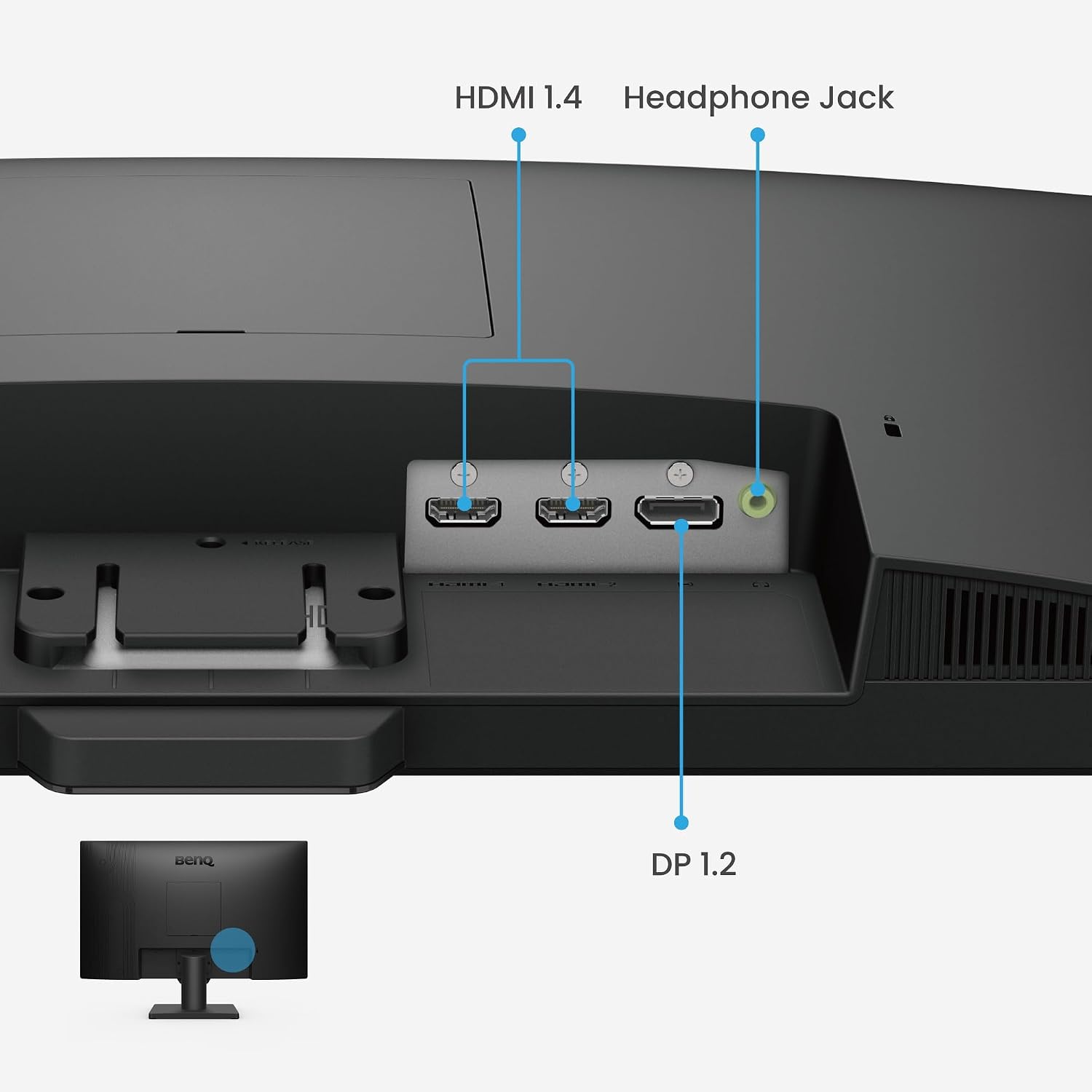
Image showing the monitor's control buttons (Input Key, Low Blue Light+, 5-Way joystick, Power) and highlighting the 99% sRGB Color Space.
5.2 Display Features
- 100Hz Refresh Rate: Enjoy smooth and fluid visuals, reducing lag and motion blur for an immersive viewing experience.
- 99% sRGB Color Gamut: Experience vivid and lifelike colors with accurate and true-to-life display for images and videos.
- VESA Certified Media Sync: Ensures compatibility and optimal performance with various media players, set-top boxes, and game consoles, supporting features like HDR and consistent refresh rates.
5.3 BenQ Eye-Care Technologies
The GW2490 is equipped with BenQ's Eye-Care technologies designed to reduce eye strain and enhance viewing comfort.

The BenQ GW2490 monitor demonstrating Brightness Intelligence technology, which adjusts screen brightness based on ambient light.
- Low Blue Light Plus: Filters out harmful blue-violet radiation while maintaining vivid color quality, promoting eye health without compromising visual performance.
- Brightness Intelligence Tech (B.I.Gen2): Automatically adjusts screen brightness based on on-screen content and ambient light conditions, providing optimal viewing comfort and reducing eye strain. This feature is customizable.
- Easy on the Eye Color Modes: Choose specific modes for enhanced comfort:
- Coding Mode: Enhances readability for long coding sessions.
- ePaper Mode: Reduces eye strain for extended reading periods.

Illustration of Coding Mode for effortless readability and ePaper Mode for long reading sessions on the BenQ GW2490 monitor.
5.4 Official Product Video
Official BenQ video titled "It's not just Monitor, it's your partner. All Day All night." This video highlights the monitor's role as a versatile companion for daily tasks and entertainment, showcasing its features in various usage scenarios.
6. Maintenance
Proper care and maintenance will ensure the longevity of your BenQ GW2490 monitor.
- Cleaning the Screen: Gently wipe the screen with a soft, lint-free cloth. For stubborn marks, lightly dampen the cloth with water or a screen-specific cleaning solution. Do not spray liquid directly onto the screen.
- Cleaning the Casing: Use a soft, dry cloth to clean the monitor's casing. Avoid abrasive cleaners or solvents.
- Storage: If storing the monitor for an extended period, unplug it and cover it to protect from dust. Store in a cool, dry place.
7. Troubleshooting
If you encounter issues with your BenQ GW2490 monitor, refer to the following common problems and solutions:
| Problem | Possible Solution |
|---|---|
| No image on screen | Ensure the power cord is securely connected and the monitor is turned on. Check that the video cable (HDMI/DisplayPort) is properly connected to both the monitor and the computer. Select the correct input source using the monitor's menu or input hotkey. |
| Image is blurry or distorted | Check the display resolution settings on your computer and ensure they match the monitor's native resolution (1920x1080). Update your graphics card drivers. |
| No sound from speakers/headphones | Verify that the audio cable is connected (if using a DVI/VGA connection without HDMI/DP audio). Check the volume settings on both the monitor and your computer. Ensure the correct audio output device is selected in your computer's sound settings. |
| Monitor flickering | Ensure the Flicker-Free Tech is enabled in the monitor settings. Check for external interference. Try a different video cable. |
| Eye-Care features not working | Ensure Brightness Intelligence and Low Blue Light Plus are enabled in the monitor's OSD menu. Check ambient light conditions for Brightness Intelligence. |
8. Specifications
Detailed technical specifications for the BenQ GW2490 monitor:

Diagram showing the dimensions of the BenQ GW2490 monitor: 21.3 inches (540.0 mm) width, 16.1 inches (408.0 mm) height, and 7.2 inches (182.0 mm) depth.
| Feature | Detail |
|---|---|
| Model Number | GW2490 |
| Screen Size | 23.8 Inches |
| Panel Type | IPS |
| Resolution | 1920x1080 (FHD 1080p) |
| Refresh Rate | 100Hz |
| Color Gamut | 99% sRGB |
| Aspect Ratio | 16:9 |
| Screen Surface | Matte |
| Connectivity | 2 x HDMI 1.4, 1 x DisplayPort 1.2, Headphone Jack |
| Eye-Care Technology | Low Blue Light Plus, Brightness Intelligence Tech, Flicker-Free Tech |
| Built-in Speakers | Yes |
| VESA Mount Compatible | Yes |
| Item Weight | 8.4 pounds |
| Product Dimensions (LxWxH) | 6.9 x 16.03 x 21.26 inches |
| Color | VIOLET, BLACK |
9. Warranty and Support
9.1 Warranty Information
The BenQ GW2490 monitor comes with a 3-year warranty. To validate your warranty, it is essential to keep your purchase receipt as proof of ownership. For online purchases, a screenshot or printout of your invoice page will serve as valid proof.
9.2 Customer Support
For technical assistance, troubleshooting beyond this manual, or warranty claims, please contact BenQ customer support through their official website or the contact information provided in your product's quick start guide or warranty sheet.
You can also visit the official BenQ store on Amazon for more information and resources: BenQ Store


