
1. Introduction
This manual provides essential instructions for the safe and efficient use of your WZATCO Yuva Ultra Android TV Projector. Please read this manual thoroughly before operating the device and retain it for future reference. The WZATCO Yuva Ultra is designed to deliver a high-quality home theater experience with its native 1080P resolution, 13500 lumens brightness, and integrated Android 9.0 operating system.
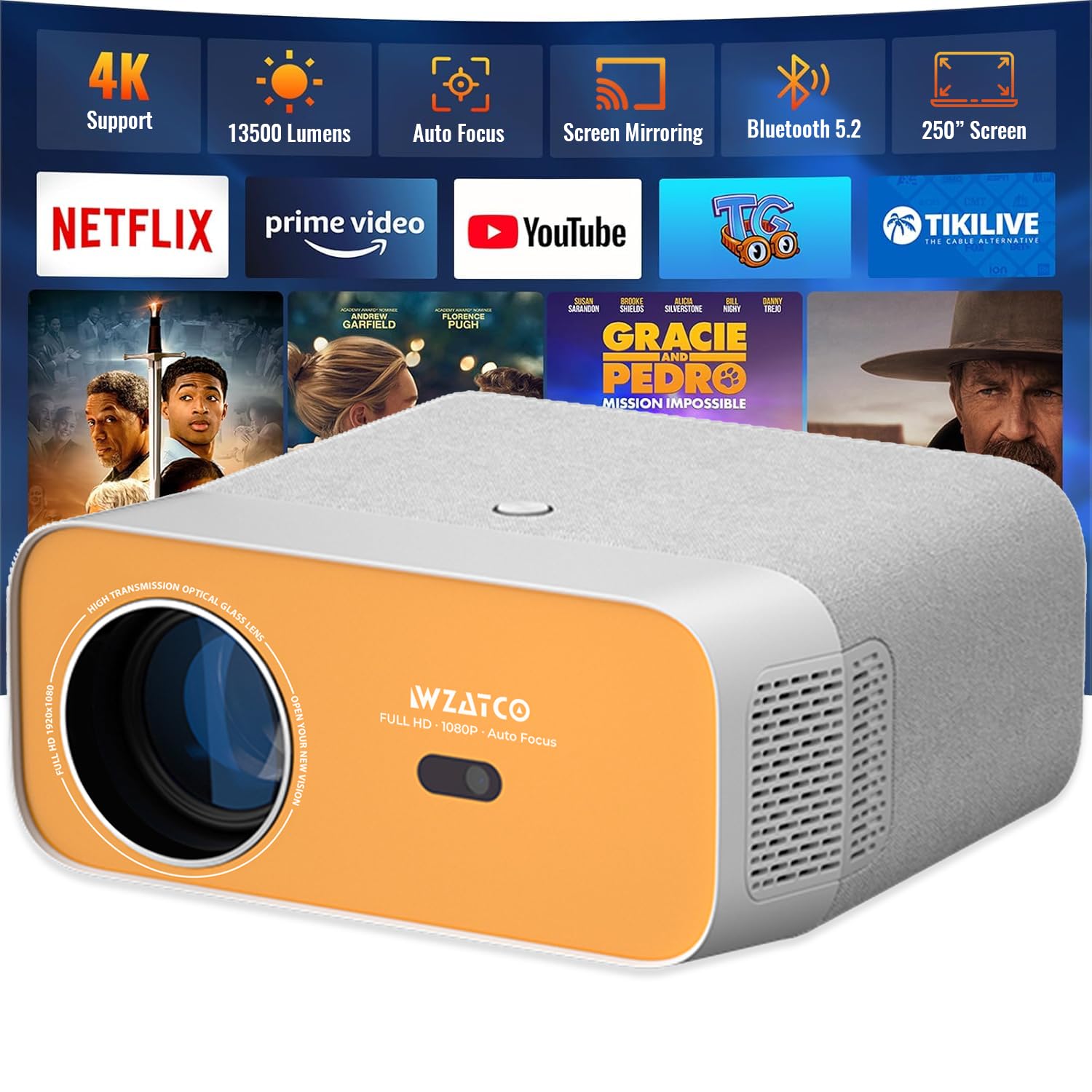
Figure 1: WZATCO Yuva Ultra Projector Overview
2. Safety Information
- Power Supply: Use only the specified power adapter. Ensure the voltage matches your local power supply.
- Ventilation: Do not block ventilation openings. Ensure adequate airflow around the projector to prevent overheating.
- Heat: The projector may become warm during extended use. Allow it to cool down before handling or storing.
- Moisture: Keep the projector away from water or other liquids. Do not operate in high humidity environments.
- Cleaning: Disconnect power before cleaning. Use a soft, dry cloth. Avoid liquid cleaners.
- Eye Protection: Do not look directly into the projector lens when the lamp is on. The bright light can cause eye damage.
- Children: Keep the projector out of reach of children.
- Disassembly: Do not attempt to disassemble or repair the projector yourself. Refer all servicing to qualified personnel.
3. Setup Guide
3.1. Unboxing and Package Contents
Carefully remove all components from the packaging. Verify that all items are present:
- 1 x WZATCO Yuva Ultra Projector
- 1 x Power Cord
- 1 x Remote Control
- 1 x User Manual
- 1 x Lens Cap
3.2. Physical Placement
The projector can be placed on a table, mounted on a tripod, or ceiling-mounted. Ensure a stable surface and proper ventilation. The optimal projection distance ranges from 1 meter to 5 meters, producing an image size from 40 inches to 250 inches.

Figure 2: Various Installation Methods (Table, Tripod, Ceiling Mount)
3.3. Initial Power On
- Connect the power cord to the projector and then to a power outlet.
- Press the power button on the projector or the remote control to turn on the device.
- The projector will boot up and display the Android TV interface.
3.4. Connecting External Devices
The Yuva Ultra offers multiple connectivity options:
- HDMI: Two HDMI ports (HDMI1, HDMI2) are available for connecting devices such as set-top boxes, TV sticks, PCs/laptops, DVD players, and gaming consoles. One HDMI port supports ARC (Audio Return Channel) for enhanced audio output.
- USB: Two USB ports allow connection of USB drives for media playback.
- AV: An AV input port is provided for older devices.
- Audio Out: A 3.5mm audio jack is available for connecting external headphones or speakers.
- RJ45: An Ethernet port for wired internet connection.

Figure 3: Rear Panel with Connectivity Ports
4. Operating Instructions
4.1. Basic Controls
Use the included remote control to navigate the projector's interface. The remote allows you to power on/off, adjust volume, select input sources, and access menu options.
4.2. Focus and Keystone Correction
The Yuva Ultra features automatic focus and 4D keystone correction. Upon startup, the projector will automatically adjust the focus and correct image distortion. If manual adjustment is needed, use the remote control to fine-tune the focus and keystone settings. The 4D keystone correction allows for precise adjustment of all four corners of the image.

Figure 4: Automatic Focus and 4D Keystone Correction in action
4.3. Android 9.0 Operating System
The projector runs on Android 9.0, providing access to a wide range of applications. Pre-installed apps include Netflix, Prime Video, Hotstar, and SonyLiv. You can download additional apps from the Google Play Store.
- App Updates: It is recommended to avoid updating pre-installed OTT apps as they are optimized for this specific model. If an app stops working after an update, contact WZATCO support.
- Navigation: Some OTT apps may require a mouse and keyboard for easier sign-in and navigation.

Figure 5: Android 9.0 Operating System Interface
4.4. Wireless Connectivity
- Wi-Fi 6: Connect to your home network using the integrated Wi-Fi 6 for high-speed internet access and streaming. Supports both 2.4GHz and 5GHz bands.
- Bluetooth 5.2: Pair Bluetooth-enabled devices such as soundbars, headphones, or external speakers for enhanced audio.
- Screen Mirroring: Wirelessly mirror content from Android and iOS devices to the projector.

Figure 6: High-Speed WiFi 6 Connection

Figure 7: Bluetooth 5.2 for Audio Devices
4.5. Audio Output
The projector features a built-in 10-watt Hi-Fi enclosed large cavity speaker with a 20-watt independent DSP driver. For external audio, use Bluetooth 5.2, the 3.5mm audio out jack, or the HDMI ARC port.

Figure 8: Integrated 5W HiFi Speaker
5. Maintenance
5.1. Cleaning
- Lens: Use a soft, lint-free cloth specifically designed for optical lenses. Do not use abrasive cleaners.
- Exterior: Wipe the projector's exterior with a soft, dry cloth. Avoid using harsh chemicals or solvents.
- Ventilation: Periodically check and clean the ventilation openings to ensure proper airflow and prevent dust buildup.
5.2. Lamp Life
The projector's LED light source has an estimated operating life of 50,000 hours. This ensures long-term performance without frequent lamp replacement.
6. Troubleshooting
| Problem | Possible Cause | Solution |
|---|---|---|
| No image displayed | Power cable disconnected; Incorrect input source selected; Lens cap on. | Check power connection; Select correct input source (HDMI1/2, AV); Remove lens cap. |
| Image is blurry | Out of focus; Incorrect projection distance. | Adjust focus using remote or automatic focus; Adjust projector distance. |
| Image is distorted (trapezoid shape) | Incorrect keystone settings. | Adjust 4D keystone correction settings via the menu. |
| No sound | Volume too low; Muted; Incorrect audio output selected; External device audio issue. | Increase volume; Unmute; Check audio output settings; Verify audio on external device. |
| Remote control not working | Batteries low/dead; Obstruction between remote and projector; Remote sensor blocked. | Replace batteries; Remove obstructions; Ensure clear line of sight to IR sensor. |
| Projector overheats | Blocked ventilation; Prolonged use. | Ensure ventilation openings are clear; Allow projector to cool down after 3-4 hours of continuous use. |
| Pre-installed OTT app not working | App updated; Software conflict. | Avoid updating pre-installed apps. If updated, contact WZATCO support for assistance. |
7. Specifications
| Feature | Detail |
|---|---|
| Brand | WZATCO |
| Model Name | Yuva Ultra |
| Display Technology | LCD, LTPS Display Technology |
| Native Resolution | 1920 x 1080 (Full HD 1080P) |
| 4K Support | Yes |
| Brightness | 13500 Lumens |
| Contrast Ratio | 6000:1 |
| Light Source Life | 50,000 Hours |
| Max Screen Size | 762 cm (300 inches) |
| Min Screen Size | 40 Inches |
| Throw Distance | 1 to 5 Metres |
| Operating System | Android 9.0 |
| Processor | Quad Core CPU + MALI GPU |
| Memory | 1GB RAM + 8GB ROM |
| Wi-Fi | Wi-Fi 6 (2.4G + 5G Dual Band) |
| Bluetooth | Bluetooth 5.2 |
| Audio | Built-in 10W Hi-Fi speaker with 20W DSP driver |
| Connectivity | 2 x HDMI (1 with ARC), 2 x USB, AV input, 3.5mm Audio Out, RJ45 |
| Special Features | Auto Focus, Auto Omnidirectional Keystone, Custom Zoom, 4D Keystone Correction, Wireless Screen Mirroring |
| Dimensions (L x W x H) | 19.4L x 10W x 22.8H Centimeters |
| Weight | 1.96 Kilograms |
| Power Consumption | 120 Watts |
| Voltage | 220 Volts (AC) |
8. Warranty & Support
8.1. Warranty Information
WZATCO India provides a 1-year manufacturer warranty from the date of purchase, covering manufacturing and technical defects. Product registration is mandatory to avail warranty benefits. Enjoy free home pickup and drop service throughout the warranty period.
8.2. Customer Support
For assistance, please contact WZATCO India customer support:
- Phone: 709-209-0011
- Email: support@wzatco.com
- Address: Zeblaze Solutions LLP #731, 3rd Floor, 4th phase, Yelahanka New Town, Bangalore - 560064
Visit the company's website for additional details and product registration.
