1. Product Overview
The LIENIAO 2-in-1 USB Charger Cable provides a versatile charging solution for a range of Zebra TC series barcode scanners. This cable features both a vehicle cigarette lighter adapter and a standard USB connector, allowing for flexible charging in various environments. Its design incorporates multiple safety protections to ensure reliable and secure charging for your device.

Image 1.1: Overview of the LIENIAO 2-in-1 USB Charger Cable, showing the scanner cradle, coiled cable, USB connector, and car power adapter.
2. Key Features
- 2-in-1 Charging Capability: Offers both a 12V-24V vehicle power adapter and a standard USB connector for diverse charging options.
- Extensive Compatibility: Designed to work with various Zebra TC series scanners, including TC77, TC70, TC55, TC72, TC75, TC70X, TC75X, TC700H, TC700K, and compatible with BT-000318 and CHG-TC7X-CLA1-01.
- Advanced Safety Protections: Features built-in safeguards against overcharging, temperature fluctuations, short circuits, over-current, and over-voltage to protect your scanner's battery.
- Durable Construction: Manufactured for consistent and effective charging, ensuring longevity and reliability.
- Retractable Coiled Cable: The coiled cable design enhances flexibility and helps maintain an organized charging environment by reducing cable clutter.
3. Setup Instructions
Follow these steps to set up your LIENIAO 2-in-1 USB Charger Cable:
- Choose Your Power Source:
- For vehicle charging: Insert the car power adapter end of the cable into your vehicle's 12V-24V cigarette lighter socket.
- For USB charging: Insert the USB-A connector end of the cable into a compatible USB power adapter (not included) or a computer USB port.
- Prepare the Scanner Cradle: Ensure the scanner cradle is free from debris and the charging contacts are clean.
- Insert Your Scanner: Carefully place your compatible Zebra TC series scanner into the charging cradle. Ensure it is seated correctly and the charging contacts align.
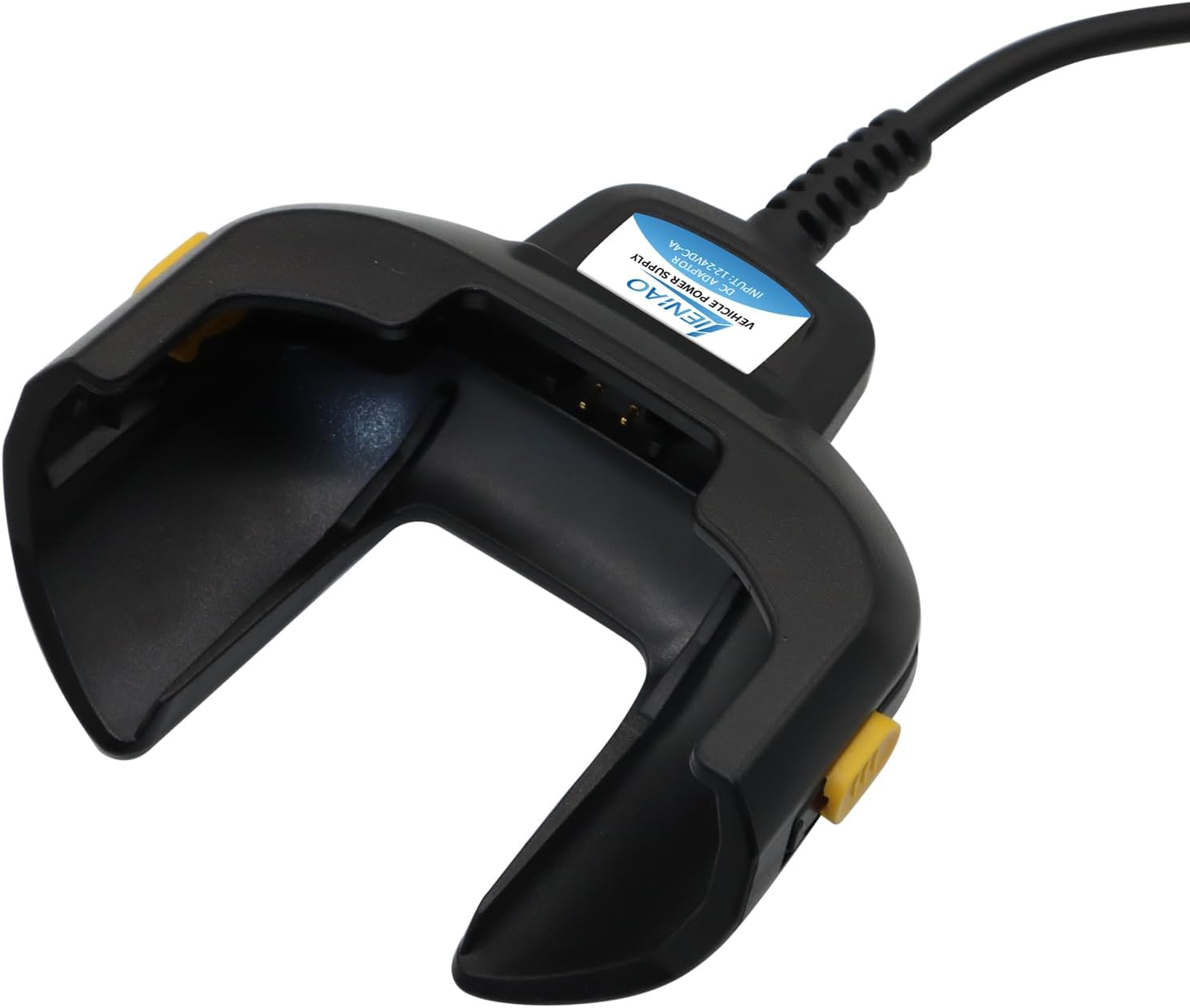
Image 3.1: Close-up view of the scanner cradle's charging contacts.
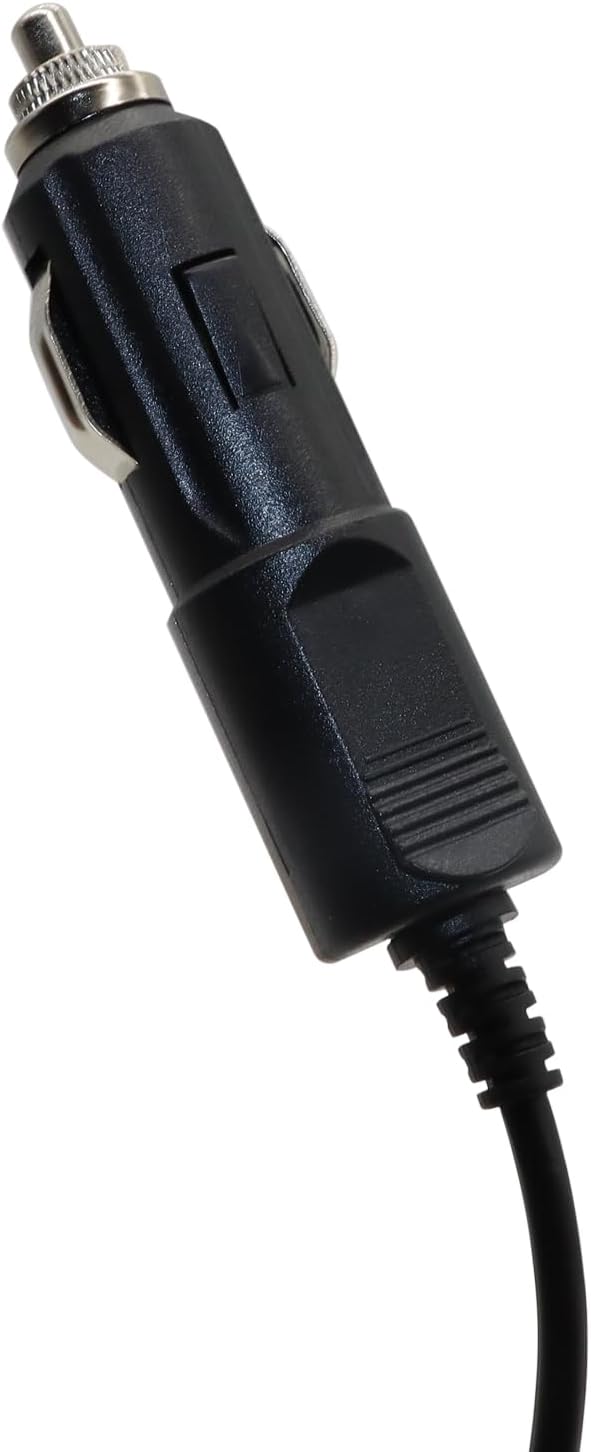
Image 3.2: Close-up view of the car cigarette lighter adapter.
4. Operating Instructions
Once the charger cable is connected to a power source and your scanner is correctly placed in the cradle, charging will begin automatically. The charging status is typically indicated by your Zebra scanner's display or LED indicators (refer to your scanner's user manual for specific indications).
- Ensure the power source is active (e.g., vehicle ignition is on, USB adapter is plugged into a live outlet).
- Confirm that the scanner is securely seated in the cradle to ensure proper contact with the charging pins.
- The intelligent chip within the charger will manage the charging process, preventing overcharging and protecting the battery.
Video 4.1: An official product video demonstrating the LIENIAO Fast-Charging Cable and its features.
5. Maintenance
Proper maintenance ensures the longevity and optimal performance of your charger cable:
- Cleaning: Use a soft, dry cloth to wipe the cable and cradle. Avoid using harsh chemicals or abrasive materials.
- Storage: When not in use, store the cable in a cool, dry place. The coiled design helps keep it compact. Avoid extreme temperatures.
- Cable Care: Do not excessively stretch or bend the coiled cable. Avoid placing heavy objects on the cable or pulling it forcefully from the connectors.
- Contact Points: Periodically inspect the charging contacts on the cradle for any dirt or corrosion. Clean gently if necessary.
6. Troubleshooting
If you encounter issues with your charger cable, refer to the following common solutions:
- Scanner Not Charging:
- Ensure the car adapter or USB connector is fully inserted into its respective power source.
- Verify that the power source is active (e.g., vehicle engine running, wall outlet functional).
- Check if the scanner is correctly seated in the cradle, ensuring proper contact with the charging pins.
- Inspect the cable for any visible damage.
- Slow Charging:
- If using a USB port, ensure it provides sufficient power output (e.g., a dedicated charging port rather than a low-power data port).
- Ensure the power source is stable and not overloaded.
- Intermittent Charging:
- Check for loose connections at both the power source and the scanner cradle.
- Clean the charging contacts on both the scanner and the cradle.
If the issue persists after attempting these steps, please contact customer support.
7. Specifications
| Brand | LIENIAO |
| Connector Type | USB |
| Cable Type | USB |
| Compatible Devices | Personal Computer, Zebra TC Series Scanners (TC77, TC70, TC55, TC72, TC75, TC70X, TC75X, TC700H, TC700K, BT-000318, CHG-TC7X-CLA1-01) |
| Special Feature | Fast Charging, Overcharge Protection, Temperature Control, Short Circuit Protection, Over-current Protection, Over-voltage Protection |
| Recommended Uses | Charging Zebra devices |
| Color | Black |
| Connector Gender | Male-to-Male |
| Shape | Round (Coiled Cable) |
| Number of Pins | 5 |
| Item Weight | 15.5 ounces (0.44 Kilograms) |
| Indoor/Outdoor Usage | Indoor, Outdoor |
| Maximum Voltage | 5 Volts (DC) |
8. Warranty and Support
LIENIAO is committed to customer satisfaction. For any quality-related issues, a replacement or refund will be provided. If you require assistance or have any questions regarding your LIENIAO 2-in-1 USB Charger Cable, please contact our customer service team. We aim to provide a satisfactory resolution within 24 hours.
For further information or to reach support, please refer to the contact details provided with your purchase or visit the official LIENIAO support channels.


