
SIXWIN A3432
User Manual: SIXWIN Portable Car Stereo
Model: A3432
Product Overview
The SIXWIN Portable Car Stereo (Model A3432) is a versatile 10.26-inch display designed to enhance your in-car experience. It integrates wireless Apple CarPlay and Android Auto, offering seamless smartphone connectivity for navigation, music, and communication. The device features a highly responsive touchscreen, multiple audio output options, and flexible installation methods to suit various vehicle types and user preferences.

Figure 1: Overview of the SIXWIN Portable Car Stereo, showing the 10.26-inch display, adjustable mount, and icons representing wireless CarPlay and Android Auto connectivity.
Setup and Installation
This portable car stereo is designed for easy installation with multiple mounting options to fit various vehicle interiors.
Installation Methods
The device supports four primary installation methods, allowing you to choose the most convenient and secure placement in your vehicle:
- Horizontal Installation: Mount the device horizontally on the dashboard using the provided adhesive base or suction cup.
- Vertical Installation: Mount the device vertically on the dashboard, suitable for specific dashboard designs.
- Windshield Mounting: Securely attach the device to the windshield using the suction cup mount for optimal viewing angle.
- Adjustable Bracket: The included bracket allows for 360-degree rotation and tilt adjustments to achieve the best viewing angle.

Figure 2: Visual representation of the four available installation methods: horizontal, vertical, windshield mounting, and detailed views of the adjustable bracket mechanism.
Power Connection
Connect the provided power cord to the device and your vehicle's 12V power outlet (cigarette lighter socket). Ensure a secure connection for stable operation.
Audio Output Connection
The device offers multiple ways to output audio to your car's sound system:
- FM Transmitter: Tune the car stereo to an unused FM frequency, then set the portable car stereo to the same frequency. This transmits audio wirelessly to your car's speakers.
- AUX Output: Connect the portable car stereo to your car's AUX input using the provided 3.5mm AUX cable for a direct wired audio connection.
- Bluetooth: Pair the device with your smartphone via Bluetooth for audio streaming.

Figure 3: Illustration of the FM Transmitter function, showing frequency selection, and the Bluetooth music playback interface.
Operating Instructions
Wireless Apple CarPlay and Android Auto
Once powered on, the device will automatically attempt to connect to your smartphone via wireless Apple CarPlay or Android Auto. Ensure Bluetooth and Wi-Fi are enabled on your phone. Follow the on-screen prompts to complete the pairing process. After connection, your phone's compatible apps will be displayed on the 10.26-inch screen, allowing for touch control.

Figure 4: Examples of the Apple CarPlay and Android Auto interfaces displayed on the unit, demonstrating app integration and voice assistant prompts.
Mirror Link Function
The Mirror Link feature allows you to project your smartphone's screen directly onto the portable car stereo. This is useful for apps not natively supported by CarPlay or Android Auto. Connect your phone via USB for this function. Refer to your phone's specific Mirror Link instructions for compatibility and setup.
Voice Control (Siri/Google Assistant)
Activate your phone's voice assistant (Siri for Apple CarPlay, Google Assistant for Android Auto) directly through the portable car stereo. This enables hands-free control for navigation, calls, messages, and music playback.
GPS Navigation
Utilize online GPS navigation by connecting your phone via CarPlay or Android Auto. The navigation display will be mirrored on the portable screen, providing clear directions and real-time traffic updates.

Figure 5: Depiction of the 360-degree adjustable viewing angle feature and a screenshot of the GPS navigation interface on the screen.
EQ Function
Access the Equalizer (EQ) settings on the device to customize audio output. Adjust bass, treble, and other sound parameters to match your preferred music style (e.g., Jazz, Classic, Rock, Pop, Soft, User-defined).
Backup Camera Input (Optional)
The unit supports an optional backup camera input. If a backup camera is connected (not included), the display will automatically switch to the camera view when the vehicle is in reverse, providing enhanced safety during parking maneuvers.
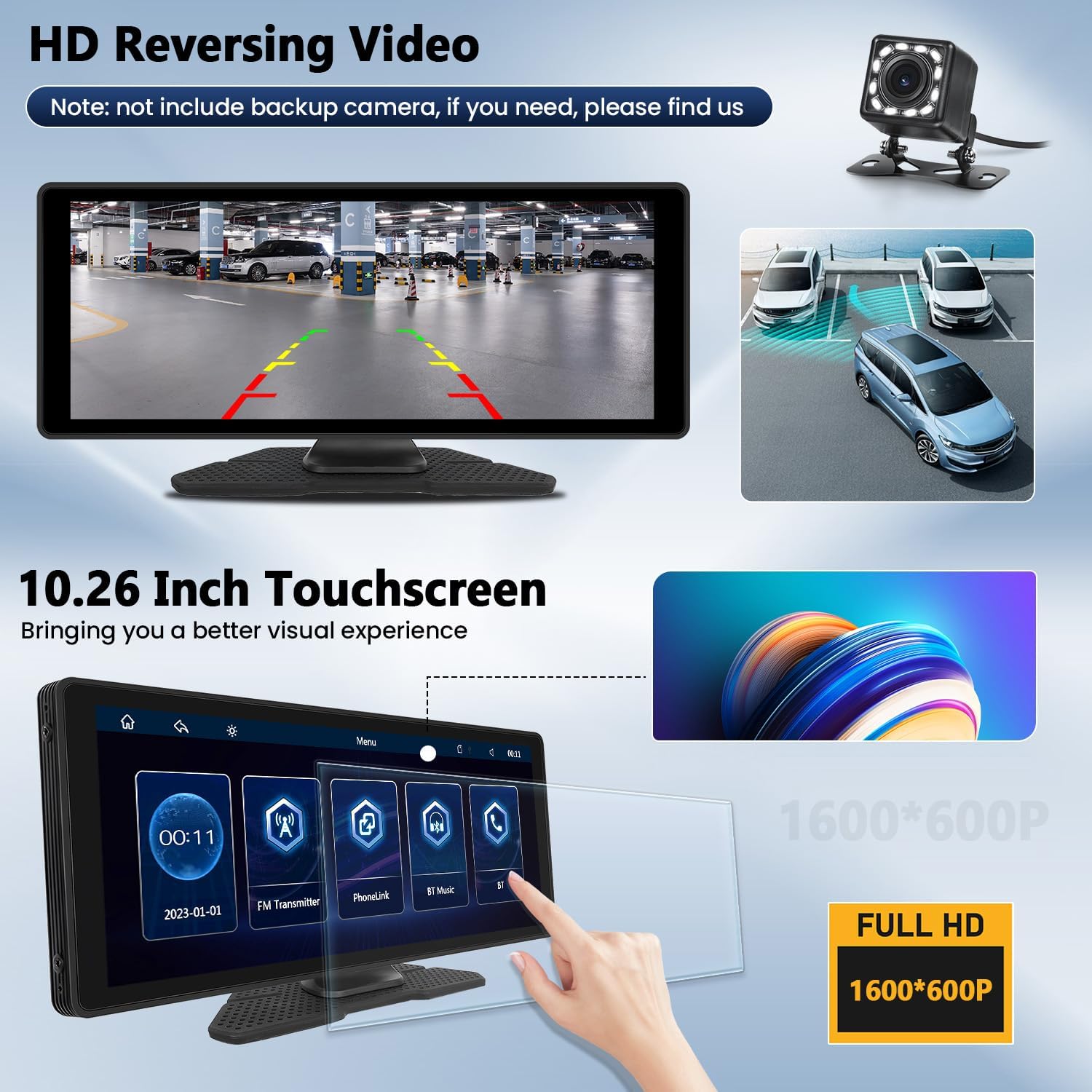
Figure 6: Illustration of the HD reversing video display (backup camera not included) and a close-up of the 10.26-inch touchscreen interface.
Maintenance
To ensure the longevity and optimal performance of your SIXWIN Portable Car Stereo, follow these maintenance guidelines:
- Cleaning: Use a soft, dry, lint-free cloth to clean the screen and exterior. For stubborn smudges, slightly dampen the cloth with water. Avoid using harsh chemicals, abrasive cleaners, or solvents.
- Temperature: Avoid exposing the device to extreme temperatures, both hot and cold, as this can affect its electronic components and screen.
- Storage: If storing the device for an extended period, disconnect it from power and store it in a cool, dry place.
- Cable Management: Ensure all cables are routed safely and are not pinched or excessively bent, which can lead to damage.
Troubleshooting
If you encounter issues with your SIXWIN Portable Car Stereo, refer to the following common troubleshooting steps:
| Problem | Possible Cause | Solution |
|---|---|---|
| Device does not power on. | No power connection or faulty power adapter. | Ensure the power cord is securely connected to the device and the vehicle's 12V outlet. Check if the vehicle's 12V outlet is functioning. |
| Cannot connect to Apple CarPlay/Android Auto wirelessly. | Bluetooth/Wi-Fi not enabled on phone, incorrect pairing, or interference. |
|
| No audio or poor audio quality. | Incorrect audio output setting (FM/AUX/Bluetooth), wrong FM frequency, or volume too low. |
|
| Touchscreen is unresponsive. | Temporary software glitch. | Restart the device by disconnecting and reconnecting the power. |
Specifications
| Feature | Detail |
|---|---|
| Model Number | A3432 |
| Display Size | 10.26 inches |
| Item Weight | 2.27 pounds |
| Package Dimensions | 13.19 x 6.46 x 6.34 inches |
| Connectivity Technology | Bluetooth |
| Special Features | Android Auto, CarPlay, Mirror Link, FM Transmitter, GPS Navigation (via phone) |
| Compatible Devices | Smartphone |
| Connector Type | 3.5mm Jack (AUX) |
| Audio Output Mode | Stereo |
| Output Power | 4 Watts |
| Supported Car Voltage | 7-32V (Suitable for Truck, RV, Pickup, Car, Transporters) |

Figure 7: Detailed dimensions of the portable car stereo and its components, along with examples of compatible vehicle types (Truck, RV, Pickup, Car, Transporters).
Warranty and Support
The SIXWIN Portable Car Stereo (Model A3432) comes with a 1-year warranty from the date of purchase, covering manufacturing defects and malfunctions under normal use.
For technical assistance, troubleshooting, or warranty claims, please contact SIXWIN customer support:
- Email: sixwin_vip@163.com
- Online Help: Refer to the user manual provided with the product for detailed instructions and online resources.

Figure 8: Image representing customer support, indicating availability for online help and user manual assistance.
Ask a question about this manual
Ask about setup, troubleshooting, compatibility, parts, safety, or missing instructions. Manuals+ will review the question and use this page’s manual context to help answer it.