
1. Introduction
This manual provides essential information for the safe and efficient use of your Amazon Basics 24 Inch FHD 100Hz Monitor. Please read these instructions carefully before operating the device and retain them for future reference.
The Amazon Basics 24 Inch Monitor features a 23.8-inch viewable IPS panel with Full HD (1080p) resolution and a maximum refresh rate of 100Hz. It includes built-in speakers and is VESA compatible for flexible mounting options. The monitor is designed for various uses, including office work, entertainment, and gaming.

Front view of the Amazon Basics 24 Inch FHD 100Hz Monitor.
2. Package Contents
Verify that all items are present in the package:
- Amazon Basics 24 Inch Monitor
- Stand Base
- Stand Neck
- Power Adapter
- HDMI Cable

Image showing the monitor's package contents: stand base, stand neck, power adapter, and HDMI cable.
3. Setup Instructions
3.1 Attaching the Stand
- Insert the stand neck into the stand base until it clicks securely into place.
- Align the assembled stand with the mounting slot on the back of the monitor. Push the stand into the slot until it locks. Ensure it is firmly attached.
3.2 Connecting Cables
The monitor features multiple input ports for connectivity:
- DP 1.2: DisplayPort input for high-resolution video and audio.
- HDMI 1.4: HDMI input for video and audio from compatible devices.
- VGA: VGA input for analog video signals.
- AUDIO IN: 3.5mm audio input for external audio sources.
- AUDIO OUT: 3.5mm audio output for headphones or external speakers.
- Connect the provided HDMI cable from your computer's video output port to the HDMI input port on the monitor. Alternatively, use a DisplayPort or VGA cable if your device supports those connections.
- Connect the power adapter to the monitor's power input port, then plug the power adapter into a wall outlet.
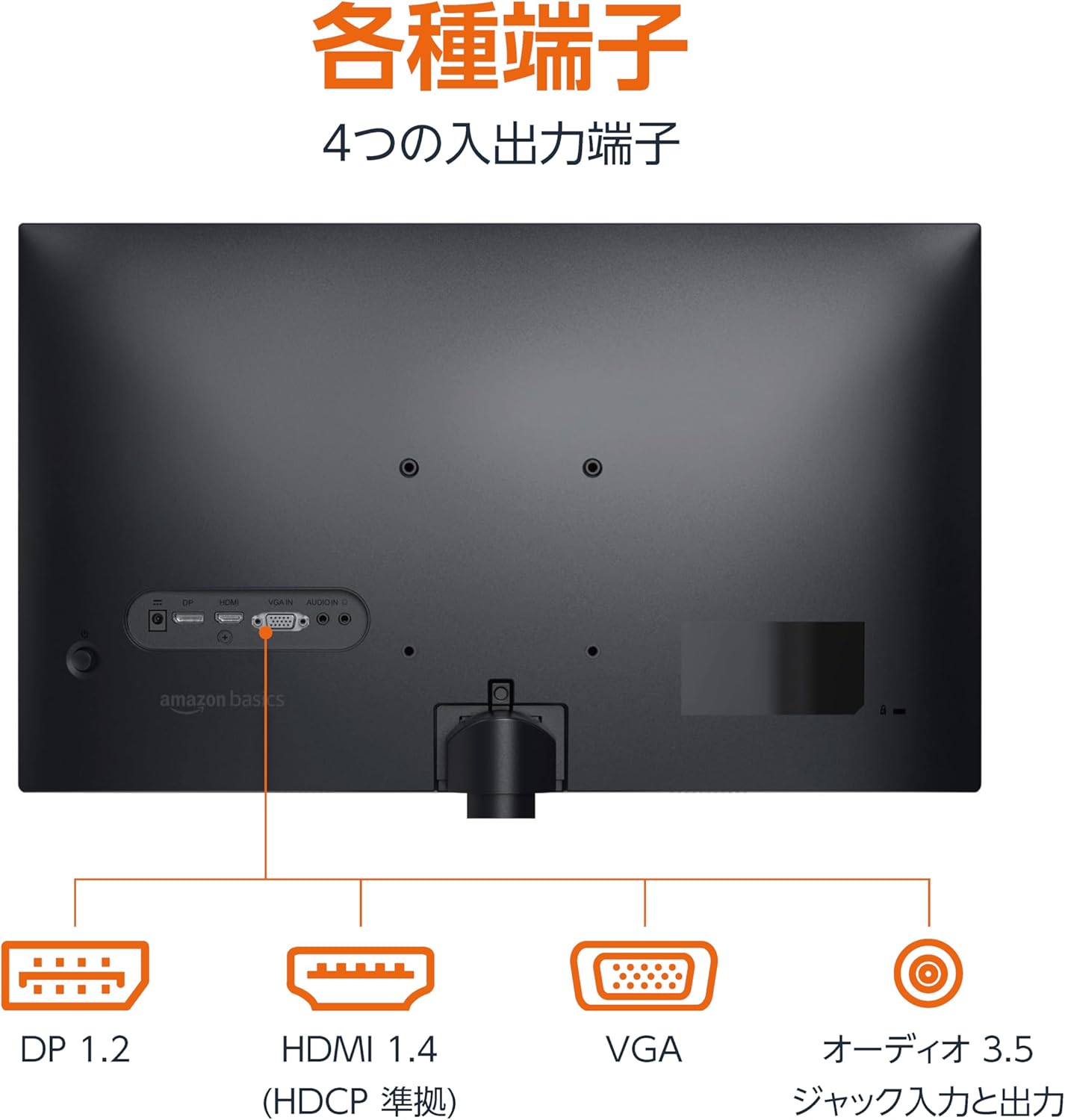
Rear view of the monitor displaying various input and output ports.
3.3 Powering On
Press the power button located on the back or bottom of the monitor to turn it on. The monitor will automatically detect the active input signal.
3.4 Tilt Adjustment
The monitor allows for tilt adjustment to achieve an optimal viewing angle. Gently hold the top and bottom edges of the monitor and tilt it forward or backward. The tilt range is approximately -5° to 20°.

Monitor demonstrating its tilt adjustment capability.
3.5 Optional: VESA Mounting and Cable Lock
The monitor is VESA compatible, allowing it to be mounted on a wall or an adjustable arm (mounting hardware sold separately). Refer to the VESA mount's instructions for installation.
An optional cable lock slot is available on the rear of the monitor to secure it to a stable object, preventing theft.
3.6 Setup Video Guide
For a visual guide on setting up your Amazon Basics monitor, please watch the video below:
This video demonstrates the assembly of the stand, connecting cables, and basic adjustments for the Amazon Basics monitor.
4. Operating Instructions
4.1 On-Screen Display (OSD) Menu
The monitor features an On-Screen Display (OSD) menu for adjusting various settings. Use the buttons located on the back or bottom of the monitor to navigate the menu. Common settings include:
- Brightness/Contrast: Adjust the display's luminance and contrast levels.
- Color Settings: Modify color temperature, hue, and saturation.
- Input Select: Manually switch between DP, HDMI, and VGA inputs.
- Audio: Adjust volume for built-in speakers or connected headphones.
- Picture Mode: Select from preset display modes (e.g., Standard, Game, Movie).
4.2 Using Built-in Speakers
The monitor includes integrated speakers. Audio will be played through these speakers when connected via HDMI or DisplayPort. If using a VGA connection, ensure an audio cable is connected to the 'AUDIO IN' port on the monitor and your computer's audio output.
5. Specifications
| Feature | Specification |
|---|---|
| Brand | Amazon Basics |
| Model Number | 24M2020DJP |
| Screen Size | 24 Inches (23.8 inch viewable) |
| Panel Type | IPS |
| Resolution | FHD 1080p (1920 x 1080) |
| Refresh Rate | Max 100 Hz |
| Aspect Ratio | 16:9 |
| Built-in Speakers | Yes |
| VESA Compatibility | Yes |
| Input Ports | 1x DisplayPort 1.2, 1x HDMI 1.4, 1x VGA, 1x Audio In (3.5mm) |
| Output Ports | 1x Audio Out (3.5mm) |
| Product Weight | 2.8 kg |
| Bezel Thickness | 1.44 mm (slim bezel) |
| Warranty | 1 year limited warranty |
5.1 Dimensions
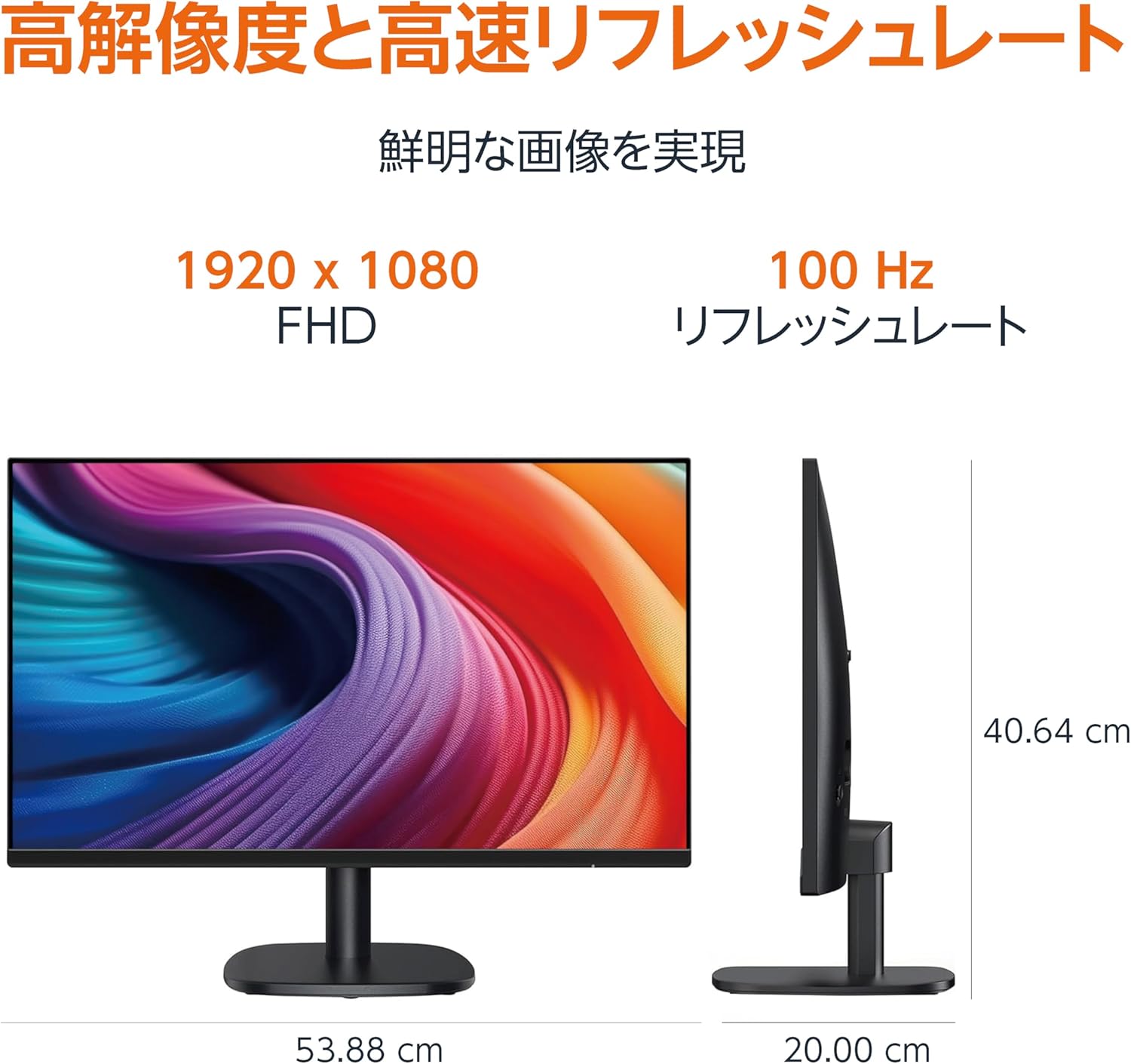
Diagram showing the monitor's dimensions (Width: 53.88 cm, Height: 40.64 cm, Depth: 20.00 cm).
5.2 Slim Bezel Design

Detail showing the monitor's slim bezel design, measuring 1.44 mm.
6. Troubleshooting
If you encounter issues with your monitor, refer to the following common solutions:
- No Power: Ensure the power cable is securely connected to both the monitor and a working power outlet. Check if the power adapter's indicator light is on.
- No Signal: Verify that the video cable (HDMI, DP, or VGA) is firmly connected to both the monitor and your computer. Ensure the correct input source is selected in the monitor's OSD menu. Try restarting your computer.
- Flickering Screen: Check the video cable for damage or loose connections. Ensure your computer's graphics driver is up to date. Adjust the refresh rate in your computer's display settings.
- No Audio from Speakers: If using HDMI or DisplayPort, ensure the audio output is set to the monitor in your computer's sound settings. If using VGA, confirm the 3.5mm audio cable is connected. Check the volume level on both the monitor and your computer.
- Image Quality Issues: Adjust brightness, contrast, and color settings via the OSD menu. Ensure the display resolution on your computer matches the monitor's native resolution (1920 x 1080).
If the problem persists after trying these steps, contact customer support.
7. Maintenance
Proper maintenance helps ensure the longevity and performance of your monitor:
- Cleaning the Screen: Gently wipe the screen with a soft, lint-free cloth. For stubborn marks, lightly dampen the cloth with water or a specialized screen cleaner. Avoid using harsh chemicals, alcohol, or abrasive materials.
- Cleaning the Casing: Use a soft, dry cloth to wipe the monitor's casing.
- Ventilation: Ensure the monitor's ventilation openings are not blocked to prevent overheating.
- Power Off When Not in Use: Turn off the monitor when not in use for extended periods to save energy and prolong its lifespan.
8. Warranty and Support
This Amazon Basics monitor comes with a 1-year limited warranty from the date of purchase. This warranty covers manufacturing defects and workmanship under normal use.
For warranty claims, technical support, or further assistance, please refer to the Amazon Basics support page or contact Amazon customer service directly. Keep your proof of purchase for warranty validation.


