
1. Product Overview
Thank you for choosing the UBOTIE Colorful Wireless Keyboard and Mouse Combo. This full-sized keyboard and optical mouse set offers a unique retro typewriter-inspired design with flexible, round keycaps and a stable 2.4GHz wireless connection. Designed for comfort and style, it enhances your workspace with its vibrant multicolor aesthetic and reliable performance.
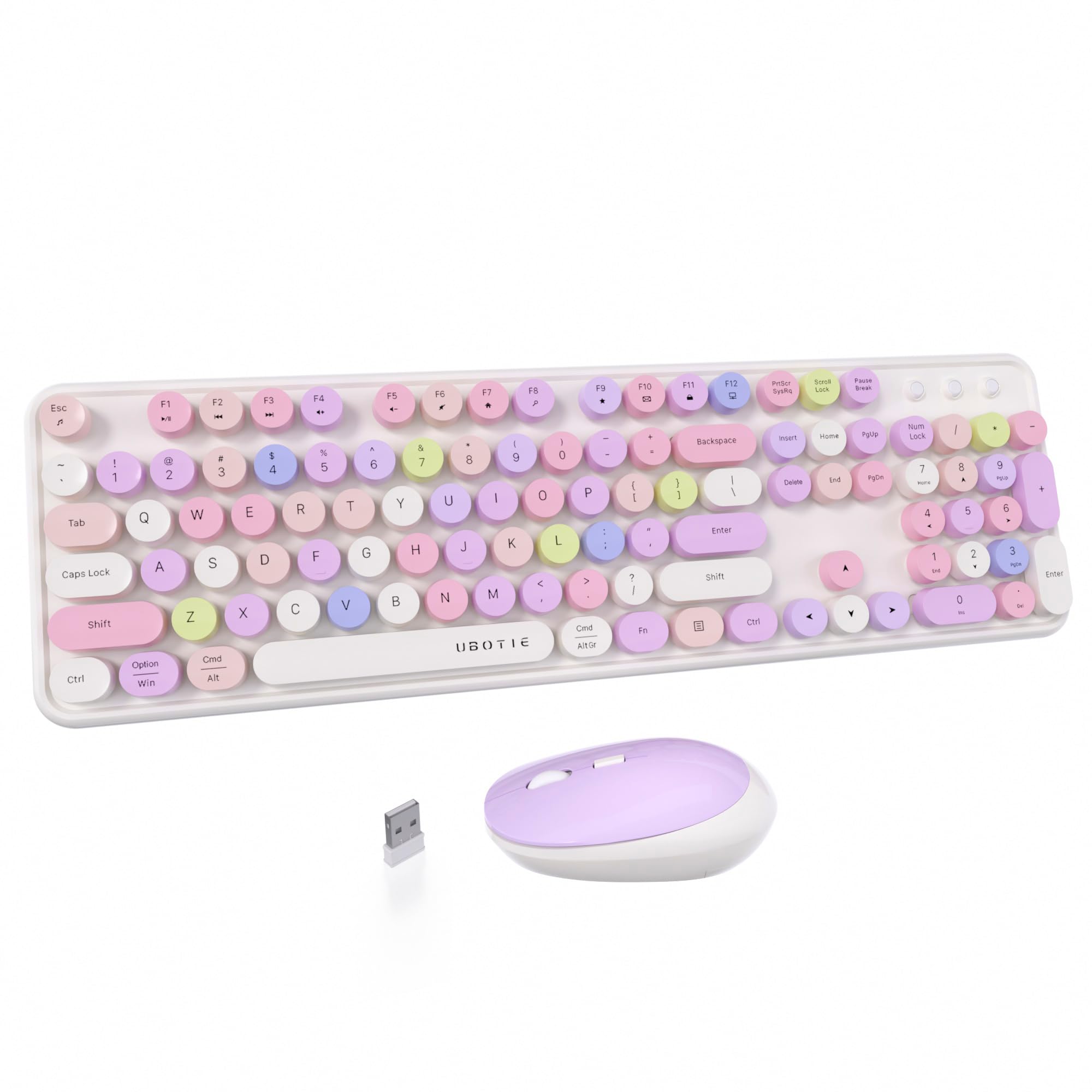
Image 1.1: The UBOTIE Colorful Wireless Keyboard and Mouse Combo in White Colorful variant.
2. Package Contents
Please ensure all items are present in your package:
- 1 x UBOTIE Wireless Keyboard
- 1 x UBOTIE Wireless Optical Mouse
- 1 x USB Nano Receiver (stored inside the mouse battery compartment)
- 1 x User Manual
- 1 x Cleaning Brush
- Decorative Stickers
3. Setup Instructions
Follow these steps to set up your UBOTIE Wireless Keyboard and Mouse Combo:
- Install Batteries:
- Open the battery compartment on the underside of the keyboard. Insert 1 AA battery, ensuring correct polarity.
- Open the battery compartment on the underside of the mouse. Insert 1 AA battery, ensuring correct polarity. The USB Nano Receiver is stored here.
- Connect USB Nano Receiver:
Remove the USB Nano Receiver from the mouse's battery compartment. Plug the receiver into an available USB port on your computer. No drivers are required for installation.

Image 3.1: The USB Nano Receiver provides a 2.4GHz wireless connection for both the keyboard and mouse.
- Power On:
Locate the power switch on the underside of both the keyboard and the mouse. Slide the switches to the 'ON' position. The devices should automatically connect to your computer.
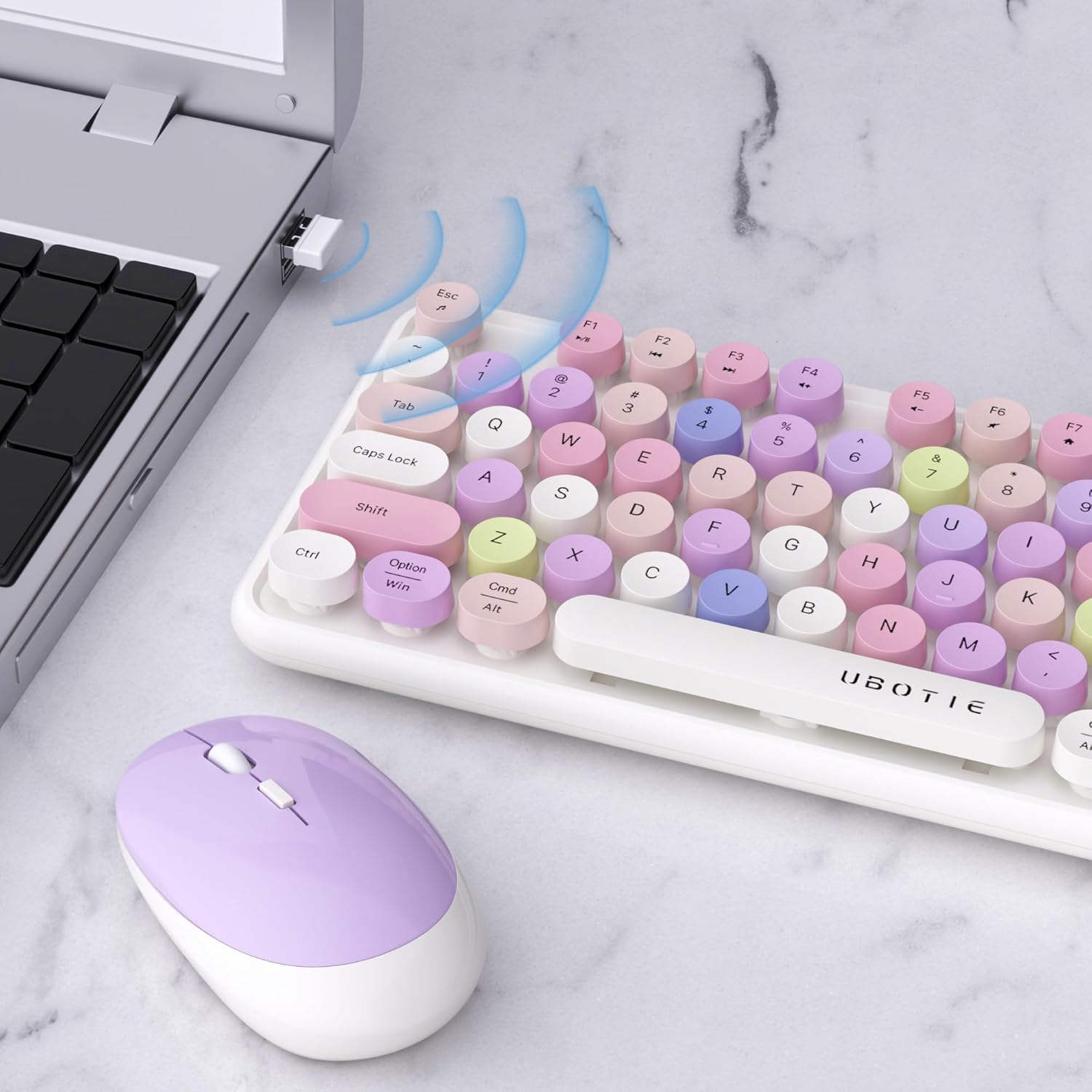
Image 3.2: Location of battery compartments and power switches on the keyboard and mouse.
- Compatibility Note:
This combo is compatible with Windows 7/8/10/11 and macOS. Please note that some shortcut keys may not function optimally on updated macOS systems.
For a visual guide on setup, please watch the official seller video below:
Video 3.1: Official UBOTIE Wireless Colorful Keyboard Mouse Combo setup guide. This short video demonstrates the basic connection process.
4. Operating Instructions
Your UBOTIE keyboard and mouse are designed for intuitive use. Here are some key operational details:
- Typing Experience: The retro round keycaps provide a comfortable and tactile typing experience.
- Mouse Operation: The optical mouse offers precise tracking and smooth navigation. It features left-click, right-click, and a scroll wheel.
- Function Keys (Fn Combinations): The keyboard includes multimedia and shortcut keys accessible via the 'Fn' key. Refer to the diagram below for common combinations.
- Power Saving Mode: Both the keyboard and mouse feature an automatic sleep mode to conserve battery life during periods of inactivity. Simply press any key or move the mouse to wake them up.
- Shared USB Receiver: Both the keyboard and mouse operate using a single USB Nano Receiver, helping to keep your workspace tidy and free of clutter.

Image 4.1: Guide to using Function (Fn) key combinations for various shortcuts.

Image 4.2: The keyboard and mouse in use on a desk with a laptop.
5. Maintenance
To ensure the longevity and optimal performance of your UBOTIE combo, follow these maintenance tips:
- Cleaning:
- Use the provided cleaning brush to remove dust and debris from between the keycaps.
- The keycaps are removable for deeper cleaning. Gently pry them off and clean the keyboard base and keycaps with a soft, damp cloth. Ensure all parts are dry before reattaching keycaps.
- Wipe the mouse and keyboard surface with a soft, lint-free cloth.

Image 5.1: The keyboard's round keycaps can be removed for thorough cleaning.
- Battery Replacement: Replace batteries when performance degrades. Use fresh AA batteries for both the keyboard and mouse.
- Storage: When not in use for extended periods, turn off both devices to further conserve battery life. Store in a cool, dry place.
6. Troubleshooting
If you encounter any issues, please refer to the following troubleshooting steps:
- No Connection/Device Not Working:
- Ensure both the keyboard and mouse are powered on.
- Check if the batteries are correctly installed and have sufficient charge. Replace if necessary.
- Unplug and re-insert the USB Nano Receiver into a different USB port on your computer.
- Restart your computer.
- Lag or Intermittent Connection:
- Move the keyboard and mouse closer to the USB Nano Receiver.
- Avoid placing the receiver near other wireless devices or large metal objects that might cause interference.
- Specific Keys Not Working (macOS): As noted, some shortcut keys may not work perfectly on updated macOS systems. This is a known compatibility limitation.

Image 6.1: Visual troubleshooting steps for common keyboard and mouse issues.
7. Specifications
| Brand | UBOTIE |
| Model Number | KKKKT-04 |
| Color | White Colorful |
| Connectivity Technology | 2.4GHz Radio Frequency Wireless |
| Special Features | Power Switch, Round Retro Keycaps, Mirror Surface, Auto Sleep Mode |
| Compatible Devices | Laptop, Personal Computer, Projector, Television |
| Compatible Operating Systems | Windows 7/8/10/11, Mac OS |
| Keyboard Layout | QWERTY (104 keys) |
| Mouse Movement Detection | Optical |
| Power Source | Battery Powered (1 AA for keyboard, 1 AA for mouse) |
8. Warranty and Support
UBOTIE is committed to providing high-quality products and excellent customer service.
- Warranty: This product comes with a 1-Year Warranty.
- Free Replacement: Enjoy a 3-Month Free Replacement policy for any connection or function issues.
- Customer Service: Professional 24-hour service is available for quick problem resolution. Please contact UBOTIE-US for assistance.

