1. Product Overview
The Dolphin KaraokeBox 4120 is a powerful and versatile karaoke machine designed for immersive audio experiences. It features a quad speaker system, an 18.5-inch touchscreen Android tablet, and extensive connectivity options, making it suitable for various entertainment needs.

Figure 1.1: Front view of the Dolphin KaraokeBox 4120, showcasing its quad speaker design, integrated touchscreen, and included wireless microphones.
Key Features:
- Massive Quad Speaker System: Four 12-inch woofers and dual horn tweeters for powerful, room-filling sound.
- Advanced Touchscreen Interface: 18.5-inch Android tablet for enhanced user interaction and connectivity, with HDMI output.
- Versatile Audio Controls: Dedicated 5-Band EQs, voice modulation, and comprehensive connectivity (Bluetooth, USB, SD, FM, AUX).
- Extensive Connectivity: Includes 3.5mm tablet jack, two 1/4" microphone jacks, and a 1/4" guitar jack.
- Mobility: Equipped with rotating caster wheels for easy transportation.
- Included Accessories: Two remote controls and two UHF wireless microphones.
- Reliable AC Power: Operates on standard AC power, not rechargeable.
2. Setup Guide
2.1 Unpacking and Placement
- Carefully remove the KaraokeBox 4120 from its packaging.
- Place the unit on a stable, level surface. The integrated caster wheels allow for easy positioning.
- Ensure adequate ventilation around the unit.
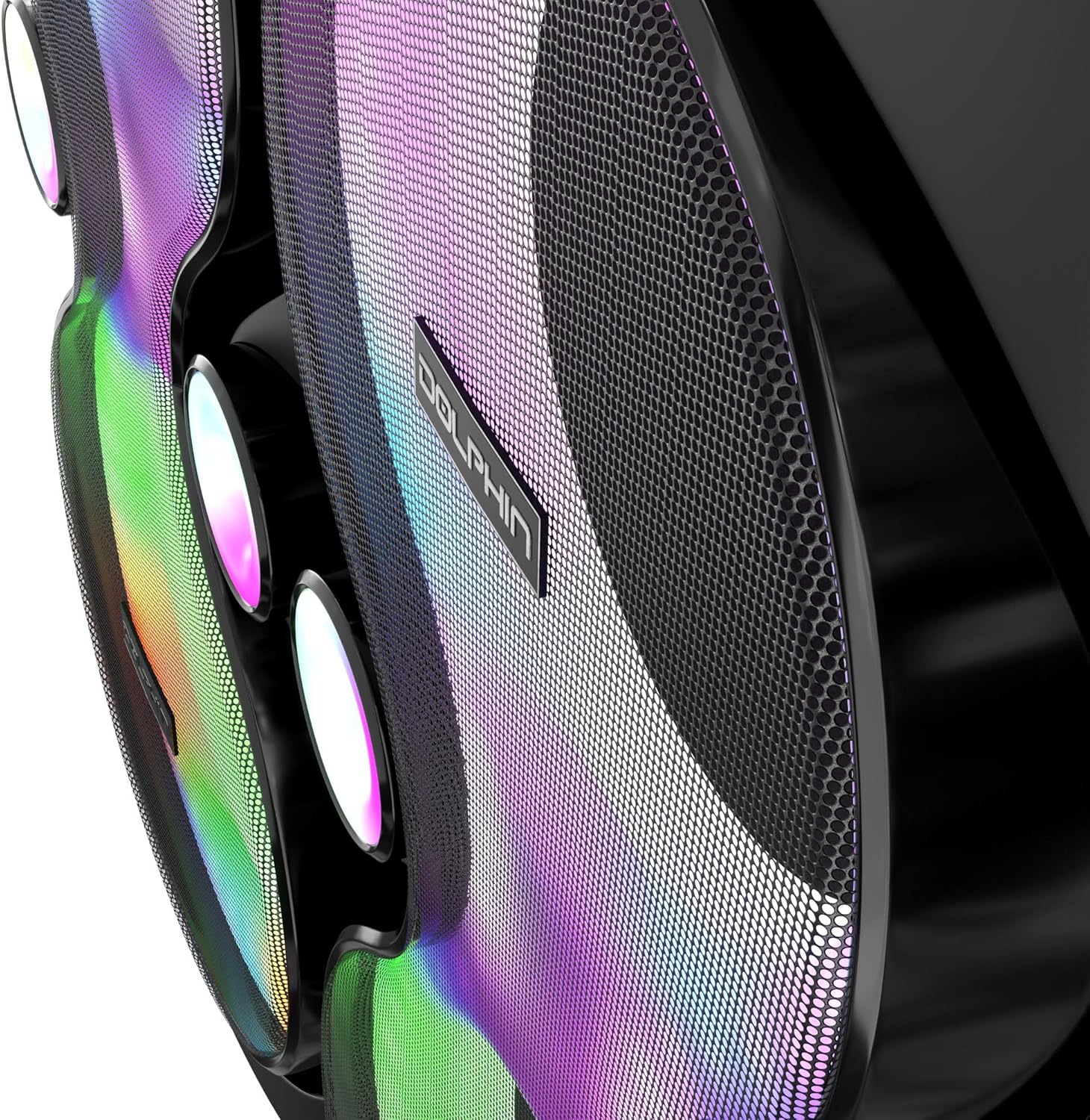
Figure 2.1: The Dolphin KaraokeBox 4120 with its dimensions: Length 33 inches, Width 17 inches, Height 58 inches. Unit Weight: 130 lbs.
2.2 Power Connection
- Connect the provided AC power cable to the power input on the rear of the unit.
- Plug the other end of the power cable into a standard AC wall outlet. This unit is designed for continuous AC power operation and is not rechargeable.

Figure 2.2: Rear view of the KaraokeBox 4120, highlighting the power input and control panel access.
2.3 Microphone Setup
- Insert batteries into the two UHF wireless microphones.
- Turn on the microphones. They should automatically pair with the KaraokeBox 4120.
- Alternatively, connect wired microphones to the 1/4" microphone jacks on the control panel.
3. Operating Instructions
3.1 Powering On/Off
- To power on, press the Power button located on the control panel.
- To power off, press and hold the Power button until the unit shuts down.
3.2 Using the 18.5" Touchscreen Android Tablet
The integrated touchscreen provides access to various functions and applications.

Figure 3.1: The 18.5-inch touchscreen display, running Android 12, showing various app icons including YouTube, settings, and media player.
- Navigation: Use touch gestures similar to a standard Android tablet.
- Google Account Integration: For proper loading of YouTube videos and access to personalized content, sign into your Google account on the tablet.
- HDMI Output: Connect an external display via the HDMI output for extended display options.
- Voice Modulation: Access voice modulation functions through the tablet interface to change your voice sound.
3.3 Audio Connectivity

Figure 3.2: Visual representation of the versatile connectivity options including Touch Screen Display, Android 12, Bluetooth, WiFi, USB Support, Mic Input, 3.5 mm Jack, and External Storage.
- Bluetooth: Enable Bluetooth on the tablet and pair with your device to stream audio wirelessly.
- USB/SD: Insert a USB drive or SD card into the respective slots on the control panel to play media files.
- FM Radio: Select the FM mode and tune to your desired radio station.
- AUX Input: Connect external audio sources (e.g., smartphone, MP3 player) using a 3.5mm AUX cable.
- Guitar Jack: Connect a guitar to the 1/4" guitar jack and adjust its volume using the dedicated control.
3.4 Audio Controls and Equalization
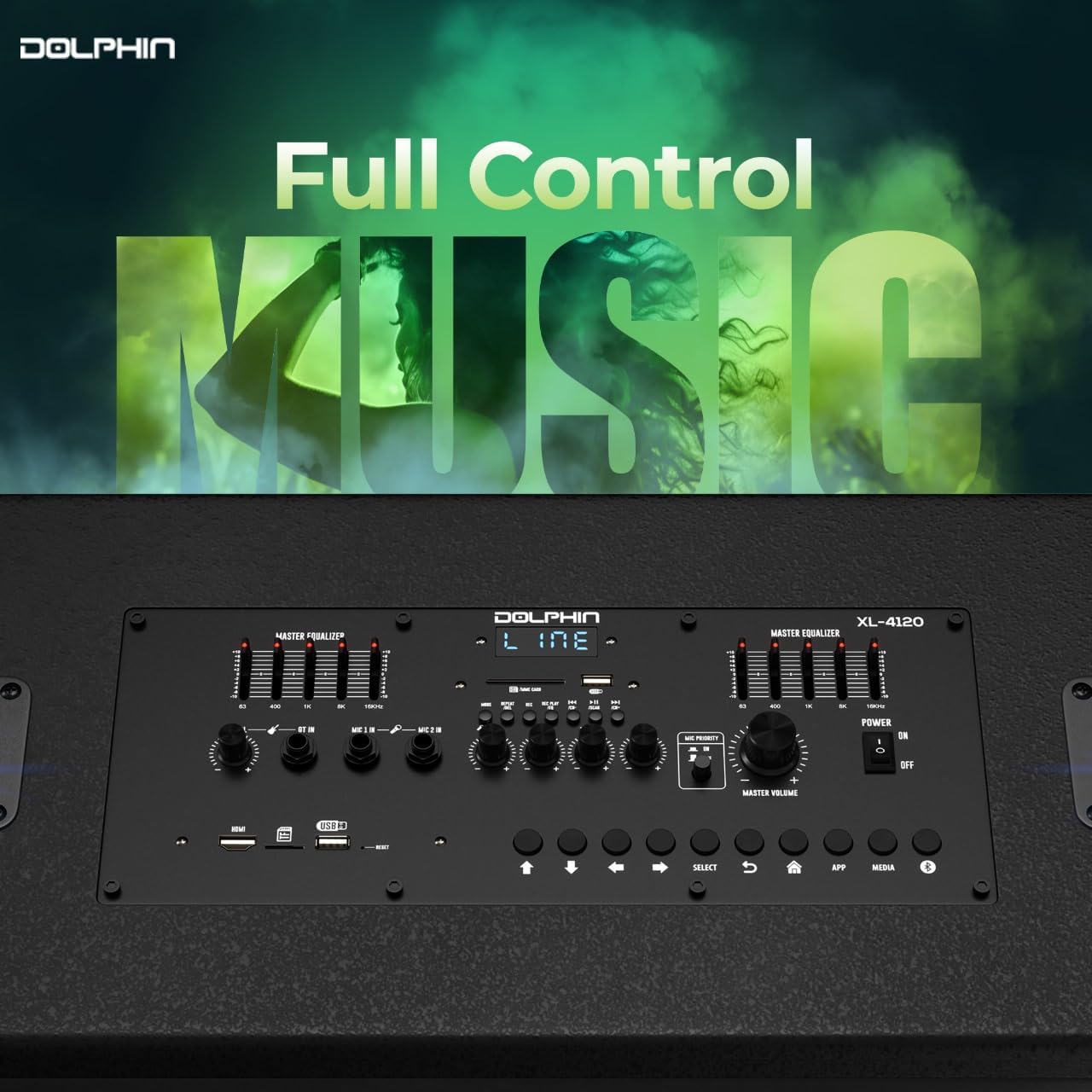
Figure 3.3: Close-up of the control panel, showing the Master Equalizer, volume controls, and various input selection buttons for full audio control.
- 5-Band EQs: Use the dedicated 5-Band equalizers to precisely adjust the audio frequencies for optimal sound.
- Volume Controls: Adjust master volume, microphone volume, and guitar volume using the respective knobs.
- Sound Activated Party Lights: Activate or deactivate the integrated party lights using the dedicated switch.
4. Maintenance
- Cleaning: Use a soft, dry cloth to clean the exterior surfaces. Do not use liquid cleaners or abrasive materials.
- Storage: When not in use for extended periods, store the unit in a cool, dry place, away from direct sunlight and extreme temperatures.
- Battery Replacement (Microphones): Replace microphone batteries when performance degrades. Refer to the microphone's specific instructions for battery type.
5. Troubleshooting
| Problem | Possible Cause | Solution |
|---|---|---|
| No power | Power cable not connected; outlet not active. | Ensure power cable is securely plugged into the unit and a working AC outlet. |
| No sound output | Volume too low; incorrect input selected; audio source issue. | Increase master volume. Verify correct input mode (Bluetooth, USB, AUX, etc.). Check audio source device. |
| Microphones not working | Microphone batteries low/dead; microphone not paired; microphone volume low. | Replace microphone batteries. Ensure microphones are powered on and paired. Increase microphone volume. |
| YouTube videos not loading | Not signed into Google account; internet connectivity issue. | Sign into your Google account on the tablet. Check Wi-Fi connection. |
| Bluetooth pairing issues | Device too far; Bluetooth not enabled; interference. | Ensure device is within range. Enable Bluetooth on both devices. Restart Bluetooth on both devices. |
6. Specifications
| Feature | Detail |
|---|---|
| Model Number | XL-4120 |
| Product Dimensions | 58 x 33 x 17 inches (Unit) |
| Item Weight | 130 lbs (Unit) |
| Speaker Configuration | 4 x 12" Woofers, Dual Horn Tweeters |
| Power Output | 300 RMS Watts |
| Touchscreen Display | 18.5" Android Tablet |
| Connectivity | Bluetooth, USB, SD, FM, AUX, 3.5mm Tablet Jack, 2 x 1/4" Mic Jacks, 1 x 1/4" Guitar Jack, HDMI Output |
| Equalization | Dedicated 5-Band EQs |
| Microphones | 2 x UHF Wireless Microphones (Included) |
| Power Source | AC Power (Not rechargeable) |
| Special Features | Voice Modulation, Sound Activated Party Lights, Rotating Caster Wheels |
7. Warranty and Support
For customer support and warranty inquiries, please refer to the contact information provided by your retailer or visit the official Dolphin brand website. This product is backed by standard manufacturer warranties.
Protection plans are available for extended coverage:
- 3-Year Protection Plan
- 4-Year Protection Plan
- Complete Protect (monthly plan covering eligible purchases)
For direct assistance, you may contact General Sound Co, the manufacturer.