
Introduction
Thank you for choosing the BoxWave AllReader SD Card Reader. This compact and versatile device is designed to simplify file transfer between your memory cards and various electronic devices. With its multiple interface options, you can easily access and manage your data on the go.

Image: The BoxWave AllReader SD Card Reader shown connected to a Chainway R6 UHF RFID SLED Reader. Note: The Chainway R6 UHF RFID SLED Reader is not included with the AllReader SD Card Reader.
Product Features
- Four Interfaces: Equipped with USB-C, USB-A, Micro-USB, and Apple Lightning connectors for maximum compatibility.
- Easy File Transfer: Facilitates quick and straightforward transfer of photos, music, videos, and other files.
- Plug and Play: No drivers or software installation required.
- Unlimited Storage: Expand your device's storage by using various SD and microSD cards.
- Compact Design: Small and portable, designed to fit easily in your pocket or bag.

Image: A detailed view of the four distinct interfaces (USB-A, USB-C, Apple Lightning, and Flip-out Micro USB) integrated into the AllReader SD Card Reader, highlighting its broad compatibility.

Image: The compact size of the BoxWave AllReader SD Card Reader is demonstrated by it resting in the palm of a hand, emphasizing its portability.
Setup
- Insert Memory Card: Gently insert your SD card or microSD card into the appropriate slot on the AllReader SD Card Reader. Ensure the card is fully seated.
- Connect to Device: Select the correct interface (USB-C, USB-A, Micro-USB, or Apple Lightning) for your device. Plug the AllReader SD Card Reader into the corresponding port on your smartphone, tablet, laptop, or desktop PC.
- Access Files: Your device should automatically detect the card reader. Navigate to your device's file manager or photo gallery to access the contents of the inserted memory card.
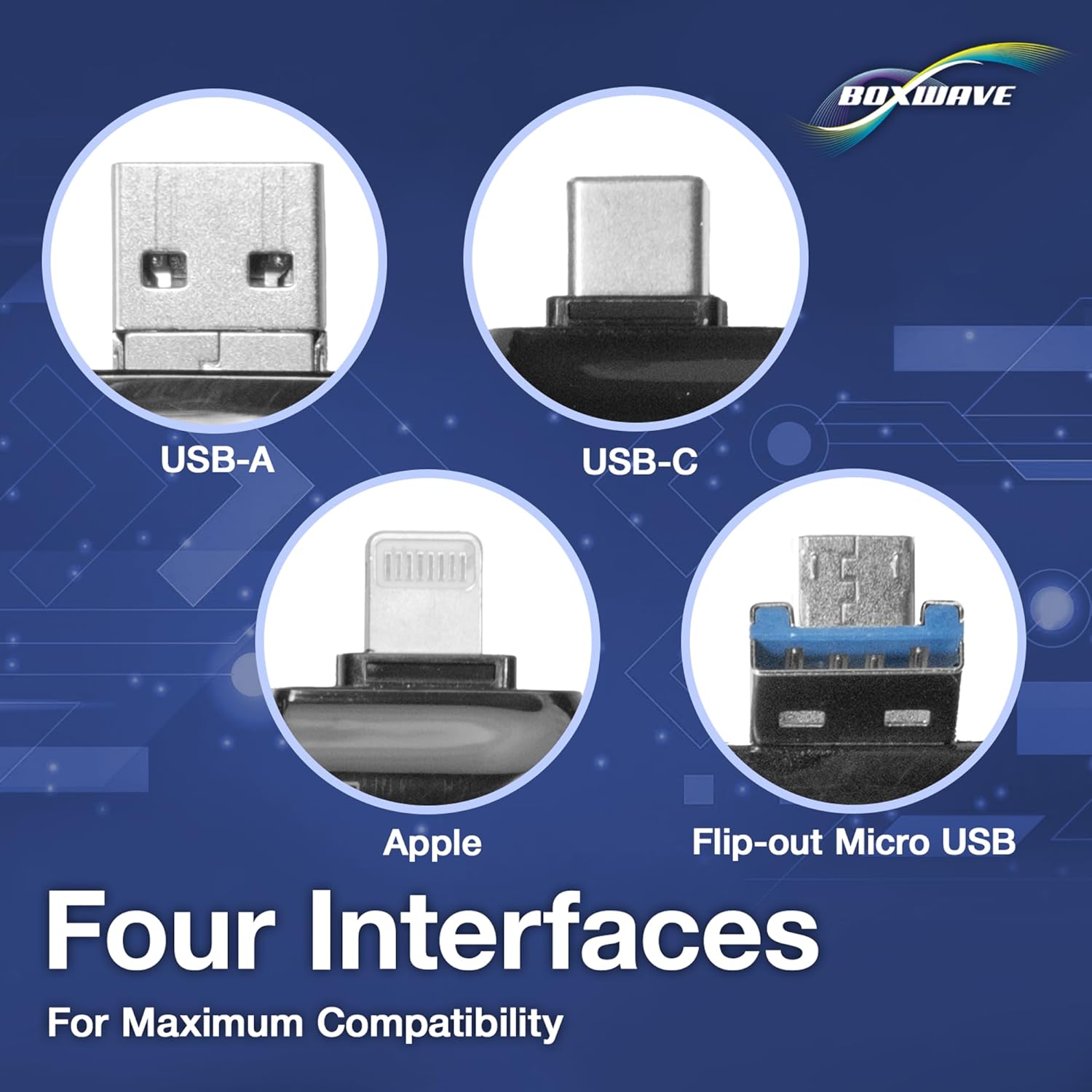
Image: The AllReader SD Card Reader with an SD card inserted, positioned next to a tablet, illustrating the ease of file transfer.
Operating Instructions
Once connected, the AllReader SD Card Reader functions as an external storage device for your compatible host device. You can perform various operations:
- Viewing Files: Open your device's file browser (e.g., 'Files' on iOS, 'My Files' on Android, 'File Explorer' on Windows, 'Finder' on macOS) and locate the connected card reader. You can then browse and open files directly from the memory card.
- Transferring Files: To transfer files from the memory card to your device, select the desired files on the card, then use your device's copy/move function to paste them into a folder on your device's internal storage or another connected storage.
- Transferring Files to Card: To transfer files from your device to the memory card, select the desired files on your device, then copy/move them to the card reader's directory.
- Deleting Files: You can delete files directly from the memory card through your device's file manager. Exercise caution when deleting files, as they may not be recoverable.

Image: A visual representation of the AllReader SD Card Reader's versatility, showing it connected to a smartphone, tablet, laptop, and desktop PC, demonstrating easy file transfer across multiple device types.
Maintenance
To ensure the longevity and optimal performance of your BoxWave AllReader SD Card Reader, follow these maintenance guidelines:
- Keep Clean: Use a soft, dry, lint-free cloth to wipe the exterior of the card reader. Avoid using liquid cleaners or solvents.
- Protect Connectors: When not in use, ensure the connectors are protected from dust and debris. The compact design helps in this regard.
- Avoid Physical Damage: Do not drop the device or expose it to excessive force.
- Storage: Store the card reader in a cool, dry place away from direct sunlight and extreme temperatures.
- Handle with Care: Always insert and remove memory cards and the card reader gently to prevent damage to the slots or connectors.
Troubleshooting
If you encounter issues with your AllReader SD Card Reader, try the following solutions:
| Problem | Possible Solution |
|---|---|
| Device not recognized |
|
| Cannot transfer files |
|
| Slow transfer speeds |
|
Specifications
- Brand: BoxWave
- Model: AllReader SD Card Reader
- Media Type: microSD, SD Card
- Interfaces: USB-C, USB-A, Micro-USB, Apple Lightning
- Color: Jet Black
- Special Feature: Compact Design
- Item Weight: Approximately 6 ounces (0.17 kg)
Warranty and Support
BoxWave products are designed for quality and reliability. For any questions, technical support, or warranty inquiries, please contact BoxWave Corporation directly. Refer to the official BoxWave website for the most current support information and warranty details.
BoxWave Corporation
Website: www.boxwave.com (Please check the official website for contact details and support options.)