
1. Introduction
This manual provides detailed instructions for the installation, operation, and maintenance of your Cozylady 146ft Smart LED Strip Lights. These lights feature RGB color changing capabilities, music synchronization, and can be controlled via a mobile application, remote control, or voice commands through Alexa and Google Assistant. Please read this manual thoroughly before use to ensure proper functionality and safety.
2. Package Contents
Verify that all items listed below are included in your package:
- Cozylady 146ft Smart LED Strip Lights (consisting of two 82ft rolls)
- Power Adapter
- Controller Box
- Remote Control
- Security Clips
- Adhesive (pre-applied on strip)
- User Manual

Image: Overview of the Cozylady 146ft Smart LED Strip Lights and included accessories.
3. Safety Information
- Ensure the power supply is disconnected before installation or maintenance.
- This product is designed for indoor use only. Do not expose to water or high humidity.
- Do not cut the LED strip unless specifically indicated by cutting marks. Improper cutting may damage the strip.
- Keep out of reach of children.
- Use only the provided power adapter. Using an incompatible adapter may cause damage or fire.
- Avoid bending the strip at sharp angles to prevent damage to the LED components.
4. Setup
4.1 Physical Installation
- Prepare the Surface: Ensure the installation surface is clean, dry, and free of dust. This is crucial for the adhesive to bond effectively.
- Unroll the Strip: Carefully unroll the LED strip lights.
- Connect Components:
- Connect the LED strip(s) to the controller box. Ensure the alignment slots are correctly matched.
- Connect the power adapter to the controller box.
- Attach the Strip: Peel off the protective backing from the adhesive tape on the back of the LED strip. Press the strip firmly onto the desired surface. Use the provided security clips for additional support, especially around corners or if the surface is uneven.
- Connect to Power: Plug the power adapter into a standard electrical outlet.
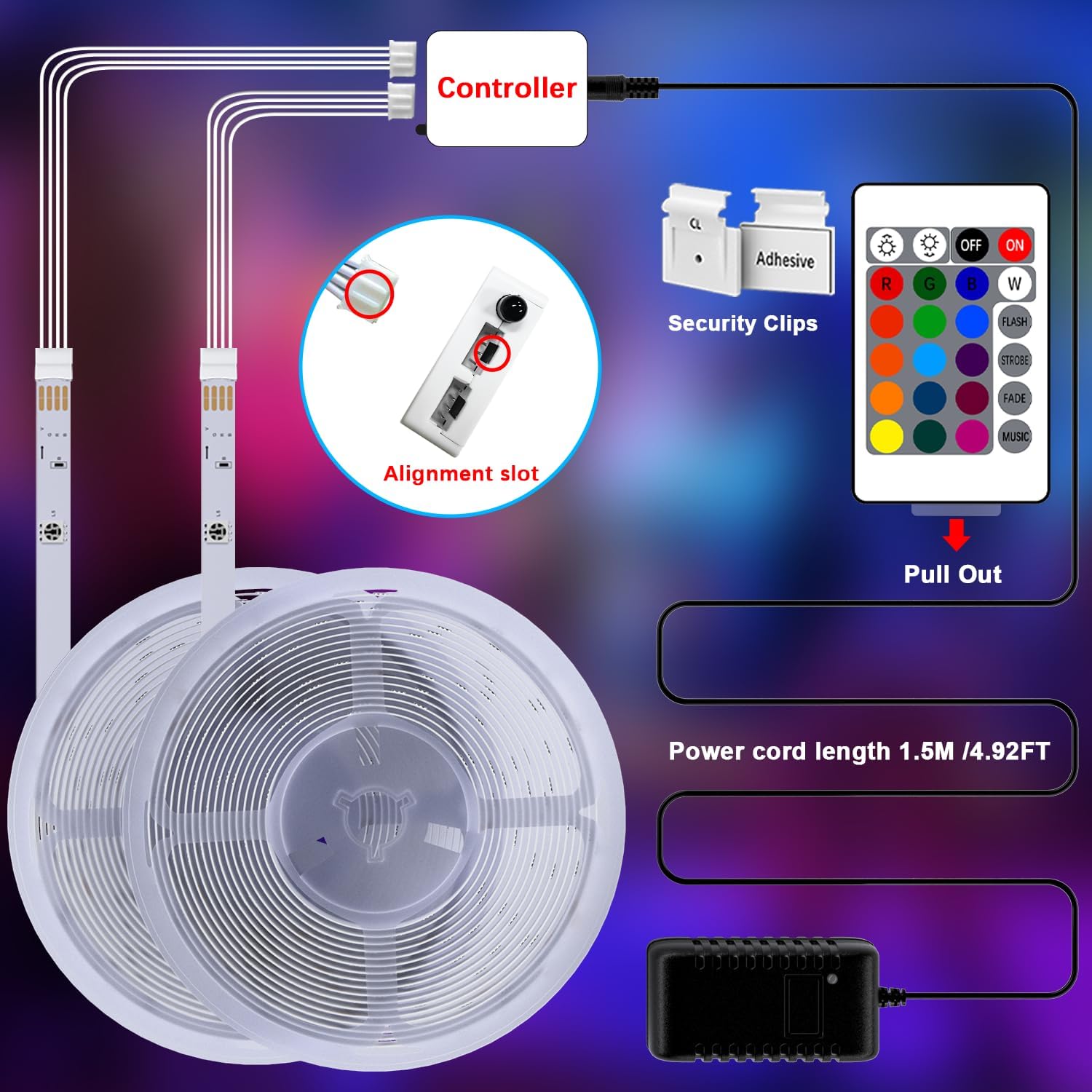
Image: Illustration of connecting the LED strips to the controller and power supply, highlighting alignment slots and security clips.
4.2 App Installation and Pairing
The Cozylady Smart LED Strip Lights can be controlled via a dedicated mobile application.
- Download the App: Scan the QR code in the manual or search for "Cozylady Smart Strip Light" (or similar, refer to product packaging) in the Apple App Store or Google Play Store.
- Register/Log In: Open the app and follow the on-screen instructions to create an account or log in.
- Add Device:
- Ensure your phone is connected to a 2.4GHz Wi-Fi network. 5GHz Wi-Fi networks are not supported.
- Power on the LED strip lights.
- In the app, tap "Add Device" or the "+" icon.
- Select "Lighting" and then "Strip Light (Wi-Fi)".
- Follow the app's instructions to put the device into pairing mode (usually by cycling power 3 times until the lights flash rapidly).
- Enter your Wi-Fi network password when prompted.
- Once connected, you can rename your device for easier control.

Image: Examples of the mobile application interface for controlling the LED strip lights.
4.3 Voice Assistant Integration (Alexa/Google Assistant)
To control your LED strip lights using voice commands, integrate them with Amazon Alexa or Google Assistant.
- Ensure App Connection: Make sure your LED strip lights are successfully paired with the Cozylady app.
- Open Voice Assistant App: Open the Amazon Alexa app or Google Home app on your smartphone.
- Enable Skill/Action:
- For Alexa: Go to "Skills & Games" and search for "Cozylady Smart" (or similar). Enable the skill and link your Cozylady account.
- For Google Assistant: Go to "Works with Google" and search for "Cozylady Smart" (or similar). Link your Cozylady account.
- Discover Devices: Once linked, ask your voice assistant to "Discover devices" or manually initiate device discovery in the app.
- Voice Commands: You can now use commands like:
- "Alexa, turn on [Device Name]"
- "Hey Google, set [Device Name] to red"
- "Alexa, dim [Device Name] to 50%"

Image: Depiction of smart voice control functionality with Alexa and Google Assistant.
5. Operating Instructions
5.1 App Control
The mobile application provides comprehensive control over your LED strip lights.
- Power On/Off: Toggle the power button within the app.
- Color Selection: Choose from 16 million colors using the color wheel or preset color options.
- Brightness Adjustment: Adjust the light intensity from 1% to 100%.
- Scene Modes: Select from various pre-programmed scene modes (e.g., reading, party, relaxation).
- DIY Colors/Scenes: Create and save your own custom color combinations and dynamic lighting effects.
- Timing and Schedule: Set schedules for the lights to turn on/off automatically at specific times or after a countdown.
- Group Control: If you have multiple Cozylady smart devices, you can group them together for simultaneous control.
- Control Sharing: Share control of your devices with family members through the app.

Image: Mobile app interface demonstrating remote control capabilities, group control, and control sharing.

Image: Screenshots illustrating the timer and scheduling functions within the mobile application.
5.2 Remote Control
The included remote control provides quick access to basic functions.
- Power Button: Turn the lights on or off.
- Color Buttons: Select static colors (Red, Green, Blue, White, etc.).
- Brightness Buttons: Increase or decrease brightness.
- Mode Buttons: Cycle through various dynamic lighting modes (FLASH, FADE, JUMP, etc.).
- Music Button: Activate music sync mode.
Note: Before first use, pull out the plastic tab from the remote control's battery compartment.
5.3 Music Sync Mode
The built-in microphone allows the LED strip lights to change colors and patterns in sync with ambient sounds and music.
- Activate this mode via the mobile app or the "MUSIC" button on the remote control.
- The lights will respond to the rhythm and beats of music played in the room.
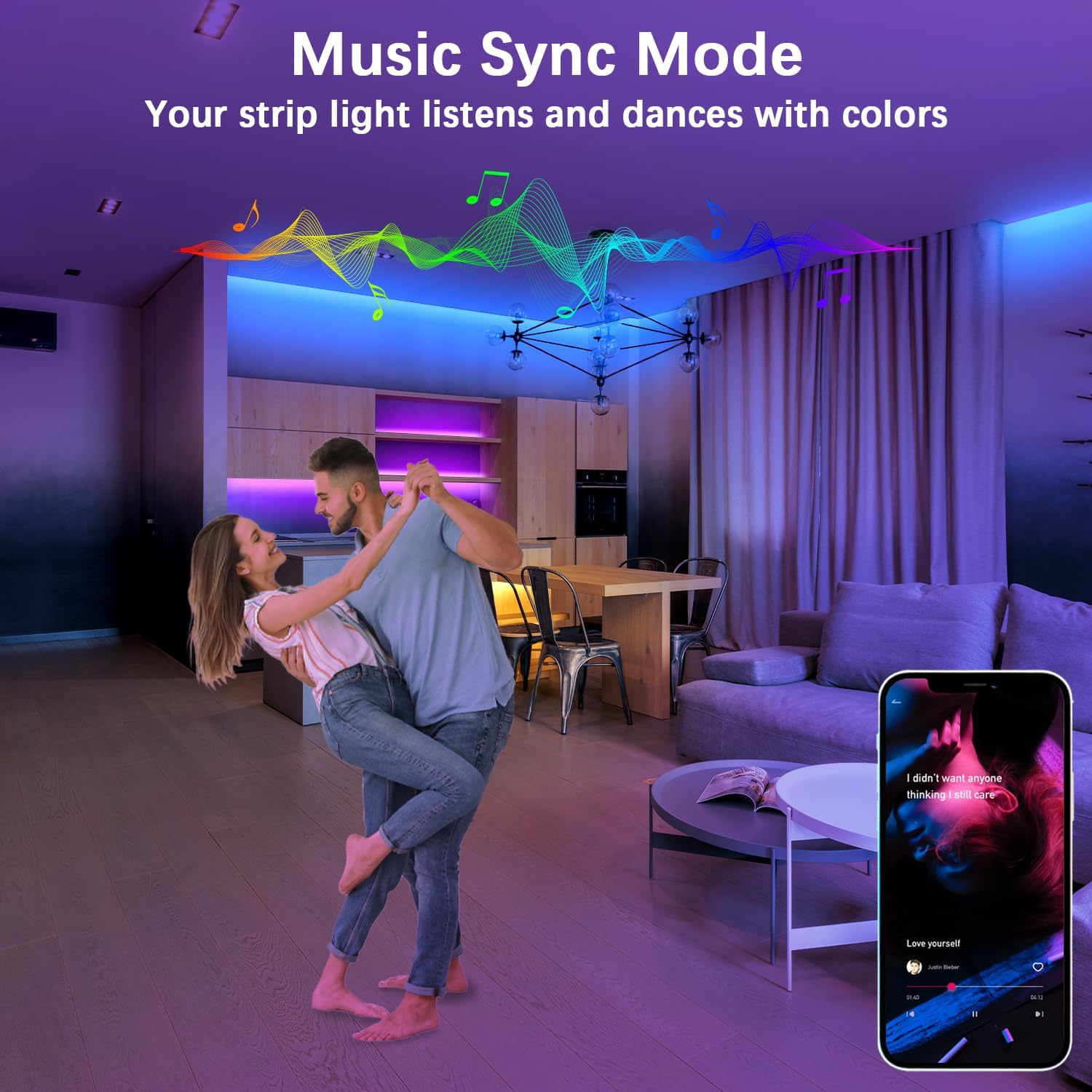
Image: A room illuminated by LED strip lights dynamically changing colors in response to music.
5.4 Multiple Control Methods Overview

Image: Visual representation of the three primary control methods: voice, mobile application, and remote control.
6. Maintenance
- Cleaning: Gently wipe the LED strip with a dry, soft cloth. Do not use liquid cleaners or abrasive materials.
- Storage: If storing the lights for an extended period, ensure they are clean and dry. Store in a cool, dry place away from direct sunlight.
- Adhesive: If the adhesive weakens over time, use the provided security clips or additional double-sided tape for reinforcement.
7. Troubleshooting
| Problem | Possible Cause | Solution |
|---|---|---|
| Lights do not turn on. |
|
|
| Lights are not responding to app/voice control. |
|
|
| Lights are dim or flickering. |
|
|
| Music Sync mode not working. |
|
|
8. Specifications
| Feature | Detail |
|---|---|
| Brand | Cozylady |
| Model Number | 1 |
| Length | 146 feet (approx. 44.5 meters) |
| Light Source Type | LED (5050 RGB) |
| Light Color | Multicolor (16 million colors) |
| Indoor/Outdoor Usage | Indoor |
| Power Source | Corded Electric |
| Voltage | 120 Volts (AC) |
| Wattage | 36 watts |
| Control Methods | Remote Control, Voice Control (Alexa, Google Assistant), App Control |
| Wi-Fi Compatibility | 2.4GHz only (Not compatible with 5GHz) |
| Included Components | Remote Control, LED Strip Lights, Power Adapter, Controller Box, Security Clips |
| Item Weight | 13.7 ounces |
| Package Dimensions | 9.69 x 6.89 x 0.98 inches |
9. Warranty and Support
Cozylady provides a 1-year standard warranty for this product. Our professional customer service team is available to provide support and address any concerns you may have.
- For assistance, please refer to the contact information provided on the product packaging or the official Cozylady website.
- Please have your purchase details and model number ready when contacting support.


