
Introduction
Thank you for choosing the Devoko 140x60cm RGB LED Gaming Desk. This manual provides detailed instructions for the assembly, operation, and maintenance of your new gaming desk. Please read this manual thoroughly before assembly and use to ensure proper function and safety.

Image: The Devoko 140x60cm RGB LED Gaming Desk, fully assembled and set up with gaming equipment, highlighting its design and LED features.
Safety Information
WARNING:
- Do not exceed the recommended weight limit of 60 kg (132 lbs) on the desktop. Exceeding this limit may cause instability and damage.
- Ensure the desk is placed on a stable, level surface before use.
- Keep all small parts and packaging materials away from children to prevent choking hazards.
- Do not stand or sit on the desk.
- Avoid exposing the desk to direct sunlight or extreme temperatures.
- Regularly check all screws and connections to ensure they remain tight.
Package Contents
Before beginning assembly, please verify that all components are present and undamaged. Refer to the detailed parts list provided in your physical manual. Typical components include:
- Desktop sections (carbon fiber surface)
- Z-shaped leg frames
- Crossbars and support beams
- LED light strips and controller
- Remote control for LED lights
- Headphone hook
- Cup holder
- Assembly hardware (screws, bolts, Allen wrench)
- Cable management clips
Setup and Assembly
Follow these steps carefully for proper assembly. It is recommended to assemble the desk with two people.
- Unpack and Identify Parts: Lay out all components on a clean, soft surface to prevent scratches. Identify each part using the provided parts list.
- Assemble the Z-shaped Legs: Attach the horizontal support beams to the Z-shaped leg frames using the provided hardware. Ensure all connections are secure but do not fully tighten screws until the entire frame is assembled.
- Attach Desktop Sections: Carefully place the carbon fiber desktop sections onto the assembled frame. Align the pre-drilled holes and secure the desktop to the frame using the appropriate screws. Once all desktop sections are in place, fully tighten all screws on the frame and desktop.
- Install LED Lights and Controller:
The LED light strips are pre-installed. Connect the manual controller to the desk frame using self-tapping screws. Connect the extension cable to the manual controller, then connect the other end of the extension cable to the LED strip. Secure all cables with the provided fasteners.
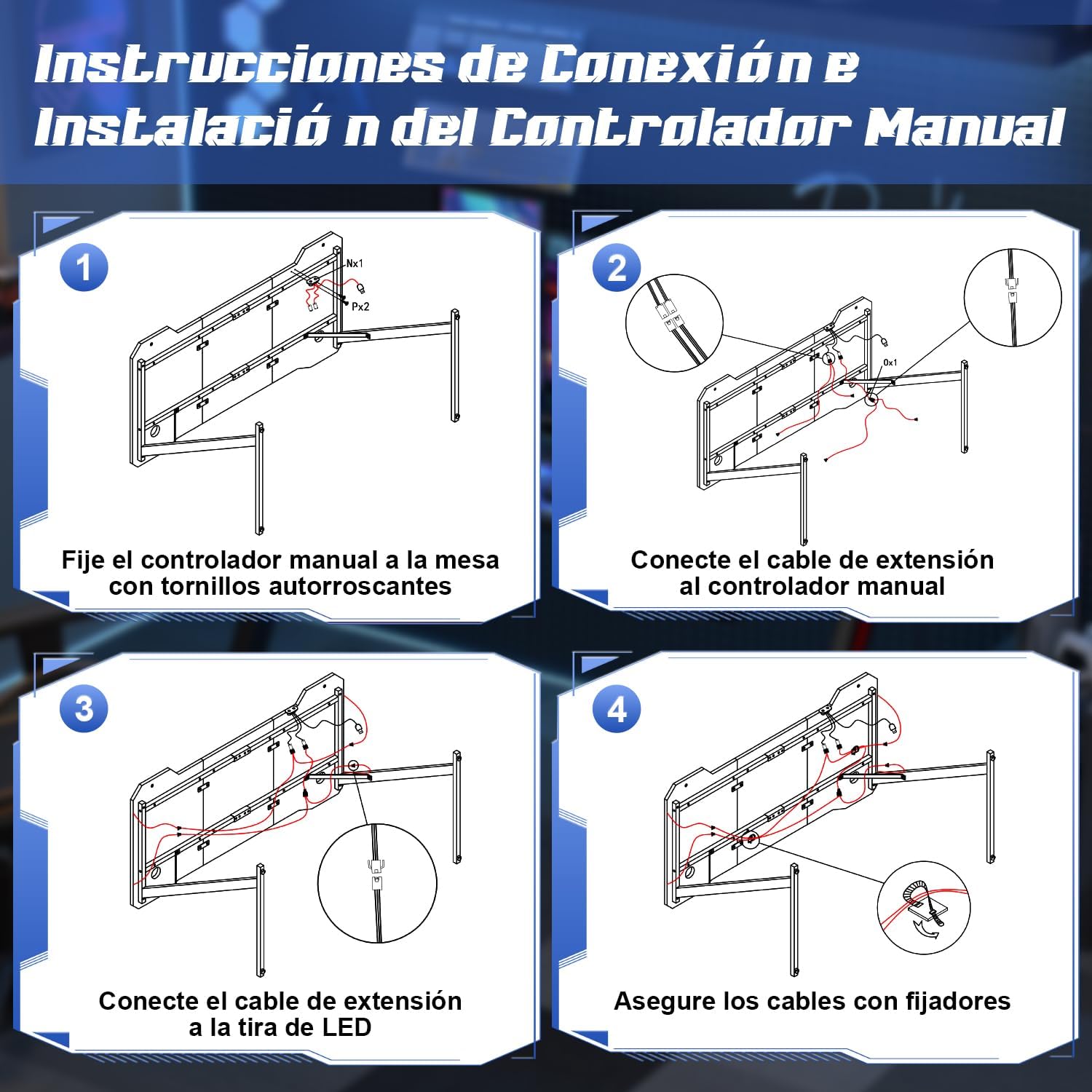
Image: Step-by-step diagram for connecting and installing the LED controller and cables.
- Attach Accessories: Install the cup holder and headphone hook to the designated locations on the desk. These are designed to keep your gaming area organized.
- Level the Desk: The desk features adjustable feet. Adjust each foot individually to ensure the desk is stable and level on your floor.
Operating Instructions
LED Lighting System
Your Devoko gaming desk features integrated RGB LED lighting with multiple modes, controllable via a manual touch panel and a remote control.

Image: Detailed view of the manual LED control panel on the desk.
- Top Button (Touch Control): Controls the light modes. Offers 26 flash modes and 6 fixed color modes. Tap to cycle through modes.
- Bottom Button (Touch Control): Power switch and brightness regulator.
- Long Press: Turns the LED lights On/Off.
- Short Press: Adjusts brightness. Cycles through 8 levels of brightness.
- Remote Control: Use the provided remote control to adjust colors, modes, and brightness from a distance. Refer to the remote control's specific instructions for detailed functions.

Image: The LED remote control for adjusting light settings.
Using Accessories
- Cup Holder: Use the integrated cup holder to securely place your beverages, preventing spills on your desk surface.
- Headphone Hook: Hang your gaming headphones on the hook to keep them easily accessible and off the desktop, reducing clutter.
- Cable Management: Utilize the provided cable management clips to route and organize your cables, maintaining a tidy and safe workspace.

Image: Integrated cup holder and headphone hook for organized use.
Maintenance
Proper care will extend the life and appearance of your Devoko gaming desk.
- Cleaning the Desktop: The carbon fiber surface is waterproof, heat-resistant, and scratch-resistant, making it easy to clean. Use a soft, damp cloth with mild soap and water to wipe down the surface. Avoid abrasive cleaners or harsh chemicals that could damage the finish.
- Frame Maintenance: Wipe the metal frame with a dry or slightly damp cloth to remove dust.
- LED Lights: Ensure the LED strips and controller are kept dry. Do not attempt to disassemble the LED components.
- Regular Checks: Periodically check all screws and bolts to ensure they are tight. Re-tighten if necessary to maintain stability.

Image: Demonstrating the scratch-resistant and easy-to-clean properties of the carbon fiber desktop.
Troubleshooting
| Problem | Possible Cause | Solution |
|---|---|---|
| Desk is wobbly/unstable. | Uneven floor; loose screws. | Adjust the leveling feet at the bottom of the legs. Check and tighten all assembly screws. |
| LED lights not turning on. | Power cable disconnected; remote battery dead; controller malfunction. | Ensure the power cable for the LED lights is securely connected. Check the remote control battery and replace if necessary. Verify all connections to the LED controller. |
| LED lights not responding to remote. | Remote battery low; obstruction between remote and receiver; remote not paired. | Replace remote battery. Ensure no objects block the signal path. Refer to the LED light manual for pairing instructions if applicable. |
| Difficulty assembling parts. | Incorrect part orientation; missing hardware. | Review the assembly instructions carefully, paying attention to part orientation. Verify all hardware is present. Contact customer support if parts are missing or damaged. |
Specifications
- Brand: Devoko
- Model Number: 0304
- Color: Black
- Product Dimensions (L x W x H): 140 cm x 60 cm x 75 cm (55.1 x 23.6 x 29.5 inches)
- Weight: 15.6 kg (34.4 lbs)
- Material: Metal (frame), Carbon Fiber (desktop surface)
- Weight Capacity: 60 kg (132 lbs)
- Special Features: RGB LED lights with remote control, Z-shaped stable construction, integrated headphone hook, integrated cup holder, adjustable leveling feet.

Image: Dimensions of the Devoko 140x60cm RGB LED Gaming Desk, including an adjustable foot detail.
Warranty and Support
For warranty information and customer support, please refer to the documentation included with your purchase or visit the official Devoko website. If you encounter any issues not covered in this manual, please contact Devoko customer service for assistance.
Contact Information: Please refer to your purchase receipt or the manufacturer's website for the most current contact details.

