
iClever MD360
iClever MD360 Ergonomic Bluetooth Mouse User Manual
Model: MD360 | Brand: iClever
1. Introduction
Thank you for choosing the iClever MD360 Ergonomic Bluetooth Mouse. This wireless mouse is designed for enhanced productivity and comfort, featuring multi-device connectivity, adjustable DPI settings, and an integrated mouse jiggler function. This manual provides detailed instructions for setup, operation, and maintenance to ensure optimal performance.
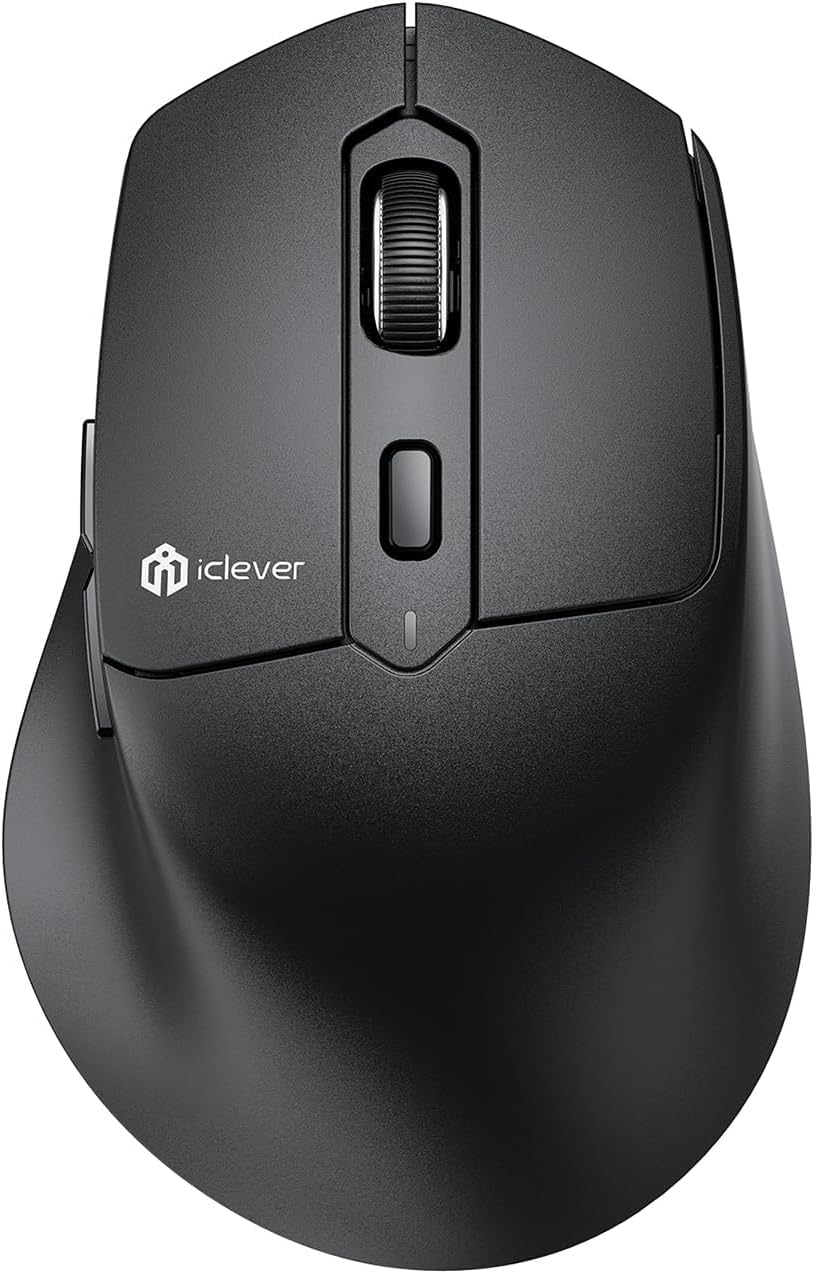
The iClever MD360 Ergonomic Bluetooth Mouse, a versatile and comfortable peripheral.
2. What's in the Box
Please check the package contents to ensure all items are present:
- 1 x Dual Mode Mouse
- 1 x USB Receiver (stored inside the mouse)
- 1 x USB-A to USB-C Cable
3. Product Overview
Familiarize yourself with the various components of your iClever MD360 mouse:

Detailed view of the iClever MD360 mouse, highlighting its buttons and features including Silent Click, DPI adjustment, connection button, forward/backward buttons, power switch, and the USB receiver compartment.
- Silent Click Buttons: Left and right mouse buttons designed for quiet operation.
- DPI Button: Adjusts cursor sensitivity (800/1200/1600/2400 DPI).
- Scroll Wheel: For vertical scrolling.
- Forward/Backward Buttons: For navigation in web browsers or file explorers.
- Connect Button: Used for pairing in Bluetooth mode.
- Power Switch: ON/OFF switch for the mouse.
- 2.4G USB Receiver: Stored in a compartment on the bottom of the mouse.
- USB-C Charging Port: For recharging the internal battery.
4. Setup
4.1 Charging the Mouse
Before first use, it is recommended to fully charge the mouse. The mouse features a built-in 300mAh high-capacity lithium battery.
- Connect the provided USB-A to USB-C cable to the mouse's USB-C charging port and a USB power source (e.g., computer USB port, wall adapter).
- A full charge takes approximately 2 hours and provides up to 3 months of use.
- The mouse has an auto-sleep function to conserve power during inactivity.
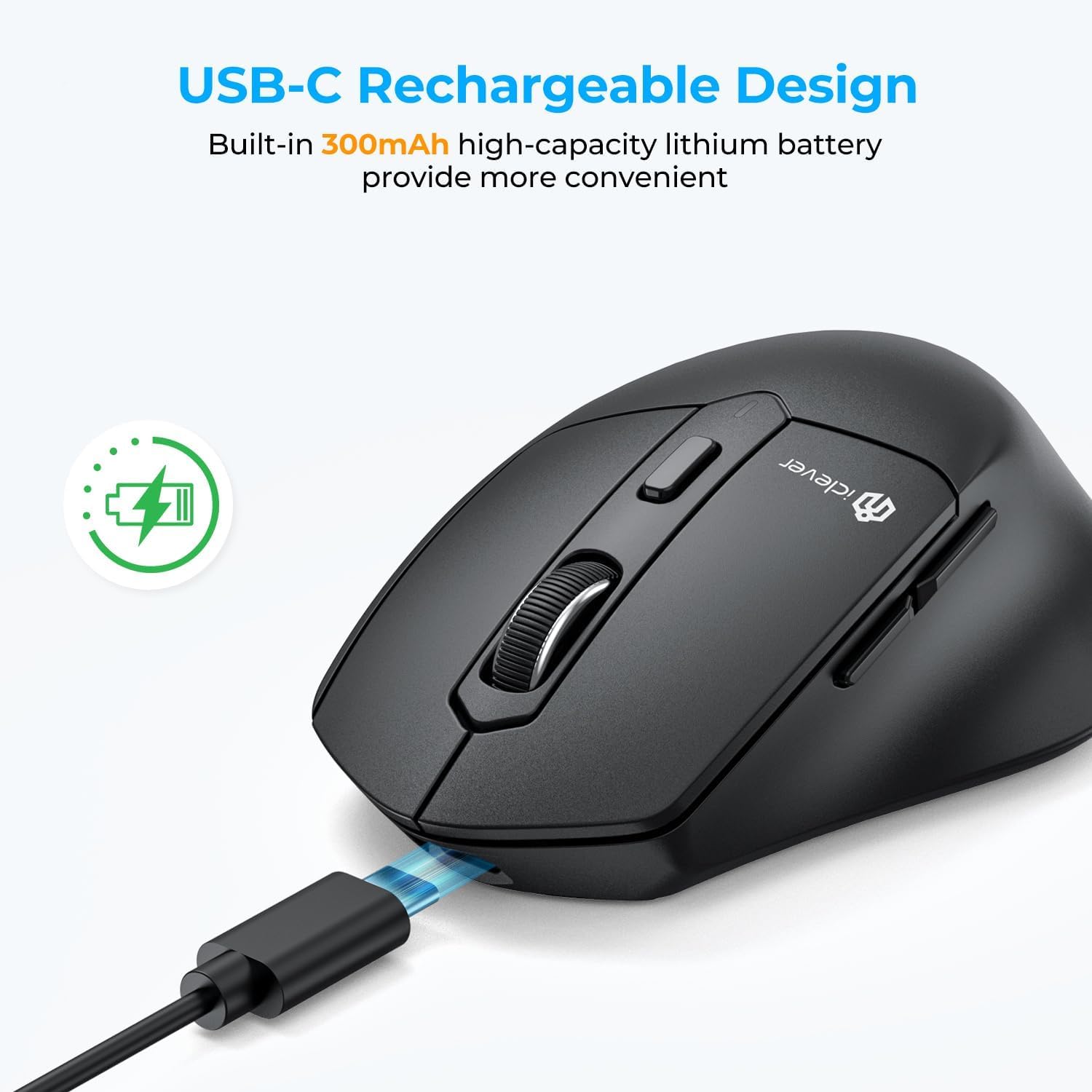
The iClever MD360 mouse being charged via its USB-C port.
4.2 Connecting the Mouse
The iClever MD360 supports dual-mode wireless connection (2.4G USB and Bluetooth) and can connect to up to 3 devices.

The iClever MD360 mouse offers versatile connectivity options for multiple devices.
2.4G USB Connection:
- Locate the USB receiver in the compartment on the bottom of the mouse.
- Plug the USB receiver into an available USB port on your computer.
- Turn on the mouse using the power switch on the bottom.
- The mouse should automatically connect to your computer.
Bluetooth Connection (BT1/BT2):
The mouse supports two Bluetooth channels (BT1 and BT2) for connecting to different devices.
- Turn on the mouse using the power switch on the bottom.
- Press the 'Connect' button on the bottom of the mouse to switch to either BT1 or BT2 mode. The indicator light will flash slowly.
- On your device (computer, tablet, smartphone), go to Bluetooth settings and enable Bluetooth.
- Search for new devices. The mouse will appear as "iClever MD360".
- Select "iClever MD360" to pair. Once connected, the indicator light will stop flashing.
- Repeat these steps for the second Bluetooth channel (BT2) if connecting another device.

The iClever MD360 mouse offers universal compatibility across multiple platforms and devices.
5. Operating the Mouse
5.1 DPI Adjustment
The mouse features 4 adjustable DPI levels (800/1200/1600/2400) to suit your precision needs. Press the DPI button located behind the scroll wheel to cycle through the settings.

Adjust the mouse sensitivity with the 4-level adjustable DPI settings.
5.2 Mouse Jiggler Function
The integrated mouse jiggler function prevents your computer from entering sleep mode or screen lock, keeping your status active during breaks.
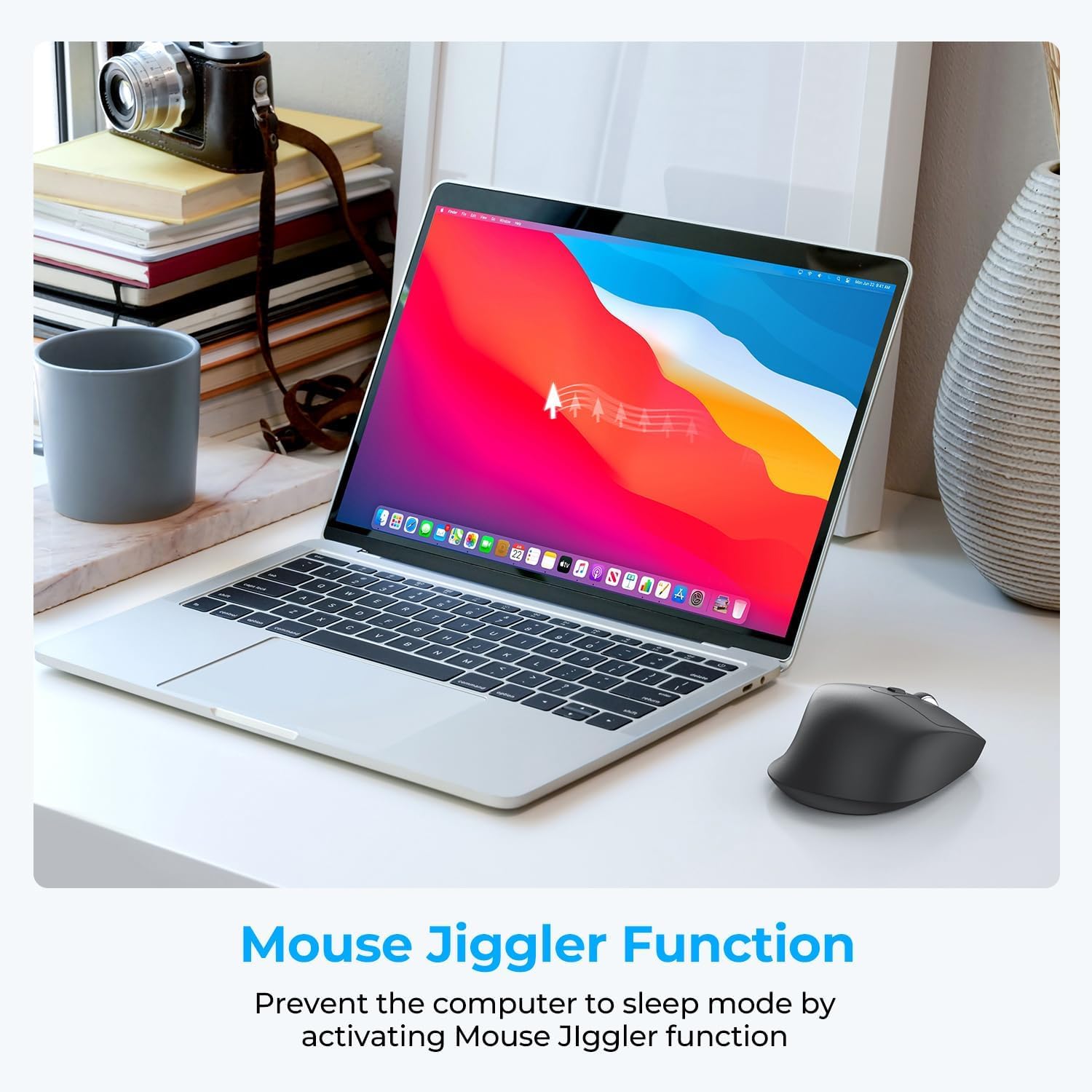
The mouse jiggler function keeps your computer active by simulating mouse movement.
Activating/Deactivating Jiggler Mode:
- To activate, hold the DPI button for 5 seconds. The indicator light on the mouse will turn red, and the cursor will begin to move irregularly on screen.
- To deactivate, hold the DPI button for another 5 seconds. The red indicator light will turn off, and the mouse will return to normal operation.
Video demonstrating how to activate and deactivate the mouse jiggler function on the iClever MD360 mouse.
5.3 Multi-Device Switching
To switch between connected devices (2.4G USB, BT1, BT2), simply press the 'Connect' button on the bottom of the mouse. The mouse will cycle through the connected channels.
5.4 Silent Click
The iClever MD360 features silent click buttons, providing a quiet working environment without disruptive clicking sounds.
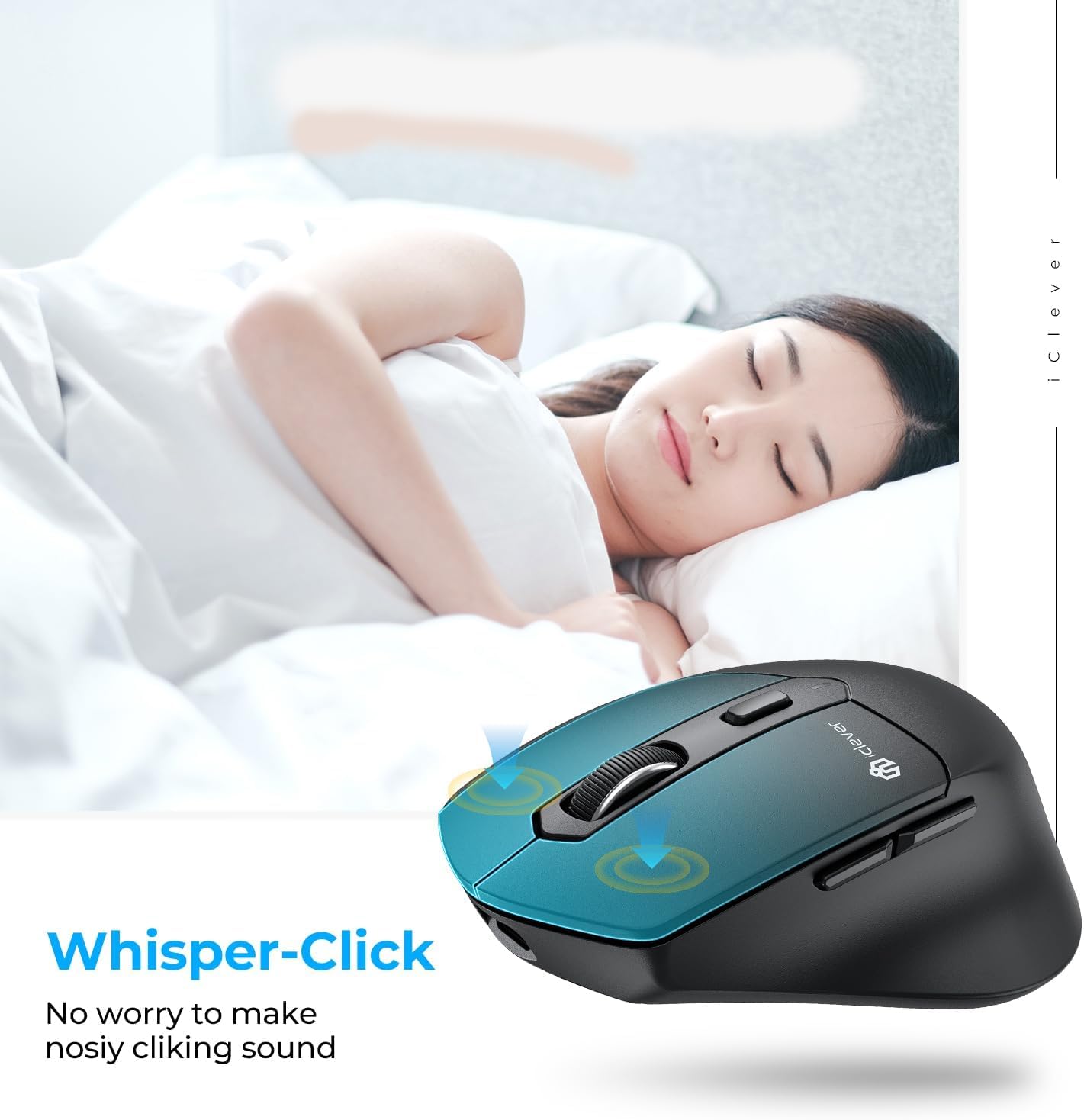
The iClever MD360 mouse is designed for quiet operation with 'whisper-click' buttons.
6. Maintenance
- Cleaning: Use a soft, dry cloth to clean the mouse. Avoid using abrasive cleaners or solvents.
- Battery Care: To prolong battery life, avoid fully discharging the mouse frequently. Recharge when the battery indicator is low.
- Storage: When not in use for extended periods, turn off the mouse to conserve battery. Store in a cool, dry place.
7. Troubleshooting
| Problem | Possible Solution |
|---|---|
| Mouse not responding (2.4G) | Ensure the USB receiver is securely plugged in. Try a different USB port. Ensure the mouse is turned ON. Recharge the mouse. |
| Mouse not responding (Bluetooth) | Ensure Bluetooth is enabled on your device. Ensure the mouse is in BT pairing mode (indicator flashing). Forget the device in your Bluetooth settings and re-pair. Recharge the mouse. |
| Cursor movement is erratic or slow | Check the DPI setting and adjust if necessary. Ensure the mouse sensor is clean. Use the mouse on a suitable surface. |
| Mouse Jiggler not working | Ensure you hold the DPI button for 5 seconds until the red indicator light appears. |
| Cannot switch between devices | Ensure all devices are properly paired to their respective channels (2.4G, BT1, BT2). Press the 'Connect' button firmly. |
8. Specifications
| Feature | Detail |
|---|---|
| Model | MD360 |
| Connectivity Technology | Bluetooth, 2.4G USB Receiver, Dual Mode Wireless Connection |
| DPI Levels | 800 / 1200 / 1600 / 2400 |
| Special Features | Mouse Jiggler, Pair up to 3 Devices, USB-C Charge, Silent Click |
| Movement Detection | Optical |
| Battery | Built-in 300mAh Rechargeable Lithium Battery |
| Charging Port | USB-C |
| Product Dimensions | 4.45 x 2.83 x 0.1 inches (11.3 x 7.2 x 0.25 cm) |
| Item Weight | 3.25 ounces (92 grams) |
| Compatibility | Windows, Mac, iOS, Android, ChromeOS |
9. Warranty and Support
iClever products come with a standard warranty. For detailed warranty information, technical support, or customer service inquiries, please refer to the warranty card included with your product or visit the official iClever website. Do not attempt to disassemble or repair the device yourself, as this may void the warranty.
Related documentsMD360


Ask a question about this manual
Ask about setup, troubleshooting, compatibility, parts, safety, or missing instructions. Manuals+ will review the question and use this page’s manual context to help answer it.