
1. Introduction
The ELUTENG M.2 NVMe to PCIe 4.0 X1 Adapter Card is designed to expand your system's storage capabilities by allowing you to connect an M.2 NVMe SSD to a PCIe X1, X4, X8, or X16 slot. This adapter features an aluminum heatsink solution to ensure optimal operating temperatures for your SSD, enhancing its stability and lifespan. It offers a plug-and-play experience across various operating systems, providing a direct performance upgrade for your computer.

Image 1.1: ELUTENG M.2 NVMe to PCIe 4.0 X1 Adapter Card. This image shows the adapter card with its aluminum heatsink, ready for installation into a PCIe slot.
2. Package Contents
Please verify that all items are present in the package before proceeding with installation:
- ELUTENG M.2 PCIe NVMe Adapter Card
- Long Baffle
- Short Baffle
- 2 Small Screws
- 1 Thick Screw
- 1 Screw for fixing the hard drive
- 1 Screw for each large and small chassis
- 2 Blue Thermal Conductivity Pads
- 1 Pink Thermal Conductivity Pad
- 1 Screwdriver

Image 2.1: Contents of the ELUTENG M.2 NVMe to PCIe Adapter package. This image displays the adapter card, heatsink, various screws, thermal pads, and screwdriver included in the box.
3. Specifications
| Brand | ELUTENG |
| Model Number | ELUTENG PCIe NVMe Adapter |
| Hardware Interface | PCI Express x1 |
| Compatible Devices | PC, Laptops |
| Operating System | Windows 7/10/11, Linux, Mac OS |
| Supported PCIe Slots | PCIe X1, X4, X8, X16 (PCI Express 3.0 and 4.0) |
| Supported M.2 SSD Types | NVMe M-Key, B&M Key (2230, 2242, 2260, 2280) |
| Heat Dissipation | Aluminum Heatsink |
4. Installation Guide
Follow these steps to install your M.2 NVMe SSD onto the adapter card and then into your computer's PCIe slot:
- Prepare the SSD: Align your M.2 NVMe SSD with the slot on the adapter card. Gently insert the SSD into the M.2 slot.
- Secure the SSD: Turn the adapter card to the back and use the provided screw to fix the SSD in place.
- Apply Thermal Pads: Place the thermal conductivity pads onto the M.2 NVMe SSD chips. Ensure good contact for effective heat transfer.
- Attach Heatsink: Align the aluminum heatsink with the screw holes on the adapter card and secure it with the provided screws using the screwdriver.
- Install into PC: Power off your computer and open the case. Locate an available PCIe X1, X4, X8, or X16 slot. Insert the ELUTENG adapter card firmly into the chosen PCIe slot. Secure the adapter card to the chassis with the appropriate baffle and screw.
- Power On: Close your computer case and power it on. The system should automatically detect the new hardware.

Image 4.1: Step-by-step installation guide for the M.2 NVMe SSD onto the adapter card and heatsink. This image illustrates the process of attaching the SSD, thermal pads, and heatsink to the adapter.
5. Operation
The ELUTENG M.2 NVMe to PCIe Adapter Card is designed for plug-and-play functionality. No additional drivers are required for most modern operating systems, including Windows, Linux, and Mac OS. Once installed, your system should recognize the M.2 NVMe SSD as a storage device. You may need to initialize and format the SSD through your operating system's disk management utility before it can be used for storage.
6. Compatibility
6.1 PCIe Slot Compatibility
This adapter card supports a wide range of PCI Express slots, including PCIe 3.0 and 4.0, and is compatible with X1, X4, X8, and X16 slots. This flexibility ensures broad compatibility with various motherboards.

Image 6.1: Illustration of PCIe slot compatibility. This image shows the adapter's compatibility with PCIe X1, X4, X8, and X16 slots.
6.2 M.2 SSD Compatibility
The adapter supports M.2 NVMe SSDs with M-Key and B&M Key interfaces, in common form factors such as 2230, 2242, 2260, and 2280. Please ensure your M.2 SSD is NVMe-based for optimal performance.

Image 6.2: M.2 SSD form factor and key compatibility. This image details the supported M.2 NVMe SSD sizes (2230, 2242, 2260, 2280) and key types (M-Key, B&M Key).
7. Thermal Management
The integrated aluminum heatsink is crucial for maintaining the optimal operating temperature of your M.2 NVMe SSD. By effectively dissipating heat, it prevents thermal throttling, ensuring consistent high performance and extending the lifespan of your SSD. The thermal conductivity pads facilitate efficient heat transfer from the SSD to the heatsink.
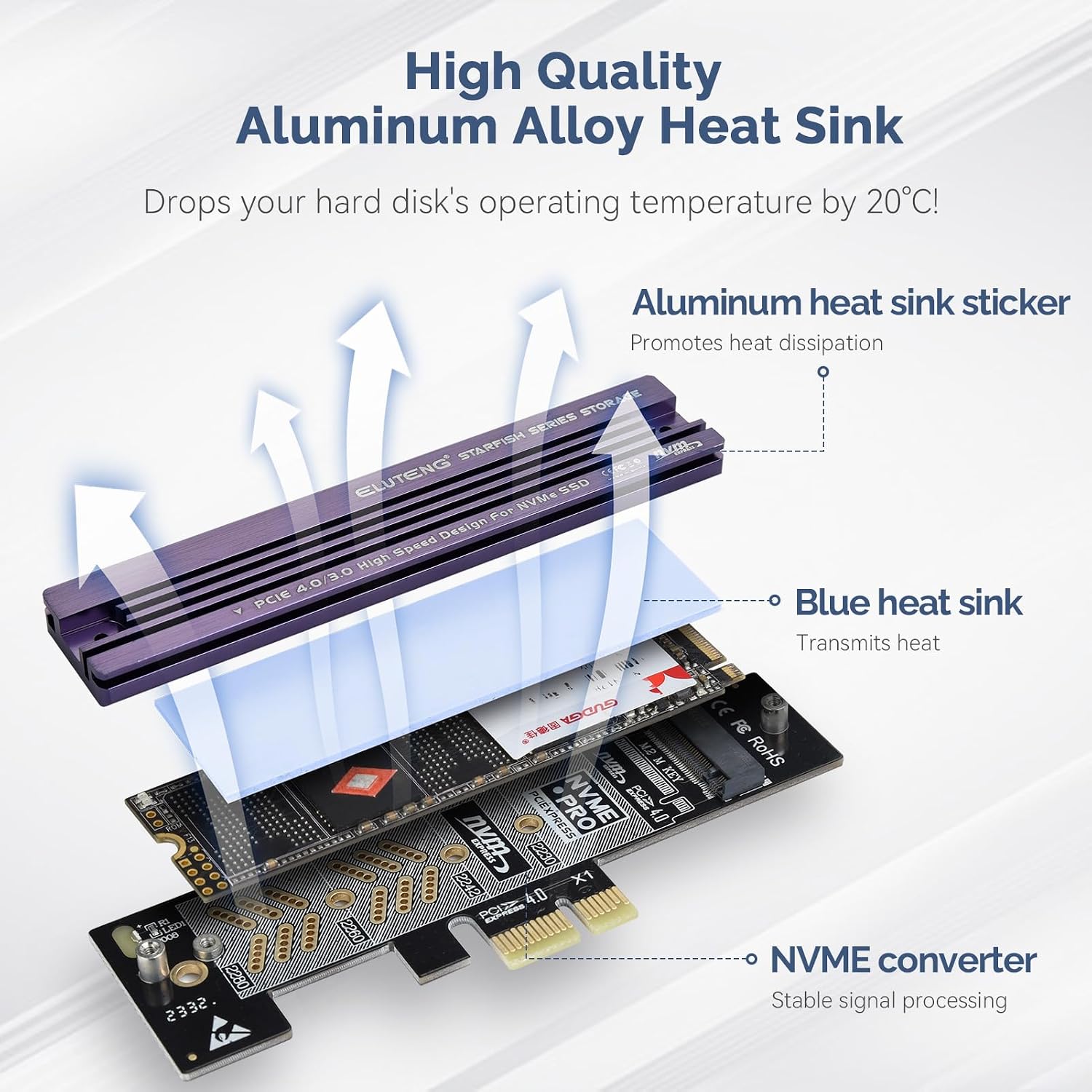
Image 7.1: Diagram illustrating the aluminum heatsink's function. This image shows how the aluminum heatsink and thermal pads work together to cool the M.2 NVMe SSD.
8. Troubleshooting
- SSD Not Detected:
- Ensure the adapter card is fully seated in the PCIe slot.
- Verify the M.2 NVMe SSD is correctly inserted and secured on the adapter card.
- Check your motherboard's BIOS/UEFI settings to ensure the PCIe slot is enabled and configured correctly for NVMe devices.
- For new SSDs, ensure it is initialized and formatted in your operating system's Disk Management (Windows) or Disk Utility (Mac OS/Linux).
- Slow Performance:
- Ensure your motherboard's PCIe slot supports the full speed of your NVMe SSD (e.g., PCIe 4.0 for PCIe 4.0 SSDs).
- Verify the heatsink is properly installed and making good contact with the SSD to prevent thermal throttling.
- Check for updated motherboard BIOS/UEFI or chipset drivers.
- System Instability:
- Ensure your power supply unit (PSU) provides sufficient power to all components.
- Check for any loose connections within your PC.
9. Warranty and Support
ELUTENG products are designed for reliability and performance. For warranty information or technical support, please refer to the official ELUTENG website or contact their customer service directly. Keep your purchase receipt for warranty claims.