
DIERYA DK63
DIERYA DK63 60% Wireless Mechanical Gaming Keyboard Instruction Manual
Model: DK63
Introduction
Thank you for choosing the DIERYA DK63 60% Wireless Mechanical Gaming Keyboard. This compact 63-key keyboard offers versatile connectivity options, vibrant RGB backlighting, and durable mechanical switches for an enhanced typing and gaming experience. This manual provides detailed instructions to help you set up, operate, and maintain your keyboard.
Package Contents
- DIERYA DK63 Wireless Mechanical Keyboard (1)
- 2.4G Receiver (hidden in the fuselage) (1)
- Keycap Puller (1)
- USB Cable (1)
- User Manual (1)
Product Overview
The DIERYA DK63 is a compact 60% mechanical keyboard designed for efficiency and performance. It features 63 keys, including directional keys, and utilizes an "FN" key for full functionality, maximizing desktop space. The keyboard is equipped with Blue Switches, providing tactile feedback and a distinct click sound, ideal for typists. It supports three connection modes: 2.4G wireless, Bluetooth 5.0, and wired USB-C, allowing seamless switching between various devices. A high-capacity 3000mAh battery ensures extended usage, and the rich RGB dynamic lighting system offers 18 modes and 16.8 million customizable colors.

Image: The DIERYA DK63 keyboard showcasing its compact 60% layout and vibrant RGB backlighting.
Setup Instructions
1. Wired Connection
Connect the provided USB-C cable to the keyboard's USB-C port and the other end to your computer's USB port. The keyboard will automatically connect and begin charging.

Image: Close-up of the keyboard's USB-C port and the included Type-C data cable for wired connection and charging.
2. 2.4G Wireless Connection
- Locate the 2.4G USB receiver, typically stored in a compartment on the underside of the keyboard.
- Plug the 2.4G receiver into an available USB port on your computer.
- Flip the connection switch on the keyboard to the "2.4G" position.
- Press FN + N. The 2.4G indicator light will illuminate, indicating a successful connection.

Image: The underside of the keyboard showing the 2.4G dongle storage area and the connection mode switch.
Video: DIERYA DK63 Operation Guide, demonstrating 2.4G and Bluetooth connection steps, FN key usage, and RGB lighting adjustments.
3. Bluetooth Connection
- Flip the connection switch on the keyboard to the "Bluetooth" position.
- On your device (computer, tablet, smartphone), enable Bluetooth and search for available devices.
- The keyboard will appear as "DIERYA DK63-1", "DIERYA DK63-2", or "DIERYA DK63-3". Select one to pair.
- To switch between Bluetooth channels (BT1, BT2, BT3), press FN + C, FN + V, or FN + B respectively.
Operating Instructions
FN Key Usage
The FN key is essential for accessing secondary functions on the compact DK63 keyboard. Hold down the FN key and press the desired key to activate its secondary function.
- FN + Q/W/E/R: Config layer keys light (used for custom lighting profiles).
- FN + Z/X: Switch between Mac OS and Windows system layouts.
- FN + Spacebar: Lock/Unlock the keyboard. The FN key will flash red when locked.
- FN + Tab: Hold to reset the keyboard to factory settings (keyboard will flash to indicate reset).
RGB Backlight Control
The DK63 keyboard features 18 dynamic RGB lighting modes and 16.8 million colors. Use the following key combinations to adjust the lighting:
- FN + Backspace: Turn RGB lights On/Off.
- FN + [ ]: Switch custom lighting effects (requires driver software for full customization).
- FN + Enter: Change lighting color.
- FN + /?: Switch between different lighting modes.
- FN + Up Arrow: Increase backlight brightness.
- FN + Down Arrow: Decrease backlight brightness.
- FN + Right Arrow: Speed up lighting effect.
- FN + Left Arrow: Slow down lighting effect.

Image: The keyboard displaying various RGB lighting effects and key combinations for adjusting them.
Video: DIERYA DK63 Operation Guide, demonstrating 2.4G and Bluetooth connection steps, FN key usage, and RGB lighting adjustments.
Maintenance
To ensure the longevity and optimal performance of your DIERYA DK63 keyboard, follow these maintenance guidelines:
- Cleaning: Use a soft, lint-free cloth slightly dampened with water or a mild cleaning solution to wipe the keycaps and keyboard surface. Avoid excessive moisture. For deeper cleaning, use the provided keycap puller to remove keycaps and clean underneath with compressed air.
- Storage: Store the keyboard in a cool, dry place away from direct sunlight and extreme temperatures.
- Battery Care: To prolong battery life, avoid fully discharging the keyboard frequently. Charge it when the battery reminder indicates low power.

Image: The DIERYA DK63 keyboard with a keycap puller, illustrating how to remove keycaps for cleaning or switch replacement.
Troubleshooting
| Issue | Possible Solution |
|---|---|
| Keyboard not connecting via 2.4G. | Ensure the 2.4G receiver is securely plugged into a USB port and the keyboard switch is set to "2.4G". Press FN + N to re-establish connection. |
| Bluetooth connection issues. | Ensure the keyboard switch is set to "Bluetooth". On your device, forget the keyboard and attempt to re-pair. Try switching Bluetooth channels using FN + C/V/B. Ensure the keyboard is charged. |
| RGB lights not working or stuck. | Press FN + Backspace to toggle lights. Try switching lighting modes with FN + /?. If issues persist, perform a factory reset by holding FN + Tab. |
| Keys not responding. | Check if the keyboard is locked (FN + Spacebar). Ensure the correct system layout (Windows/Mac) is selected (FN + Z/X). Recharge the battery if in wireless mode. Try a wired connection. |
Specifications
- Model Number: T63
- Layout: 60% (63-keys)
- Switch Type: Blue Switch (Tactile & Clicky)
- Connectivity: 2.4GHZ Wireless, Bluetooth 5.0, USB-C Wired
- Battery Capacity: 3000mAh
- RGB Backlight: 18 modes, 16.8 million colors
- Compatibility: Windows 11/10/8/7/XP, Mac OS, Vista, Linux
- Product Dimensions: 11.53"L x 3.98"W x 1.65"H
- Item Weight: 1.41 pounds
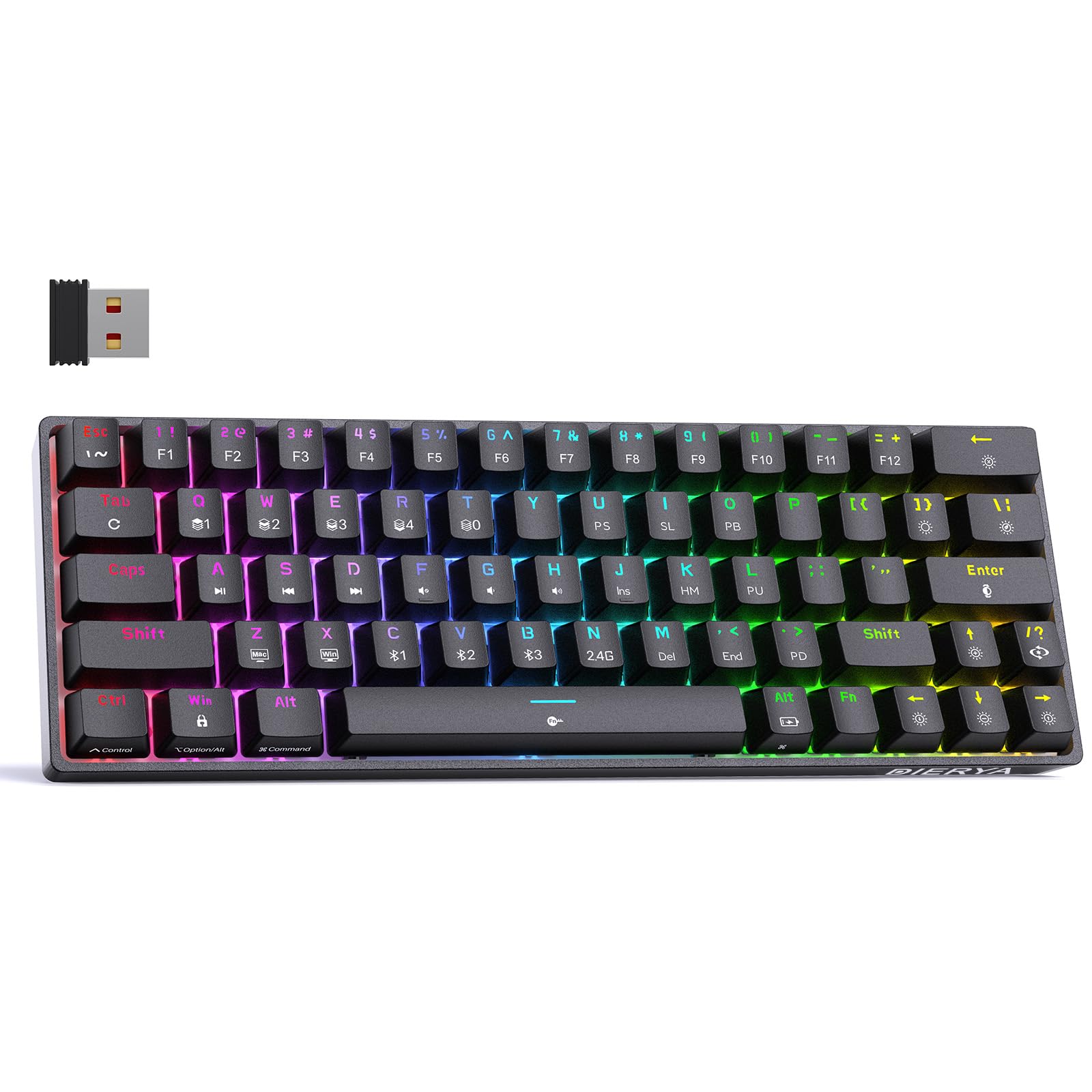
Image: Visual representation of the DIERYA DK63's ultra-compact 63-key layout and dimensions.
Video: DIERYA DK63 Switch Sound Comparison, demonstrating the sound profiles of Red (linear) and Blue (clicky) switches.
Warranty and Support
DIERYA is committed to your satisfaction. If you encounter any issues with your DK63 keyboard, please do not hesitate to contact us. Our customer support team is available to assist you with troubleshooting, warranty claims, and any product-related inquiries.
For support, please visit the DIERYA Store on Amazon or refer to the contact information provided with your purchase.
Related documentsDK63


Ask a question about this manual
Ask about setup, troubleshooting, compatibility, parts, safety, or missing instructions. Manuals+ will review the question and use this page’s manual context to help answer it.