
1. Introduction
This manual provides instructions for the setup, operation, maintenance, and troubleshooting of your fosa M103 Dual Mode Rechargeable Mouse. Please read this manual carefully before using the product to ensure proper functionality and longevity.
2. Package Contents
- 1 x fosa M103 Dual Mode Rechargeable Mouse
- 1 x USB Receiver
- 1 x Data Cable (for charging)
- 1 x Instruction Manual
3. Product Overview
The fosa M103 mouse features dual-mode connectivity (2.4Ghz wireless and Bluetooth 5.0), adjustable DPI settings, and a rechargeable battery. It is designed for comfortable use with both desktop and notebook computers.

Figure 1: Top view of the fosa M103 mouse, highlighting the scroll wheel and function buttons.
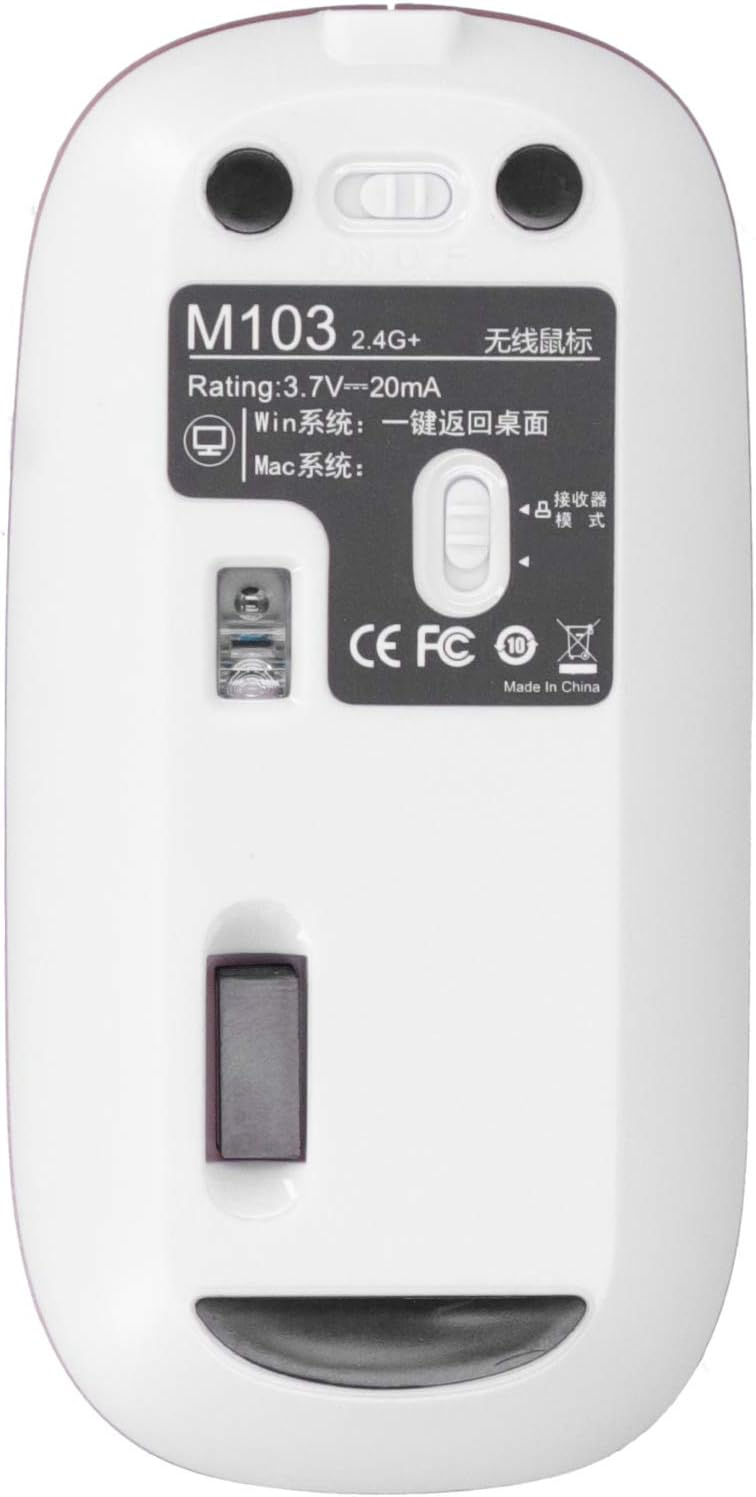
Figure 2: Bottom view of the fosa M103 mouse, illustrating the power switch and receiver storage.
4. Setup
4.1 Charging the Mouse
- Connect the provided data cable to the charging port on the front of the mouse.
- Plug the other end of the data cable into a USB power source (e.g., computer USB port, USB wall adapter).
- The mouse will indicate charging status (e.g., LED indicator). A full charge typically takes 1-2 hours.
4.2 Connecting via 2.4Ghz Wireless
- Locate the USB receiver stored in the compartment on the bottom of the mouse (refer to Figure 2).
- Insert the USB receiver into an available USB port on your computer.
- Turn on the mouse using the power switch on the bottom.
- The computer should automatically detect and install the necessary drivers. The mouse is ready for use.

Figure 3: Mouse with charging cable and USB receiver.
4.3 Connecting via Bluetooth 5.0
- Turn on the mouse using the power switch on the bottom.
- Press and hold the mode switch button (often located on the bottom or top near the scroll wheel) until the indicator light flashes, indicating Bluetooth pairing mode.
- On your computer, open Bluetooth settings and search for new devices.
- Select "M103 Mouse" (or similar name) from the list of available devices to pair.
- Once paired, the indicator light on the mouse will stop flashing, and the mouse is ready for use.
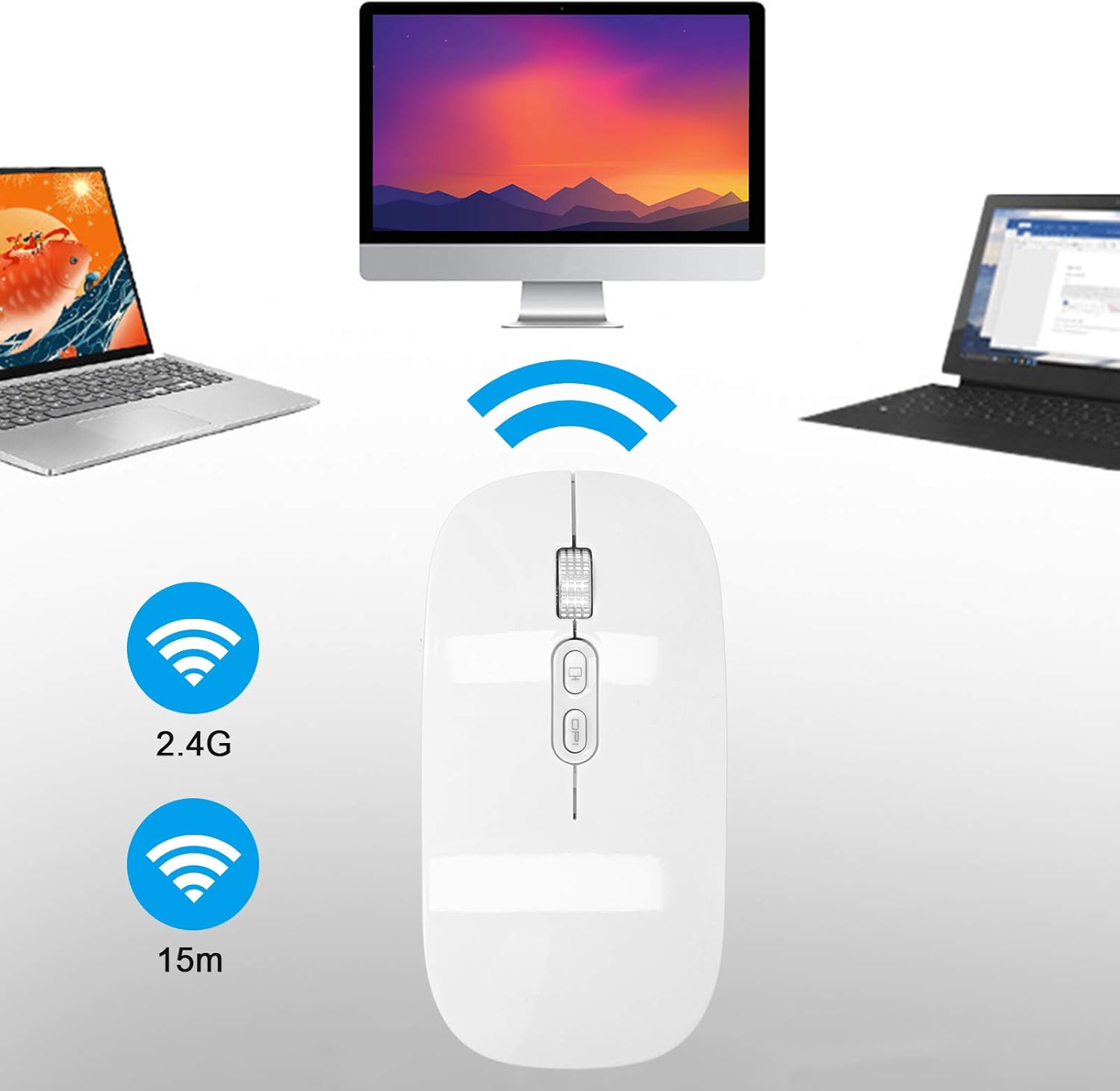
Figure 4: Wireless connectivity diagram for the M103 mouse.
5. Operating Instructions
5.1 Basic Functions
- Left Click: Primary selection and activation.
- Right Click: Opens context menus.
- Scroll Wheel: Scrolls content vertically. Can also be clicked for middle-click functionality.
5.2 DPI Adjustment
The mouse features three adjustable DPI settings: 800, 1200, and 1600. To change the DPI, press the DPI button (refer to Figure 1). Each press will cycle through the available DPI settings.
5.3 One-Key Return to Desktop
The mouse includes a dedicated button for quickly returning to the desktop (refer to Figure 1). Press this button to minimize all open windows and display your desktop.
6. Maintenance
6.1 Cleaning
- Use a soft, dry cloth to wipe the surface of the mouse.
- For stubborn dirt, slightly dampen the cloth with water or a mild cleaning solution. Avoid excessive moisture.
- Do not use harsh chemicals or abrasive cleaners.
6.2 Battery Care
- Charge the mouse when the battery is low to ensure uninterrupted use.
- Avoid fully discharging the battery frequently to prolong its lifespan.
- If storing the mouse for an extended period, charge it to about 50% and store in a cool, dry place.
7. Troubleshooting
7.1 Mouse Not Responding
- Ensure the mouse is turned on.
- Check the battery level and charge if necessary.
- For 2.4Ghz connection: Ensure the USB receiver is securely plugged into a working USB port. Try a different USB port.
- For Bluetooth connection: Ensure Bluetooth is enabled on your computer and the mouse is properly paired. Try re-pairing the mouse.
- Restart your computer.
7.2 Cursor Movement is Erratic or Slow
- Clean the optical sensor on the bottom of the mouse.
- Ensure you are using the mouse on a suitable surface (non-reflective, uniform color).
- Adjust the DPI setting to a higher value if the cursor is too slow.
7.3 Charging Issues
- Ensure the charging cable is securely connected to both the mouse and the power source.
- Try a different USB port or power adapter.
- Verify the charging cable is not damaged.
8. Specifications
| Item Type | Mouse |
| Material | ABS |
| Model | M103 |
| Connection | 2.4Ghz / Bluetooth 5.0 Dual Mode |
| Wireless Distance | Approx. 15m / 49.2ft |
| Working Method | Photoelectric |
| DPI Settings | 800, 1200, 1600 (3 adjustable gears) |
| Number of Keys | 5 |
| Special Feature | One-key return to desktop |
| Battery Type | 500mAh Rechargeable |
| Use Time | Approx. 150 hours |
| Charging Time | 1-2 hours |
| Applicable Equipment | General desktop and notebook computers |
| Dimensions | 12 x 7 x 4 cm |
| Weight | 96 g |
9. Warranty and Support
For warranty information and technical support, please refer to the documentation provided with your purchase or contact fosa customer service directly. Contact details can typically be found on the product packaging or the official fosa website.