
iHome iHRVS1-3BLK
iHome AutoVac Nova S1 Robot Vacuum User Manual
Model: iHRVS1-3BLK
1. Important Safety Instructions
Please read these safety instructions carefully before using your iHome AutoVac Nova S1 Robot Vacuum. Failure to follow these instructions may result in electric shock, fire, or serious injury.
- This appliance is for indoor use only. Do not use outdoors or on wet surfaces.
- Do not allow children or pets to operate the vacuum. Supervise children when the vacuum is in use.
- Ensure the charging base is placed on a level surface against a wall, with clear space around it.
- Use only the original charging adapter and battery pack provided by the manufacturer.
- Do not handle the vacuum or charging base with wet hands.
- Keep hair, loose clothing, fingers, and all parts of the body away from openings and moving parts.
- Do not pick up anything that is burning or smoking, such as cigarettes, matches, or hot ashes.
- Do not use the vacuum to pick up large objects, sharp objects, or liquids.
- Regularly clean the brushes and filters to maintain optimal performance.
- Turn off the power switch and unplug the vacuum before performing any maintenance or cleaning.
2. Product Overview and What's Included
The iHome AutoVac Nova S1 is a robotic vacuum cleaner designed to efficiently clean your home with advanced navigation and smart features.
Package Contents:
- iHome AutoVac Nova S1 Robot Vacuum
- Charging Base
- Power Adapter
- HEPA Filter (pre-installed or spare)
- Mini Side Brush (spare)
- Remote Control
- User Manual (this document)

Image: All components included in the iHome AutoVac Nova S1 package, including the robot vacuum, charging base, remote control, side brush, HEPA filter, and power adapter.
3. Setup Guide
3.1 Charging Base Placement
Place the charging base on a hard, level surface against a wall. Ensure there is at least 1 meter (3 feet) of clear space in front of the base and 0.5 meters (1.5 feet) on either side to allow the robot to easily dock.
3.2 Initial Charging
Connect the power adapter to the charging base and plug it into a wall outlet. Place the robot vacuum onto the charging base, ensuring the charging contacts align. The robot will begin charging. For first-time use, fully charge the vacuum for at least 6 hours.

Image: The iHome AutoVac Nova S1 robot vacuum automatically returning to its charging base to self-charge when its battery is low.
3.3 App Connection (iHome Clean App)
For full control and advanced features, download the "iHome Clean" app from your smartphone's app store. Follow the in-app instructions to connect your Nova S1 to your home Wi-Fi network. This allows for remote control, scheduling, and mapping features.
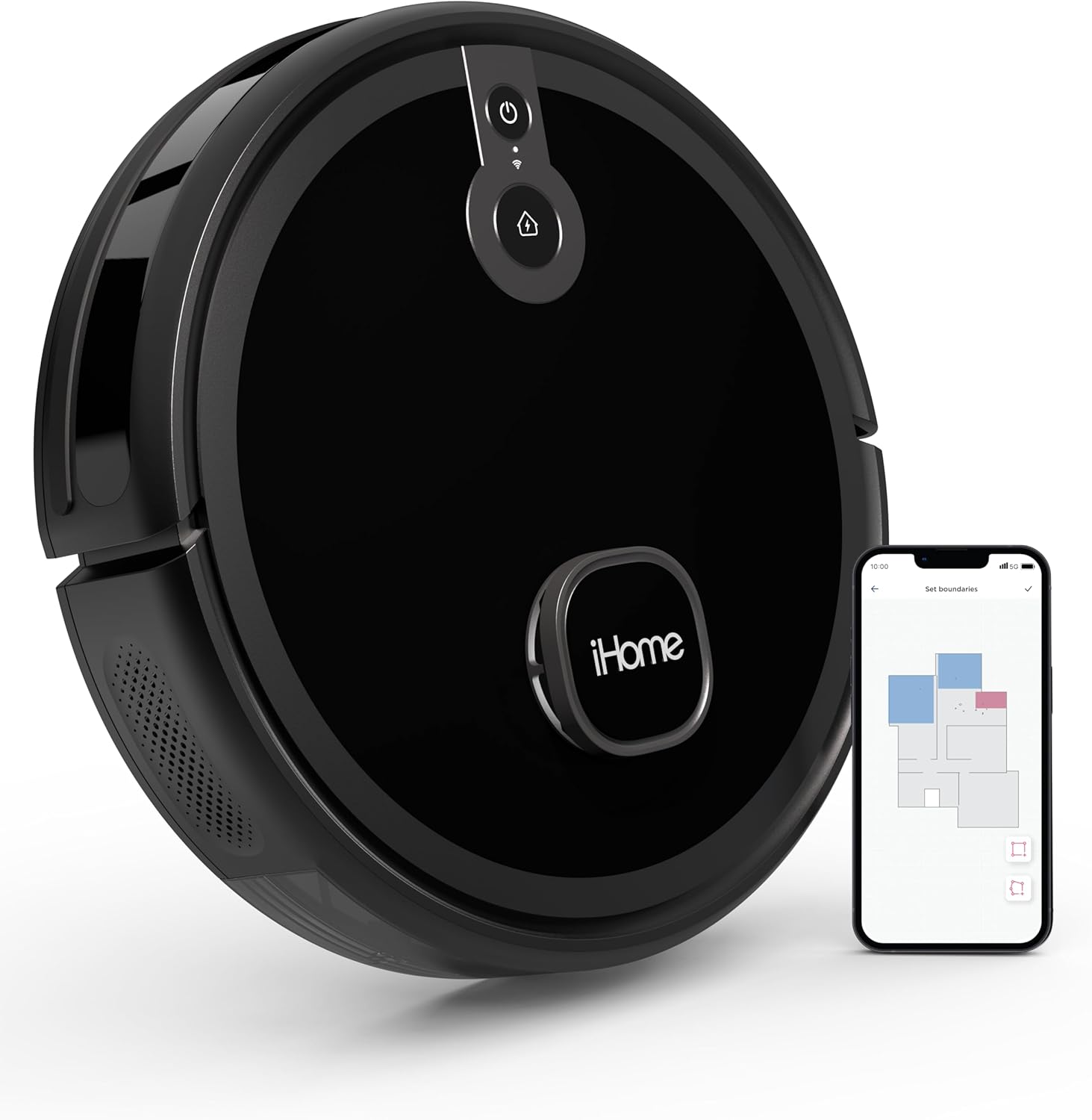
Image: The iHome AutoVac Nova S1 robot vacuum positioned next to a smartphone showing the iHome Clean app, which allows users to set virtual boundaries and customize cleaning areas.
4. Operating the Vacuum
4.1 LIDAR Navigation and Mapping
The Nova S1 utilizes advanced LIDAR Navigation with 360-degree scanning technology to create a precise map of your home. This map allows the vacuum to plan efficient cleaning paths, avoid obstacles, and ensure thorough coverage.

Image: A visual representation of a floor plan demonstrating how the 360° LIDAR Navigation system allows users to define specific cleaning areas and set virtual boundaries within their home.
4.2 Customized Cleaning and Virtual Boundaries
Through the iHome Clean app, you can customize your cleaning experience. Set virtual boundaries to restrict the vacuum from entering certain areas, or specify rooms for targeted cleaning. You can also create schedules for automated cleaning sessions.
Image: The iHome AutoVac Nova S1 robot vacuum positioned next to a smartphone showing the iHome Clean app, which allows users to set virtual boundaries and customize cleaning areas.
4.3 Runtime and Recharge & Resume
The Nova S1 can clean for up to 150 minutes on a single charge. When the battery is low, the vacuum will automatically return to its charging base. Once fully recharged, it will resume cleaning from where it left off, ensuring complete coverage of your home.

Image: The iHome AutoVac Nova S1 robot vacuum demonstrating its 150-minute runtime and its ability to return to the charging base for self-charging.

Image: The iHome AutoVac Nova S1 robot vacuum illustrating its "Recharge + Auto Resume" feature, where it returns to its base to charge and then continues cleaning from its last position.
4.4 Powerful Suction and Dual Action Cleaning
With 2600pa suction power, the Nova S1 effectively picks up dirt and debris. Its dual-action cleaning system, featuring a brush roll, agitates carpets to dislodge even the tiniest particles, ensuring a thorough clean on various floor types.

Image: The iHome AutoVac Nova S1 robot vacuum performing "Dual Action" cleaning, showing its ability to agitate carpets and pick up dirt from both rugs and hard floors.
4.5 Advanced Sensors (Cliff and Anti-Collision)
The Nova S1 is equipped with premium sensor technology to navigate your home safely. Cliff sensors prevent the vacuum from falling down stairs or off ledges. Anti-collision infrared sensors help the robot avoid bumping into furniture and other obstacles, allowing for non-stop cleaning.
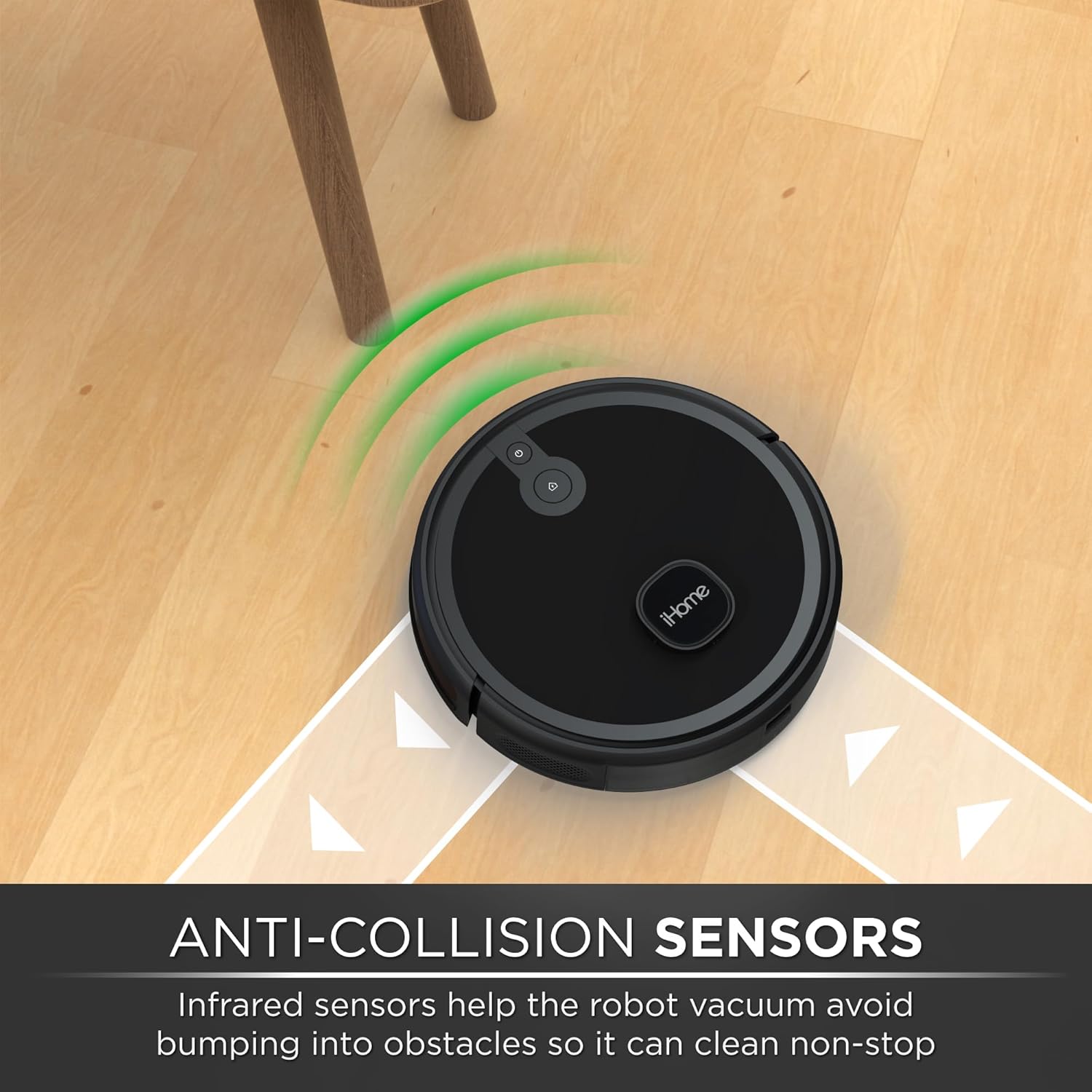
Image: The iHome AutoVac Nova S1 robot vacuum positioned at the edge of a step, demonstrating its "Cliff Sensors" which prevent it from falling.

Image: The iHome AutoVac Nova S1 robot vacuum navigating near furniture, illustrating its "Anti-Collision Sensors" that help it avoid bumping into obstacles.
5. Maintenance
Regular maintenance is crucial for the optimal performance and longevity of your iHome AutoVac Nova S1. Always turn off the vacuum and unplug the charging base before performing any maintenance.
5.1 Emptying the Dustbin
The dustbin should be emptied after each cleaning cycle or when full. Locate the dustbin release button, remove the dustbin, and discard collected debris. Rinse the dustbin with water if necessary, and allow it to air dry completely before reinserting.
5.2 Cleaning the Filters
The HEPA filter should be cleaned regularly, ideally weekly, by tapping it gently to remove dust. Replace the HEPA filter every 3-6 months, depending on usage, to maintain suction efficiency.
5.3 Cleaning the Brushes
- Main Brush: Remove the main brush cover and lift out the brush. Use the cleaning tool (if provided) or scissors to cut and remove any hair or debris tangled around the brush.
- Side Brush: Unscrew the side brush and remove any tangled hair or debris. Reattach the brush securely. Replace side brushes if they become worn or damaged.
5.4 Cleaning the Sensors
Wipe the cliff sensors (located on the bottom of the vacuum) and anti-collision sensors (located on the front bumper) with a clean, dry cloth. Ensure they are free of dust and debris to prevent navigation issues.
6. Troubleshooting
If your iHome AutoVac Nova S1 encounters an issue, refer to the following common troubleshooting steps. For persistent problems, contact customer support.
| Problem | Possible Cause | Solution |
|---|---|---|
| Vacuum does not turn on or charge. | Battery is depleted; charging contacts are dirty; power adapter is not connected. | Ensure vacuum is properly docked. Clean charging contacts on both vacuum and base. Check power adapter connection. Allow sufficient charging time. |
| Vacuum gets stuck frequently or moves erratically. | Sensors are dirty or blocked; too many obstacles; wheel malfunction. | Clean all sensors. Clear obstacles from the cleaning path. Check wheels for obstructions or damage. (Note: Some renewed units may have wheel issues as per user reviews). |
| Vacuum returns to base prematurely or does not complete cleaning. | Low battery; charging base is inaccessible; large cleaning area. | Ensure charging base is clear and accessible. Divide large areas into smaller zones using the app. |
| Poor cleaning performance. | Dustbin is full; filters are clogged; brushes are tangled. | Empty dustbin. Clean or replace filters. Clean main and side brushes. |
| "FAULT" error message or stops every few feet. | Internal malfunction; sensor blockage (LIDAR). | Turn off and restart the vacuum. Ensure LIDAR sensor is clean and unobstructed. If persistent, this may indicate a unit defect, especially for renewed products. |
7. Specifications
| Feature | Detail |
|---|---|
| Brand | iHome |
| Model Name | Nova S1 |
| Item Model Number | iHRVS1-3BLK |
| Special Feature | Bagless |
| Color | Black |
| Product Dimensions | 10"L x 10"W x 3.5"H |
| Included Components | Floor Brush (and other accessories as listed in Section 2) |
| Filter Type | Cartridge (HEPA) |
| Battery Life | 150 minutes |
| Capacity | 180 Milliliters (dustbin) |
| Power Source | Battery Powered |
| Control Method | App, Remote Control |
| Form Factor | Robotic |
| UPC | 850038846718 |
| Manufacturer | iHome |
8. Warranty and Support
This iHome AutoVac Nova S1 is a renewed product. Renewed products typically come with a limited warranty provided by the seller or the Amazon Renewed program.
8.1 Amazon Renewed Guarantee
As an Amazon Renewed product, it is backed by the Amazon Renewed Guarantee, which provides a replacement or refund within 90 days of receipt if the product does not work as expected. Please refer to the Amazon Renewed program terms and conditions for full details.
8.2 Product Support
For technical assistance, troubleshooting beyond this manual, or warranty claims, please contact the seller "Verdi!" through your Amazon order details. You may also visit the official iHome support website for general product information and resources.
Note: As this is a renewed product, direct manufacturer support may vary. Always refer to the seller for initial support.
Related documentsiHRVS1-3BLK


Ask a question about this manual
Ask about setup, troubleshooting, compatibility, parts, safety, or missing instructions. Manuals+ will review the question and use this page’s manual context to help answer it.