
Introduction
Welcome to your new Amazon Kindle (11th Generation). This device is designed to provide an unparalleled reading experience, offering a lightweight and compact design with enhanced display features. This manual will guide you through the setup, operation, maintenance, and troubleshooting of your Kindle.
For optimal performance and longevity of your device, please read this manual thoroughly and retain it for future reference.
Product Overview and Features
The Amazon Kindle (11th Generation) is engineered for dedicated reading, minimizing distractions and maximizing comfort. Key features include:
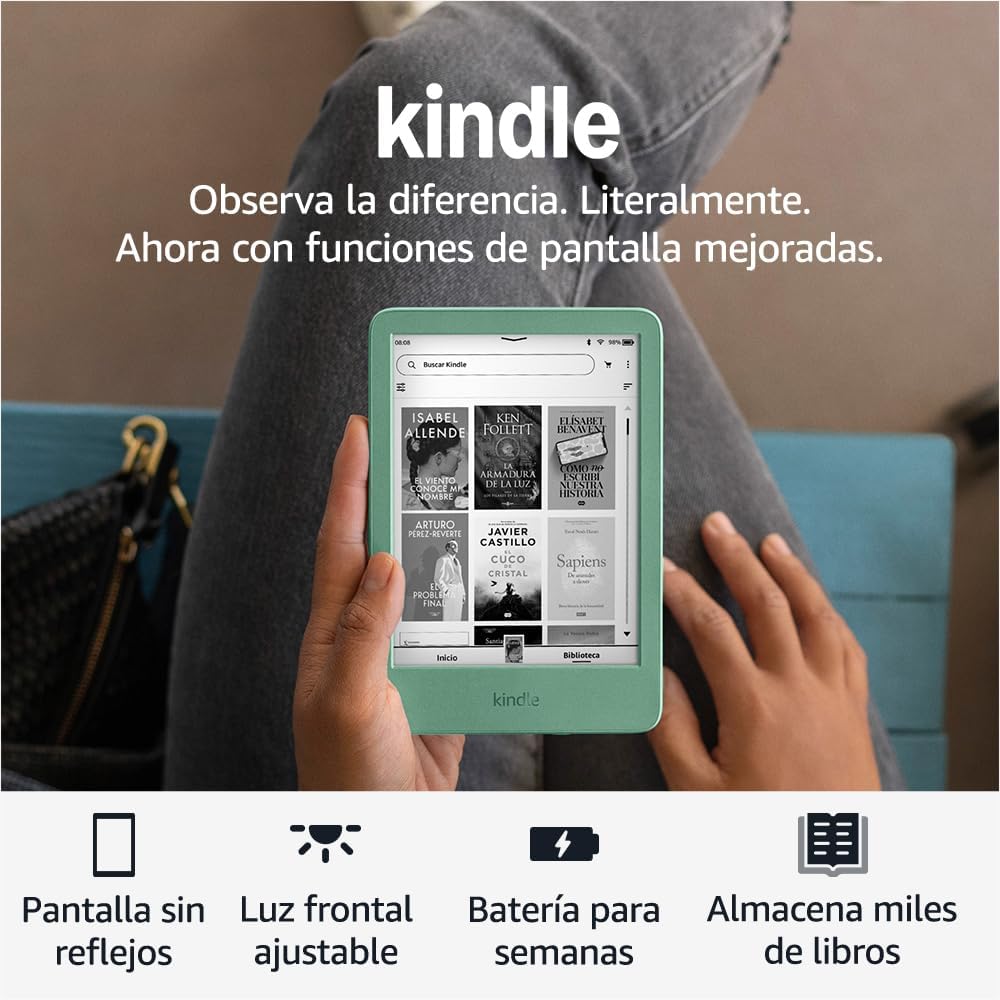
- Lightest and Most Compact Kindle: Designed for portability and comfortable holding during extended reading sessions.
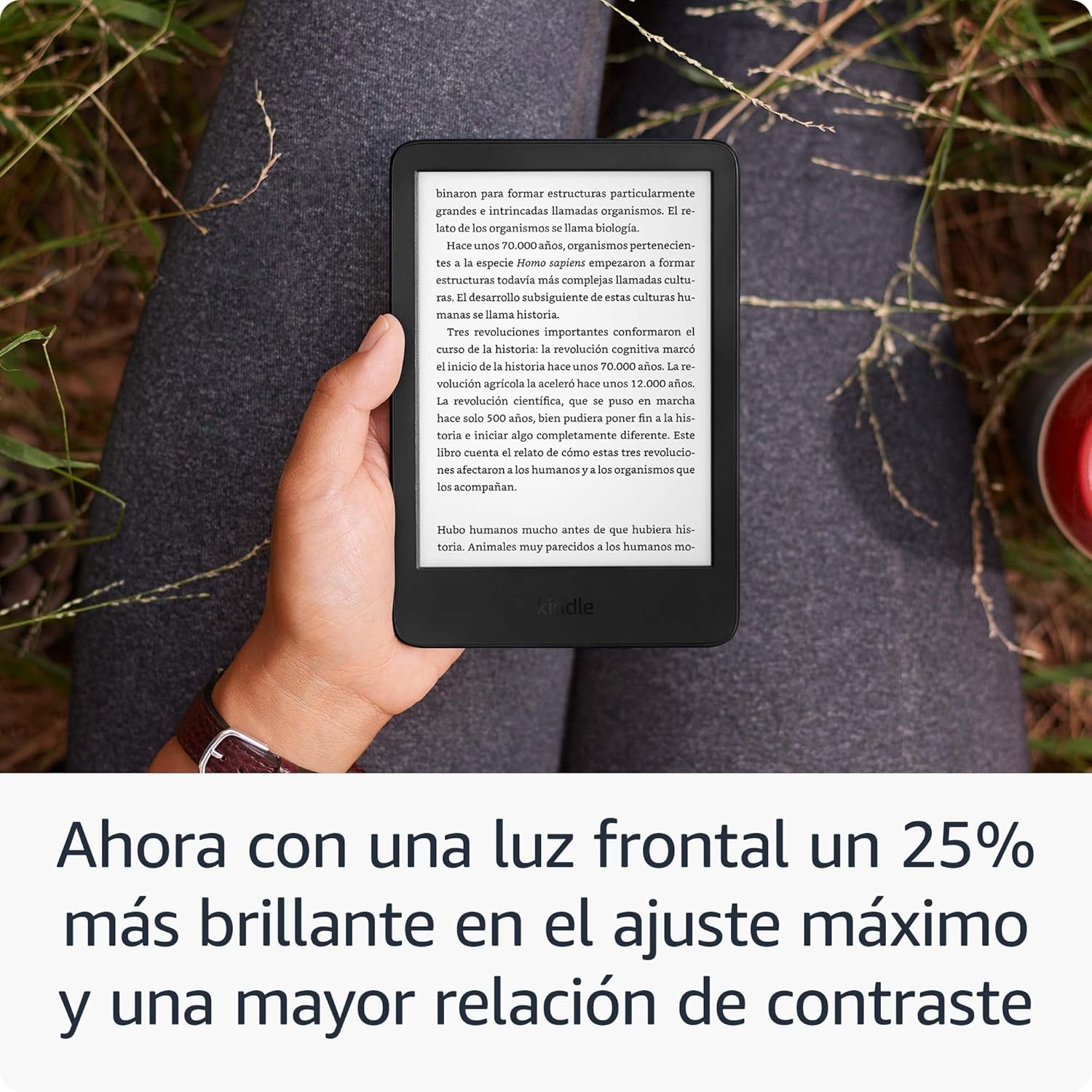
- Improved Display: Features a brighter front light at maximum setting, higher contrast, and faster page turns for a superior reading experience.
- Glare-Free Screen: A 6-inch display that reads like real paper, even in direct sunlight.
- Adjustable Front Light & Dark Mode: Read comfortably in any lighting condition, day or night.
- Distraction-Free Reading: Disconnect from messages, emails, and social media to immerse yourself in your books.
- Extended Battery Life: Enjoy up to six weeks of battery life on a single charge.
- Ample Storage: 16 GB of storage capacity, enough to hold thousands of books.
- Kindle Unlimited Access: Discover new stories with unlimited access to over 4 million titles and thousands of audiobooks (subscription required).
- Sustainable Design: Constructed with 75% recycled plastics and 90% recycled magnesium.
Product Visuals



Setup
Initial Setup
Follow these steps to set up your Kindle for the first time:
- Power On: Press and hold the power button located on the bottom edge of your Kindle until the screen lights up.
- Select Language: Choose your preferred language from the list.
- Connect to Wi-Fi: Select your Wi-Fi network from the available list and enter the password if prompted. Your Kindle supports 2.4 GHz and 5.0 GHz networks with WEP, WPA, WPA2, and OWE security.
- Register Your Kindle: Sign in with your existing Amazon account or create a new one. This links your Kindle to your content library.
- Tutorial: Follow the on-screen tutorial to familiarize yourself with basic navigation and features.
Charging Your Kindle
Your Kindle comes with a USB-C charging cable. To charge your device:
- Connect the USB-C end of the cable to your Kindle's charging port.
- Connect the USB-A end to a computer's USB port or a 9W USB power adapter (not included).
- A full charge takes approximately 4 hours via USB from a computer, or about 2 hours with a 9W USB power adapter.
Operating Your Kindle
Navigating the Interface
The Kindle features a touch-sensitive screen for easy navigation:
- Home Screen: Displays your current reads, recommended books, and quick access to your library and the Kindle Store.
- Library: Tap "Library" to view all your downloaded books and content.
- Kindle Store: Tap "Store" to browse, purchase, and download new books.
- Settings: Swipe down from the top of the screen to access quick settings like Wi-Fi, Airplane Mode, and screen brightness.
Reading Books
To begin reading:
- Tap on a book cover from your Home screen or Library to open it.
- Tap the right side of the screen to turn to the next page, or the left side to go back.
- Tap the top of the screen to bring up the reading toolbar, allowing you to adjust font size, font type, line spacing, margins, and access other reading options.
Downloading Content
With your Kindle connected to Wi-Fi, you can easily download new content:
- Navigate to the Kindle Store from your device.
- Browse or search for titles.
- Select a book and choose to buy it or download it if it's part of your Kindle Unlimited subscription.
- Downloaded content will automatically appear in your Library.
Accessibility Features
The Kindle includes several accessibility features to enhance the reading experience for all users:
- VoiceView Screen Reader: Available via Bluetooth audio, VoiceView provides audio descriptions to navigate your device and read books with text-to-speech (English only).
- Invert Black and White: Change the display to white text on a black background for reduced eye strain in low light.
- Adjustable Text: Customize font size, font type, line spacing, and margins to your preference.
Maintenance
Cleaning Your Kindle
To keep your Kindle clean and in good condition:
- Use a soft, lint-free cloth to gently wipe the screen and body of the device.
- Do not use abrasive cleaners, solvents, or aerosol sprays.
- Avoid getting moisture into any openings.
Battery Care
To maximize your Kindle's battery life:
- Keep Wi-Fi turned off when not actively downloading content.
- Adjust the front light to a comfortable level; higher brightness consumes more power.
- Avoid extreme temperatures.
- Note that using Audible audiobooks via Bluetooth will reduce battery life.
Troubleshooting
Common Issues and Solutions
| Issue | Solution |
|---|---|
| Device is unresponsive or frozen. | Press and hold the power button for 40 seconds until the device restarts. |
| Cannot connect to Wi-Fi. | Ensure your Wi-Fi password is correct. Restart your Kindle and your Wi-Fi router. Verify your network is 2.4 GHz or 5.0 GHz and not an ad-hoc network. |
| Books are not downloading. | Check your Wi-Fi connection. Ensure your Amazon account is properly registered and your payment method is up to date. |
| Battery drains quickly. | Reduce screen brightness. Turn off Wi-Fi when not in use. Avoid using Bluetooth audio for extended periods. |
If you encounter issues not listed here or if the suggested solutions do not resolve your problem, please refer to the "Further Assistance" section for support options.
Specifications
| Feature | Description |
|---|---|
| Display | 6-inch Amazon display with built-in reading light, 300 ppi, optimized font technology, 16-level grayscale. |
| Size | 157.8 x 108.6 x 8.0 mm (6.2” x 4.3” x 0.32”). Actual size may vary by configuration and manufacturing process. |
| Weight | 158 g (5.56 oz). Actual weight may vary by configuration and manufacturing process. |
| System Requirements | None; fully wireless and does not require a computer to download content. |
| On-Device Storage | 16 GB; holds thousands of books. |
| Cloud Storage | Free cloud storage for all Amazon content. |
| Battery Life | A single charge lasts up to six (6) weeks, based on half an hour of reading per day with wireless off and light setting at 13. Battery life may vary based on usage. Audible audiobook reception via Bluetooth will reduce battery life. |
| Charge Time | Fully charges in approximately 4 hours via USB from a computer; and in approximately 2 hours with a 9W USB power adapter. |
| Wi-Fi Connectivity | Supports 2.4 GHz and 5.0 GHz networks with WEP, WPA, WPA2, and OWE security via password authentication or Wi-Fi Protected Setup (WPS). Does not support connection to ad-hoc (or peer-to-peer) Wi-Fi networks. |
| Accessibility Features | VoiceView screen reader (via Bluetooth audio), invert black and white, adjustable font size, font type, line spacing, and margins. |
| Supported Content Formats | Kindle Format 8 (AZW3), Kindle (AZW), TXT, PDF, unprotected MOBI, PRC natively; PDF, DOCX, DOC, HTML, EPUB, TXT, RTF, JPEG, GIF, PNG, BMP through conversion; Audible audio format (AAX). |
| Included in the Box | Kindle device, USB-C charging cable, and Quick Start Guide. |
| Generation | Kindle (11th Generation): 2024 version. |
Warranty and Support
Warranty Information
Your Kindle includes a 1-year limited warranty and service. Use of the Kindle is subject to the Amazon Conditions of Use.
Software Updates
This device receives guaranteed software security updates for at least four years after it is last available for purchase as a new unit on our websites. For specific information about your device, visit Manage Your Content and Devices.
Further Assistance
For more information about Kindle devices, refer to the Quick Start Guide and the Kindle User Guide available online. You can also visit Amazon's customer support website for additional help.
Safety Information
Please read the following safety information before using your Kindle:
- Do not expose your Kindle to extreme temperatures, direct sunlight for prolonged periods, or excessive moisture.
- Avoid dropping or subjecting the device to severe impact.
- Only use approved accessories, such as the included USB-C cable, for charging.
- Do not attempt to disassemble, repair, or modify your Kindle. This will void the warranty and could cause injury.
- Keep the device away from small children and pets.


