
Introduction
This manual provides instructions for the Akasa AK-CR-12 2-in-1 USB 3.2 Dual Card Reader. This device offers expanded connectivity for common memory cards, including SD, SDHC, SDXC, microSD, microSDHC, and microSDXC, in a compact aluminum housing. It is designed for compatibility with various devices featuring either USB Type-C or USB Type-A connectors.
Product Features
- Dual Port Design: Features both USB Type-A and Type-C connectors for versatile device compatibility.
- High-Speed Data Transfer: Supports USB 3.2 Gen 1, providing data transfer rates up to 5Gbps.
- Dual Card Slots: Simultaneously reads and writes SD and microSD cards.
- Wide Operating System Compatibility: Works with macOS, Windows, Linux, and Android systems.
- Durable Construction: Premium aluminum housing enhances heat dissipation and protection.
- Plug & Play: No drivers required for most operating systems.
- Hot Swappable: Allows for connection and disconnection without restarting the device.
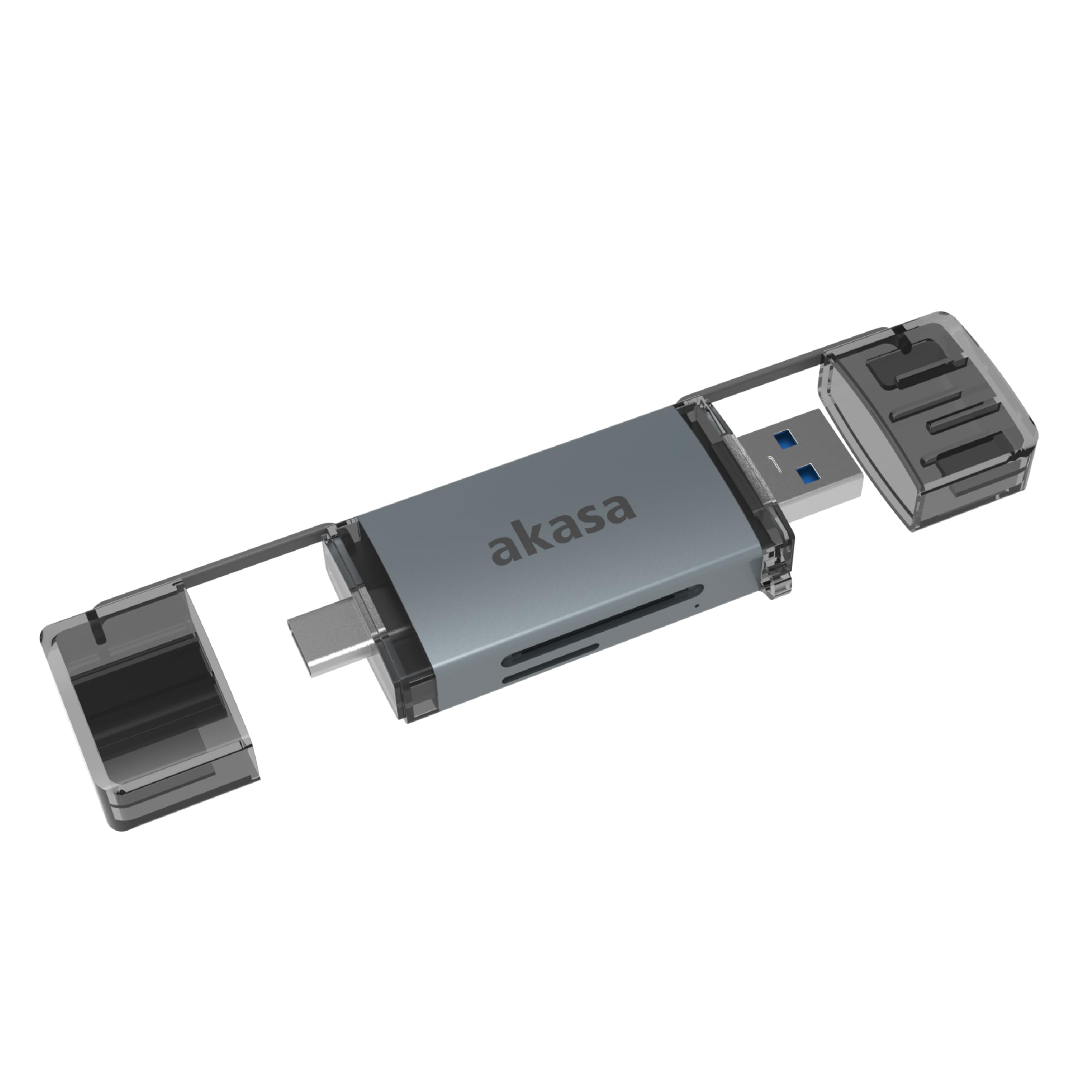
Image: The Akasa AK-CR-12 connected to a laptop, highlighting its USB 3.2 Gen 1 high-speed data transmission capability of up to 5Gbps, compared to USB 2.0's 480Mbps.

Image: A close-up view of the Akasa AK-CR-12, emphasizing its aluminum housing designed for enhanced heat dissipation and protection, and its ease of plugging into various devices.
Setup and Operation
- Insert Memory Card: Gently insert your SD or microSD card into the corresponding slot on the Akasa AK-CR-12. Ensure the card is inserted correctly with the contacts facing down.
- Connect to Device:
- For devices with a USB Type-C port (e.g., modern laptops, smartphones, tablets), connect the USB Type-C end of the card reader.
- For devices with a USB Type-A port (e.g., older laptops, desktop PCs), connect the USB Type-A end of the card reader.
- Access Data: Once connected, your operating system should automatically detect the card reader and the inserted memory card. The memory card will appear as a removable drive. You can then access, transfer, and manage files as you would with any other storage device.
- Eject Safely: Before disconnecting the card reader, always safely eject the removable drive through your operating system's interface to prevent data corruption.
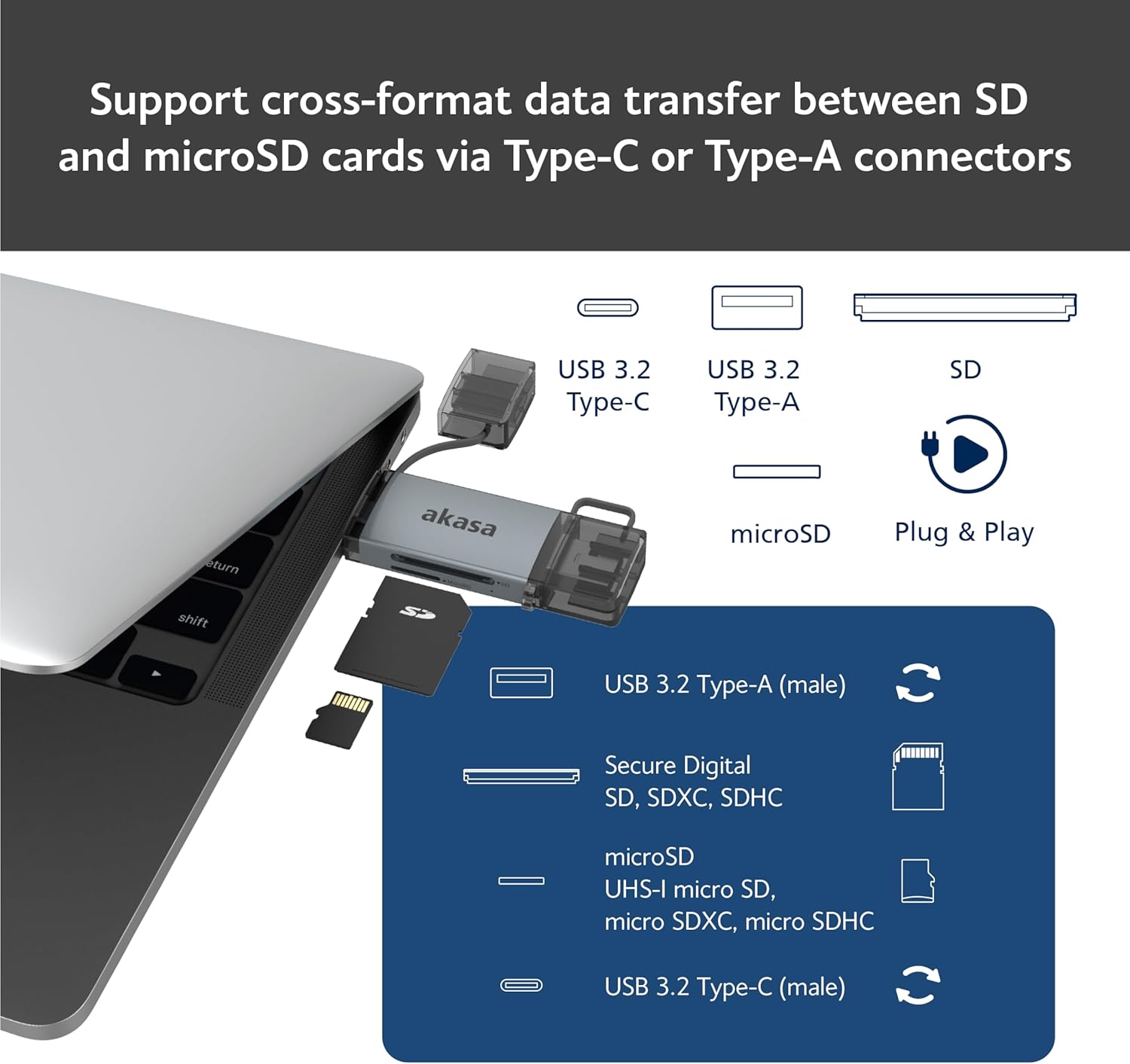
Image: An illustration demonstrating how to support cross-format data transfer between SD and microSD cards using the Type-C or Type-A connectors of the Akasa AK-CR-12, showing the different connector types and card slots.
Compatibility
The Akasa AK-CR-12 is designed for broad compatibility with various operating systems and devices:
- Operating Systems:
- macOS 10.6.2 or higher
- Windows XP/7/8/10/11
- Linux Fedora FC8 or higher
- Android System
- Compatible Devices: Personal Computers, Laptops, Smartphones, Tablets.
- Memory Card Types: Secure Digital (SD, SDHC, SDXC, UHS-I), microSD (microSD, microSDHC, microSDXC).
Note for Smartphone/Tablet Devices:
If an adapter is needed for smartphone/tablet devices, the device must have USB OTG (On-The-Go) functionality to utilize the card reader feature.
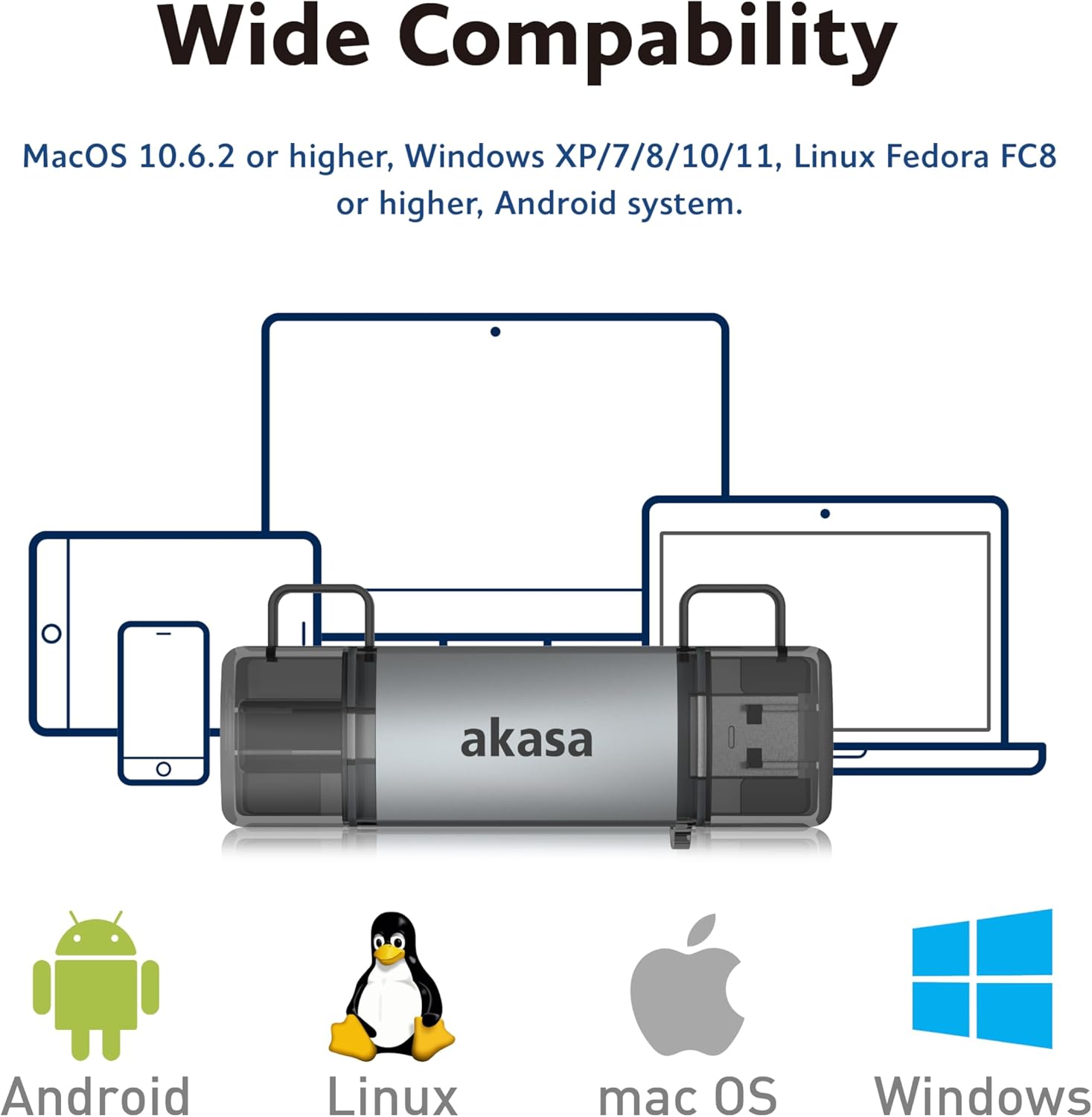
Image: The Akasa AK-CR-12 positioned centrally with logos for Android, Linux, macOS, and Windows operating systems, illustrating its wide compatibility across different platforms.
Specifications
| Feature | Detail |
|---|---|
| Application | External USB 3.2 Gen 1 Card Reader |
| Dimensions | 84.5 x 25.35 x 11.4 mm |
| Upstream Ports | USB 3.2 Type-C (male) & USB 3.2 Type-A (male) |
| Memory Card Types | Secure Digital (UHS-I micro SD, micro SDXC, micro SDHC), microSD (micro SD, micro SDXC, micro SDHC) |
| Max Data Transfer Rate | 5Gb/s (USB 3.2 Gen 1 / USB 3.0), 480Mb/s (USB 2.0) |
| OS Compatibility | macOS 10.6.2 or higher, Windows XP/7/8/10/11, Linux Fedora FC8 or higher, Android System |
| Plug & Play | Supported |
| Hot Swappable | Supported |
| Product Code | AK-CR-12 |
| Item Weight | 20 Grams |

Image: A detailed diagram illustrating the physical dimensions of the Akasa AK-CR-12, including its length (84.5mm), width (25.35mm), and thickness (11.4mm).
Troubleshooting
- Device Not Detected:
- Ensure the card reader is firmly connected to your device's USB port.
- Try a different USB port on your computer or device.
- Verify that the memory card is correctly inserted into the card reader.
- Test the card reader on another compatible device to rule out a port issue.
- Slow Data Transfer:
- Ensure you are connected to a USB 3.0/3.2 port for optimal speeds. Connecting to a USB 2.0 port will result in lower transfer rates (up to 480Mb/s).
- Check the speed class of your memory card; slower cards will limit transfer speeds.
- Avoid transferring many small files simultaneously, as this can reduce overall speed.
- Cannot Access Files:
- Ensure the memory card is not write-protected (check for a physical lock switch on SD cards).
- Verify the memory card is formatted correctly for your operating system.
- Try accessing the card directly if your device has a built-in card reader to confirm the card itself is functional.
- Smartphone/Tablet Compatibility:
- Confirm your smartphone or tablet supports USB OTG (On-The-Go) functionality. This is essential for the device to recognize external USB storage.
- Some devices may require enabling OTG in their settings.
Maintenance
- Cleaning: Use a soft, dry cloth to clean the exterior of the card reader. Avoid liquid cleaners or solvents.
- Storage: Store the card reader in a cool, dry place away from direct sunlight and extreme temperatures.
- Protection: Keep the protective caps on the USB connectors when not in use to prevent dust and damage.
- Handling: Avoid dropping the device or subjecting it to strong impacts.
Warranty and Support
For warranty information and technical support, please refer to the official Akasa website or contact your local retailer. Keep your purchase receipt as proof of purchase.
Akasa Official Website: www.akasa.com.tw


