
MANBASNAKE B0CP1NPHHW
MANBASNAKE 60% RGB TKL Gaming Keyboard and Headset User Manual
Model: B0CP1NPHHW
1. Introduction
This manual provides detailed instructions for the setup, operation, and maintenance of your MANBASNAKE 60% RGB TKL Gaming Keyboard, Honeycomb RGB Mouse, and Gaming Headset. This wired combo is designed for gaming and daily office use, offering broad compatibility with various operating systems and gaming consoles.

Image 1.1: The complete MANBASNAKE gaming peripheral set, including the 60% RGB TKL keyboard, honeycomb RGB mouse, and gaming headset.
2. Package Contents
Please verify that all items listed below are included in your package:
- 1 x MANBASNAKE 60% RGB TKL Gaming Keyboard (Wired)
- 1 x MANBASNAKE Honeycomb RGB Gaming Mouse (Wired)
- 1 x MANBASNAKE Gaming Headset with Microphone (Wired)
- 1 x User Manual (This document)

Image 2.1: Overview of the keyboard, mouse, and headset included in the package.
3. Setup Guide
Follow these steps to set up your gaming peripherals.
3.1 Keyboard Setup
- Locate an available USB port on your computer or gaming console.
- Plug the USB connector of the keyboard into the USB port.
- The keyboard is plug-and-play; no additional drivers are typically required.
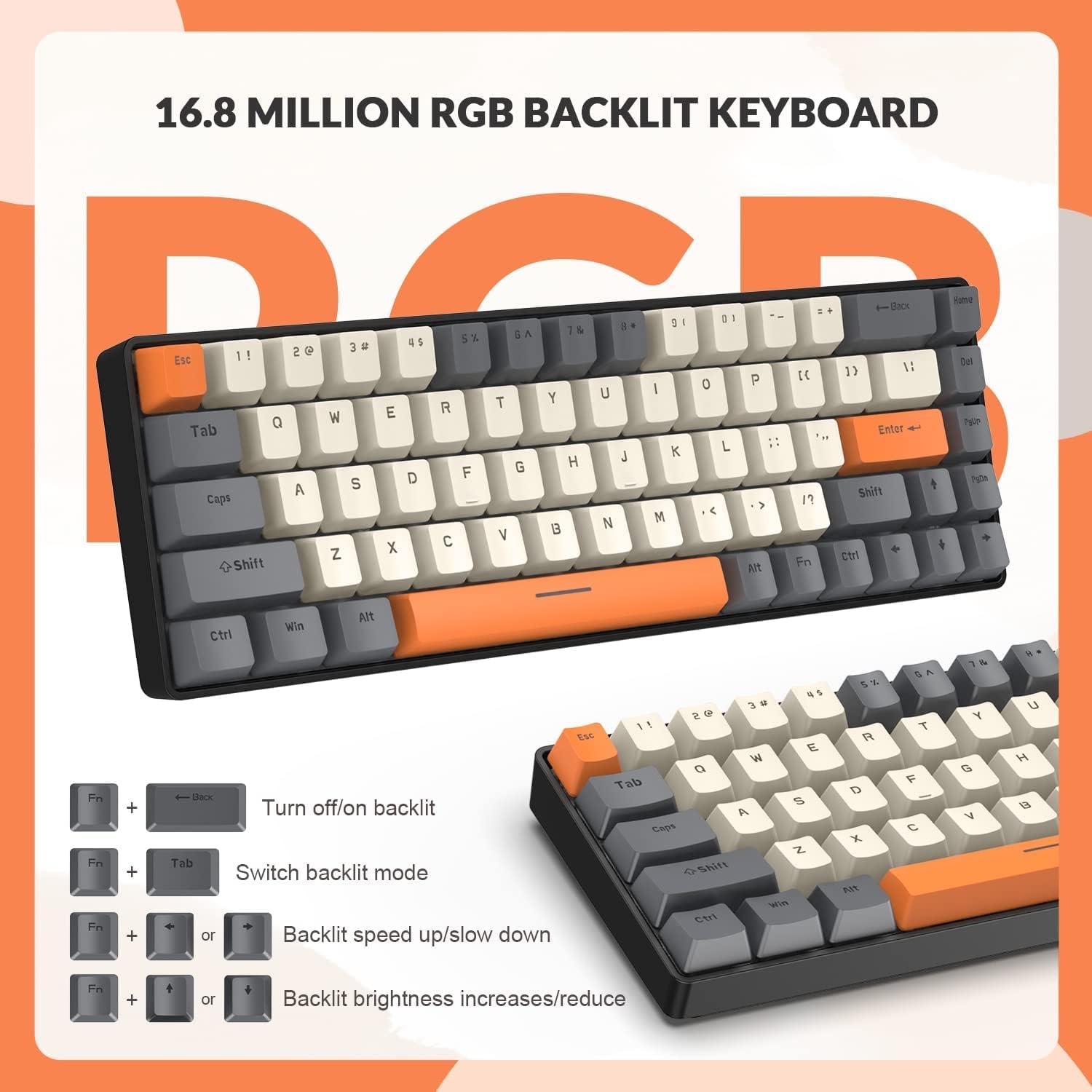
Image 3.1: The keyboard and mouse connected to a desktop setup, demonstrating typical wired connection.
3.2 Mouse Setup
- Locate an available USB port on your computer or gaming console.
- Plug the USB connector of the mouse into the USB port.
- The mouse is plug-and-play. For advanced customization (e.g., macro buttons), refer to the manufacturer's website for optional software.
3.3 Headset Setup
- For PC/Laptop: Use the included Y-splitter cable if your device has separate audio-out (headphone) and audio-in (microphone) jacks. Connect the headset's 3.5mm jack to the splitter, then connect the splitter's two plugs to the corresponding ports on your computer.
- For PS4/PS5/Xbox/Smartphone/Tablet: Plug the single 3.5mm jack of the headset directly into the device's audio port. An adapter may be required for some Xbox controllers (not included).
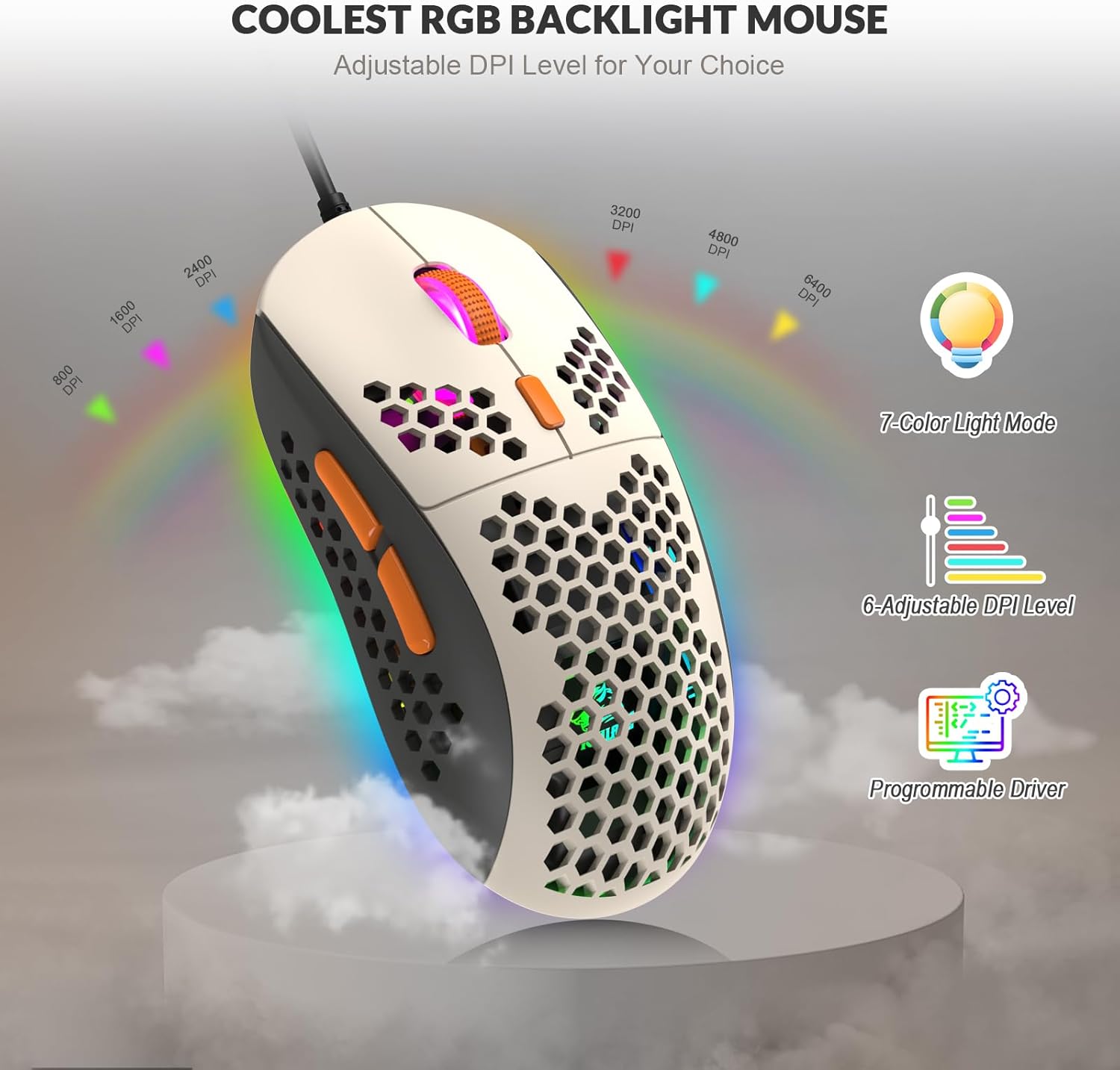
Image 3.2: Diagram illustrating the various connection methods for the headset across different platforms, including PC, PS4, Xbox, and mobile devices.
4. Operating Instructions
4.1 Keyboard Functions
The 60% layout with 68 keys includes separate arrow keys, providing a compact yet functional design. It features full-key anti-ghosting for precise input during gaming.
- RGB Backlight Control: The keyboard offers up to 18 kinds of RGB backlit effects.
- Press Fn + \ to turn the backlight on/off.
- Press Fn + Tab to switch between different backlight modes.
- Press Fn + [ or Fn + ] to adjust backlight speed (speed up/slow down).
- Press Fn + ; or Fn + ' to adjust backlight brightness (increase/reduce).
- Mechanical Blue Switches: Provide a clear tactile "click" sound for precise feedback.

Image 4.1: Features of the T8 60% mechanical keyboard, highlighting its compact layout, separate arrow keys, and RGB backlight capabilities.
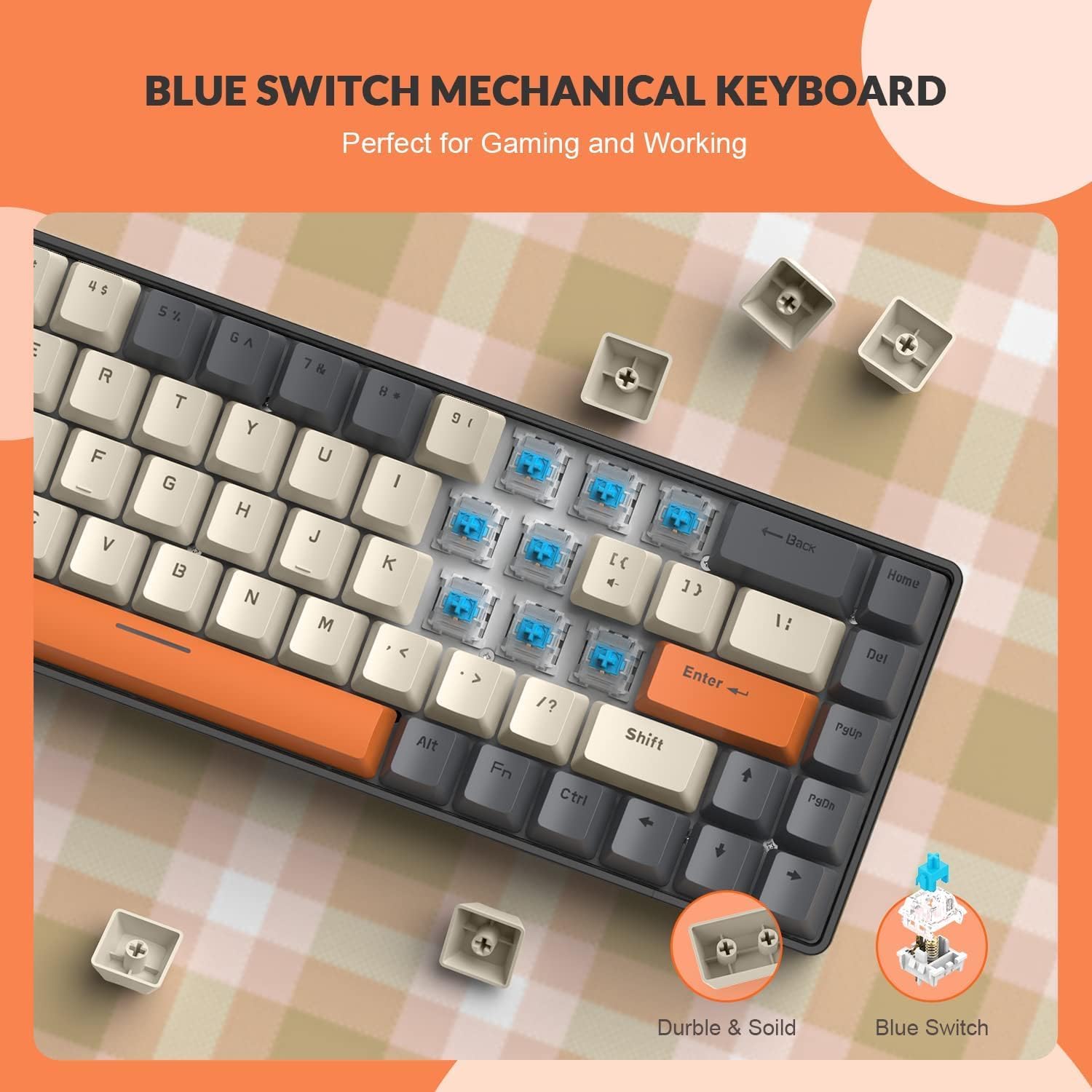
Image 4.2: Visual guide for controlling the keyboard's RGB backlight effects using function key combinations.
Image 4.3: Close-up view of the blue mechanical switches, emphasizing their durable and solid construction.
4.2 Mouse Functions
The lightweight honeycomb design mouse weighs approximately 69g (±5g) and features a high-precision optical sensor.
- Adjustable DPI: Cycle through 6 levels of DPI settings: 800 / 1600 / 2400 / 3200 / 4800 / 6400. Use the DPI button located behind the scroll wheel to change sensitivity.
- Programmable Buttons: The mouse features 6 programmable macro buttons. Refer to the manufacturer's website for software to customize these buttons.
- RGB Backlight: The mouse has 6 kinds of RGB backlit effects, enhancing your gaming experience.

Image 4.4: The honeycomb RGB backlight mouse, illustrating its adjustable DPI levels and 7-color light mode.
4.3 Headset Functions
The gaming headset provides stereo sound with deep bass and crisp highs, designed for prolonged sessions with soft earpads.
- Foldable Microphone: The microphone can be folded up when not in use. Ensure it is positioned correctly for clear communication.
- Volume Control: Adjust the audio volume using the inline volume control on the headset cable.

Image 4.5: The gaming headset, highlighting its lightweight design and RGB lighting on the earcups.
5. Care and Maintenance
Proper care will extend the lifespan of your gaming peripherals.
- Cleaning:
- Disconnect all devices from the power source before cleaning.
- Use a soft, dry cloth to wipe down the surfaces of the keyboard, mouse, and headset.
- For stubborn dirt, slightly dampen the cloth with water or a mild, non-abrasive cleaner. Avoid excessive moisture.
- Do not use harsh chemicals, solvents, or abrasive materials, as these can damage the finish.
- For the keyboard, use compressed air to remove dust and debris from between the keycaps.
- Storage: Store the devices in a cool, dry place away from direct sunlight and extreme temperatures.
- Handling: Avoid dropping the devices or exposing them to strong impacts. Do not pull on the cables excessively.
6. Troubleshooting
If you encounter issues, please refer to the table below for common problems and solutions.
| Problem | Possible Cause | Solution |
|---|---|---|
| Keyboard/Mouse not responding | Loose USB connection, faulty USB port, driver issue. | Ensure USB cable is securely plugged in. Try a different USB port. Restart your computer. |
| Keyboard backlight not working | Backlight turned off, software glitch. | Press Fn + \ to toggle backlight. Try switching modes with Fn + Tab. |
| Mouse DPI not changing | DPI button not pressed correctly, software interference. | Ensure you are pressing the DPI button firmly. Check if any third-party software is overriding settings. |
| Headset audio not working | Incorrect port connection, volume too low, system audio settings. | Verify the 3.5mm jack is fully inserted. Check inline volume control. Ensure headset is selected as default audio device in your system settings. |
| Headset microphone not working | Microphone muted, incorrect port connection, system microphone settings. | Ensure microphone is not muted. For PC, use the Y-splitter. Check system sound settings to ensure the microphone is enabled and selected as the input device. |
7. Technical Specifications
| Feature | Specification |
|---|---|
| Product Model | B0CP1NPHHW |
| Brand | MANBASNAKE |
| Connectivity Technology | USB (Wired) |
| Keyboard Layout | 60% (68 Keys) |
| Keyboard Switch Type | Mechanical Blue Switches |
| Keyboard Backlight | RGB (18 modes) |
| Mouse DPI Levels | 800/1600/2400/3200/4800/6400 |
| Mouse Buttons | 6 Programmable Macro Buttons |
| Mouse Design | Lightweight Honeycomb Shell |
| Headset Audio | Stereo Sound, Deep Bass, Crisp Highs |
| Headset Microphone | Foldable |
| Compatible Devices | PC, Mac OS, PS4, PS5, Xbox (adapter may be required for some Xbox controllers) |
| Item Weight | 3.03 pounds (total package) |
| Package Dimensions | 13.27 x 7.24 x 5.67 inches |
8. Warranty and Support
MANBASNAKE products are manufactured to high quality standards. For specific warranty details and support, please refer to the warranty card included with your product or visit the official MANBASNAKE website. Please retain your proof of purchase for warranty claims.
For technical assistance or customer service inquiries, please contact MANBASNAKE support through the contact information provided on their official website or through your retailer.
Ask a question about this manual
Ask about setup, troubleshooting, compatibility, parts, safety, or missing instructions. Manuals+ will review the question and use this page’s manual context to help answer it.