
1. Introduction
This manual provides instructions for the setup, operation, and maintenance of the Missyou MS50D2 19.7-inch 3D Hologram Fan. This device is an LED holographic projector designed to display 3D visuals that appear to float in mid-air, suitable for various display environments.
2. Product Components
The Missyou MS50D2 3D Hologram Fan package includes the following items:
- Hologram Fan Main Unit with Blades
- Power Adapter
- Remote Control
- User Manual
- TF Card
- Mounting Screws and Wall Mount Brackets
- Screwdriver
- Warranty Card

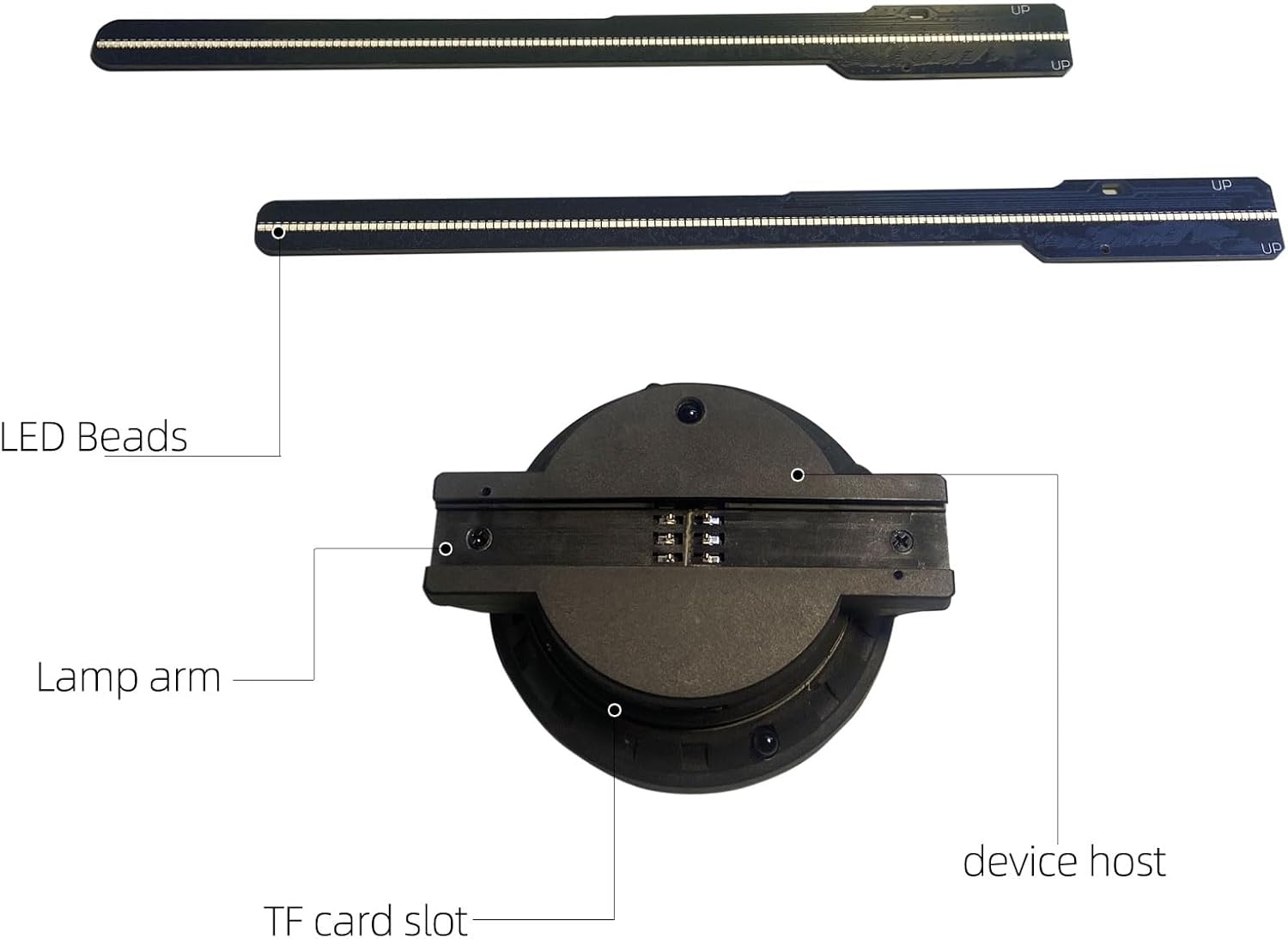
3. Setup Instructions
- Unpacking: Carefully remove all components from the packaging. Verify that all items listed in the "Product Components" section are present.
- Blade Assembly: Attach the fan blades to the main unit. Ensure they are securely fastened using the provided screws and screwdriver. Refer to the detailed component image for correct orientation.
- Mounting:
- Wall Mount: Use the provided wall mount brackets and screws to securely attach the hologram fan to a stable wall surface. Ensure the mounting location is free from obstructions and allows for adequate clearance around the spinning blades.
- Alternative Mounting: The device also features bottom screw holes for compatibility with other mounting solutions, such as tripods (not included). Ensure any alternative mount is stable and can safely support the device during operation.
Safety Warning: Do not power on the device before it is securely mounted. The spinning blades can cause injury if the device is not stable.
- Power Connection: Connect the power adapter to the hologram fan's power input port and then plug it into a standard electrical outlet.

4. Operating Instructions
4.1 Power On/Off
Once securely mounted and connected to power, the device can be turned on using the remote control or the mobile application.
4.2 Content Management
The Missyou MS50D2 supports content management via Wi-Fi, Bluetooth, and a dedicated mobile application. It is compatible with MP4 and AVI video formats.
- Mobile Application Control:
- Download and install the official Missyou hologram fan application on your smartphone or tablet (Android/iOS).
- Connect your device to the hologram fan via Wi-Fi or Bluetooth as instructed by the application.
- Use the app to wirelessly upload, update, and manage 3D video content. The app also allows for brightness control and playback settings.
- For synchronized audio, ensure external audio devices are paired via Bluetooth if supported by your specific model.
- Remote Control Operation:
- The included physical remote control allows for convenient management of power, brightness, and playback settings.
- Point the remote control towards the main unit of the hologram fan for optimal response.
- Content Creation and Upload:
- The device supports MP4 and AVI video formats. Video conversion tools may be included on the TF card or available for download to ensure compatibility.
- To upload custom content, transfer the compatible video files to the TF card and insert it into the device's TF card slot. Alternatively, use the mobile application for wireless upload.
- A library of over 1500 preloaded 3D video animations is available. Contact Missyou support for access to this resource.


5. Maintenance
- Cleaning: Ensure the device is powered off and unplugged before cleaning. Use a soft, dry cloth to gently wipe the main unit and blades. Avoid using liquid cleaners or abrasive materials.
- Blade Inspection: Periodically check the fan blades for any signs of damage or looseness. Ensure they are securely attached.
- Protective Cover: For installations in high-traffic areas or for long-term display, consider using a compatible transparent protective cover (sold separately) to prevent dust accumulation, accidental contact, and potential damage.
- Storage: When not in use for extended periods, store the hologram fan in a dry, cool place, preferably in its original packaging.

6. Troubleshooting
- Device does not power on:
- Ensure the power adapter is securely connected to both the device and a working electrical outlet.
- Verify that the power button on the remote control or in the app is pressed.
- No 3D image or image is distorted:
- Check that the fan blades are securely attached and spinning correctly.
- Ensure the video content is in a compatible format (MP4 or AVI) and has been converted using the recommended tools if necessary.
- Verify that the TF card is properly inserted and contains valid content.
- Confirm that the device is operating in an environment with appropriate lighting conditions.
- Remote control is unresponsive:
- Check and replace the batteries in the remote control.
- Ensure there are no obstructions between the remote and the hologram fan's main unit.
- Mobile application connectivity issues:
- Ensure your smartphone or tablet's Wi-Fi and Bluetooth are enabled.
- Restart both the hologram fan and your mobile device.
- Confirm that you are using the latest version of the Missyou hologram fan application.
- If experiencing issues with content upload, ensure video files are correctly formatted and within size limits.
7. Specifications
| Attribute | Detail |
|---|---|
| Brand | Missyou |
| Model Number | MS50D2 (also referred to as MS51 in some documentation) |
| Display Size | 19.7 inches |
| LED Beads | 528 Highlight LEDs |
| Display Resolution | 2000*1444 |
| Connectivity | WiFi, Bluetooth |
| Supported Video Formats | MP4, AVI |
| Special Features | Built-In 3D, Remote Control, Mobile App Control |
| Recommended Use | Indoor |
| Item Weight | 14.1 ounces |
| Product Dimensions | 2 x 19.7 x 19.7 inches |

8. Safety Information
- Always ensure the device is securely mounted before operation to prevent accidents from spinning blades.
- Keep hands, hair, and loose clothing away from the spinning blades during operation.
- Do not attempt to touch or stop the blades while the device is powered on.
- Keep the device out of reach of children and pets.
- Operate the device in a well-ventilated area.
- Do not expose the device to water or excessive moisture.
- Use only the provided power adapter.
- In case of malfunction, immediately power off and unplug the device. Do not attempt repairs yourself.
9. Warranty and Support
For warranty information, please refer to the documentation included with your purchase or contact the seller directly. Specific warranty terms and conditions may vary.
For technical support, assistance with content, or any other inquiries, please contact Missyou customer service or the seller from whom you purchased the product. Contact details are typically provided on the product packaging or through the seller's platform.