
1. Introduction
Thank you for choosing the CAPOXO CP-V12-64GB Digital Voice Recorder. This compact and versatile device is designed for high-quality audio recording with ease of use, extended battery life, and ample storage capacity. This manual provides detailed instructions to help you set up, operate, and maintain your device for optimal performance.
Key features include one-key operation, voice-activated recording, noise reduction technology, and broad compatibility for file management.
2. Product Overview
2.1 Package Contents
- CAPOXO CP-V12-64GB Digital Voice Recorder
- USB Charging/Data Cable
- Wired Earphones
- User Manual
2.2 Device Layout
The CAPOXO CP-V12-64GB recorder features a minimalist design for intuitive operation.
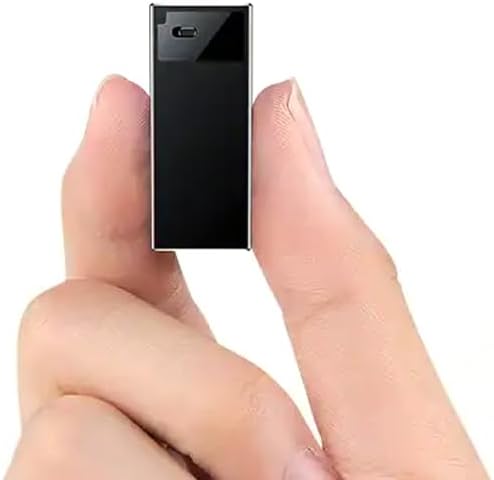
Figure 1: The compact CAPOXO CP-V12-64GB Digital Voice Recorder.

Figure 2: Side view of the recorder highlighting the 'Rec=Save' slide switch.
- Slide Switch: Used for initiating recording and saving files.
- Microphone: Integrated for audio input.
- USB Port: For charging and data transfer.
- Earphone Jack: For audio playback.
3. Getting Started
3.1 Charging the Device
Before first use, fully charge the recorder. Connect the device to a computer's USB port or a USB power adapter (not included) using the provided USB cable.
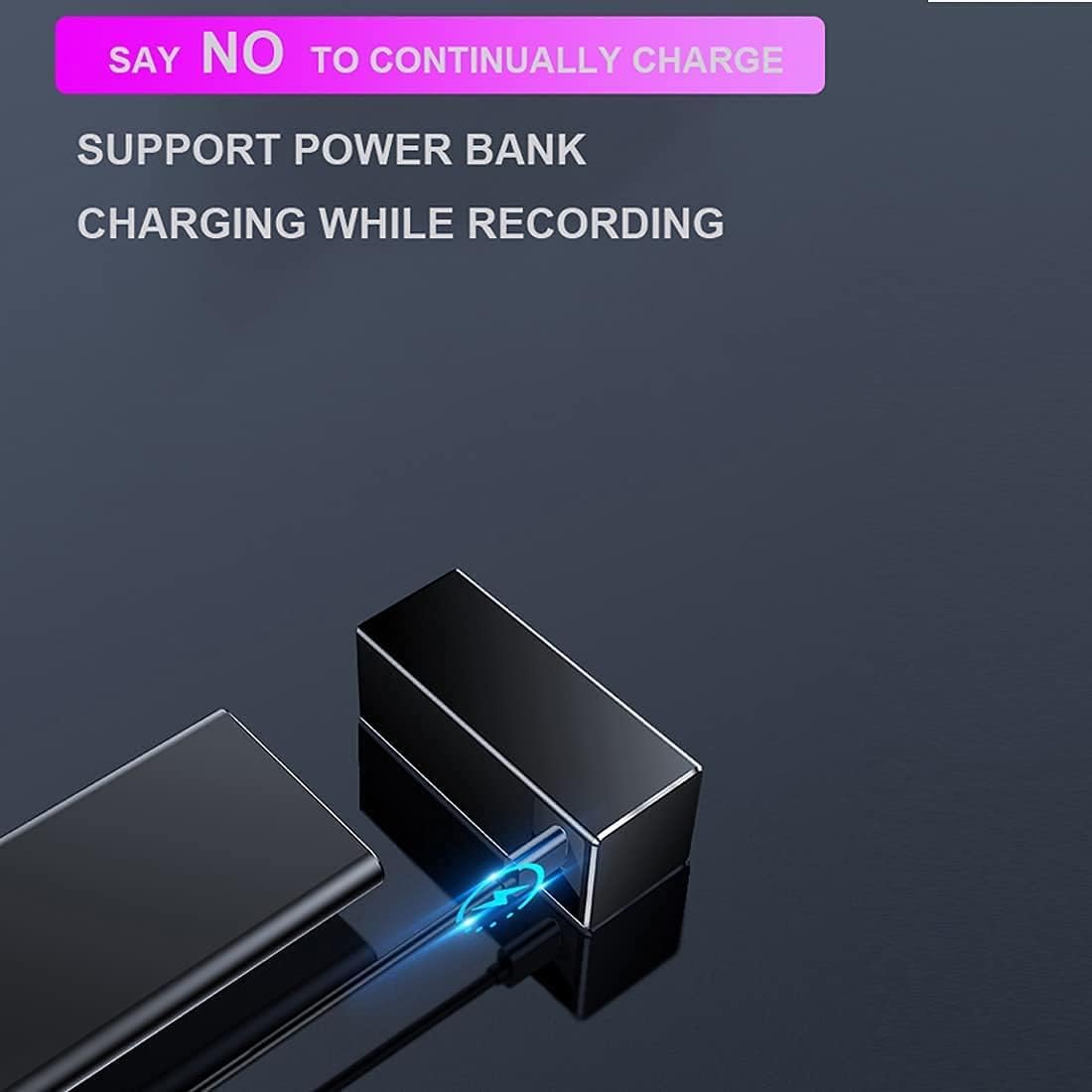
Figure 3: Charging the recorder, with support for charging while recording.
A full charge typically takes approximately 2 hours. The device features a 2000mAh lithium polymer battery, offering up to 15 days of continuous recording or up to 365 days in standby mode on a single charge.

Figure 4: Battery specifications and performance overview.
3.2 Powering On/Off
The device powers on automatically when the recording switch is moved to the 'ON' position and powers off when moved to the 'OFF' position.
4. Operating Instructions
4.1 Basic Recording
The CAPOXO recorder features a simple one-key operation for recording.
- To start recording, slide the switch to the 'ON' position. The device will begin recording automatically.
- To stop recording and save the file, slide the switch to the 'OFF' position. The recording will be saved automatically.

Figure 5: One-key operation for recording and saving.
4.2 Voice Activated Recording (VOR)
The device supports Voice Activated Recording (VOR), which conserves memory and battery by recording only when sound is detected.
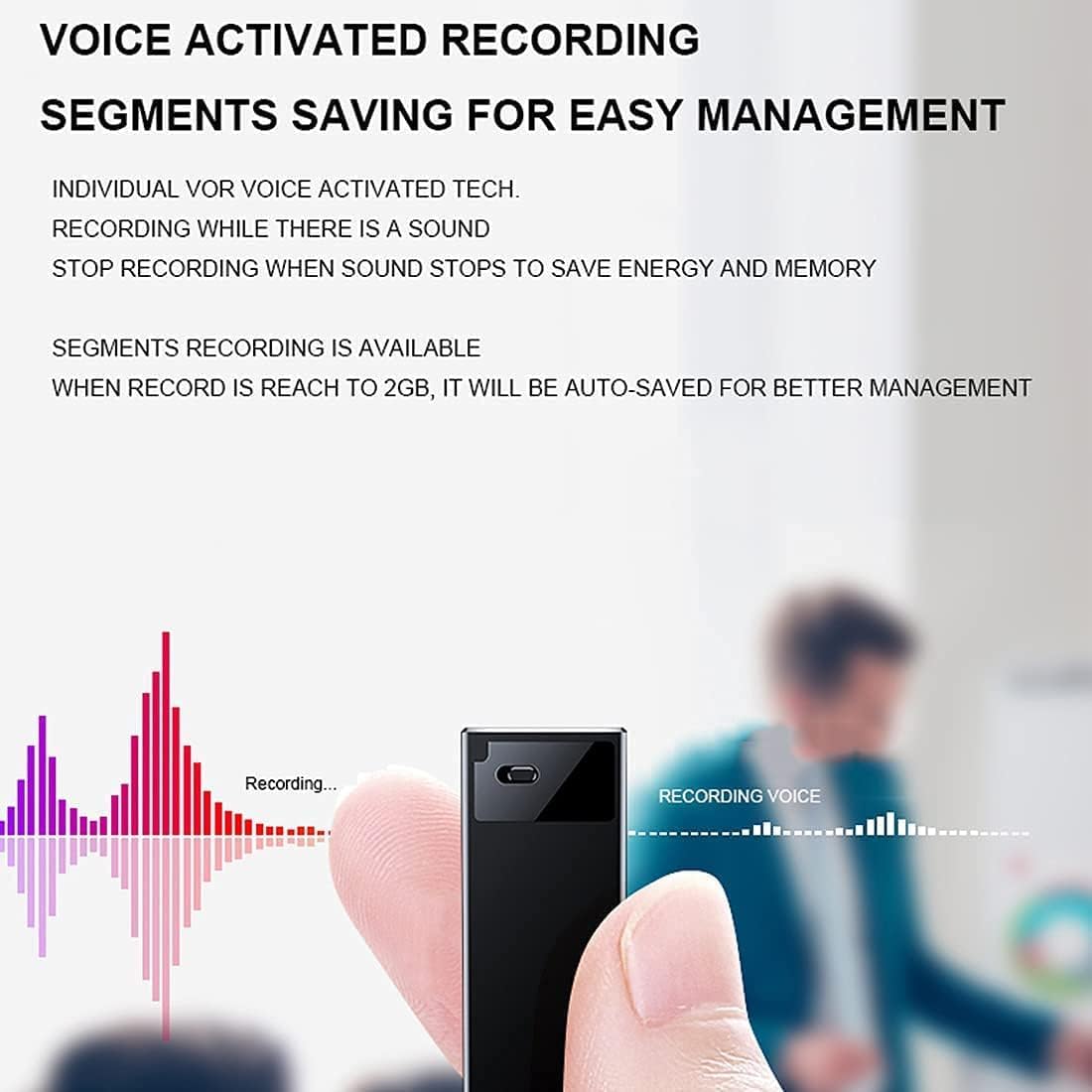
Figure 6: Illustration of Voice Activated Recording (VOR).
Recordings are automatically segmented and saved when they reach 2GB for easier management.
4.3 Playback
To listen to your recordings:
- Connect the included wired earphones to the earphone jack on the device.
- Use the device's controls (if available, or connect to a computer/phone for full control) to navigate and play back recordings.
4.4 Connecting to a Computer or Phone
For managing, transferring, and playing back files with more control, connect the recorder to a computer or an Android phone.
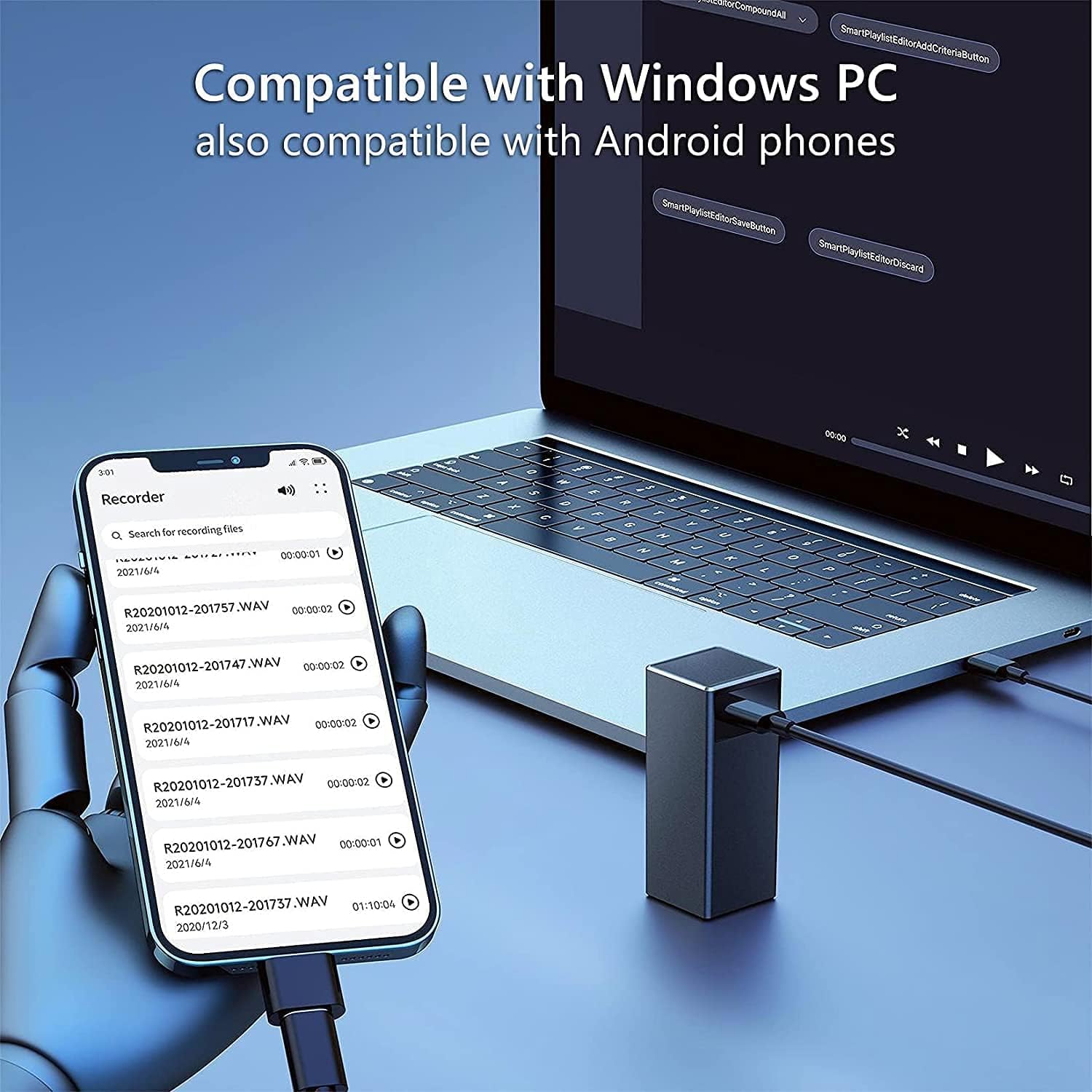
Figure 7: Connecting the recorder to a computer or Android phone for file management.
- Computer Connection: Connect the recorder to a Windows PC using the USB cable. The device will appear as a removable drive, allowing you to access and manage your WAV audio files.
- Android Phone Connection: For Android phones, an OTG connector (not included) is required to manage files directly from your phone. This feature is compatible with Android devices only.
5. Advanced Features
5.1 Noise Reduction and Sound Quality
The CAPOXO recorder incorporates Digital Signal Processing (DSP) technology for noise reduction, aiming to provide clear audio recordings. It supports 360° surround sound recording and can capture audio from distances up to 120 meters.

Figure 8: Audio enhancement features of the recorder.
5.2 Timestamp and File Naming
Recording files are automatically named by date, including a timestamp, for easy organization and retrieval.
5.3 Password Protection
The device includes encipherment protection to secure your recordings.
6. Maintenance
To ensure the longevity and optimal performance of your CAPOXO voice recorder, follow these maintenance guidelines:
- Keep the device dry and away from moisture.
- Avoid extreme temperatures.
- Clean the device with a soft, dry cloth. Do not use liquid cleaners or solvents.
- Store the device in a safe place to prevent physical damage.
7. Troubleshooting
If you encounter issues with your CAPOXO voice recorder, refer to the following common problems and solutions:
- Device not turning on: Ensure the battery is charged. Connect the device to a power source and allow it to charge for at least 30 minutes before attempting to power on again.
- Cannot record: Check if the device has sufficient storage space. If the memory is full, transfer files to a computer and delete them from the device.
- Poor audio quality: Ensure the microphone is not obstructed. Record in a quiet environment to minimize background noise.
- Cannot connect to computer: Try a different USB port or USB cable. Ensure the device is properly connected and recognized by your operating system.
- Cannot play back recordings: Ensure earphones are properly connected. If playing on a computer, verify that the audio playback software supports WAV format.
8. Specifications
| Feature | Specification |
|---|---|
| Brand | CAPOXO |
| Model | CP-V12-64GB |
| Memory Storage Capacity | 64 GB |
| Recording Time (Max) | 384 Hours (Continuous) |
| Storage Capacity (Hours) | 750 Hours |
| Battery Type | 2000mAh Lithium Polymer |
| Battery Life (Standby) | 365 Days |
| Charging Time | Approx. 2 Hours |
| Microphone Format | Built-In |
| Media Format | WAV |
| Hardware Interface | USB 3.0 Type B |
| Compatible Devices | Windows PC, Android Phones (via OTG) |
| Product Dimensions | 5.8 x 2.5 x 2.5 cm |
| Item Weight | 28 g |
9. Warranty and Support
For warranty information or technical support, please refer to the contact details provided with your purchase or visit the official CAPOXO website. Keep your purchase receipt for warranty claims.