
1. Setup Guide
This section provides instructions for the initial setup of your MSI Cyborg 15 A12VF-272US gaming laptop.
1.1 Unpacking and Inspection
Carefully remove all components from the packaging. Ensure the following items are present:
- MSI Cyborg 15 A12VF-272US Gaming Laptop
- AC Adapter and Power Cord
- Quick Start Guide (if included)
Inspect the laptop and accessories for any signs of damage. If any items are missing or damaged, contact your retailer or MSI support immediately.
1.2 Connecting the Power Adapter
Connect the AC adapter to the power jack on the laptop and then plug the power cord into an electrical outlet. The power indicator light will illuminate.
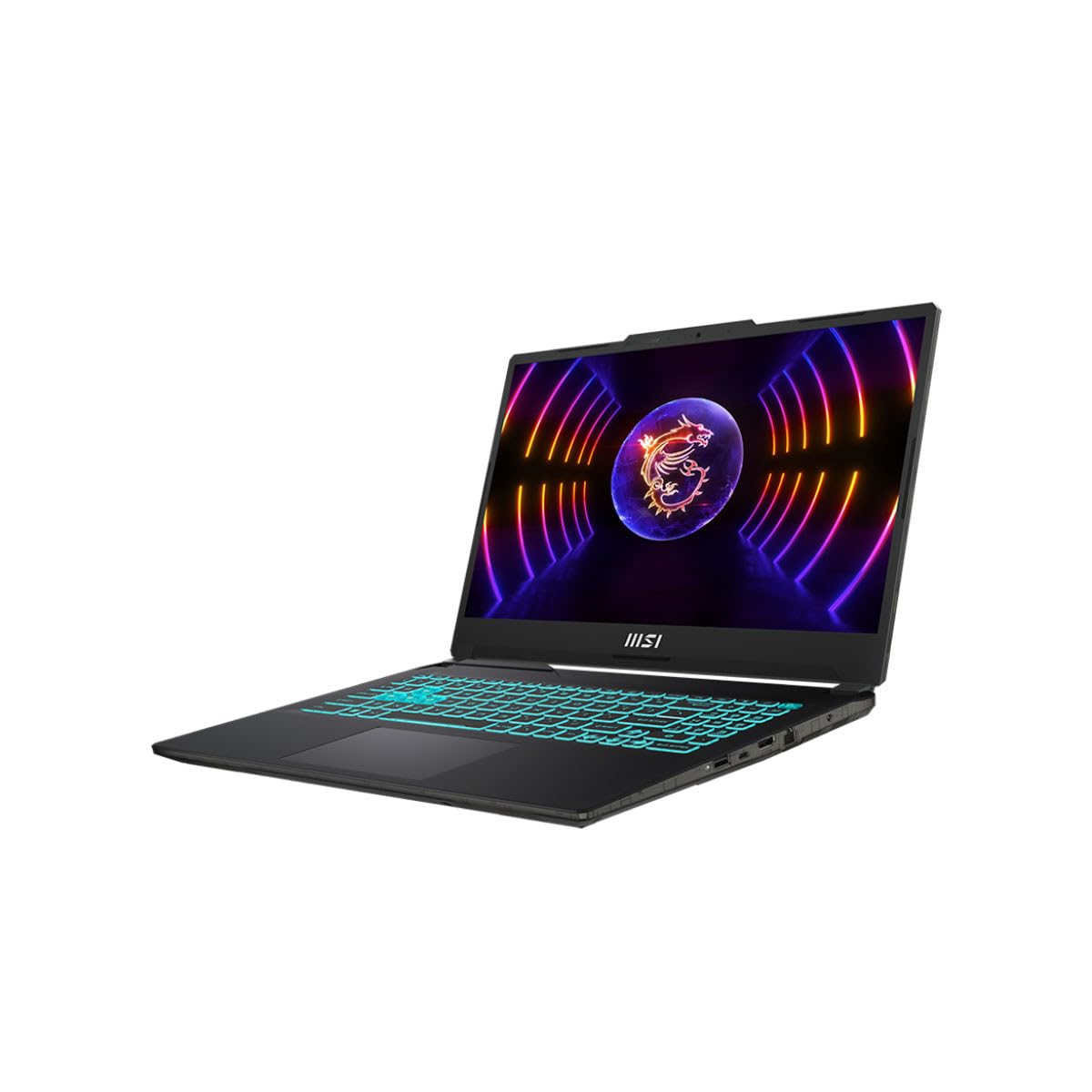
Image: The MSI Cyborg 15 A12VF-272US gaming laptop shown open, displaying its keyboard and screen. This view highlights the layout for initial setup and interaction.
1.3 Initial Power On and Operating System Setup
Press the power button to turn on the laptop. The system will guide you through the initial setup process for Windows 11 Home. Follow the on-screen instructions to configure language, region, network, and user accounts.
1.4 Connecting to a Network
During the Windows 11 setup, you will be prompted to connect to a Wi-Fi network. Select your preferred network and enter the password. For a wired connection, connect an Ethernet cable to the laptop's LAN port (if available) and your router.
2. Operating Your Laptop
This section covers the basic operation of your MSI Cyborg 15 A12VF-272US gaming laptop.
2.1 Keyboard and Touchpad
The laptop features a full-size keyboard and a multi-touch touchpad. Refer to the diagram below for key functions. Special function keys (Fn combinations) are typically marked with icons and provide quick access to features like volume control, display brightness, and Wi-Fi toggle.

Image: A top-down view of the MSI Cyborg 15 A12VF-272US laptop, highlighting the keyboard with its illuminated keys and the integrated touchpad. This image is useful for understanding the input layout.
2.2 Connecting External Devices
Your laptop is equipped with various ports for connecting external devices:
- USB Ports: For connecting USB devices such as mice, keyboards, and external storage.
- HDMI Port: For connecting to external displays or TVs.
- Audio Jack: For headphones or external speakers.
- LAN Port: For wired network connections.
2.3 Display Settings
The 15.6" Full HD 144Hz display provides a smooth visual experience. You can adjust display settings, including resolution and refresh rate, through Windows Display Settings. Right-click on the desktop and select "Display settings" to access these options.
2.4 Audio Configuration
The laptop includes built-in speakers and a microphone. Audio settings can be managed through the Windows Sound settings, accessible via the taskbar sound icon or Control Panel.
3. Maintenance and Care
Proper maintenance ensures the longevity and optimal performance of your MSI Cyborg 15 A12VF-272US laptop.
3.1 Cleaning Your Laptop
- Screen: Use a soft, lint-free cloth lightly dampened with water or a screen cleaner. Avoid harsh chemicals.
- Keyboard: Use compressed air to remove dust and debris from between keys. Wipe keycaps with a soft, slightly damp cloth.
- Vents: Regularly check and clean the cooling vents to prevent dust buildup, which can hinder airflow and cause overheating. Use compressed air.

Image: The MSI Cyborg 15 A12VF-272US laptop shown in a closed, top-down view, emphasizing its sleek design and the MSI logo on the lid. This view is relevant for general care and handling.
3.2 Battery Care
To maximize battery lifespan:
- Avoid extreme temperatures.
- Do not fully discharge the battery frequently.
- If storing the laptop for an extended period, ensure the battery is charged to about 50-60%.
3.3 Software Updates
Regularly update your Windows operating system, graphics drivers (NVIDIA), and MSI utilities to ensure optimal performance, security, and compatibility. Check for updates through Windows Update and MSI's official website.
4. Troubleshooting
This section addresses common issues you might encounter with your MSI Cyborg 15 A12VF-272US laptop.
4.1 No Power or System Not Starting
- Ensure the AC adapter is securely connected to both the laptop and a working power outlet.
- Check if the power indicator light is on.
- Try a different power outlet.
- If the battery is completely drained, allow it to charge for a few minutes before attempting to power on.
4.2 Display Issues
- Blank Screen: Connect an external monitor to check if the issue is with the laptop's display. Press Fn + F2 (or similar function key) to cycle through display modes.
- Incorrect Resolution/Refresh Rate: Adjust settings in Windows Display Settings.

Image: A side view of the MSI Cyborg 15 A12VF-272US laptop, illustrating the arrangement of various ports such as USB and HDMI. This is helpful for identifying connection points during troubleshooting.
4.3 Network Connectivity Problems
- Ensure Wi-Fi is enabled (Fn + F10 or check Windows settings).
- Restart your router and modem.
- Run the Windows Network Troubleshooter.
- Update Wi-Fi drivers from the MSI website.
4.4 Performance Issues
- Close unnecessary background applications.
- Ensure drivers (especially graphics drivers) are up to date.
- Check for malware or viruses.
- Monitor CPU/GPU temperatures to ensure proper cooling.
5. Technical Specifications
Below are the key technical specifications for the MSI Cyborg 15 A12VF-272US gaming laptop.
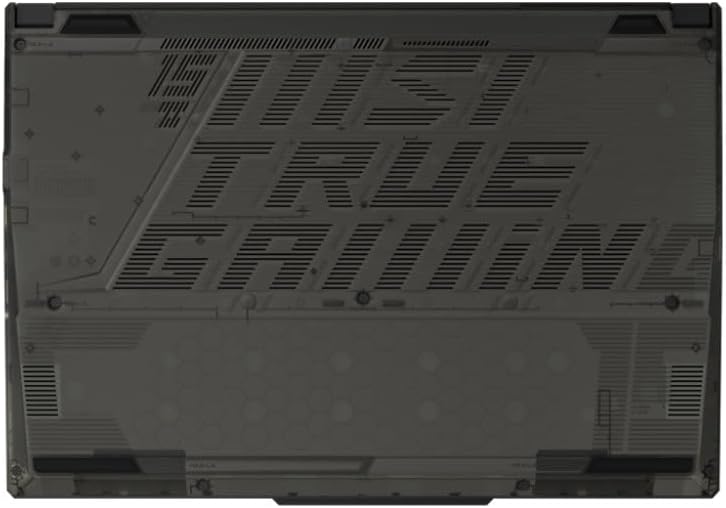
Image: The bottom view of the MSI Cyborg 15 A12VF-272US laptop, displaying its ventilation grilles and product labels. This view is important for understanding cooling and identifying model information.
| Feature | Specification |
|---|---|
| Model Name | Cyborg 15 A12VF-272US |
| Processor | Intel Core i7-12650H (up to 4.7GHz) |
| Graphics | NVIDIA GeForce RTX 4060 Laptop GPU 8GB GDDR6 |
| Display | 15.6" Full HD (1920x1080) 144Hz IPS-level |
| RAM | 16GB DDR5 4000MHz (expandable to 32GB) |
| Storage | 1TB NVMe SSD Gen4x4 |
| Operating System | Windows 11 Home |
| Connectivity | Wi-Fi 6E, Bluetooth (specific version not detailed, assuming modern standard) |
| Ports | USB, HDMI, Audio Jack, LAN |
| Weight | Approximately 8.46 Pounds (3.84 kg) |
| UPC | 824142320709 |
6. Warranty and Support
This section provides information regarding the product warranty and how to obtain support.
6.1 Product Warranty
The MSI Cyborg 15 A12VF-272US gaming laptop comes with a 1-year limited warranty from the date of purchase. This warranty covers manufacturing defects and hardware malfunctions under normal use. Please retain your proof of purchase for warranty claims. For detailed warranty terms and conditions, refer to the warranty card included with your product or visit the official MSI website.
6.2 Technical Support
If you encounter any issues that cannot be resolved using the troubleshooting guide, or require further assistance, please contact MSI Technical Support. Before contacting support, it is recommended to have your product model name (A12VF-272US) and serial number ready.
You can find support resources, driver downloads, and contact information on the official MSI website:


