
1. Introduction
This manual provides detailed instructions for the installation, operation, and maintenance of the HDWR FTR06 Employee Time Attendance System. The FTR06 is a biometric time recorder designed for efficient employee time tracking, offering both fingerprint and password verification methods. It features a user-friendly interface and robust data management capabilities.
2. Product Features
- Dual Authentication: Supports fingerprint scanning and password entry for verification.
- Large Memory Capacity: Capable of storing up to 100,000 attendance logs.
- User-Friendly Interface: Equipped with a 2.4-inch screen (320x240 resolution) and 16 intuitive buttons.
- Flexible Data Recovery: Attendance data can be downloaded via USB, with automatic generation of Excel reports for employee attendance, tardiness, early departure, and holiday schedules.
- Simple Installation: Designed for easy wall mounting with included hardware.
- Compact Design: Measures 3.5D x 17W x 12H centimetres.
3. Device Overview
Familiarize yourself with the components and dimensions of the HDWR FTR06 device.

Figure 3.1: Front view of the HDWR FTR06 with key components labeled. This includes the 2.4-inch LCD screen, fingerprint verification sensor, numeric keypad for password entry, and power/USB ports.

Figure 3.2: The HDWR FTR06 device showing its compact dimensions: 17 cm width, 12 cm height, and 3.52 cm depth.
4. Installation
The HDWR FTR06 is designed for easy wall mounting. Follow these steps for secure installation:
- Identify Mounting Location: Choose a suitable wall location, ensuring it is within reach of a power outlet and accessible for users.
- Mark Drilling Points: Use the device's back panel as a template to mark the positions for the two mounting holes on the wall.
- Drill Holes: Drill holes at the marked positions. Insert wall plugs if necessary for secure mounting.
- Mount the Device: Align the mounting holes on the back of the FTR06 with the drilled holes and secure the device using the provided screws.
- Connect Power: Plug the power adapter into the device and then into a power outlet.

Figure 4.1: Rear view of the HDWR FTR06, highlighting the two keyhole mounting slots for wall installation.
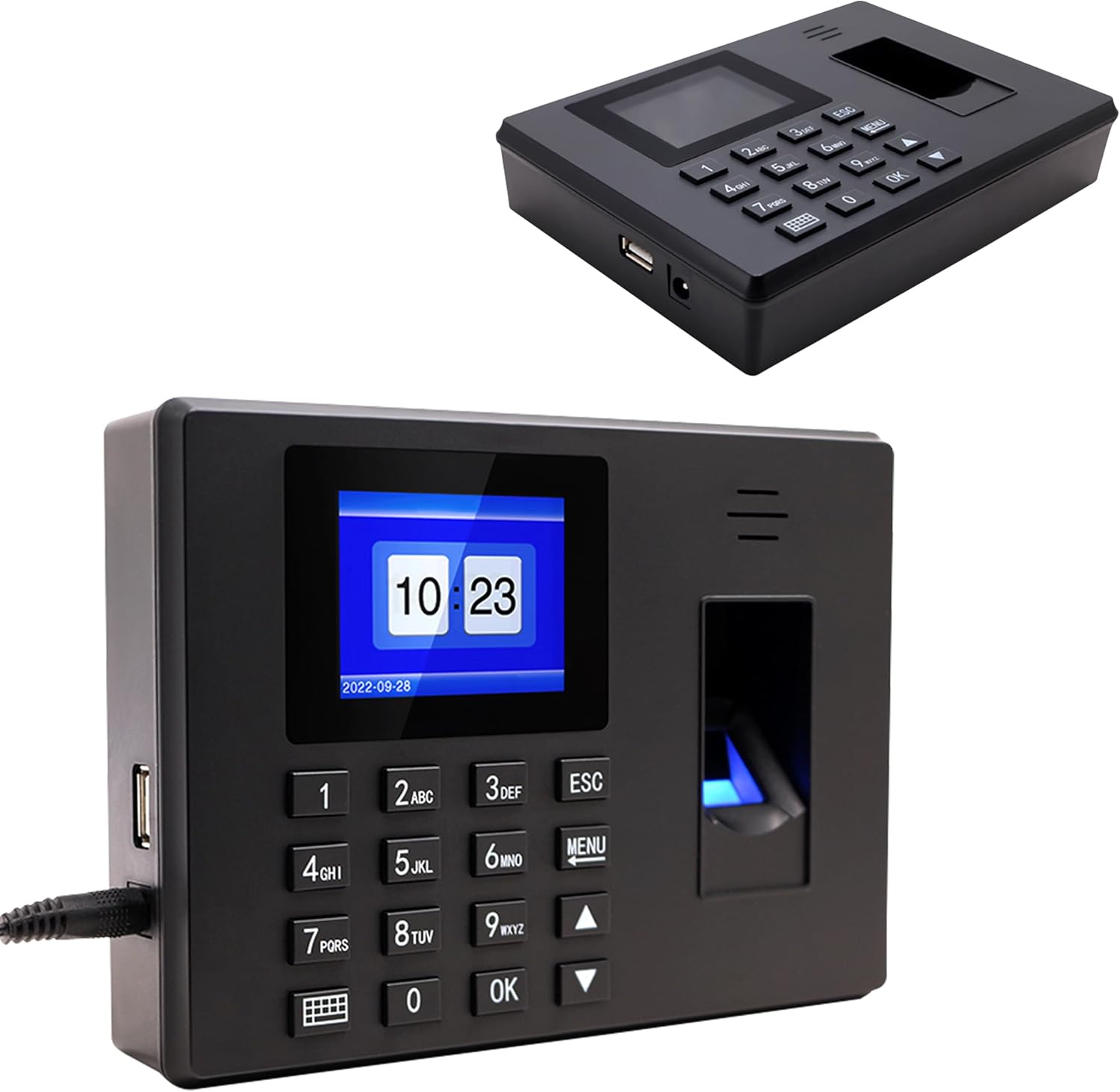
Figure 4.2: The HDWR FTR06 time attendance system securely mounted on a wall, ready for use.
5. Initial Setup and User Management
Upon first power-on, the device may require initial date and time settings. Refer to the on-screen prompts. To manage users and enable authentication:
- Access Menu: Press the MENU button to enter the main menu. You may be prompted for an administrator password or fingerprint.
- Add User: Navigate to 'User Management' or 'Enroll User'.
- Enroll Fingerprint: Follow the on-screen instructions to place the user's finger on the scanner multiple times for accurate registration.
- Set Password: Assign a unique password for the user.
- Save: Confirm and save the new user's details.
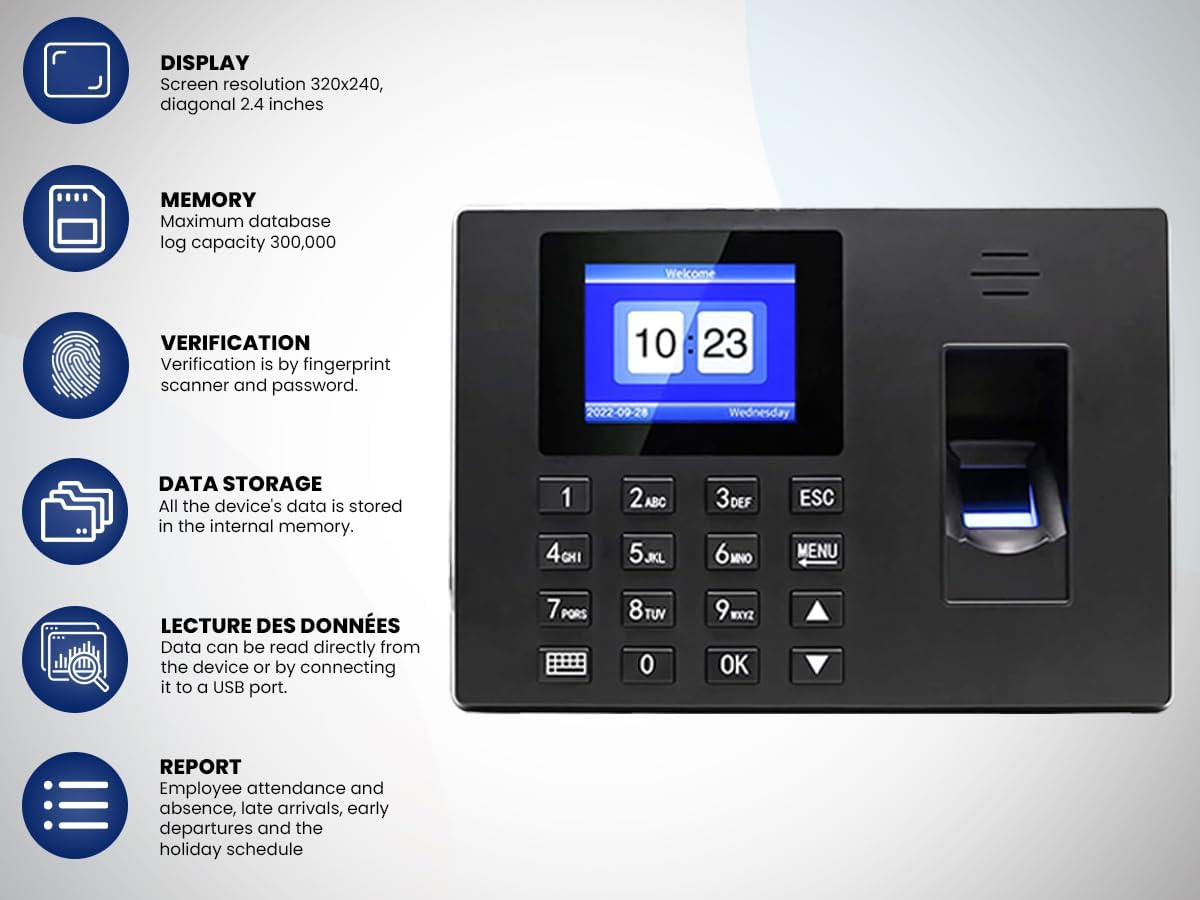
Figure 5.1: The HDWR FTR06 display showing the current time and date, along with the 'MENU' button for accessing system settings.
6. Operating the Device
Employees can clock in or out using their registered fingerprint or password.
- Fingerprint Verification: Place a registered finger firmly on the fingerprint scanner. The device will confirm successful verification.
- Password Verification: Enter your assigned password using the numeric keypad and press OK.
The 2.4-inch screen provides clear feedback on verification status and current time.
7. Data Management
The FTR06 stores up to 100,000 attendance logs. To retrieve and analyze data:
- Connect USB Drive: Insert a USB flash drive into the USB port on the side of the device.
- Access Data Download: From the main menu, navigate to 'Data Management' or 'Download Data'.
- Select Report Type: Choose the desired report format (e.g., employee attendance, tardiness, early departure, holiday schedules).
- Download: Initiate the download process. The device will automatically generate Excel files on the USB drive.
- Analyze Data: Remove the USB drive and open the Excel files on a computer for analysis.
8. Maintenance
- Cleaning: Use a soft, dry cloth to clean the device's screen and fingerprint scanner. Avoid abrasive cleaners or liquids that could damage the components.
- Data Backup: Regularly back up attendance data to an external storage device to prevent data loss.
- Firmware Updates: Check the manufacturer's website for any available firmware updates to ensure optimal performance and security. Follow the provided instructions carefully for any update procedures.
9. Troubleshooting
- Device Not Powering On: Ensure the power adapter is securely connected to both the device and a working power outlet. Verify the power outlet is active.
- Fingerprint Not Recognized: Ensure the finger is clean and dry. Place the entire pad of the finger firmly on the scanner. If issues persist, re-enroll the fingerprint.
- Password Incorrect: Double-check the entered password. If forgotten, an administrator can reset it through the 'User Management' menu.
- Data Download Failure: Ensure the USB drive is properly inserted and formatted correctly (FAT32 is generally recommended). Check if the USB drive has sufficient free space.
- Screen Unresponsive: Try restarting the device by disconnecting and reconnecting the power. If the issue persists, contact customer support.
10. Specifications
| Feature | Specification |
|---|---|
| Brand | HDWR |
| Model Name | Time Recorder (FTR06) |
| Scanner Type | Fingerprint |
| Connectivity Technology | USB |
| Product Dimensions (D x W x H) | 3.5D x 17W x 12H centimetres |
| Resolution | 320x240 dpi (Screen) |
| Item Weight | 350 Grams |
| Wattage | 5 watts |
| Minimum System Requirements | Windows 7 |
| Log Capacity | 100,000 logs |
11. Warranty Information
The HDWR FTR06 Employee Time Attendance System comes with a 1-year product warranty from the date of purchase. This warranty covers manufacturing defects and malfunctions under normal use. Please retain your proof of purchase for warranty claims. The warranty does not cover damage caused by misuse, accidents, unauthorized modifications, or improper installation.
12. Customer Support
For technical assistance, troubleshooting, or warranty inquiries, please contact HDWR customer support. Refer to the contact information provided with your product packaging or visit the official HDWR website for the most up-to-date support details.
Website: www.hdwr.eu (Example, please verify official website)


