
1. Introduction
This manual provides detailed instructions for the installation, operation, and maintenance of your TUOPUONE 5G M.2 to Gigabit Ethernet Converter. This device facilitates high-speed 5G networking by converting an M.2 5G module connection to either Gigabit Ethernet or USB 3.1. It is designed for various applications, including PC, Raspberry Pi, and Jetson series motherboards.
2. Features
- Supports 5G modules with M.2 (NGFF) Key B interface, compatible with mainstream 5G modules from brands such as SIMCom, Quectel, and Fibocom.
- Compatible with 5G modules in 3042/3052 packages, including SIM82XX, RM5XX, and FM160XX series.
- Integrates an RTL8125 Ethernet chip, enabling 5G to Gigabit Ethernet for high-speed networking.
- Features an onboard USB 3.1 Type-A port for connecting to PCs, Raspberry Pi, or Jetson series motherboards for 5G networking or debugging.
- Includes a voltage translator circuit, supporting 9-12V power supply via DC 5.5mm jack, or 5V/2A via USB 3.1 port.
- Standard SIM card slot for 5G module operation.
- Power supply and network indicators, along with a reset button, for monitoring and debugging.
- Durable aluminum alloy enclosure with oxidation dull-polish surface, suitable for desktop or wall-mount installation.
- Comes with four 5G omnidirectional high-gain antennas and a 12V power supply adapter.
3. Package Contents
Verify that all items listed below are included in your package:
- 5G M.2 to Gigabit ETH Converter x1
- RM520N-GL Module + Heatsink x1
- 5G Antenna x4
- 12V Power Supply x1
- USB Type-A to Type-C Cable (~1m) x1

Figure 3.1: Included Package Contents
4. Product Overview
The following diagram illustrates the various ports and indicators on the 5G M.2 to Gigabit Ethernet Converter.

Figure 4.1: Product Component Diagram
- 1, 8, 9, 10: Antenna Connectors
- 2: USB3.1 Port (communication & power supply)
- 3: Gigabit Ethernet Port
- 4: DC Power Supply (9-12V)
- 5: PWR (Power Indicator)
- 6: Reset Button
- 7: NET (Network Indicator)
- 11: Standard SIM Card Slot
Note: The USB Type-C port is enabled by default for power supply and communication. It requires 5V/2A or more power. If powering separately via the DC power port, the jumper cap should be removed.
5. Setup and Installation
Follow these steps to install the 5G M.2 module and assemble the converter.
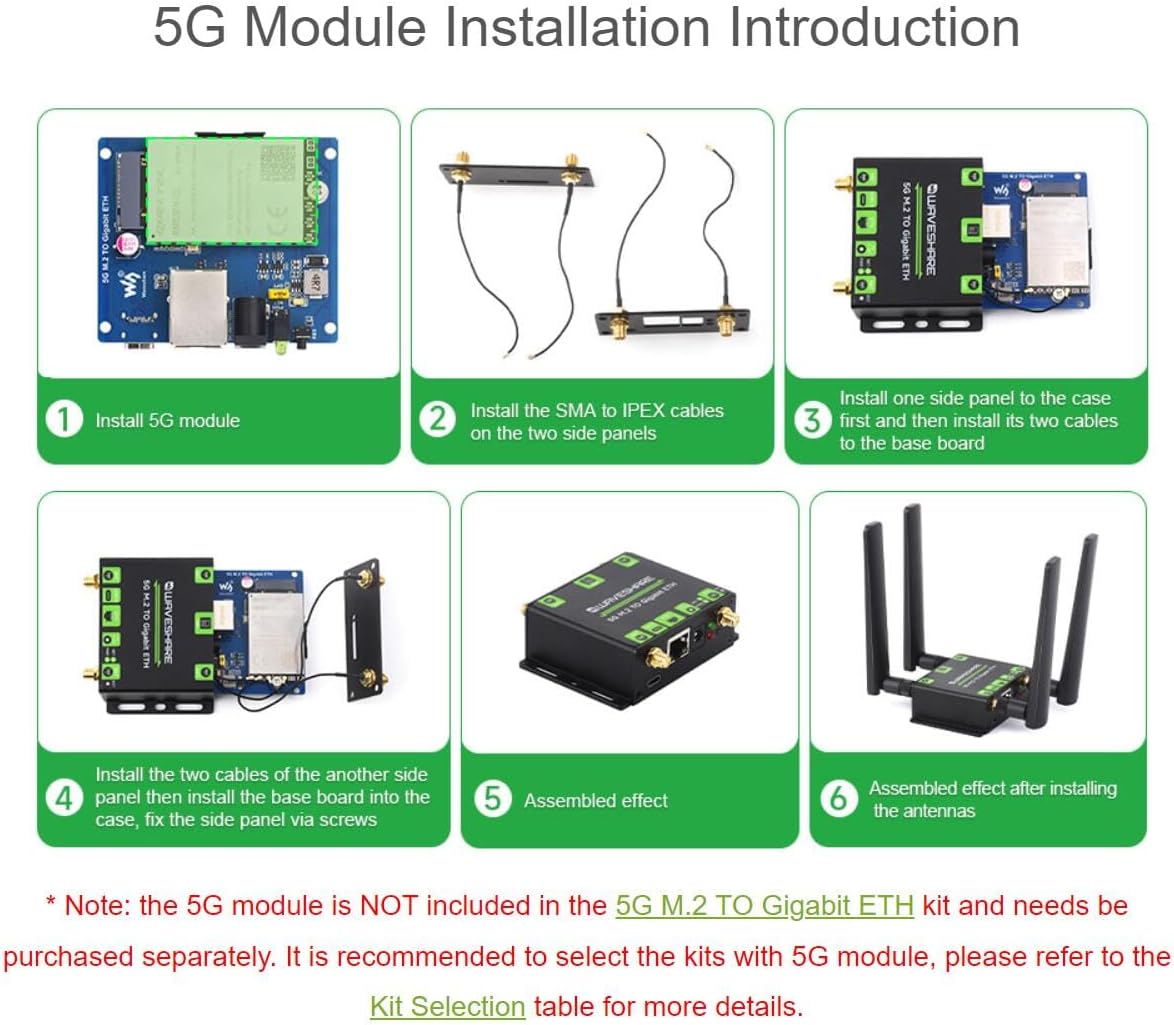
Figure 5.1: 5G Module Installation Steps
- Install 5G Module: Carefully insert your 5G M.2 module into the designated slot on the base board.
- Attach SMA to IPEX Cables: Connect the SMA to IPEX cables to the side panels and then to the 5G module. Ensure a secure connection.
- Install Side Panels: Attach one side panel to the converter case, then connect its corresponding cables to the base board.
- Secure Remaining Panel: Install the second side panel and connect its cables. Secure both side panels to the case using the provided screws.
- Insert SIM Card: Open the SIM card slot and insert your standard SIM card.
- Attach Antennas: Screw the four 5G omnidirectional high-gain antennas onto the SMA connectors on the converter.
- Power Connection: Connect the 12V power supply to the DC 5.5mm jack, or use the USB 3.1 Type-C port for 5V/2A power.
Note: The 5G module is not included and needs to be purchased separately.
6. Operating Modes
The converter supports multiple operating modes to suit various networking requirements.

Figure 6.1: Supported Operating Modes
- USB3.1 Direct Port Mode: Connect the converter to a PC, Raspberry Pi, Jetson series board, or industrial control host via the USB 3.1 port for high-speed 5G networking. Power can be supplied via USB 3.1 or the DC jack.
- Gigabit Ethernet Direct Port Mode: Connect the converter to a PC, Raspberry Pi, Jetson series board, or industrial control host via the Gigabit Ethernet port for high-speed 5G networking. Power is supplied via the DC jack.
- Router Mode: The converter accesses the 5G network via its Gigabit Ethernet port and then distributes the 5G networking to all connected devices through a router.
- USB 3.1 and Gigabit Ethernet Port Simultaneous Networking Mode: This mode provides 5G network access to two devices separately via the USB 3.1 port and the Gigabit Ethernet port simultaneously. Note: This function requires the 5G module to support simultaneous conversion of USB port and Gigabit Ethernet port for networking. Not all 5G modules support this. The RM520N-GL module supports one channel at a time.
7. Application Scenarios
The TUOPUONE 5G M.2 to Gigabit Ethernet Converter is suitable for a wide range of applications requiring reliable and high-speed 5G connectivity.

Figure 7.1: Example Application Scenarios
- Networked Medical Treatment: Enabling remote diagnostics and real-time data transfer in healthcare.
- Intelligent Agriculture: Supporting smart farming solutions with connected sensors and automated systems.
- Smart City: Facilitating urban infrastructure connectivity for smart traffic, public safety, and environmental monitoring.
- Smart Robots: Providing robust wireless communication for autonomous robots in industrial or service sectors.
- Security Monitoring Networking: Ensuring high-bandwidth connectivity for surveillance cameras and security systems.
- Intelligent Bus WiFi: Delivering high-speed internet access for public transportation.
8. Specifications
Technical specifications for the TUOPUONE 5G M.2 to Gigabit Ethernet Converter.
| Attribute | Value |
|---|---|
| Brand | TUOPUONE |
| Hardware Interface | Ethernet, USB |
| Compatible Devices | Desktop, Laptop, Single-Board Computer, Tablet |
| Data Link Protocol | Ethernet, Gigabit Ethernet |
| Item Weight | 0.37 Kilograms |
| Model Number | RM520N-GL 5G M.2 TO ETH |
| Mfr Part Number | TP125830 |

Figure 8.1: Outline Dimensions and Compatible M.2 Module Sizes
Note: The above dimensions are measured manually, and slight errors may occur.
9. Troubleshooting
If you encounter issues with your 5G M.2 to Gigabit Ethernet Converter, consider the following general troubleshooting steps:
- No Power Indicator: Ensure the power supply (12V DC adapter or 5V/2A USB 3.1) is correctly connected and functioning. Check the power source.
- No Network Connection: Verify that the 5G M.2 module is correctly installed and a valid SIM card is inserted. Check antenna connections. Ensure the network indicator (NET) is active.
- Slow Network Speed: Confirm that your 5G module and SIM card support the expected speeds. Check for proper antenna placement and signal strength. Ensure your connected device (PC, Raspberry Pi) has compatible drivers and is not experiencing other network bottlenecks.
- USB 3.1 Connection Issues: If using the USB 3.1 port for communication, ensure the jumper cap is correctly set (or removed if using DC power). Try a different USB 3.1 cable or port on your host device.
- Ethernet Connection Issues: Verify the Ethernet cable is securely connected to both the converter and your host device/router. Check the link lights on the Ethernet port.
- Module Not Detected: Re-seat the 5G M.2 module. Ensure it is compatible with the converter (M.2 Key B interface, 3042/3052 package).
- Reset Device: If the device is unresponsive, press the reset button briefly.
10. Maintenance
To ensure optimal performance and longevity of your TUOPUONE 5G M.2 to Gigabit Ethernet Converter, follow these maintenance guidelines:
- Cleaning: Use a soft, dry cloth to clean the exterior of the device. Avoid using liquid cleaners or solvents, as they may damage the finish or internal components.
- Environment: Operate the device in a clean, dry environment, away from excessive dust, moisture, and extreme temperatures. Ensure adequate ventilation to prevent overheating.
- Cable Management: Keep all cables (power, USB, Ethernet, antenna) neatly organized and free from kinks or excessive tension to prevent damage.
- Firmware Updates: Periodically check the manufacturer's website for any available firmware updates for the 5G M.2 module or the converter itself. Follow update instructions carefully.
- Antenna Care: Ensure antennas are securely attached and not bent or damaged. Proper antenna orientation can improve signal reception.
11. Warranty and Support
For warranty information and technical support, please refer to the documentation provided with your purchase or visit the official TUOPUONE website. Keep your proof of purchase for warranty claims.
If you require further assistance, please contact TUOPUONE customer support through the contact details available on their official website or the platform where the product was purchased.